
How Do I Check Ink Levels on My Canon Printer: A Complete Guide
Introduction
Checking ink levels in your Canon printer is essential for smooth and uninterrupted printing. Many people overlook this aspect, only to face issues when running out of ink mid-task. In this guide, we’ll explore the methods to quickly and easily check ink levels on any Canon printer model.
Why Monitoring Ink Levels Matters
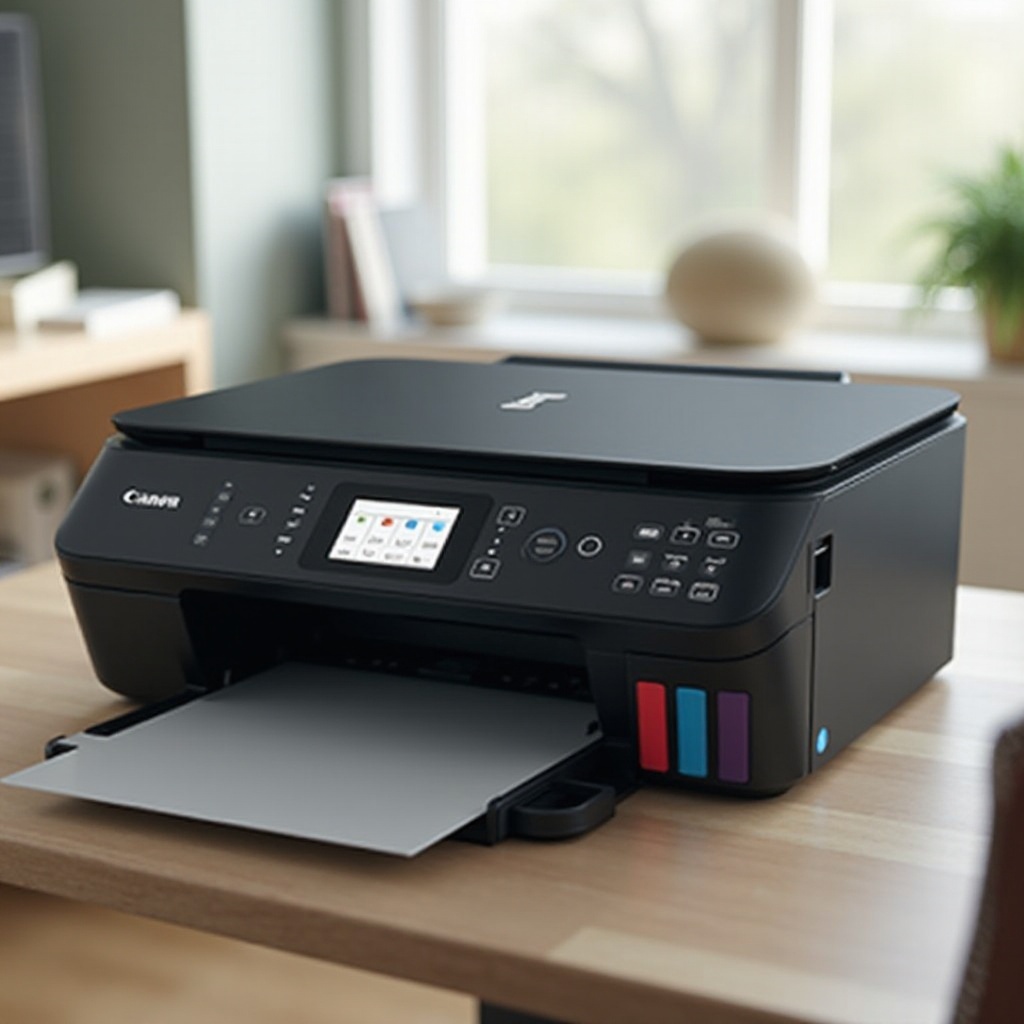
Regularly checking ink levels is crucial for a few key reasons. Firstly, it prevents the frustrations of unexpected runs on ink when busy with important tasks. Secondly, keeping ink levels optimal helps maintain print quality, avoiding issues like faded texts or streaky images. Lastly, by being aware of your consumption, you can better manage your printing expenses.
Identifying Your Canon Printer Model for Accurate Checks
Before delving into checking ink levels, ensure you know your printer model. Canon printers come in varied models, each with specific methods for checking ink levels. Locate your model number typically found on the front or inside cover of your device. This step helps ensure you follow the correct procedure tailored for your specific printer.
Checking Ink Levels on Different Canon Printer Models
For Canon Inkjet Printers
- Control Panel Method: Use the printer’s control panel to navigate and select the ‘Ink Level’ option or an equivalent setting. This displays the current ink levels directly on the screen.
- Via Canon Software: Open the Canon software on your computer, go to ‘Device Settings,’ and then select ‘Ink Levels’ to see the information you need.
For Canon Laser Printers
- On-Printer Display: Use the built-in screen to find ‘Supplies Status’ and check the toner levels accurately.
- Printer Software: Access the software associated with your printer model and look for toner levels under a similarly named menu.
These straightforward methods are engineered to fit both inkjet and laser printer models in the Canon range.
Using the Canon PRINT App for Mobile Ink Checks
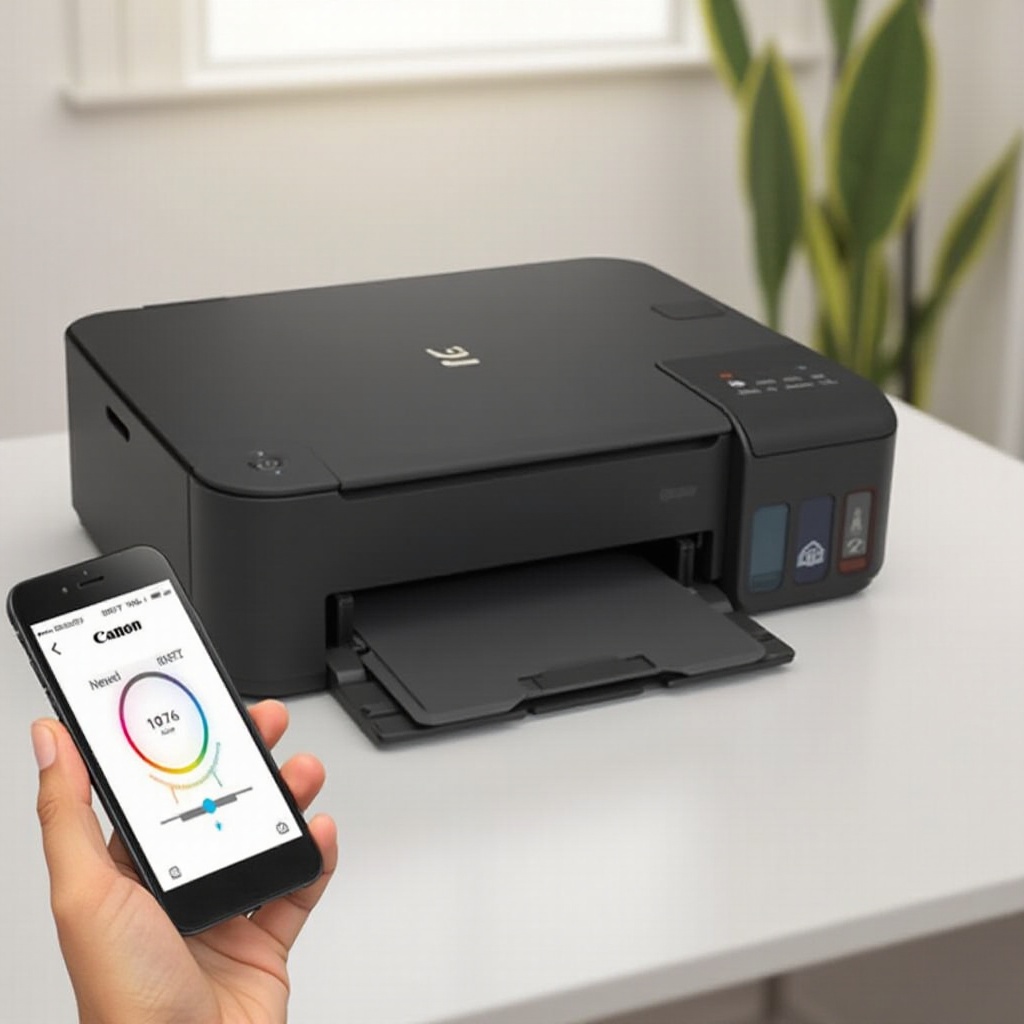
For those who prefer the convenience of mobile technology, Canon offers the PRINT app. Here’s how you can use it:
– Download the Canon PRINT app from your device’s app store.
– Connect your printer to the app via Wi-Fi.
– Once connected, tap ‘Device Information’ to access details including ink levels.
This mobile tool empowers users by providing flexibility in managing their printing needs wherever they are.
Troubleshooting Common Ink Level Display Issues
Encountering errors in ink level display can be troubling. Here are steps to troubleshoot and resolve these issues:
1. Reboot Your Printer: Power off and restart to reset any temporary glitches.
2. Update Drivers: Ensure you have the latest printer drivers installed to prevent compatibility issues.
3. Reinstall Cartridges: Taking out and putting back the cartridges can recalibrate measurements.
4. Reset Ink Level Monitor: Follow your manual’s steps for resetting the setting that governs ink level monitoring.
Persistent issues despite these measures may require contacting Canon support for further assistance.
Tips for Maintaining Your Printer and Optimizing Ink Usage
Optimizing ink usage prolongs cartridge life and keeps your printer in top form.
– Choose Genuine Ink Cartridges: Designed specifically for Canon printers, they ensure consistent quality.
– Regular Cleaning: Schedule periodic cleaning of printer heads to avoid ink wastage from clogs.
– Adjust Print Quality Settings: For draft materials, switch to an economy mode to use less ink.
– Avoid Extended Inactivity: Regular use prevents cartridges from drying out or clogging.
By following these maintenance tips, you ensure long-lasting performance and cost-effective printing.
Conclusion
Keeping track of your Canon printer’s ink levels is a straightforward yet critical management task. By following this guide, you can avoid unnecessary interruptions and maintain the standard of your printed documents. Stay prepared, and you’ll enjoy seamless printing operations.
Frequently Asked Questions
How can I check ink levels on my Canon printer using a Mac?
Open ‘System Preferences,’ select ‘Printers & Scanners,’ choose your Canon printer, and click ‘Options & Supplies’ to view ink levels.
What should I do if my Canon printer shows incorrect ink levels?
Restart your printer, update drivers, reseat cartridges or contact Canon support if issues persist.
Is there a way to check Canon ink levels remotely?
Yes, use the Canon PRINT app to connect your printer and view ink status remotely from your device.