
How to Find and Use the WPS Pin Code for Your Brother Printer
Introduction
Using a wireless printer can significantly enhance your home and office productivity by allowing convenient, flexible, and cable-free printing. Brother printers are known for their quality and reliability, yet setting up a wireless connection might seem daunting at first. One simple solution to quickly and securely connecting your Brother printer to a wireless network is the WPS (Wi-Fi Protected Setup) pin code. Let’s explore how you can find and use this code easily and effectively for a seamless printing experience.
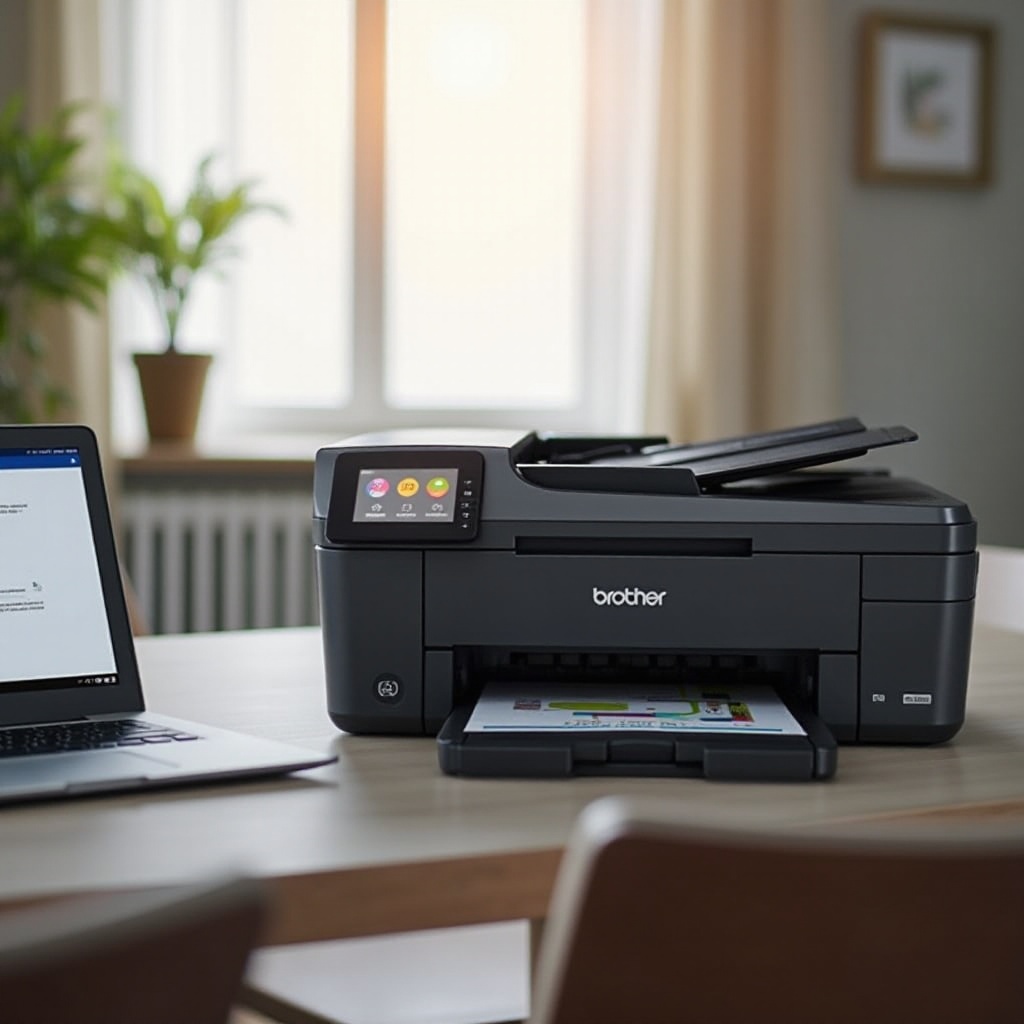
What is a WPS Pin Code?
To establish a secure wireless connection, the WPS pin code is essential. This network security standard allows devices to connect without requiring complex password inputs. It simplifies the process and strengthens your network’s security.
Understanding WPS can save time and ensure that your printer joins the network successfully. The pin code acts like a security key, enabling communication between your devices—ensuring only approved connections to your wireless setup.
Finding the WPS Pin Code on a Brother Printer
The process of finding the WPS pin code may slightly differ depending on your specific Brother printer model, yet generally follows these steps:
-
Access the Printer Control Panel: Begin by turning on the printer and navigating the on-device control panel.
-
Open Network Settings: Proceed to ‘Settings,’ then select ‘Network Settings.
-
Choose WPS Options: In the network menu, locate ‘WPS’ or ‘WPS With Pin Code.
-
Retrieve the Pin Code: Your printer should now display the WPS pin code on its screen or print it out.
These steps are generally applicable, yet consulting your device model’s manual can provide additional guidance. With the pin code at your fingertips, you’re ready to connect.
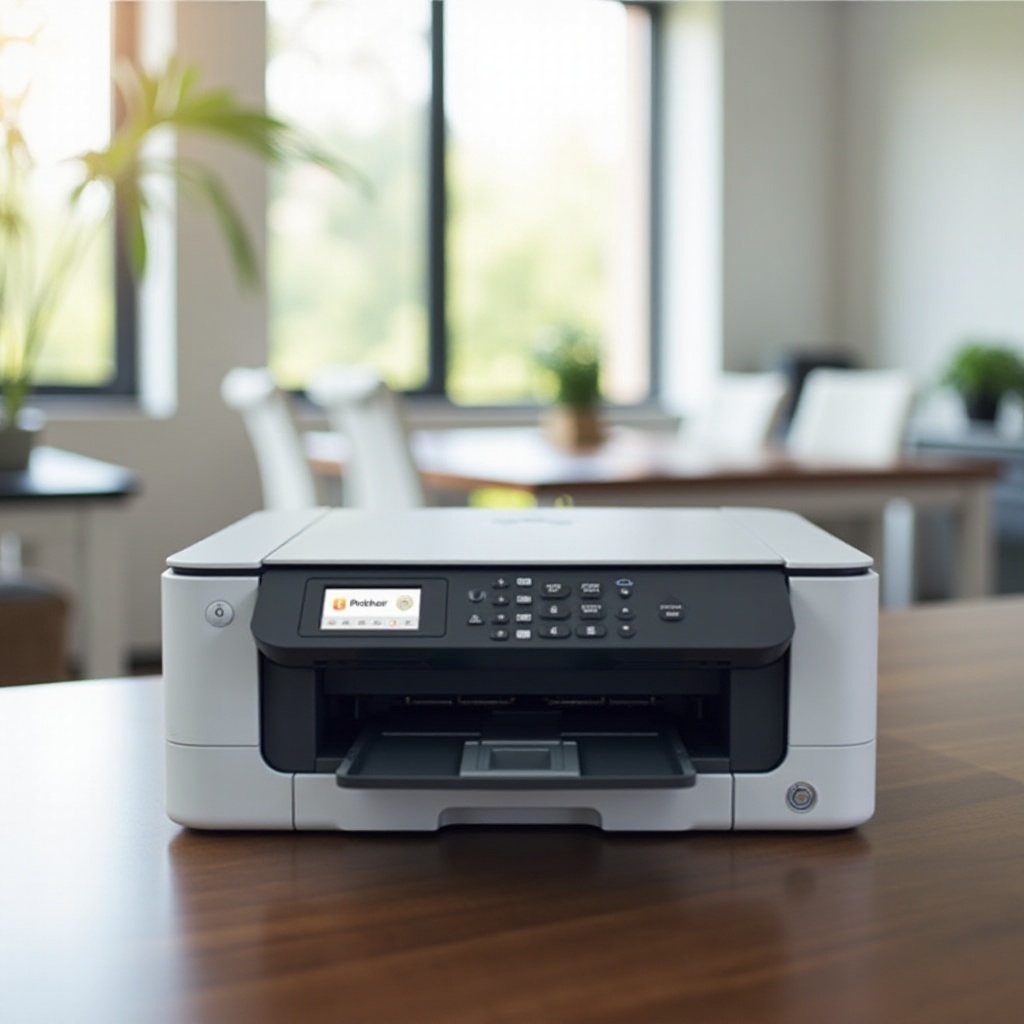
Setting Up Your Brother Printer Using the WPS Pin Code
Successfully connecting your printer using the WPS pin is straightforward and largely automated. Here’s the process simplified:
-
Activate WPS on Your Router: Push the WPS button on your router to ready it for device connections.
-
Enter the WPS Pin Code: Back on your printer, enter the displayed or printed pin code.
-
Establish Connection: Wait momentarily as your printer and router authenticate, forming the connection.
The pairing process takes only moments and ensures a secure link to your wireless network, thus enabling hassle-free printing moving forward.
Troubleshooting Common WPS Pin Code Issues
Though largely automated, you may encounter hurdles during setup. Here’s how to tackle common WPS-related problems:
-
Incorrect Pin Code Entry: Carefully re-enter the pin code, ensuring no errors or typos.
-
Connectivity Challenges: Check and reduce obstructions that might be impeding the wireless signal between devices.
-
Update Firmware: Make sure your printer’s firmware is up to date, preventing software-related connection issues.
By understanding and addressing these common issues, you maintain a stable wireless connection. Should further difficulties arise, don’t hesitate to reach out to Brother’s customer service for support.
Benefits of Using WPS with Brother Printers
The WPS feature offers several advantages for Brother printer users, enhancing the overall printing experience. Here are some key benefits:
-
User-Friendly Setup: Simplifies the process for users lacking deep technical expertise.
-
Secure Connections: Uses encryption to prevent unauthorized network access.
-
Time Efficiency: Automated settings save the time normally spent on manual configurations.
Overall, leveraging WPS technology provides smooth and secure wireless connectivity, making it an invaluable tool for both novice and seasoned users alike.
Conclusion
The WPS pin code is a simple yet powerful tool to ensure smooth wireless integration of your Brother printer with your network. By mastering its use, you gain both time and peace of mind knowing your printer is securely and efficiently connected. Take advantage of this feature for optimal printing performance.
Frequently Asked Questions
How do I reset the WPS connection on my Brother printer?
To reset the WPS connection, access ‘Network Settings’ on the printer, select ‘Reset Settings,’ then follow the setup guide to reconnect.
Can all Brother printers connect via WPS?
Most modern Brother printers support WPS connections. Check your specific model’s manual to confirm this capability.
Is WPS safe to use for my wireless network?
Yes, WPS is designed for secure connections with encryption. Ensure firmware on both printer and router is updated for optimal security.