
How to Play Windows Steam Games on Mac: A 2024 Guide
Introduction
Mac users often face challenges in accessing Windows-exclusive games, especially from platforms like Steam, due to inherent differences between MacOS and Windows architectures. However, with the right strategies and tools, you can transform your Mac into a versatile gaming machine, capable of running a wide array of Windows games. This guide will provide comprehensive steps and viable options available in 2024.
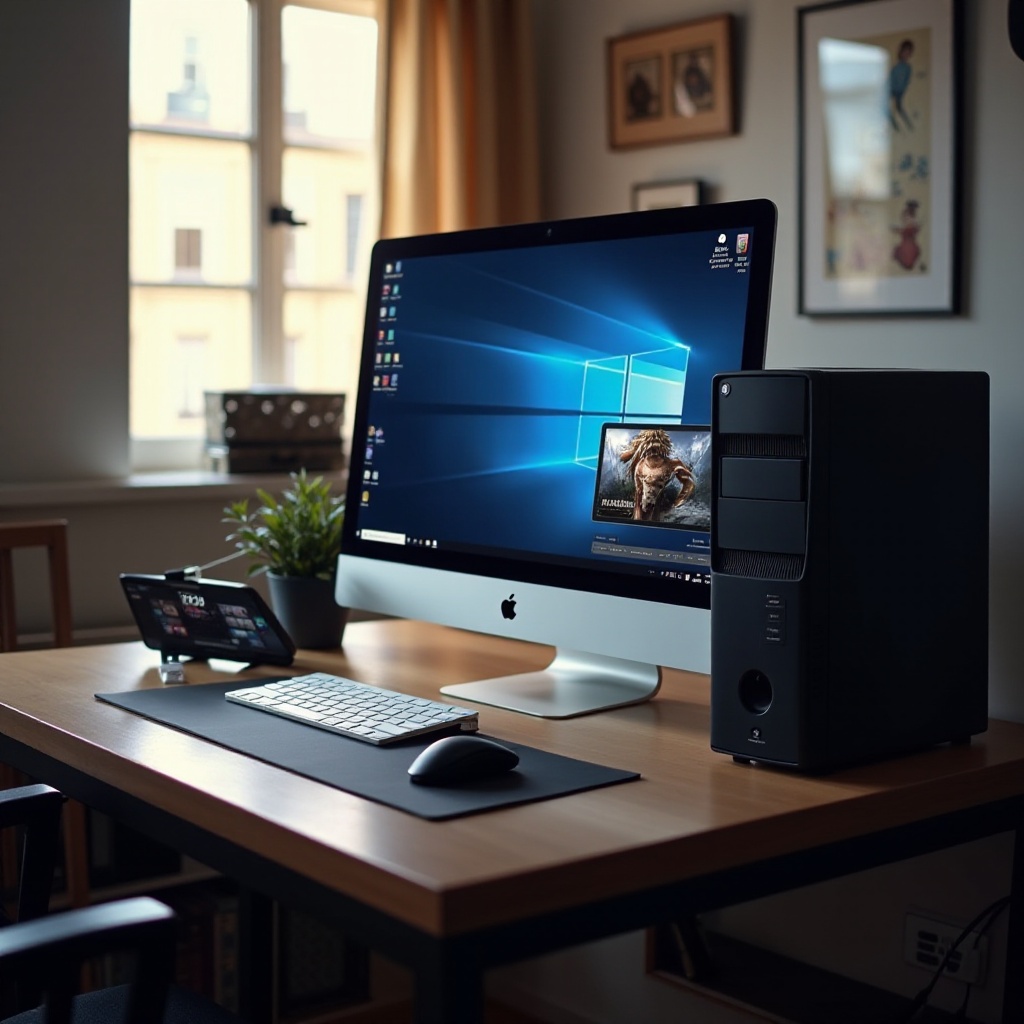
Understanding the Mac Gaming Landscape
Macs have long been celebrated for their design and productivity features, yet they traditionally lag in gaming capabilities. The disparity mainly stems from software compatibility and hardware specifications, which limit native access to many popular Windows games. Despite this, various solutions have emerged, empowering Mac users to broaden their gaming experiences. In 2024, these advancements continue to push boundaries, erasing barriers between MacOS and Windows gaming.
Setting Up a Windows Environment on Mac
Creating a Windows environment on your Mac is one of the most straightforward ways to enjoy Windows Steam games. Here’s how you can achieve this:
- Using Boot Camp for Native Windows Experience:
- Verify System Requirements: Ensure your Mac meets the necessary specifications to run Windows.
- Partition Your Hard Drive: Use the Boot Camp Assistant to allocate space for Windows.
-
Install Windows: Follow on-screen prompts to install Windows via USB or ISO, allowing for dual-boot functionality.
-
Configuring Parallels Desktop for Virtualization:
- Install Parallels Desktop: Download and set up Parallels from its official site on your Mac.
- Create a Virtual Machine: Utilize Parallels to establish a virtual Windows setup that runs concurrently with MacOS.
-
Load Steam and Your Games: Install Steam on your virtual Windows and download your favorite titles.
-
Exploring Alternatives like VMware Fusion:
- VMware Fusion Download: Install VMware Fusion software and proceed with its setup.
- Establish a Windows Virtual Machine: Similar to Parallels, configure Windows virtualization on MacOS.
Boot Camp provides a full-performance native Windows experience, ideal for high-demand games. In contrast, virtualization through Parallels or VMware offers flexibility, running Windows applications side-by-side with MacOS.
Leveraging Emulation and Compatibility Tools
For those who prefer bypassing full Windows installations, emulation tools offer a different path. These tools simulate Windows functionality, allowing MacOS to run Windows applications.
- Introduction to Wine and Its Derivatives:
- Install Wine: Leverage Wine to execute Windows applications on Unix-like operating systems. Use package managers like Homebrew for installation.
-
Launch Steam via Wine: Configure Wine to operate Steam for accessing Windows-exclusive games.
-
Crossover: A Simple Solution:
Crossover builds on Wine technology, providing a user-friendly interface that simplifies running Windows apps without complex setup.
Emulation is useful for older or less intensive games, though they can struggle with newer, resource-heavy titles.
Utilizing Cloud Gaming Platforms
Cloud gaming eliminates local hardware limitations, offering a seamless alternative to traditional gaming setups. By streaming games from powerful remote servers, Mac users can access a full spectrum of Windows games.
-
Overview of Services Like NVIDIA GeForce Now:
Platforms like NVIDIA GeForce Now enable game streaming from your Steam library, utilizing external resources to power gameplay. -
Comparing Cloud Gaming to Traditional Methods:
- Benefits: No need for high-spec hardware, immediate access without long installation times, and reduced local storage use.
- Limitations: Demands a robust internet connection and may require subscription fees.
Cloud gaming represents a revolutionary solution for Mac users, especially those with limited system capabilities or preference for instant, hassle-free gaming.

Troubleshooting and Performance Optimization
Navigating Windows games on Mac can include performance challenges. Here are steps to optimize your setup:
- Hardware Enhancement Suggestions: Consider upgrading memory or utilizing an external GPU for improved game performance.
- Addressing Common Issues:
- Lag and Frame Drops: Adjust in-game settings for smoother play.
- Driver Updates: Keep drivers current for better compatibility.
- Managing Storage: Regularly clear space to ensure ample game storage.
Optimizing your Mac not only improves gaming quality but also contributes to system longevity and stability.
Conclusion
By employing the right techniques and tools, Mac users can diversify their gaming library and access a variety of Windows Steam games in 2024. Whether you choose to configure a dual-boot system, utilize virtualization technologies, explore emulation, or embrace cloud gaming, each method offers unique advantages and opportunities to enjoy gaming across platforms.
Frequently Asked Questions
Can I play all Steam games on Mac using these methods?
While many games are playable using these methods, some may not perform optimally due to specific hardware or software requirements.
What are the performance differences between Boot Camp and Parallels Desktop?
Boot Camp generally provides better performance with native execution, whereas Parallels may have slight slowdowns due to virtualization overhead.
Are there free options to play Windows games on Mac?
Yes, free tools like Wine are available but may require more technical setup compared to paid solutions and might not support all games.