
How to Text from Email on iPhone
Introduction
Texting from email on an iPhone is a fantastic way to enhance your communication options. Whether you’re managing contacts without a SIM card or bypassing traditional texting apps, this feature can be highly advantageous. In this guide, we’ll provide comprehensive instructions, along with troubleshooting tips for a smooth experience. From initial setup to addressing common issues, learn everything necessary to optimize your email-to-text capabilities.
Why Text from Email?
Texting from email bridges the gap between traditional communication and modern convenience. It’s especially useful if you have internet access through Wi-Fi but weak cellular service. This method can also be a cost-effective way to send messages, especially if you’re sending group texts. Additionally, email-to-text services allow for longer messages without segmentation, adding a layer of flexibility for users.
Transition from the benefits of texting from email to the practicalities of setting up your device seamlessly.
Setting Up Your iPhone for Email-to-Text
Before sending texts, ensure your iPhone is properly configured for email-to-text communication.
- Checking Email Account Settings
- Navigate to ‘Settings’ on your iPhone and select ‘Mail.
- Go to ‘Accounts’ to review your email accounts.
- Verify that the email account you plan to use is operational.
-
Ensure outgoing mail settings (SMTP) are accurate, as they are crucial for sending emails.
-
Configuring Carrier Details
- Determine the carrier details for the recipient’s phone number. Each carrier has a specific email-to-SMS gateway, such as ‘number@carrier.com.
- Common U.S. carriers and their domains include:
- Verizon: vtext.com
- AT&T: txt.att.net
- T-Mobile: tmomail.net
- Accurate addresses ensure your emails are translated into text messages effectively.
Completing your email and carrier configuration will enable smooth communication, moving us effortlessly into the step-by-step sending process.
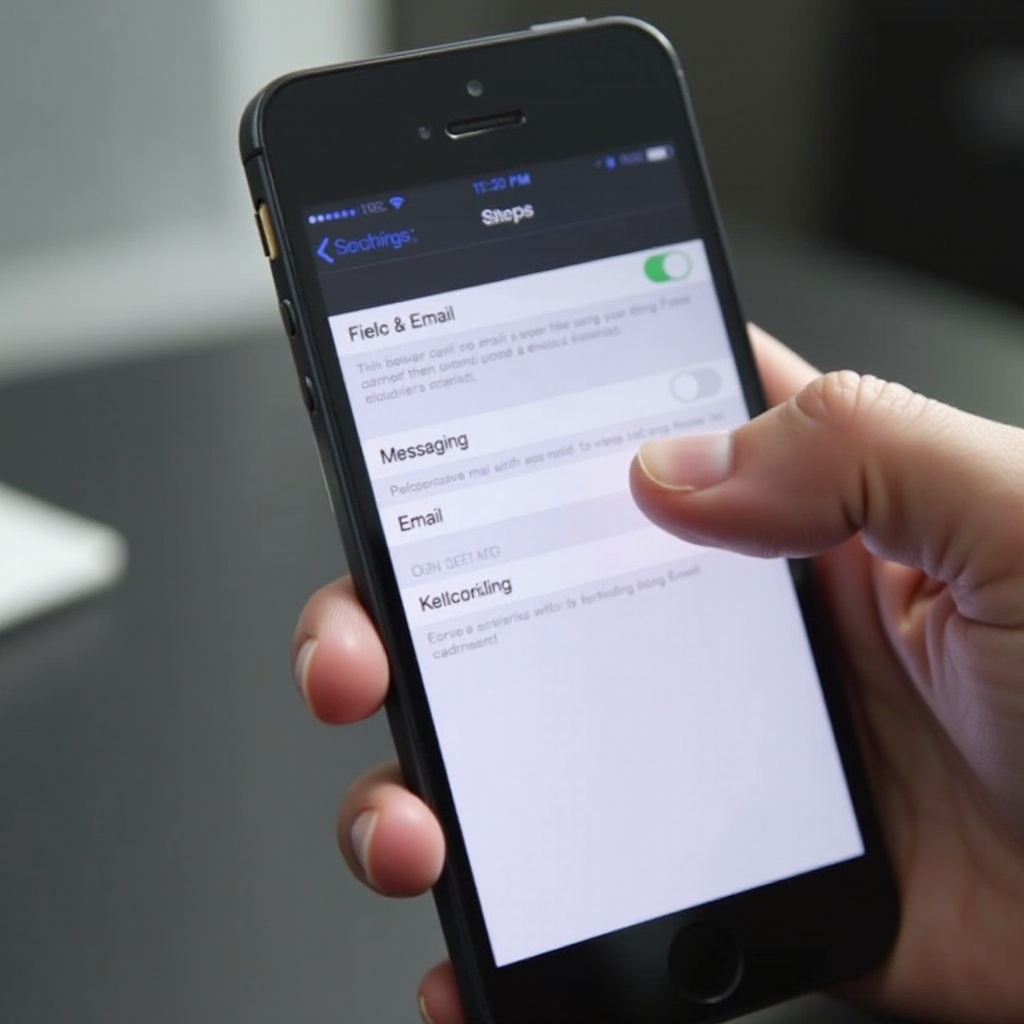
Step-by-Step Guide to Sending Texts from Email
After setup, you can start sending texts directly from your email. Here’s how:
- Composing the Email
- Open your preferred email app.
- Tap ‘Compose’ to start a new email.
-
In the ‘To’ field, input the recipient’s number followed by their carrier-specific address (e.g., 1234567890@vtext.com).
-
Using Correct Carrier Addresses
Ensuring you have the right carrier domain is crucial for message delivery. Double-check for accuracy before hitting send. -
Sending International Texts
For international messages, prepend the number with the appropriate country code and then use the carrier domain.
This straightforward method makes it simple to send messages, ensuring they are delivered correctly.
Troubleshooting Common Issues
Sometimes, you might face issues when texting via email. Here’s how to tackle them:
- Message Deliverability Problems
- Check for typos in the recipient’s number or carrier domain.
-
Confirm server status for both your email provider and the recipient’s carrier.
-
Handling Carrier Gateway Errors
If messages don’t reach their destination, ensure the receiving carrier supports email-to-text. Some may have restrictions on this service.
With these troubleshooting solutions, you’ll overcome most challenges, facilitating smooth communication.
Enhancing Your Email-to-Text Experience
To make the most of email texting, consider these enhancements:
-
Using Third-Party Apps
Applications like SendHub can enhance your texting capability, adding features beyond the traditional email setup. -
Automating with Shortcuts
Apple’s Shortcuts app can be configured to automate email-to-text sending, saving you time by pre-filling recipient information and emails.
By incorporating these enhancements, you can enjoy a more efficient and flexible communication method.

Conclusion
Texting from email on your iPhone lets you benefit from flexible communication, especially when Wi-Fi is more reliable than cellular service. By following the setup and troubleshooting steps outlined, you’ll ensure a hassle-free messaging experience. Explore third-party tools and custom shortcuts to further streamline this process, making email-to-text a valuable addition to your daily communication tools.
Frequently Asked Questions
What Email Providers Work Best for Email-to-Text on iPhone?
Major providers like Gmail, Yahoo, and Outlook are efficient. Ensure SMTP settings are correct for smooth service.
Are There Any Costs Associated with Email-to-Text Messaging?
Sending an email is typically free, but the recipient might incur standard SMS charges from their carrier.
How Do I Know My Message Was Delivered?
Usually, the recipient confirms delivery. Enable read receipts or delivery confirmation if the feature is available.