
Mastering Cable Reseat: Ensuring Your Computer’s Optimal Performance
Introduction
Cable reseating is a key aspect of computer maintenance that can significantly enhance your system’s performance and reliability. By ensuring all connections are secure, you enhance power delivery, data transfer, and reduce the risk of system errors or failures. Left unchecked, loose or poorly connected cables can lead to frustrating intermittent issues that are often difficult to diagnose. Understanding and regularly performing cable reseating is essential for maintaining a healthy computer.
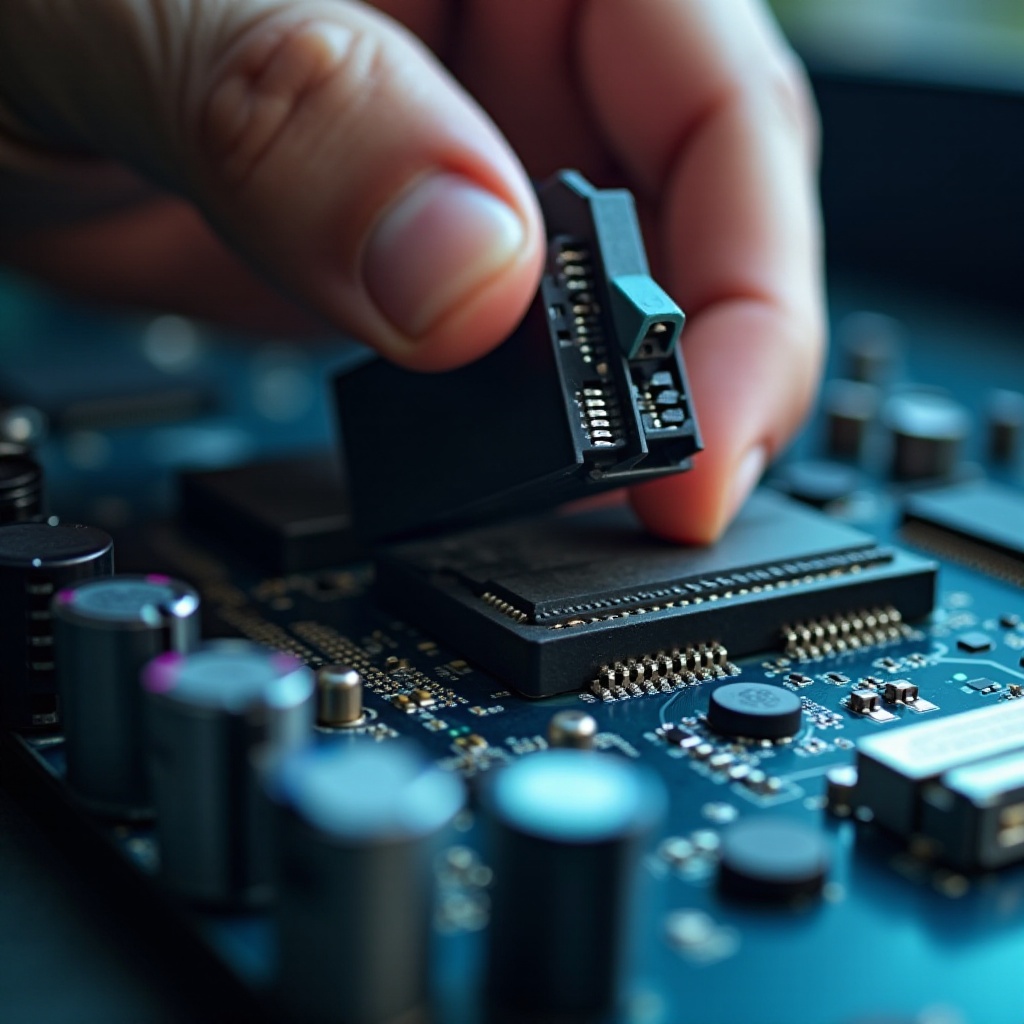
Understanding Cable Reseat
To effectively address computer performance issues, it’s important to understand what cable reseating involves.
- What Does Cable Reseat Mean?
Cable reseat refers to the process of disconnecting and then reconnecting cables in your computer to ensure they are securely and properly connected. This simple action can resolve numerous issues caused by vibrations or inadvertent movements that loosen connections.
- Why Cable Reseat is Crucial for Computer Maintenance
Regular maintenance, including cable reseating, is critical for maintaining consistent performance and extending the life of your hardware. Secure connections ensure optimal data and power flows, reducing the likelihood of hardware failures or data corruption.
Spotting cable issues early can prevent them from escalating into more serious problems. This brings us to the next important step in maintaining your computer’s health.
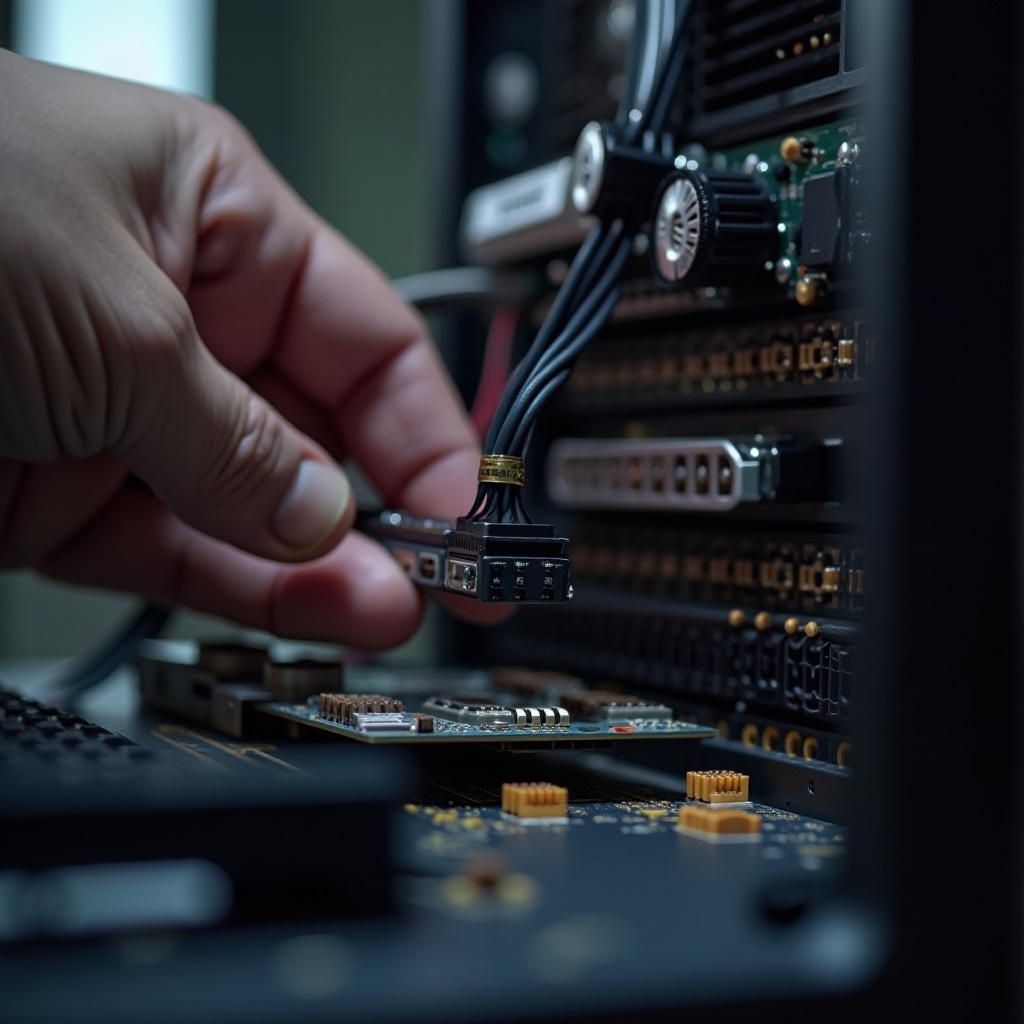
How to Detect Cable Issues
Early detection of cable problems can save time and prevent costly damage.
- Signs Your Cables Need Reseating:
- Experiencing intermittent performance issues or unexplained system crashes.
- Observing visible signs such as misaligned cables or connections that appear loose.
-
Noticing hardware components that don’t work properly despite correct software configurations.
-
Tools to Help Identify Cable Problems:
- Multimeter: Useful for testing connectivity and voltage levels.
- Cable testers: Ideal for quickly diagnosing faulty cables without disassembling your system.
Upon identifying that cables need reseating, executing the process correctly is crucial to ensure proper functionality.
Step-by-Step Guide to Reseating Cables
Careful handling is paramount when reseating cables.
- Reseating Power Supply Cables:
- Shut down the computer and disconnect the power.
- Carefully unplug each power cable.
-
Inspect each connection for dust or damage, then reconnect firmly.
-
Reseating Data Cables, Including SATA and IDE:
- Open your computer case by unscrewing the back panel.
- Locate the data cables, which typically connect to hard drives and optical drives.
-
Clean any dust if necessary, then disconnect and reconnect cables securely.
-
Reseating Internal Components, Like RAM and GPU:
- Release the RAM by pressing the side clips and gently removing it. Reseat by pressing it evenly into its slot until it clicks.
- For the GPU, unscrew any fastenings and gently remove it. After cleaning, realign and seat back into its PCIe slot.
Executing these steps properly ensures your system functions optimally. However, it is essential to avoid common errors that could negate these benefits.

Avoiding Common Cable Reseating Mistakes
Avoiding mistakes is key to ensuring the safety and effectiveness of the cable reseating process.
-
The Importance of Proper Cable Handling:
Incorrect handling can cause physical damage or static discharge, potentially affecting delicate components like the motherboard or RAM. -
Tips to Prevent Static Discharge:
- Ground yourself using an anti-static wrist strap or by touching a bare metal part of the case.
- Work on a non-conductive surface and avoid carpet floors to minimize static buildup.
With securely seated cables, further performance enhancements can be achieved through effective cable management.
Enhancing Cable Management After Reseating
Effective cable management complements reseating by improving cooling efficiency and organization.
-
Organizing Cables for Optimal Airflow:
Good airflow helps keep your computer cool and running efficiently. Position excess cables to avoid obstructing airflow. -
Using Cable Ties, Labels, and Channels:
Use cable ties to keep wires neat and labels for easy identification. Cable channels, clips, or sleeves can help keep your setup organized and prevent tangling.
These practices ensure a tidy and efficient internal environment, leading to increased system reliability and performance.
Benefits of Regular Cable Reseating
Regular reseating and proper management can greatly benefit your computer system.
-
Improved System Reliability and Longevity:
Consistent maintenance reduces hardware strain, preventing potential malfunctions. -
Enhanced Data and Power Transfer Efficiency:
Firm connections improve signal integrity, reducing data corruption risks and power surges.
These benefits are best realized through routine checks and a robust understanding of how each component interacts within your system.
Conclusion
Cable reseating is a straightforward yet crucial maintenance task. It can preemptively solve issues and ensure your computer runs at peak efficiency. By incorporating these practices into your maintenance routine, you can enhance performance, extend component life, and minimize unexpected failures.
Frequently Asked Questions
How often should I reseat my computer cables?
It’s recommended to check and reseat your cables every 6-12 months, depending on usage and environmental factors.
Can reseating cables improve my PC’s performance?
Yes, it can resolve connectivity issues and ensure efficient power and signal flow, potentially improving performance.
What tools do I need to reseat cables safely?
Basic tools include a screwdriver for opening the case, a multimeter for testing connections, and an anti-static wrist strap to avoid static discharge.