
Fitbit Not Tracking Miles? The Complete Troubleshooting Guide
Introduction
Seeing 0.00 miles after a walk or run drains motivation and wrecks training logs. If your Fitbit not tracking miles issue just appeared or has persisted, you can fix it with a structured approach. This guide shows how Fitbit turns steps and GPS points into distance, which settings most often cause zero mileage, and what to change on your watch and phone to restore accurate miles.
You will walk through quick wins, GPS modes, phone permissions, and indoor calibration. You will also tune SmartTrack and Auto-Pause, correct units and profile data, and clean up sync and cache. Each section connects to the next so you solve the root cause rather than chasing symptoms. Start with the fastest checks, then move to GPS and permissions, and finish with a one-mile control test to confirm the fix. First, understand how Fitbit calculates distance and why it sometimes shows zero.
How Fitbit Calculates Distance—and Why It Shows 0.00 Miles
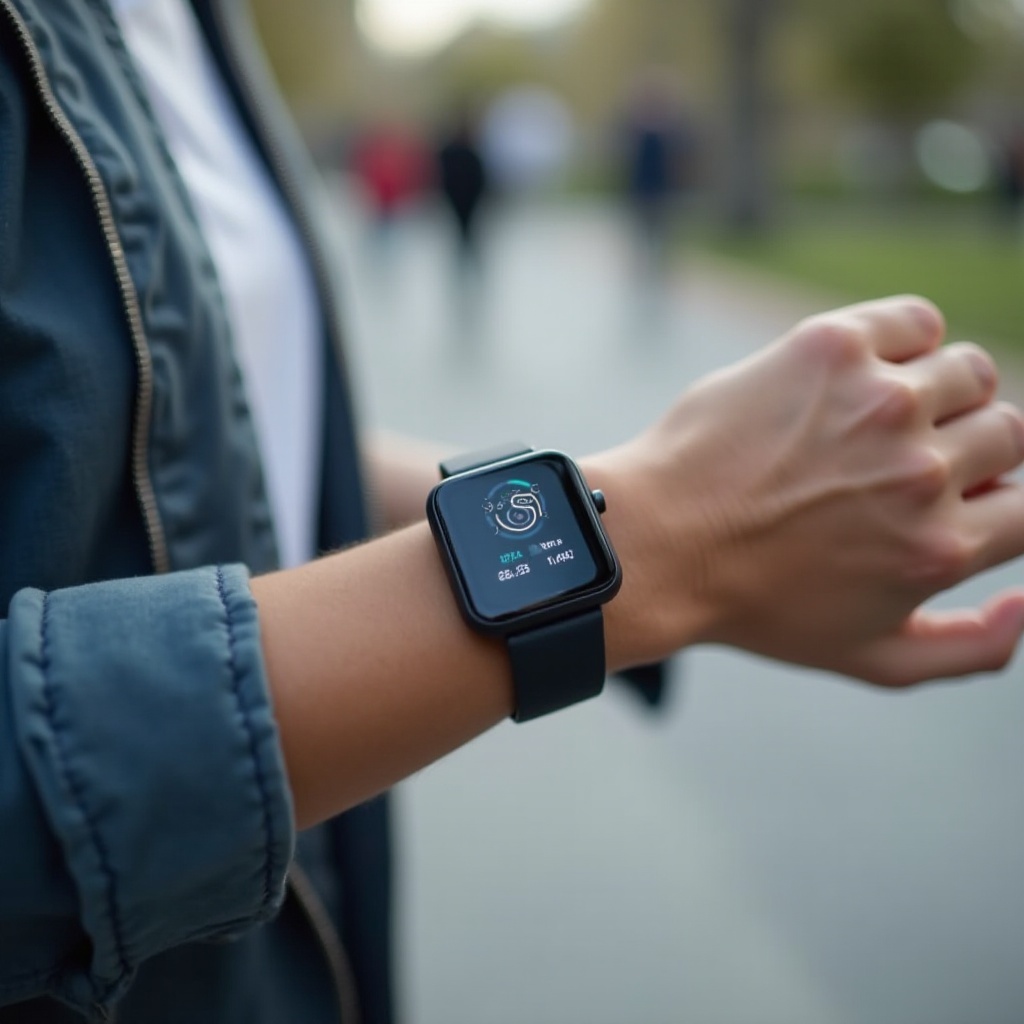
Fitbit measures distance in two primary ways. All-day distance converts steps to miles using your height and stride length. This method powers daily totals and most indoor walking. Exercise distance uses GPS, either built-in on the watch or connected through your phone, to map outdoor workouts like Walk, Run, or Bike. When GPS provides a steady stream of points, your route looks clean and mileage is precise.
Zero miles appears when the device records steps but never gets GPS data in a GPS-required mode, when you pick an outdoor profile for an indoor workout, or when phone permissions block location for connected GPS. It also happens when Auto-Pause or SmartTrack starts too late or ends too early, or when unit settings hide expected values. Distinguishing step-based distance from GPS-based distance helps you aim the fix at the right system.
Now that you know the mechanisms, start with simple actions that resolve many cases in minutes before you dive into deeper settings.
Quick Fixes to Try First
Run through these quick steps. They restore reliable mileage for many users without heavy troubleshooting:
1) Restart everything: Reboot your Fitbit and your phone to reset connections and services.
2) Toggle Bluetooth: Turn Bluetooth off and on, then open the Fitbit app to force a fresh handshake.
3) Update and sync: Install the latest Fitbit app and device firmware. Open the app and sync until complete.
4) Pick the right exercise: Use Outdoor Walk or Run for outside, and Treadmill or Indoor Walk for inside.
5) Wait for lock: Before you start outside, open the exercise on the watch and wait for a GPS lock or a connected status.
6) Confirm units: Set miles if you expect miles. Verify height, weight, and wrist preference.
7) Disable battery saver: Turn off battery saver modes on the watch and the phone during workouts.
8) Do a clean test: Walk a known mile in open sky and compare against a map tool.
If distance still shows zero or reads short, the GPS source may be misconfigured. Confirm which GPS mode your model supports and set it correctly.
GPS Mileage Not Recording: Built-In vs Connected GPS
Fitbit devices support built-in GPS, connected GPS that leverages your phone, or dynamic GPS that switches between them. On models with built-in GPS, enable it in the exercise settings so the watch records distance without relying on the phone. On models without onboard GPS, carry your phone and grant the Fitbit app full location access.
Do this step by step:
– On the watch: Open Exercise settings. Select your workout. Set GPS to built-in, phone, or dynamic as available.
– Get lock first: Step into open sky. Wait 30 to 60 seconds for a lock or a connected indicator.
– Keep the phone close: For connected GPS, keep the phone unlocked or recently unlocked and within a few feet.
– Pixel Watch note: Make sure the Fitbit Exercise app on the watch has location permission and that watch location is on.
If the watch struggles to lock or keeps losing connection, the next likely culprit is phone permissions or battery management. Fix those to stabilize GPS distance.
Phone Permissions and Battery Settings (iPhone and Android)
Phone operating systems aggressively manage battery use. That often breaks connected GPS and background syncing. Set these once and you will avoid repeat failures.
On iPhone:
– Location Services: Settings > Privacy & Security > Location Services > Fitbit > Allow Location Access = Always. Enable Precise Location.
– Motion & Fitness: Settings > Privacy & Security > Motion & Fitness. Turn Fitness Tracking on, and enable Fitbit.
– Background App Refresh: Settings > General > Background App Refresh. Turn it on for Fitbit.
– Power mode: Disable Low Power Mode during workouts.
On Android:
– Permissions: Settings > Apps > Fitbit > Permissions. Set Location to Allow all the time. Allow Physical Activity and Nearby Devices.
– Location accuracy: Settings > Location. Turn on Location and Google Location Accuracy. Enable Wi‑Fi and Bluetooth scanning.
– Battery optimization: Exempt Fitbit and the companion Bluetooth service from optimization or Doze. Consider disabling Adaptive Battery for Fitbit.
– Kill-switches: Avoid task killers, aggressive battery managers, and VPN or firewall apps that block location.
With permissions set, outdoor GPS should stabilize. For gyms and treadmills, distance uses stride length rather than GPS. Calibrate that next.
Indoor and Treadmill Workouts: Calibrate Stride and Avoid Zero Miles
Indoor workouts rely on motion sensors and stride length to estimate distance. If the watch logs steps but shows zero distance, you likely used an outdoor GPS profile indoors or have uncalibrated stride settings.
Follow this plan:
– Select proper mode: Choose Treadmill or Indoor Walk for indoor sessions. Avoid GPS-dependent profiles inside.
– Calibrate stride properly:
1) Walk a measured half-mile on a track. Count steps or check step count after the effort.
2) Stride length for walking equals distance divided by steps. Repeat for a half-mile run to get a run stride length.
3) In the Fitbit app, open your profile settings and enter custom walk and run stride lengths.
– Wear position: Wear the watch snug, one finger above the wrist bone, and allow a natural arm swing.
– Hand placement: Avoid gripping treadmill rails for long periods, which hides wrist motion.
– Fix saved zero: If a saved treadmill workout shows zero miles, edit the distance in the Fitbit app to match the treadmill display.
Once stride calibration is set and indoor modes are correct, the next step is to prevent automation features from truncating or mislabeling your activities.
SmartTrack and Auto-Pause Pitfalls
SmartTrack auto-detects certain activities while Auto-Pause stops timing when you stand still. Both can be helpful, yet they can also cause partial or empty workouts if they trigger at the wrong time.
Use these settings to reduce errors:
– SmartTrack duration: Increase the minimum duration so the device has enough movement before it records. Disable SmartTrack for activities you prefer to start manually.
– Manual start: Manually start Treadmill, Indoor Walk, Outdoor Walk, and Run. You control GPS, mode, and timing.
– Auto-Pause: If you stop frequently at lights or during intervals, disable Auto-Pause so the device records distance continuously.
With auto features tuned, make sure your core profile values and units support accurate step-to-distance conversion and consistent displays.
Units, Profile, and Wrist Settings That Skew Distance
Small mistakes in profile and device settings distort distance. Correct these details to keep mileage consistent:
– Units: Set miles if you expect miles, or kilometers if you prefer metric. Keep it consistent across the app and watch.
– Height and weight: Confirm your height, since stride length defaults rely on it. Update weight for calorie estimates.
– Wrist preference: If you wear the watch on your dominant hand, set wrist preference to Dominant to reduce motion overcounting.
– Wear fit: Wear the band snug and stable. Loose straps can reduce motion fidelity.
Profile and unit settings sometimes revert after major updates or account changes. If the problem started after an update, apply the post-update checklist next.
After an Update: App, Firmware, and Google Account Migration Fixes
App redesigns, firmware updates, and account migrations can reset permissions, remove exercise shortcuts, or switch GPS modes. If your Fitbit not tracking miles issue began right after an update, run these steps:
– Recheck permissions: On iPhone and Android, set Location to Always and enable motion permissions again. Updates often revert to While Using, which breaks connected GPS.
– Restore exercise shortcuts: Open the Exercise app on the watch and re-add Outdoor Walk, Outdoor Run, and Treadmill. Confirm GPS settings per exercise.
– Update firmware: Sync the watch and complete any pending firmware installation.
– Re-pair cleanly: Forget the watch from Bluetooth settings on the phone. Reboot both devices. Pair again through the Fitbit app so permissions and GPS links rebuild.
– Verify account: Make sure you are logged into the correct Google account and that the app shows your device under your profile.
If distance still misbehaves after updates, clear caches and restart devices. Fresh app sessions often restore maps and proper sync.
Sync, Cache, and Restart/Reset Options
A jammed sync or corrupted cache can hide maps and mileage in the app even if the watch collected the data. Clean up the pathways that move workouts from the watch to the cloud:
– Force sync: Open the Fitbit app and pull down on the dashboard until sync completes.
– Clear cache:
– iPhone: Offload or reinstall the app. Your data stays in the cloud once synced.
– Android: Settings > Apps > Fitbit > Storage > Clear Cache.
– Reinstall and relogin: Reinstall the Fitbit app, log in to the same account, and re-enable all permissions.
– Restart the watch: Perform a soft restart following your model steps. Save factory reset for last after you have backed up and synced recent data.
Once software and sync paths are clean, consider the physical context of your workouts. Environment affects signal quality and route accuracy.
Environmental and Wearing Factors That Affect Distance
GPS signals weaken or scatter in specific environments. That produces short routes, random zigzags, or straight lines in place of a detailed map.
Expect reduced accuracy in these conditions:
– Urban canyons with tall buildings
– Dense forest cover or deep valleys
– Heavy cloud, severe weather, or reflective glass surfaces
– Starting under roofs or near walls that block sky view
Improve signal quality with these habits:
– Begin with sky view: Step into clear sky and give the watch 30 to 60 seconds to lock satellites.
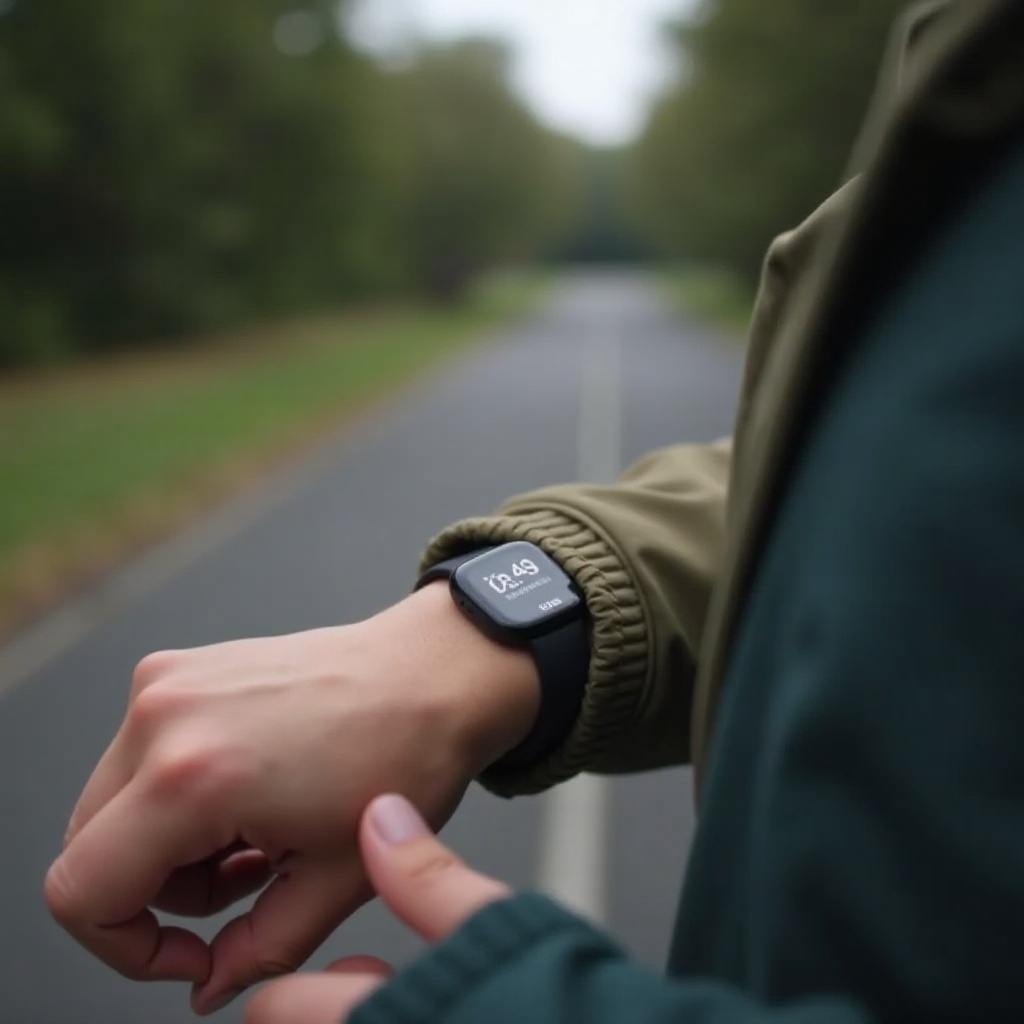
– Expose the watch: Keep sleeves and jackets off the watch face at the start. Wear it on the outside wrist for better antenna exposure.
– Hold steady at start: Avoid moving fast until you see the lock indicator. A clean start helps the route stay stable.
Even with great sky view, accuracy can fall if power-saving features throttle location or sensors. Disable them during workouts.
Battery Saver and Power Modes That Impact GPS and Distance
Battery saving modes trade accuracy for endurance. They disable background activity or slow GPS updates, which can result in zero miles or short routes.
Follow these power rules for workouts:
– On the watch: Turn off battery saver. Keep location on. Use always-on display only if needed and charge before long runs.
– On the phone: Disable Low Power or Battery Saver. Exempt the Fitbit app and companion services from optimization.
– Start charged: Begin GPS workouts with at least 40 to 50 percent battery so the device does not throttle sensors mid-activity.
When you finish adjusting power settings, perform a simple control test to confirm everything works.
Verify Accuracy with a 1-Mile Control Test
A controlled test proves whether your changes fixed the problem:
1) Choose a flat, open route with clear sky. Use Outdoor Walk or Run.
2) Connected GPS users should bring the phone and open the Fitbit app briefly before the start.
3) On the watch, wait for a GPS lock or a connected indicator.
4) Walk or run a measured mile at a steady pace. Avoid long stops.
5) Save the workout and open it in the app. Review the map and distance.
6) Compare the result to a known distance or a reliable mapping tool.
If the watch reads within a few percent, you have restored accuracy. If you still see zero or a very short route, collect evidence and escalate with support.
When to Contact Fitbit Support or Request a Replacement
Hardware issues are rare, but they happen. If you worked through the steps above and still see zero miles or missing maps, contact support with clear information:
– Screenshots: Show location permissions, exercise GPS settings, and the workout summary.
– Control test details: Provide your route, time, and the distance you expected.
– Versions and devices: List Fitbit app and firmware versions, phone model, and OS version.
– Timeline: Note when the issue started and which fixes you attempted.
Ask for troubleshooting escalation and a hardware review. If support confirms a GPS or antenna fault, request a warranty replacement. Precise documentation speeds the process and avoids repeat back-and-forth.
Conclusion
You can resolve most Fitbit mileage problems with a focused, step-by-step approach. Start with quick fixes. Set the right GPS mode for your device. Grant full phone permissions so connected GPS works. Calibrate your stride for indoor sessions. Tune SmartTrack and Auto-Pause so automation does not cut workouts short. Confirm units, profile, and wrist settings so step-to-mile conversions stay consistent. Clean caches, resync, and restart devices to refresh the data path. Then validate your setup with a one-mile control test.
If distance still fails, treat it as a potential hardware issue and document your findings for support. With the right configuration and habits, your workouts will show accurate miles, reliable maps, and consistent records that keep you motivated and improving week after week.
Frequently Asked Questions
Why are my steps showing but my miles are not?
This happens when you choose an outdoor GPS profile indoors, start before GPS lock, or let SmartTrack trigger too late. Use Treadmill or Indoor Walk inside, wait for a GPS lock outside, and prefer manual starts. Check units, stride length, and Auto-Pause. If a workout already saved at 0.00 miles, edit the distance in the Fitbit app to match a known value.
Why is my GPS map missing or showing a straight line?
The app did not receive GPS points. Common causes include Location set to While Using instead of Always, Precise Location off on iPhone, Android battery optimization killing Fitbit, or VPN and firewall apps blocking location. Set Location to Always, enable Precise Location on iPhone, exempt Fitbit from optimization on Android, disable blocking apps, and wait 30–60 seconds for GPS lock before you start.
How accurate is Fitbit distance, and can I edit miles after a workout?
In open sky, GPS distance is typically within a few percent. Trees, tall buildings, tunnels, and frequent stops reduce accuracy. Indoor distance relies on stride length and arm swing, so calibrate your walk and run stride for better results. If a workout saved with the wrong mileage, open it in the Fitbit app and edit the distance to match a measured route or the treadmill display.