
How to Charge Kindle Paperwhite: The Complete Guide for Safe, Fast, and Reliable Power-Ups
Introduction
Powering your Kindle Paperwhite should feel simple and predictable. This guide shows exactly how to charge Kindle Paperwhite with a wall adapter, a computer, a car charger, and a power bank. If you own the Paperwhite Signature Edition, you will also learn how to use wireless charging safely and efficiently. You will see which cables and adapters work best, how to read the charge indicators, how long a full charge usually takes, and which habits keep your battery healthy. A clear troubleshooting path helps you fix slow or failed charging fast. Each section builds on the previous one: identify your model, assemble reliable gear, follow step-by-step instructions, and then refine your routine with battery care and travel tips.
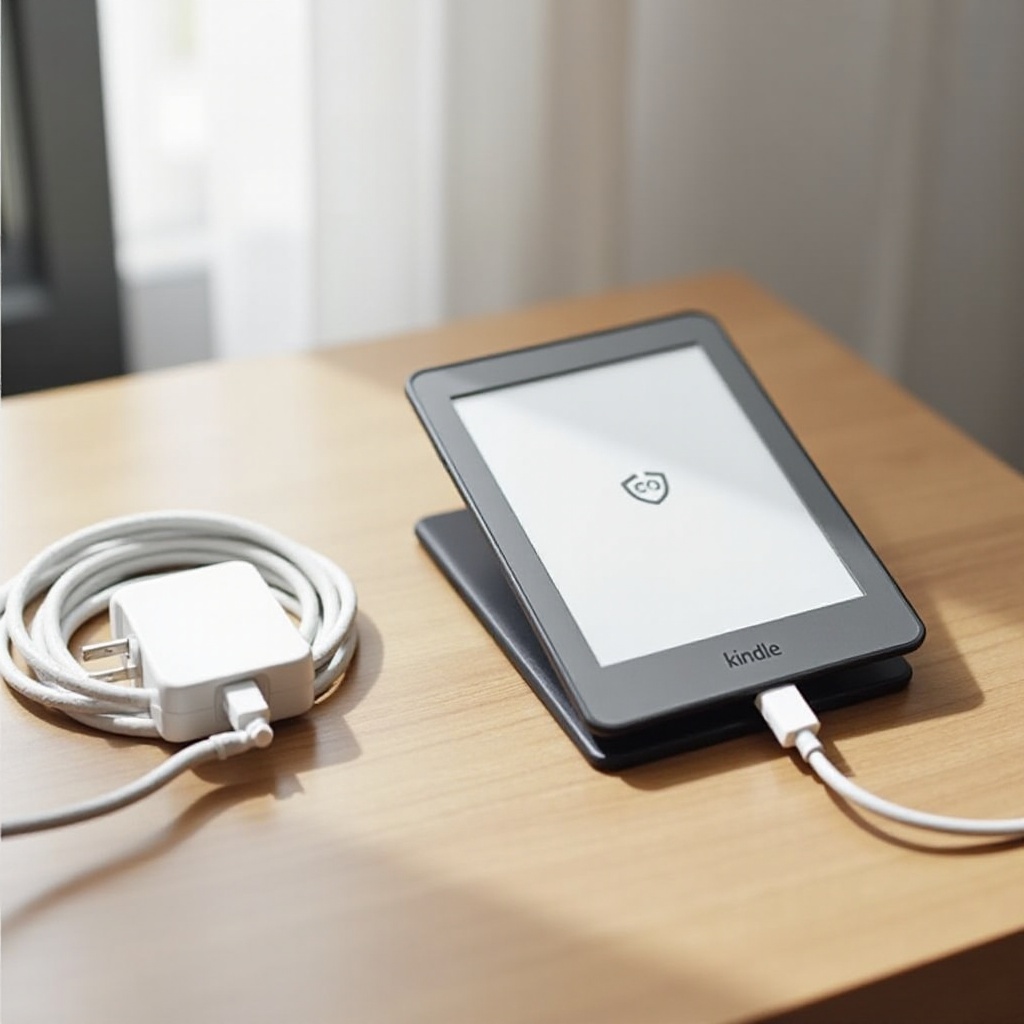
Know Your Kindle Paperwhite Model: USB-C vs. Micro-USB and Wireless Charging Capability
Before you connect anything, confirm your model and port. Most recent Paperwhite models use a USB-C port that is small and oval. Older models use a micro-USB port that looks like a flatter trapezoid. Only the Paperwhite Signature Edition supports Qi wireless charging.
Use these quick checks to avoid confusion:
– Look at the charging port and match the cable type before you plug in.
– Open Settings > Device Options > About to view the model name.
– Check the product listing or box for the Signature Edition label if you expect wireless charging.
This step matters because the correct cable and charger reduce charge time and prevent wear to the port. Once you know what you own, you can pick the right accessories with confidence and move on to building a safe, reliable charging kit.
Charging Essentials: Cables, Wall Adapters, Power Banks, and Recommended Wattage
The best charging experience starts with quality accessories. You do not need high wattage or fancy features. You do need clean power and sturdy cables.
Use this checklist:
– Cables: Choose a short, well-made cable. For USB-C Paperwhite models, a USB-C to USB-A or USB-C to USB-C cable works. For older models, pick a durable micro-USB cable. Thick wires and reinforced strain reliefs help maintain speed and stability.
– Wall adapters: A 5W to 9W USB power adapter is ideal. USB-C PD bricks are fine because the Kindle draws only what it needs. Focus on brand reputation and safety certifications.
– Power banks: For travel, select a bank with at least 5V/2A output. A 10,000 to 20,000 mAh power bank provides multiple full recharges without stress.
– Certifications and quality: Prefer UL or ETL-listed adapters and reliable cables. Avoid unbranded or frayed gear.
With the right kit on hand, you can get consistent, safe charging from a wall outlet. Next, you will walk through the precise steps to connect and confirm a strong charge.
Step-by-Step: Charging from a Wall Outlet Safely and Efficiently
A wall outlet gives the fastest and most consistent results. Follow this simple routine:
1) Inspect your gear: Confirm the adapter and cable are clean and undamaged. Check the Kindle port for dust or lint.
2) Connect the cable: Plug the cable into the adapter, then insert the adapter into the wall.
3) Attach to the Kindle: Seat the connector gently. Do not force it. You should see the LED glow amber, which means charging.
4) Reduce background drain: Turn on Airplane Mode and lower the front light to shorten charge time. You can read during charging, but dimming the screen speeds things up.
5) Confirm on-screen status: Look for a battery icon with a lightning bolt and the amber LED.
6) Let it complete: Wait until the LED turns green or the battery shows full. Leaving it a few extra minutes at 100 percent helps top off the battery.
7) Unplug cleanly: Remove the cable from your Kindle, then the adapter from the wall. Coil and store the cable to prevent kinks.
Sometimes you do not have a wall outlet available. The next section shows how to charge reliably from a computer, a power bank, or a car adapter without losing time.
Step-by-Step: Charging from a Computer, Power Bank, or Car Charger
You can keep reading on the go by using a computer port, a portable power bank, or a car charger. Each source has different power limits and quirks, so match your approach to the source you have.
Charging from a computer
- Use a direct laptop or desktop port, not a low-power hub.
- Prefer a USB-A port labeled for charging or a USB-C port that supports power delivery.
- Keep the computer awake. Sleep and hibernate modes often cut USB power.
- If you plan to transfer files, use a data-capable cable. If you want privacy, use a charge-only cable.
- Expect slower speeds than a wall adapter, especially on older machines. Dim the screen and enable Airplane Mode to compensate.
Charging from a power bank
- Choose a bank with 5V/2A or higher output for steady charging.
- Some banks need you to press a power button to start output. Confirm the bank is on.
- Keep the bank and Kindle close to minimize cable strain and energy loss.
- If charging pauses, press the bank button again or switch ports.
Charging in a car
- Use a quality 12V-to-USB adapter that delivers at least 2A on the chosen port.
- Avoid the cheapest adapters, which can fluctuate with engine speed.
- Place the Kindle on a stable surface and route the cable to avoid sharp bends.
If you own the Paperwhite Signature Edition, you can also charge wirelessly when it suits you. The next section explains how to set up a pad, align the coil, and avoid common mistakes.
Wireless Charging for Paperwhite Signature Edition: Pads, Alignment, and Limitations
Qi wireless charging adds convenience to desks and nightstands, though it is slower than a wall adapter. Proper pad choice and placement make a big difference.
Pad setup and alignment
- Use a Qi-certified pad or stand from a reputable brand.
- Place the Kindle at the center of the pad and slide it slowly until the LED turns amber.
- Some pads time out if alignment drifts. If the LED goes dark unexpectedly, reposition the Kindle.
Case and accessory considerations
- Thick cases, metal plates, or magnets can block charging. Remove them if the LED does not light.
- Keep the pad surface clear of coins, keys, or cards to prevent interference and heat.
When wireless makes sense
- Wireless suits overnight top-ups and quick rests between reading sessions.
- Use wired charging for the fastest recovery from very low battery levels or when you are in a hurry.
When you are charging, you may want to keep reading. The next section shows how to manage heat and performance so you can read comfortably while the battery fills.
Reading While Charging: Heat, Performance, and Best Practices
You can read while your Kindle charges. Keep things cool and efficient with a few simple habits:
– Set the Kindle on a hard, ventilated surface to let heat dissipate.
– Lower front light brightness and use Dark Mode in low light to reduce power draw.
– Turn on Airplane Mode so downloads and sync do not add extra load.
– If the back feels warmer than usual, pause reading, unplug, and let it cool before resuming.
– Avoid covering the device with blankets or placing it on soft pillows that trap heat.
Now that you are charging comfortably, learn how to read the LED and on-screen indicators. Clear signals make it easy to confirm that everything works as expected.
Understanding Charge Indicators: LED Colors, Battery Icon, and On-Screen Prompts
Your Paperwhite uses straightforward signals to show charge status:
– LED near the port: Amber means it is charging. Green means it is full. If it is off, the Kindle may not detect power yet or the battery may be extremely low; give it a few minutes.
– Battery icon: A lightning bolt over the battery indicates active charging. Tap the top of the screen to see the percentage in quick settings.
– Prompts and lock screen messages: Low battery prompts and small banners can confirm charging or request a power source when the level is low.
If the LED shows amber but the percentage does not rise, suspect a weak adapter, a failing cable, or debris in the port. Knowing what the indicators mean prepares you for the next topic: how long your charge should take and how to speed it up.
How Long It Takes: Typical Charge Timelines and Factors That Affect Speed
Charge times vary by model, power source, and user behavior. Use these benchmarks to set expectations:
– Wall adapter at 5W to 9W: About 2 to 3 hours from low to full on recent USB-C Paperwhite models.
– Computer USB port: Often 4 to 5 hours or more, depending on port power and computer settings.
– Qi wireless on the Signature Edition: Often 3 to 4 hours on a reliable pad.
These factors affect speed:
– Adapter wattage and port quality determine available current.
– Cable length and resistance can limit power flow.
– Starting battery level and display brightness change how much power the Kindle needs.
– Airplane Mode reduces background tasks and saves power.
– Indexing new books uses extra CPU time and slows charging.
– Temperature extremes slow charging and can trigger protective limits.
Once you know expected charge times, focus on keeping the battery healthy over months and years. Simple habits make the biggest difference.
Battery Care and Longevity: Partial Charges, Temperature, and Storage Tips
Lithium-ion batteries prefer gentle treatment. You can extend life by avoiding deep drains and high heat.
Daily habits that help
- Top up between 20 percent and 80 percent during regular use. Frequent small charges are fine.
- Avoid hitting 0 percent often. If the Kindle shuts down, charge it soon.
- Keep brightness reasonable and use Dark Mode in dim rooms to save energy.
Calibration without stress
- Every few months, let the battery drop to around 10 to 20 percent, then charge to 100 percent without interruption. This helps the gauge stay accurate.
- Do not force a deep discharge. The goal is accurate readings, not battery strain.
Storage best practices
- If you will store the Kindle for weeks, leave it around 40 to 60 percent.
- Turn it on monthly to check the level and top up as needed.
- Keep it in a cool, dry place away from direct sunlight and heat sources.
Even with careful habits, water exposure can complicate charging. Learn how to dry the device safely before connecting any cable or pad.
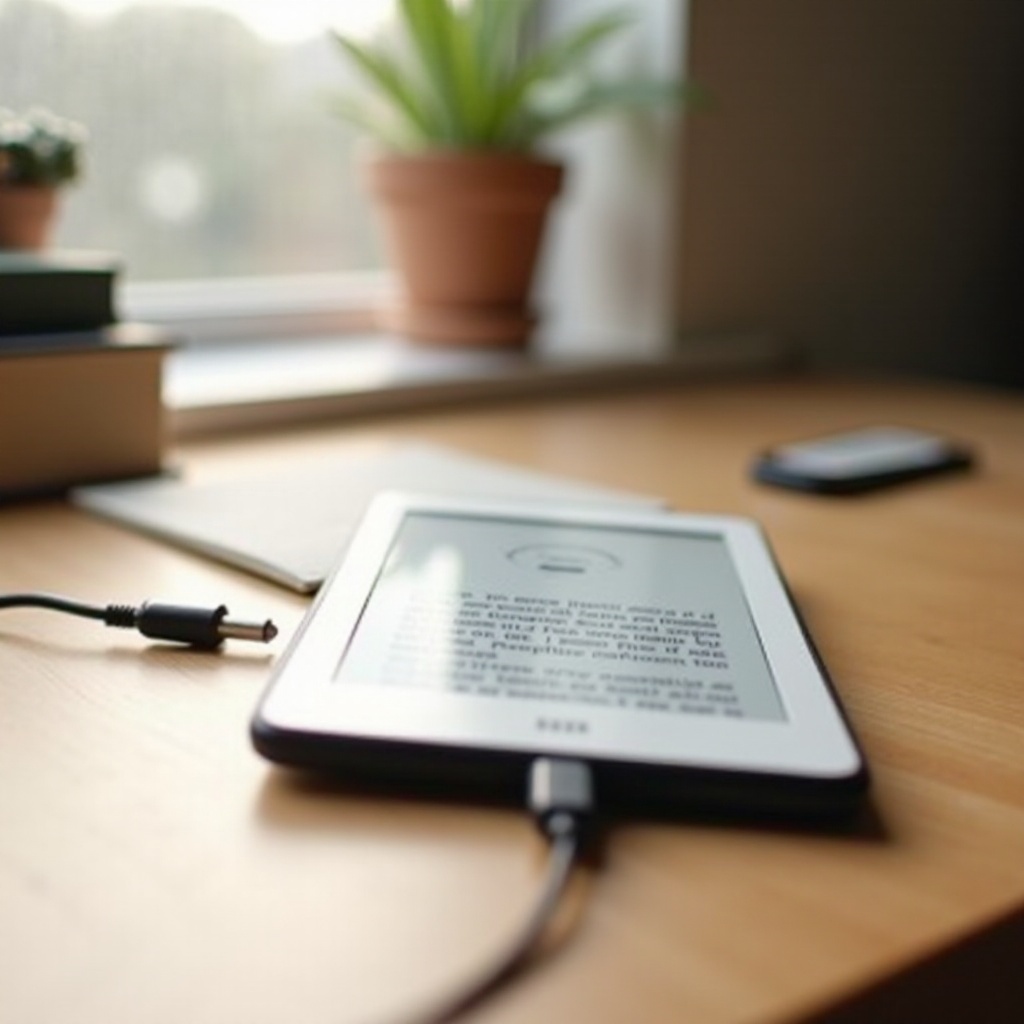
Waterproof Safety: Dry-First Rules Before You Plug In
Waterproofing helps during splashes or brief submersion, but moisture and charging do not mix. If your Kindle gets wet:
– Do not charge until the device is completely dry inside and out.
– Gently shake out water from the port and seams. Dab with a soft, lint-free cloth.
– Air-dry the device upright at room temperature. Avoid hair dryers, ovens, radiators, or direct sun.
– If you suspect moisture in the port, wait at least overnight before charging.
– Desiccant packets can help absorb humidity. Avoid rice due to dust.
If the LED misbehaves or the device shows moisture prompts after drying, take a structured approach to troubleshooting before assuming the battery or charger has failed.
Troubleshooting: Slow Charging, Not Charging, and Cable/Port Issues
When charging stalls or fails, isolate the cause step by step. Start with quick checks, then move to deeper fixes.
Quick checks first
1) Try a different wall socket or surge protector.
2) Swap to a known-good 5W to 9W wall adapter or a reputable USB-C PD brick.
3) Use another short, high-quality cable. Most charging problems trace back to bad cables.
4) Toggle Airplane Mode and dim the screen to reduce power draw while testing.
Deeper fixes
5) Inspect and clean the port. Power off first. Lift lint with a wooden toothpick and a steady hand. Avoid metal tools and liquids.
6) Reboot the Kindle by holding the power button for 30 to 40 seconds, then plug it in again.
7) Update software. Connect to Wi‑Fi briefly, check for updates, apply them, then retest charging.
8) Try another power source: wall adapter, then computer port, then power bank.
9) Normalize temperature. If the device is cold or hot, let it reach room temperature before charging.
When to contact support
- If the battery drops quickly after a full charge, or the Kindle shuts off at high percentages.
- If the LED never lights with multiple known-good adapters and cables.
- If the port feels loose or the cable falls out easily.
After you restore normal charging, refine your on-the-go routine to keep your Kindle topped up during commutes, flights, and hotel stays.
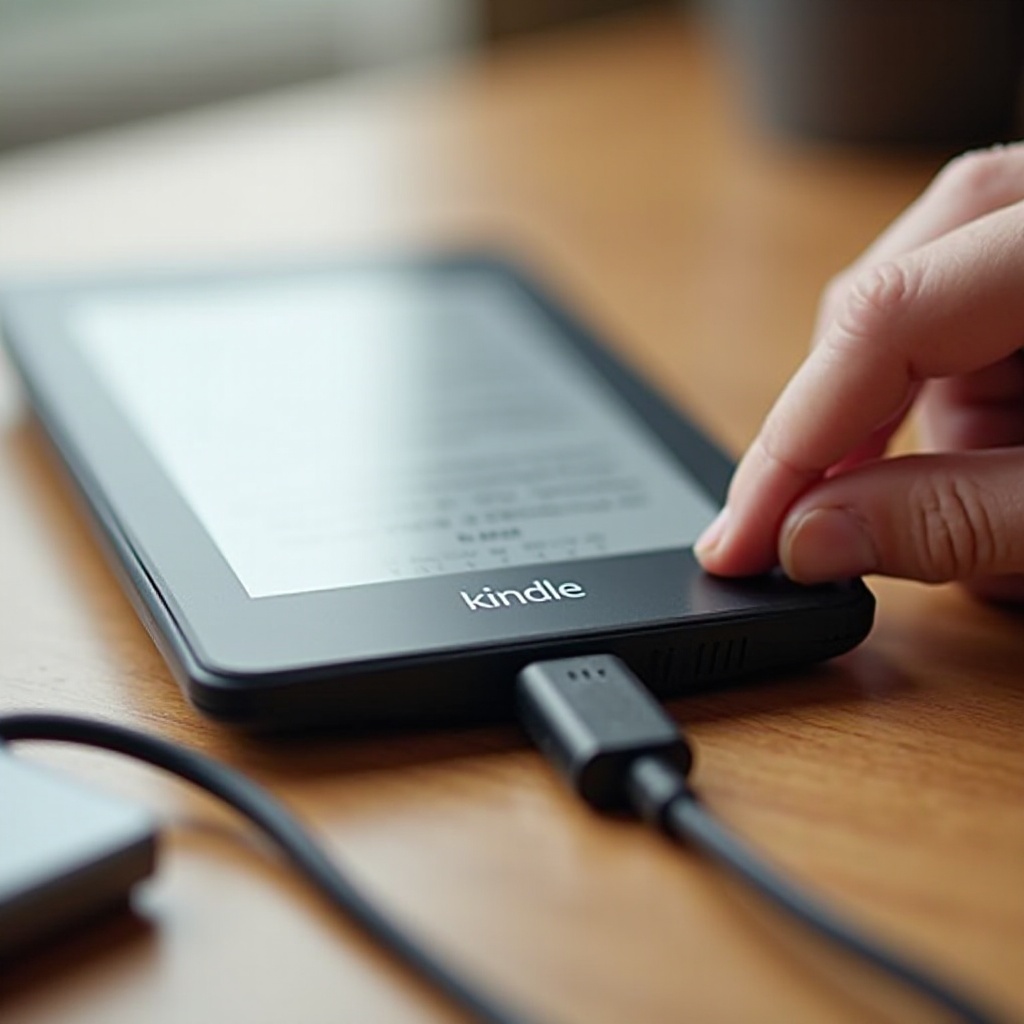
Travel and Public Charging Tips: Airplane Mode, Hotels, and USB Data Blockers
A small, reliable travel kit makes charging effortless anywhere:
– Enable Airplane Mode while charging to speed up and save power.
– Pack a compact 9W wall adapter and two short cables: one USB-C and one micro-USB to cover older accessories.
– Prefer your own wall adapter over hotel lamp or TV USB ports. Those ports often deliver weak power.
– In public USB ports, use a data blocker or a charge-only cable to reduce data risks.
– In cars, use a reputable 12V adapter and keep the Kindle on a flat, stable surface.
– Carry a 10,000 to 20,000 mAh power bank for long flights and layovers.
These habits, combined with good gear and a simple routine, ensure predictable power wherever you read. One final summary will lock in the key points.
Conclusion
Charging a Kindle Paperwhite becomes effortless when you match your model with the right cable and adapter and follow a clear routine. A wall adapter offers the fastest, most consistent results, while computers, car chargers, and power banks work well if you manage their limits. The Signature Edition adds convenient wireless charging for nightstands and desks, though wired charging remains faster. Watch the LED and battery icon, keep the port clean and dry, avoid heat, and lean on Airplane Mode to reduce drain. If problems arise, swap cables and adapters first, then clean the port and reboot. With these practices in place, your Paperwhite stays ready for the next chapter, at home or on the go.
Frequently Asked Questions
Can I use a fast USB-C PD charger to charge my Kindle Paperwhite?
Yes. USB-C Power Delivery and Quick Charge adapters are generally safe. The Kindle negotiates its input and draws only what it needs, so it will not fast charge like a phone. A reliable 5V/2A output with a short, good cable works best.
Why is my Kindle Paperwhite not charging or charging slowly?
Common causes include a weak adapter, a failing cable, or debris in the port. Try a different wall outlet, swap to a known-good 5W to 9W adapter, and test with a short, high-quality cable. Clean lint from the port gently and enable Airplane Mode.
Is it safe to leave my Kindle charging overnight?
Yes. The Kindle manages charging and reduces current when full. Set it on a ventilated surface and use a reputable adapter and cable. Unplug in the morning to keep cables fresh and the device cool.