
How to Reset Onn Roku TV With a Black Screen
Introduction
A black screen on an Onn Roku TV looks scary, but most cases have simple fixes. You can restore the picture with a reset, a cable swap, or a quick settings change. This guide gives you a clear path from easy checks to deeper resets. You will use four reliable methods: a soft reset, a blind system restart with the Roku remote, a factory reset with the pinhole button, and a reset via the Roku mobile app. You will also check HDMI devices and tweak settings to prevent future black screens.
We will move step by step. Start with quick checks that do not erase data. Then use resets only if needed. If the display stays dark after all software steps, you will learn a simple flashlight test that exposes likely hardware faults. With this plan, you save time, avoid guesswork, and protect your data until a factory reset becomes the last resort.
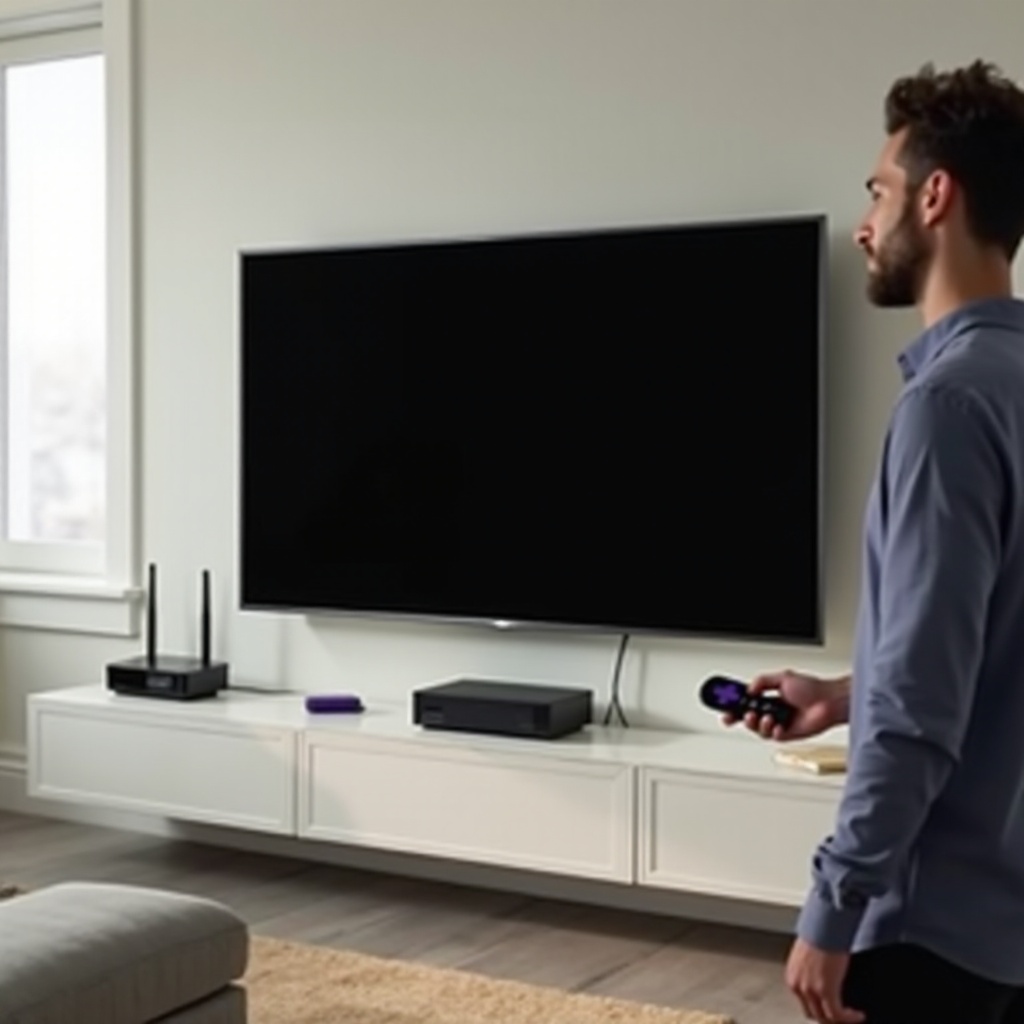
Quick Checks Before You Reset
Before you wipe settings or unlink accounts, rule out the common causes. These checks take minutes and often bring the picture back.
- Make sure the TV is on. Press the power button on the remote and on the TV. Watch the status LED for a change.
- Try a different input. Press the Input or Source button to cycle through HDMI ports, TV, and AV. Pause a few seconds on each.
- Listen for sound. Press Volume Up. If you hear menu beeps or app audio, the system runs but the screen may not light. That points to a backlight or display mode path.
- Disconnect accessories. Unplug all HDMI devices, soundbars, and splitters. A bad device or cable can blank the signal.
- Inspect and reseat cables. Firmly plug the TV power cord into the wall. Reseat each HDMI cable on both ends. Try a short, certified High Speed cable and a different HDMI port.
- Try the Home button. Press Home, wait three seconds, then press OK to open the first tile. If audio starts, the TV responds to commands even if the screen is dark.
If the screen is still black, do not panic. A soft reset clears temporary glitches without changing any settings. The next section helps you pick the right path based on what you hear and see.
Identify Your Symptom: Black Screen With Sound vs. No Sound
Match your symptom to the right reset. A few clues tell you whether you face a software hiccup, a handshake issue, or a likely hardware fault.
- Black screen with sound: You hear menu beeps or streaming audio but see nothing. This often points to a backlight failure, a display type mismatch, or an HDMI handshake problem if an external device is active.
- Black screen with no sound: No picture, no audio, and no menu beeps. This suggests a power, firmware, or deeper system crash. Start with a soft reset.
- Logo flash then black: The Onn or Roku logo appears, then the screen goes black. This can be a firmware crash, an unstable app at startup, or a CEC conflict.
- Black on one input only: One HDMI input stays black while others work. That points to a cable or device fault on that port.
Watch the status LED as you press buttons. If it blinks, the TV receives commands. If it never changes, check the power outlet and the TV power button. With your symptom in hand, begin with a soft reset. If that fails, move to a blind restart.
Method 1: Soft Reset (Power Cycle) to Clear Temporary Glitches
A soft reset restarts the TV without erasing Wi‑Fi, apps, or settings. It fixes many black screen issues caused by memory or driver hiccups.
Do this:
1) Turn the TV off with the remote. If the screen is black, proceed anyway.
2) Unplug the TV power cord from the wall for 60 seconds.
3) While unplugged, press and hold the TV physical power button for 10 to 15 seconds to discharge.
4) Plug the TV back in and wait 30 seconds.
5) Press Power on the remote. Allow up to two minutes for Roku OS to load.
If the picture returns, open Settings and run a system update to stabilize drivers. If the screen remains black, try a blind system restart. That forces the operating system to reload even without a visible menu.
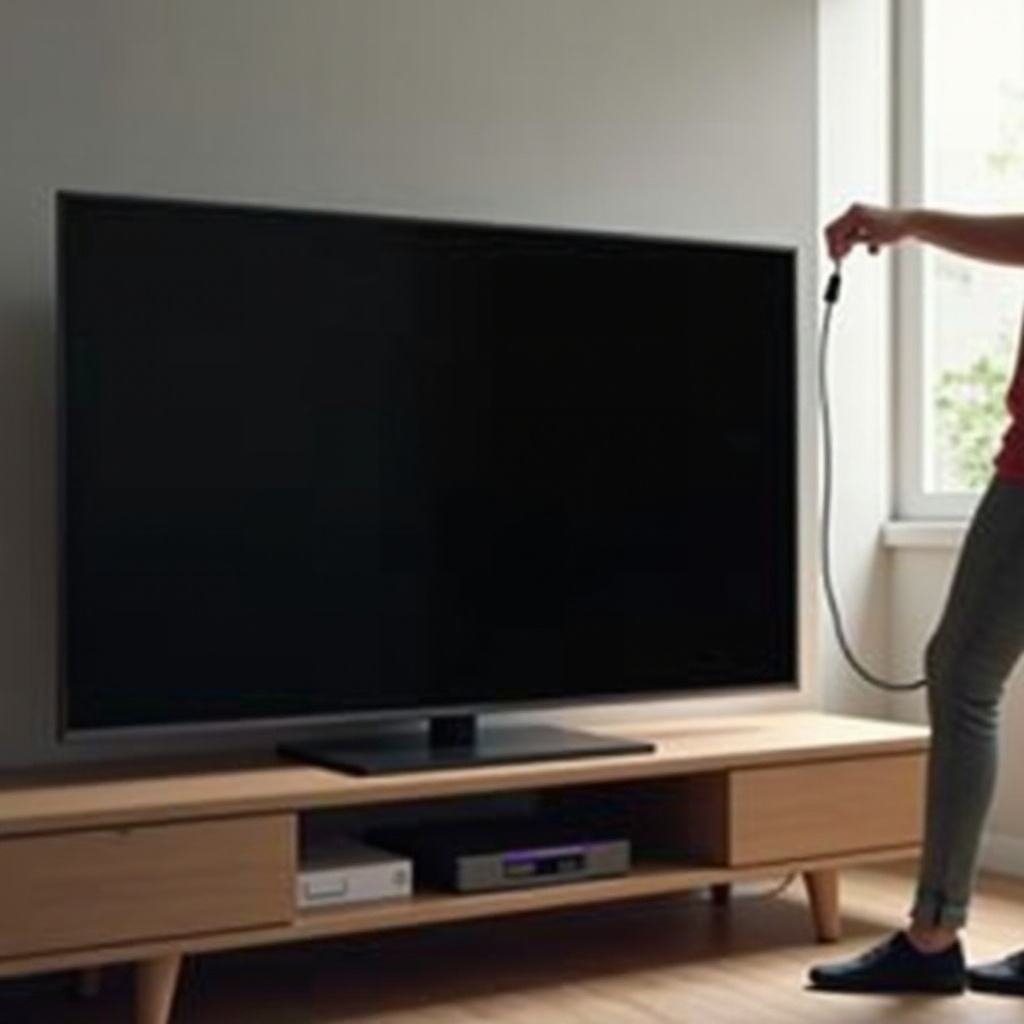
Method 2: Blind System Restart Using the Roku Remote (No Display Needed)
When the screen is dark, you can still command Roku OS to restart. This blind sequence often restores the image by reloading services and display drivers.
Option A: Restart with the TV power button
– Press and hold the TV physical power button for 10 to 15 seconds until the TV shuts down. Wait 10 seconds, then press Power again.
Option B: Remote sequence for system restart
– Press Home to anchor focus on the home screen.
– Wait three seconds.
– Enter this sequence slowly: Home x5, Up x1, Rewind x2, Fast Forward x2.
– Wait up to 60 seconds for the TV to restart. You may hear a relay click and then the startup chime.
If the restart brings the picture back, proceed to settings adjustments later in this guide to avoid future black screens. If nothing changes, a factory reset using the pinhole button is the next step. That reset wipes local data and returns the TV to a clean state.
Method 3: Factory Reset Using the Physical Reset (Pinhole) Button
Use a factory reset if software reloads did not help or if the TV boots to a black screen every time. This reset erases Wi‑Fi, apps, and settings, and it unlinks the TV from your Roku account.
Steps:
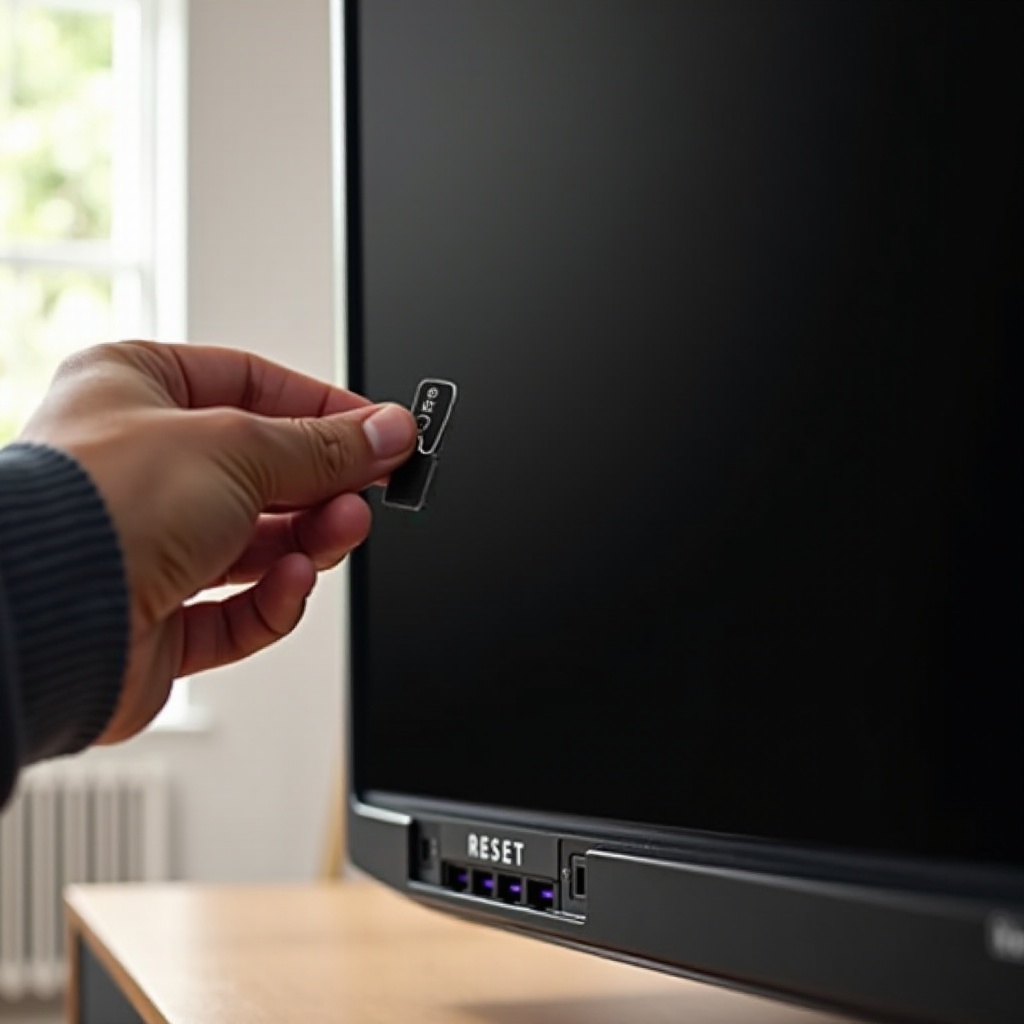
1) Find the Reset pinhole. It is usually near the HDMI ports or along the bottom or back edge.
2) With the TV powered on, insert a straightened paperclip into the pinhole.
3) Press and hold the Reset button for 10 to 20 seconds. Keep holding until you hear a relay click or the startup chime.
4) Release and wait for the TV to reboot. The setup screen should appear when the backlight works. If audio plays but the screen stays dark, move to the flashlight test later in this guide.
After a successful reset with picture, you will rejoin Wi‑Fi, link your Roku account, and reinstall channels. If the pinhole is hard to reach or you lack a paperclip, try the Roku mobile app method next.
Method 4: Reset Without a Remote Using the Roku Mobile App
If your remote is missing, unpaired, or dead, the Roku mobile app can act as a remote. This works only if the TV and your phone are on the same network.
Try this:
1) Install the Roku app on your phone or tablet.
2) Connect your phone to the same Wi‑Fi the TV used before the issue.
3) Open the app, tap Devices, select your Onn Roku TV, then tap Remote.
4) Navigate to Settings > System > Power > System restart. Confirm the restart.
5) If the restart does not help, go to Settings > System > Advanced system settings > Factory reset. Confirm and wait.
If the TV is no longer on your current Wi‑Fi and you cannot see to join a new network, set a phone hotspot with the same SSID and password the TV used before. The TV may auto join, which lets the app connect. If that does not work, use the pinhole reset. With a picture restored, turn to HDMI checks to prevent repeat black screens.
HDMI and External Device Causes That Mimic a Black Screen
Many black screen cases trace to HDMI issues. Before you assume a panel failure, isolate the TV from external devices and test clean connections.
- Bad cable or port: Swap in a short, certified High Speed or Ultra High Speed HDMI cable. Try a different HDMI port on the TV.
- Wrong input: Press the Input or Source button and cycle through each option. Pause three to five seconds on each.
- Resolution or HDR mismatch: Consoles and PCs can output a format the TV does not support. Set the device to 1080p SDR at 60 Hz. Add HDR later after you confirm stability.
- CEC conflicts: A device can wake the TV to a blank state. Unplug all HDMI devices. Power the TV on alone. If the picture returns, reconnect one device at a time. Disable CEC for the problem device in Settings > System > Control other devices.
- ARC or eARC chain problems: AV receivers and soundbars can delay or block video. Test the TV without the AVR or soundbar. Connect sources direct to the TV first.
- PC color format and refresh: On a PC or Mac, set RGB or YCbCr 4:2:0 at 60 Hz. Avoid odd refresh rates during testing.
If picture returns after these changes, keep reading for settings you can toggle to reduce future conflicts. If HDMI checks do not help, move on to the settings section to stabilize wake and display behavior.
Settings to Toggle After You Get Picture Back (Fast TV Start, CEC, Display Type)
With the image restored, fine tune settings to prevent a return of the black screen. Small changes can improve wake reliability and signal detection.
- Fast TV Start: Go to Settings > System > Power. If the TV wakes to a blank screen, turn Fast TV Start off so the TV performs a clean boot. If you rely on instant wake, test both on and off to see which is more stable.
- CEC controls: In Settings > System > Control other devices, disable one touch play or ARC for any device that triggers black screens. Re enable features one by one after testing.
- Display type: In Settings > Display type, select Auto detect and confirm. If auto detect causes issues, select a fixed 1080p or 4K SDR mode, then test HDR later.
- Power saving and timers: In Settings > System > Power, review Sleep timer and Power saving. Turn off aggressive power modes while testing stability.
- Screensaver and theme: Use default options while you test. Some add ons can cause crashes or wake issues.
With these settings stable, you can finish post reset setup. That final set of tasks locks in updates, remote pairing, and clean channel installs.
Post-Reset Setup: Wi‑Fi, Remote Pairing, Channel Reinstall, and Updates
Complete these tasks to keep the system healthy after a reset. They also reduce the chance of another black screen.
- Wi‑Fi: Go to Settings > Network > Set up connection. Join your network. Run Check connection to verify speed and stability.
- Remote pairing: For voice remotes, open the battery door and press the pairing button for five seconds. Wait for the on screen prompt to confirm.
- Software update: Go to Settings > System > System update > Check now. Install updates to get fixes for drivers and playback.
- Channel reinstall: Add only the apps you use. Install a few, then test video before loading more. This avoids a bad app causing crashes.
- Sign in hygiene: Use strong passwords and update credentials securely. Sign out of unused accounts.
- Home screen order: Place your top inputs and apps on the first row. This reduces misclicks and speeds navigation when you troubleshoot.
If your TV runs smoothly after these steps, you are done. If the picture drops out again or never came back, use the flashlight test to separate software from hardware.
If Reset Fails: Backlight Flashlight Test and Hardware Clues
When all software steps fail, a quick flashlight test can reveal a backlight failure. This takes less than a minute.
- Power on the TV.
- Darken the room. Shine a bright flashlight at the screen from two to three inches away.
- Press Home and arrow keys while you look closely for faint images.
What the result means:
– Faint images are visible: The LCD panel draws the picture but the backlight does not illuminate. Suspect backlight LED strips, the backlight driver, or the power board.
– No faint image but you hear the startup chime: The T Con or main board may be at fault.
– No sound and no faint image and the status LED never responds: Suspect the power supply or a failed main board.
Other clues can help:
– The TV clicks on and off repeatedly: Power board protection may be active.
– One HDMI port fails but others work: The main board may have a port level fault.
– Black screen occurs only with one device: The device, cable, or its settings are the issue, not the TV.
If hardware failure seems likely, do not open the TV unless you plan a repair. Check support options first.
Support, Warranty, and When Repair Makes Sense
Onn TVs often include a limited warranty. Gather your receipt, model number, and a list of what you tried. Contact Walmart or Onn support for hardware concerns and Roku support for software issues. If you bought an extended plan, file a claim and include your troubleshooting notes.
Compare repair quotes to replacement cost. Backlight repairs can approach the price of a new budget set. Main board or panel failures often cost more than replacement. Before returning, selling, or recycling, factory reset the TV to remove local data or unlink it from your Roku account in a browser. If you choose repair, ask for a diagnosis fee credit toward the fix and request a warranty on parts and labor.
Conclusion
Most Onn Roku TV black screens do not signal a dead TV. Start with quick checks and a soft reset. If the screen stays dark, use a blind restart. If needed, perform a pinhole factory reset or control the TV with the Roku mobile app to reach a reset. Once the picture returns, tune Fast TV Start, CEC, and Display Type to reduce wake and handshake issues. Clean up HDMI cables and devices, then finish with updates and a careful channel reinstall.
If these steps do not restore an image, the flashlight test can point to a backlight or board issue. At that point, use warranty support or weigh repair against replacement. By moving from low risk checks to deeper resets in order, you protect your data, avoid unnecessary factory resets, and usually bring the picture back with minimal effort.
Frequently Asked Questions
How do I factory reset an Onn Roku TV when the screen is black and I do not have the remote?
Use the TV reset pinhole. With the TV powered on, press and hold the Reset button using a paperclip for 10 to 20 seconds until you hear a click or the startup chime. Release and wait for reboot. If you cannot reach the pinhole, install the Roku mobile app and connect it to the TV over the same Wi‑Fi, then navigate to Settings > System > Advanced system settings > Factory reset.
Will a factory reset delete my Roku account or cancel my subscriptions?
No. A factory reset unlinks the TV from your Roku account and erases data stored on the TV, such as Wi‑Fi, apps, and settings. Your Roku account and subscriptions remain active. After the reset, link the TV to your account again and reinstall channels. Manage or cancel subscriptions from your Roku account online or with each streaming service.
Why does my Onn Roku TV keep going to a black screen after a reset?
Recurring black screens often come from HDMI conflicts, wake behavior, or display mode issues. Try these fixes: disable Fast TV Start, turn off CEC for problem devices, set Display type to a fixed 1080p or 4K SDR mode, replace HDMI cables, and update both the TV and connected devices. If a flashlight test shows faint images, the backlight or power board may be failing. Seek warranty service or a repair quote.