
How to Turn Off Beats Wireless Bluetooth Earbuds: The Complete Step-by-Step Guide
Introduction
You want a quick, reliable way to turn off Beats wireless Bluetooth ear buds and stop them from draining battery or reconnecting at the wrong moment. Most Beats true wireless models do not include a physical power-off button. They power down when you place them in the charging case and close the lid. Neckband models use a power button on the inline remote. This guide walks you through the fastest way to shut them down, how to handle each model, and what to do when they refuse to power off.
You will also learn how to disconnect from iPhone, Android, Mac, and Windows, and which settings can keep your buds awake. We will finish with battery-saving tips and advanced options that control auto-connect and wake behavior. With that roadmap in mind, start with the quick steps below to turn them off in seconds, then move to the model-specific guidance if you need finer control.
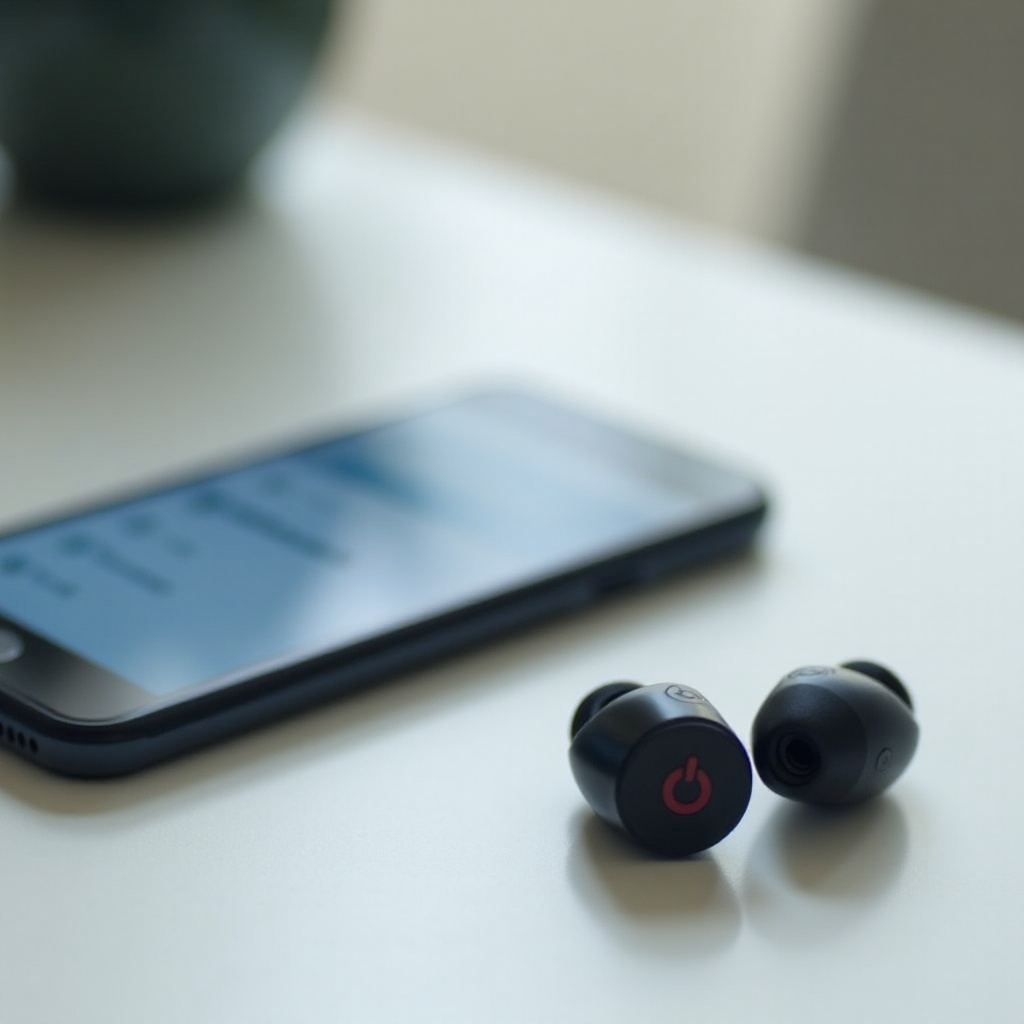
Quick Answer: Turn Off Beats Wireless Bluetooth Earbuds in Seconds
If you want fast results, use these steps first. They work for all current models and solve most power complaints.
For true wireless Beats (Studio Buds/Studio Buds+, Beats Fit Pro, Powerbeats Pro):
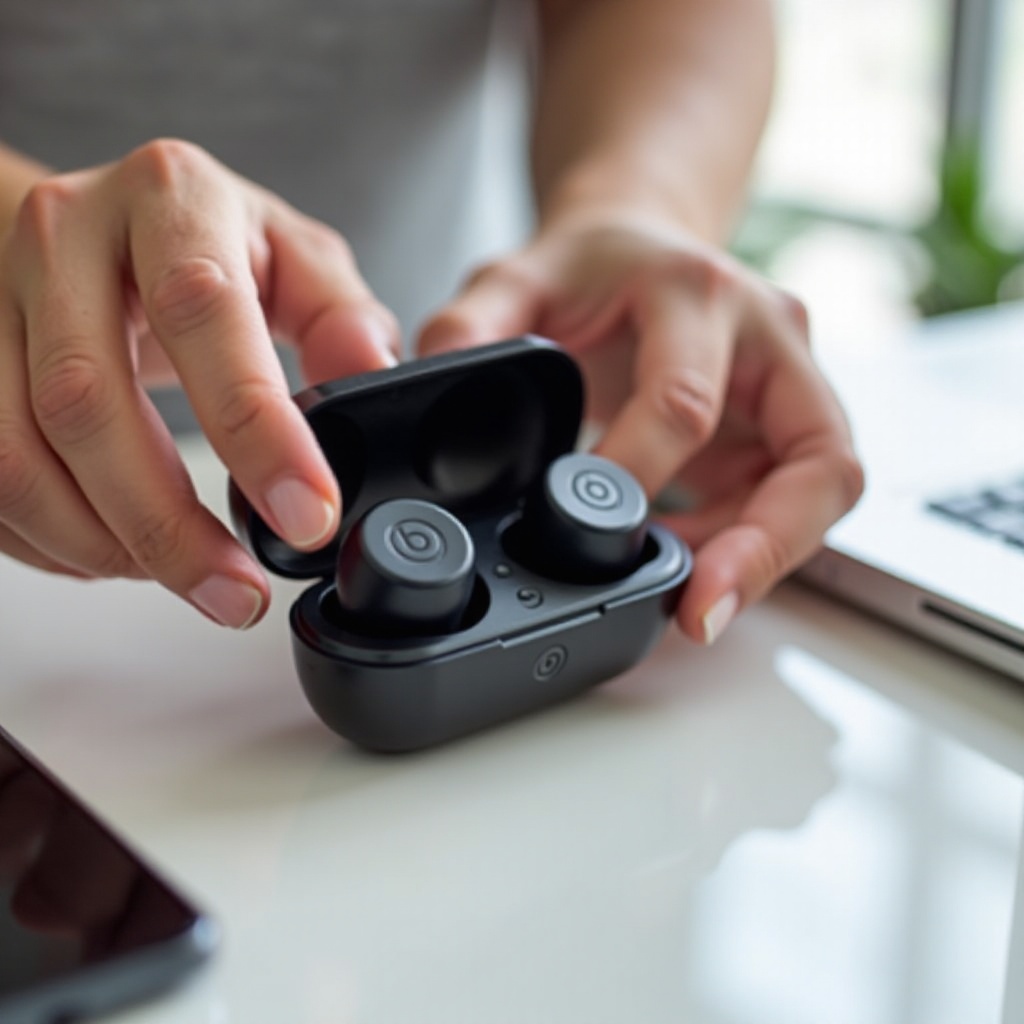
– Put both earbuds in the charging case.
– Make sure each earbud seats firmly; magnets should pull them into place.
– Check for a brief LED response, then close the lid.
– Wait 5–10 seconds. The buds enter sleep, then power down.
For neckband Beats (Beats Flex/BeatsX):
– Press and hold the power button on the inline remote for about 1 second to turn off.
– Confirm the status LED goes dark.
If they still connect, disconnect them on your phone or computer and try again. If the buds will not power off after these steps, go to the troubleshooting section later in this guide. Before that, identify your model so you can follow the exact instructions for your device.
Identify Your Beats Earbuds Model
Different models turn off in different ways, so identify your earbuds before you dig into details.
- Check the product name in your phone or computer Bluetooth list.
- Look at the hardware. Studio Buds/Studio Buds+ and Beats Fit Pro use compact cases with a front LED. Powerbeats Pro have ear hooks and a larger clamshell case. Beats Flex/BeatsX have a neckband cable and inline remote with a power button.
- On Android, open the Beats app to view the model name and battery levels. On iPhone, tap the info card in Bluetooth settings to see the model and firmware.
Now that you know which pair you have, start with the universal case method for true wireless models. Then move to the model sections for fine tuning.
Use the Charging Case to Power Off True Wireless Beats
The charging case is the master power switch for true wireless Beats. Closing the lid ends the Bluetooth session and places the earbuds in a low-power state, then powers them down.
Use this routine every time:
1) Place each earbud in the correct slot. You should feel the magnetic pull.
2) Glance at the LED. A brief white pulse or steady light indicates normal charging and sleep.
3) Close the lid firmly and wait 5–10 seconds before moving the case.
If a bud keeps waking up or reconnecting, try these quick fixes:
– Reseat the earbud. Remove it and press it back in so the charging pins contact the gold pads.
– Clean the contacts with a dry, soft brush or microfiber cloth. Remove lint or debris.
– Ensure the case has power. A drained case may fail to manage sleep and wake states.
With the core method covered, the next section breaks down the exact steps and resets for each model so you can shut down your specific pair with confidence and consistency.
Model-Specific Steps to Turn Off Beats Earbuds
The basics remain the same, but each model has its own reset steps, LEDs, and settings that influence power behavior.
Beats Studio Buds / Studio Buds+ — turn off, sleep, and auto-connect
- Turn off: Put both buds in the case and close the lid. Long-press on a bud controls ANC/Transparency, not power.
- Stop reconnects: If they wake after you close the case, reseat both buds and disable aggressive auto-connect on your phone (see the device section below). Set auto-join to a less eager mode.
- Reset: With the lid open and both buds in the case, press and hold the system button for 15 seconds until the LED flashes red and white. Re-pair after the reset.
Beats Fit Pro — turn off, ear detection, ANC/Transparency
- Turn off: Place both earbuds in the case and close the lid. They enter sleep and then power down.
- Stop wake-ups: Ear detection can wake a bud if a sensor sees motion. If a bud reappears in Bluetooth while in your pocket, disable ear detection in settings, and set auto-join to a less aggressive option like ‘When Last Connected’.
- Reset: With the lid open and buds in the case, hold the case button for 15 seconds until the LED flashes red and white.
Powerbeats Pro — case power-off, LED meanings, secure fit
- Turn off: Put both ear hooks in their slots, verify the case LED response, and close the lid firmly.
- Stop reconnects: Clean the gold contacts and ensure each earbud sits flat. A misaligned ear hook can prevent contact.
- Reset: With both buds in the case and the lid open, press and hold the case button for 15 seconds until red/white flashing begins.
Beats Flex / BeatsX — power button and auto-off timer
- Turn off: Use the inline remote power button. Press and hold for about one second until the LED goes dark.
- Auto-off: These neckband models enter low power when idle; use the hard power button for certainty.
- Reset: Beats Flex — hold the power and volume down buttons for 15 seconds until the LED flashes. BeatsX — hold the power and volume down buttons for about 10 seconds.
You now know how to power down each model. In many cases you will also want to cut the connection from your device to avoid auto-reconnect. The next section shows the fastest disconnect methods on phones and computers so your Beats stay silent after you close the case.
Turn Off or Disconnect from Your Phone or Computer
Even when the earbuds power down, a device can sometimes pull them awake. Break the connection from your phone or computer to keep them off and stop surprise audio switching.
iPhone and iPad
- Open Control Center, long-press the Bluetooth tile, then tap your Beats to disconnect.
- Or go to Settings > Bluetooth > your Beats > Disconnect.
- Reduce auto-reconnect: Tap ‘Connect to This iPhone’ and choose ‘When Last Connected’. If issues persist, tap ‘Forget This Device’ and re-pair.
Android devices and the Beats app
- Open Quick Settings and toggle Bluetooth off to break the connection.
- Or go to Settings > Bluetooth > your Beats > Disconnect.
- Use the Beats app to update firmware, check battery, and toggle features. Remove old pairings that could hijack the connection.
Mac (macOS)
- Click the Bluetooth icon in the menu bar and choose your Beats > Disconnect.
- Or open System Settings > Bluetooth, click the info button next to your Beats, and set ‘Connect to This Mac’ to ‘When Last Connected’ to reduce auto switching.
Windows PCs
- Open Settings > Bluetooth & devices. Click your Beats > Disconnect or Remove.
- You can also disconnect from the system tray Bluetooth icon. If your Beats reconnect instantly, remove them from paired devices and re-pair after a reset.
If your Beats continue to ignore power and connection commands, work through the troubleshooting steps next. These fixes resolve most stubborn behavior without a service visit.
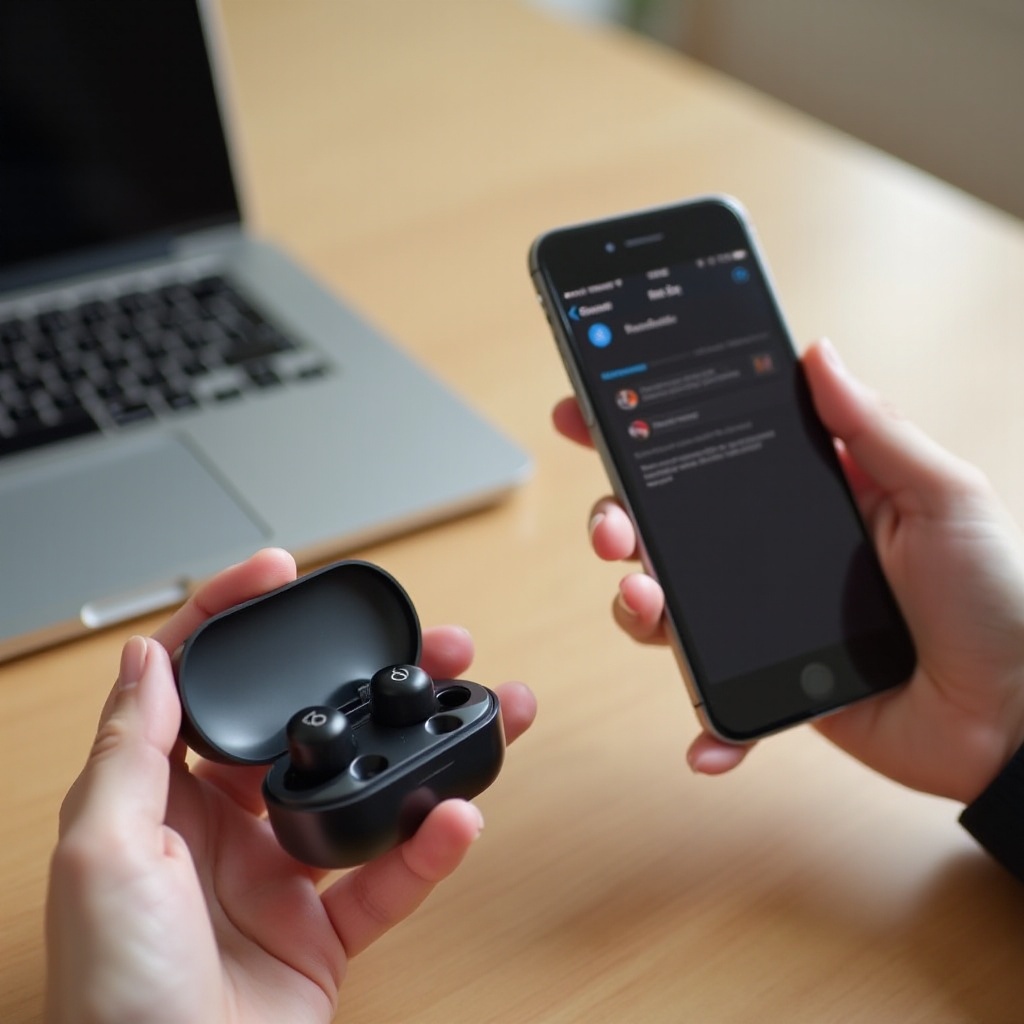
When Your Beats Won’t Turn Off: Troubleshooting Steps
Power issues usually come from poor contact, debris on sensors, outdated firmware, or a stuck software state. Tackle them in this order:
Clean charging contacts and sensors
Dust, pocket lint, and earwax can block charging pins and confuse in-ear sensors. Use a dry, soft brush or microfiber cloth. Gently clean the gold contacts on the buds and the pins inside the case. Avoid liquids and compressed air. Wipe the in-ear detection sensors, then reseat the buds and close the lid.
Reseat earbuds and check the case lid
Remove and reinsert each earbud until you feel the magnets pull them into place. If the case LED does not respond, charge the case for 10–15 minutes and try again. Close the lid until it clicks. A weak hinge or misaligned lid can keep the buds awake. Wait 10 seconds, then verify they no longer appear as connected on your device.
Reset your Beats by model
Resetting clears glitches that keep buds awake. For Studio Buds/Studio Buds+, Fit Pro, and Powerbeats Pro: place both buds in the case, open the lid, then hold the case button for 15 seconds until the LED flashes red and white. For Beats Flex, hold the power and volume down buttons for 15 seconds. After the reset, remove the old pairing on your phone or computer and re-pair from scratch.
Update firmware and re-pair
Outdated firmware can cause wake loops or misreads of the lid sensor. On iPhone, keep the case near the phone and connected to the internet; updates install automatically over time. On Android, install the Beats app, connect your earbuds, and follow prompts to update. If problems persist after the update, forget the device on every phone and computer, reset the earbuds, and pair them again cleanly.
With the buds turning off as expected, it pays to refine your habits so you stretch battery life and reduce the chance of random wake-ups. The next section covers power management strategies that make a visible difference day to day.
Battery-Saving and Power Management Tips
Small adjustments go a long way with true wireless earbuds. These tips lower drain, improve stability, and keep your Beats ready when you need them.
Sleep vs full power-off: when to use each
- Short breaks (under a couple of hours): place the buds in the case and let them sleep. This is faster and gentle on the battery.
- Long storage (overnight or longer): charge the case to 50–80%, put the buds inside, close the lid, and store in a cool, dry place. Avoid leaving the case empty in a backpack where sensors can wake a stray bud.
Manage auto switching, multipoint, and auto-connect
- On iPhone, iPad, and Mac, set ‘Connect to This Device’ to ‘When Last Connected’ on each device that pairs with your Beats. Disable automatic switching if multiple Apple devices fight for the connection.
- On Android and Windows, remove old pairings on laptops, tablets, or secondary phones you rarely use. This prevents a forgotten device from pulling the buds awake.
ANC/Transparency and volume habits
- ANC and Transparency improve sound in noisy spaces but use more power. Turn them off in quiet rooms.
- Lower volume reduces drain and keeps drivers healthier. Small reductions (even 10–20%) extend listening time and lower heat, which protects the battery over the long run.
With the power basics in place, fine-tune the system-level settings that control auto-join and sensor behavior. These options often make the difference between a smooth day and constant reconnects.
Advanced Settings That Affect Power-Off Behavior
System options on iOS, Android, and computers govern when the buds wake and which device they follow. Dial these in to keep control.
‘Connect to This iPhone’ and automatic switching
- On iPhone, go to Settings > Bluetooth > your Beats and set ‘Connect to This iPhone’ to ‘When Last Connected’. Repeat the same on iPad and Mac (‘Connect to This Mac’). This limits aggressive auto-join when the case opens.
- If you constantly move between Apple devices, consider disabling automatic switching for your Beats in Bluetooth settings so they only follow manual connections.
In-ear detection and one-earbud use
- In-ear detection can wake a bud if a sensor sees motion in a pocket or case. If a bud keeps waking, turn off in-ear detection in the Beats settings (iOS) or the Beats app (Android).
- One-bud mode works for calls and podcasts. Put one earbud in the case (it will sleep), and keep the other in your ear in mono. This reduces drain and keeps one bud fully charged as a backup.
Find My and tracking considerations
- Supported Beats models can appear in Apple Find My. They show last known location when offline. They do not broadcast a live signal when fully off in the case, which saves battery and is expected behavior.
- If you need location updates, open the case near your phone or reconnect the buds briefly, then place them back in the case to record a fresh location.
Conclusion
Turning off Beats earbuds stays simple once you match the method to the model. True wireless Beats use the charging case as the power switch. Neckband Beats rely on the inline power button. If they will not stay off, clean the contacts, reseat the buds, reset them, and update firmware. Manage auto-connect settings on every device to avoid surprise wake-ups. Use sleep for short breaks and store your Beats in the charged case for longer rests. With these habits and settings in place, your earbuds power down fast, stay off when you ask, and remain ready for your next session.
Frequently Asked Questions
Do Beats earbuds turn off automatically in the case?
Yes. Studio Buds/Studio Buds+, Beats Fit Pro, and Powerbeats Pro enter sleep, then power down after you place them in the case and close the lid. If they reconnect, clean the contacts, reseat both buds, confirm the case charge, and review auto-join options like ‘Connect to This iPhone’ or Android Bluetooth settings.
Can I turn off just one Beats earbud while using the other?
Yes for true wireless models. Put one earbud in the case and close the lid; it will sleep while the other stays connected in mono. For neckband models, the single power button controls both sides, so they turn off together.
What should I do if my Beats keep reconnecting after I turn them off?
First, confirm the buds sit correctly in the case and the lid is fully closed. Clean the contacts and reset the earbuds. Update firmware via iPhone or the Beats app on Android. Then set ‘Connect to This Device’ to ‘When Last Connected’ on every Apple device, and remove old pairings on Android and Windows to stop conflicts.