
How to Use a Crosley Record Player Bluetooth: Pairing, Playback, and Troubleshooting
Introduction
Bluetooth turns a compact Crosley turntable into a flexible listening hub. You can stream audio from your phone into the unit or send your records to wireless speakers and headphones. This guide shows how to use crosley record player bluetooth step by step, explains what each Bluetooth mode actually does, and gives you quick fixes if pairing or audio fails.
We start by clarifying Bluetooth In versus Bluetooth Out. That single distinction drives the exact steps you will follow. Then you will confirm your model, set up the hardware for clean sound, and use pairing instructions for both directions. After that, you will learn what to expect from wireless sound, how to improve it, and how to mix in wired options when you want more fidelity. Each section builds on the last so you move from confusion to a reliable setup without backtracking.
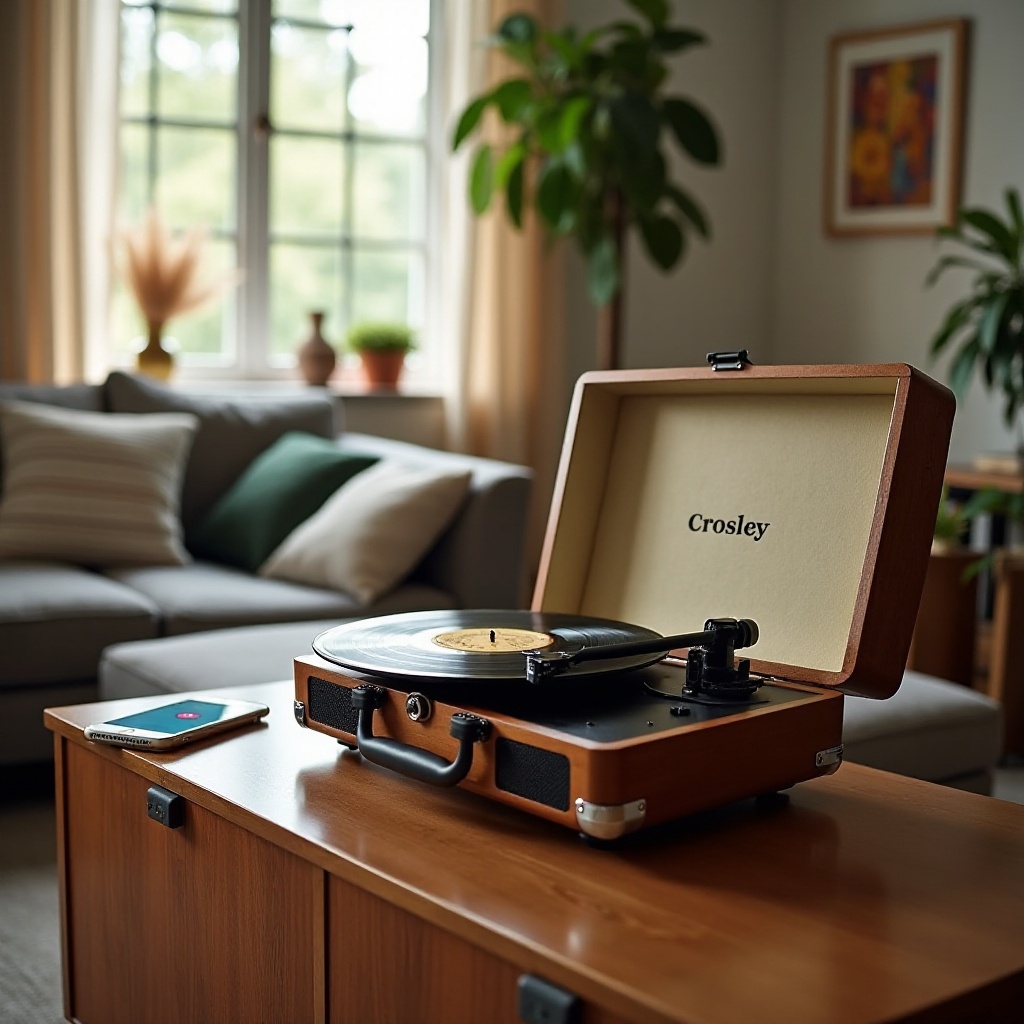
Bluetooth on Crosley: In vs Out and Why It Matters
Before you pair anything, identify which Bluetooth mode your Crosley supports. Some models accept Bluetooth audio from a phone or laptop. That is Bluetooth In. Others transmit the record player audio to wireless speakers or headphones. That is Bluetooth Out. A few models do both, but most do one or the other.
- Bluetooth In: You stream from your phone, tablet, or laptop to the turntable. The unit behaves like a Bluetooth speaker. Your phone controls the source, and the Crosley plays it through its speakers or line out. You will not hear your records over Bluetooth In.
- Bluetooth Out: You send the turntable audio wirelessly to a Bluetooth speaker, soundbar, or headphones. This is the mode you want if you aim to hear vinyl through wireless speakers or earbuds.
Look for a printed label or a small switch near the back panel. It may say BT In, BT Out, Bluetooth Receiver, or Bluetooth Transmitter. Your user manual or product page will confirm the mode if the label is unclear. Once you know the mode, you can follow the accurate steps and avoid dead ends. With the basics clear, you can tie this to your exact model for a precise plan.
Confirm Your Crosley Model and Bluetooth Capability
Next, link the mode to your model so you know the device names and buttons you will use. Check the box, the underside label, the rear panel, or the quick start guide. If you no longer have the manual, search your model name on Crosley’s website and review the product page features.
Many suitcase models labeled as Cruiser or Voyager variants often include Bluetooth In, though some newer versions add Bluetooth Out. Component-style sets and bundles, including C-series units, more often include Bluetooth Out or both modes. If your model supports In only, do not worry. You can still stream your phone through the built-in speakers. If you want vinyl to go wireless, add a compact Bluetooth transmitter to the RCA outputs. Now that you know what your hardware can do, prepare the turntable for clean audio before you touch the pairing button.
First-Time Turntable Setup Before Bluetooth
A few minutes of physical setup prevents problems that look like Bluetooth issues but are not. Handle these essentials first:
- Place the turntable on a level, stable surface. Keep it away from heavy wireless traffic like routers and smart hubs.
- If your model uses a belt, install it around the motor pulley and platter as shown in the manual. Remove the stylus guard carefully.
- Set the speed selector to 33 or 45 based on the record you will play. If auto stop cuts off songs, turn it off for more consistent play.
- Set the preamp or Line switch correctly. If you plan to use built-in speakers, leave it on Line or the default setting. If you connect external gear by RCA, confirm the switch matches the downstream device.
- Start with the volume low. Turn the unit on and raise levels gradually after you confirm signal.
Do a quick wired test. Either play a record through the onboard speakers or connect RCA to powered speakers and confirm clean sound. Once you have a good baseline, move on to wireless pairing. That sequence reduces variables and makes the next steps faster.
Pairing Bluetooth In: Phone to Crosley Turntable
If your unit supports Bluetooth In, you can play audio from your phone through the turntable’s speakers. Use this order and stay close during first pairing.
1) Enter Bluetooth In pairing mode. Flip the BT In switch or press the BT button until you see a flashing LED or hear a pairing prompt.
2) Open Bluetooth settings on your phone. On iPhone, go to Settings > Bluetooth. On Android, go to Settings > Connected devices > Pair new device.
3) Select the device name that matches your Crosley. It may show as Crosley, Crosley BT, or a model name.
4) Confirm the connection. Look for a solid LED or a short chime.
5) Select the Bluetooth input on the turntable if it does not switch automatically. Some units change sources when paired; others need a manual source toggle.
6) Play a track or podcast. Bring up the phone volume and then set the turntable volume to taste.
If your phone does not see the turntable, make sure you selected BT In, not BT Out. Move the phone within a few feet. Forget old Crosley entries on your phone and try again. Power cycle both devices if needed. With Bluetooth In working, you have verified the radio and your environment. Now you can connect wireless speakers or headphones if your model supports Bluetooth Out.
Pairing Bluetooth Out: Crosley Turntable to Speakers or Headphones
Bluetooth Out sends your vinyl audio to wireless speakers, soundbars, or headphones. The pairing order matters. Follow these steps with the devices within three feet of each other.
1) Reset old pairings. On the turntable, enter BT Out mode and hold the pairing button until a rapid flash shows memory cleared. On your speaker or headphones, clear pairing memory per its manual.
2) Put the speaker or headphones in pairing mode first. Wait for the LED or tone that indicates ready to pair.
3) Start pairing on the turntable. Press or hold the BT Out button until it searches for devices.
4) Wait for a solid LED or connection tone. You might see a device name like Crosley TX or your model name on certain speakers.
5) Set volumes. Keep the turntable output at a clean mid setting. Raise speaker or headphone volume to reach your listening level without distortion.
6) Play a record and confirm both channels sound balanced. If your unit also supports Bluetooth In, switch modes when you want phone audio instead of vinyl.
If pairing fails, bring the devices closer and remove obstacles. Turn off other Bluetooth gear that may auto connect. Reset pairings and try the order again. Expect a small delay in audio over Bluetooth Out. For video or gaming, consider a low latency transmitter or a wired connection. With a working wireless link, it helps to know how Bluetooth sound differs from a cable so you can set expectations and dial in better audio.
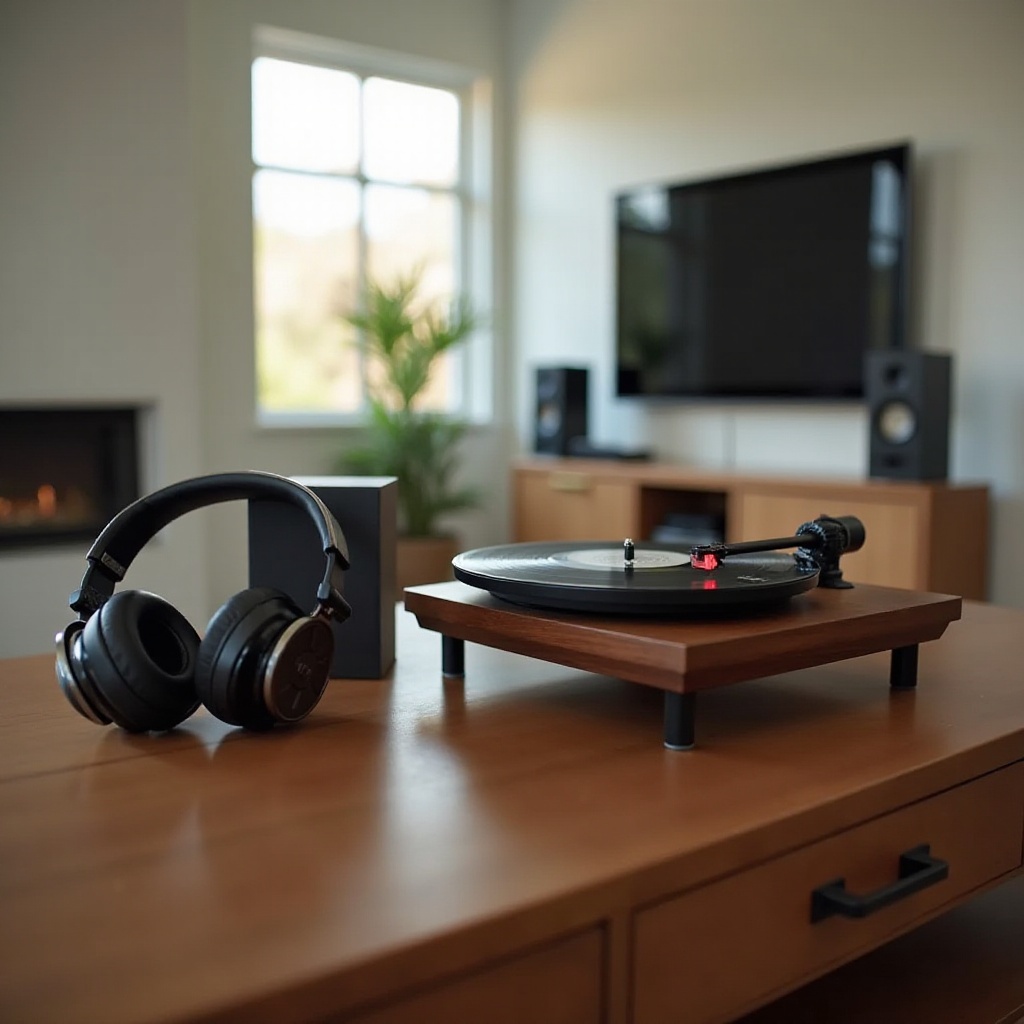
Play Records Over Bluetooth Out: What to Expect
Wireless playback prioritizes convenience. It adds a few quirks that your setup can manage.
- Latency is normal. Music will sound fine. Video may show lipsync drift because of the delay in encoding and decoding.
- Codecs vary. Many transmitter chips default to SBC or AAC. Some headphones support more advanced codecs, but the turntable must also support them to engage. They may not.
- Tuning differences exist. Bluetooth speakers often add EQ that changes bass and treble. That is normal for compact speakers.
If you want the cleanest sound, a short RCA run to powered speakers usually wins. Bluetooth Out shines when convenience, flexible placement, or a clutter free desk matters more. Next, you will learn quick ways to improve sound quality and take care of your records, no matter which connection you use.
Optimize Sound and Protect Your Vinyl
A few small habits boost clarity and extend the life of your stylus and records.
- Gain staging: Set the turntable volume around the mid point for a clean signal. Increase the speaker or headphone volume to reach your target level. Avoid pushing the turntable volume to the max; it can clip.
- Placement and interference: Keep the turntable and your Bluetooth receiver within line of sight when possible. Avoid stacking devices or hiding the speaker in a cabinet. Move away from crowded 2.4 GHz zones near routers and hubs.
- Record care: Use a carbon fiber brush before each play to remove dust. Store records upright and in inner sleeves. Static and dirt add clicks and hiss that Bluetooth cannot fix.
- Stylus and cartridge: Handle the cartridge gently. If your model allows adjustments, set the tracking force and align the cartridge per recommendations. Replace the stylus after the rated hours.
- Isolation: Put the turntable on a firm shelf or a small isolation mat to minimize footfall and feedback.
- Power discipline: Turn gear off when not in use. Stable power helps Bluetooth chips maintain consistent links.
These steps reduce noise and dropouts while protecting your collection. If you decide convenience is not enough and you want higher fidelity, you can add or swap in simple wired connections without losing flexibility.
Wired Alternatives and Hybrids: RCA, AUX, and Preamp Tips
Wired connections deliver steady sound and low latency. You can still keep Bluetooth as a secondary path.
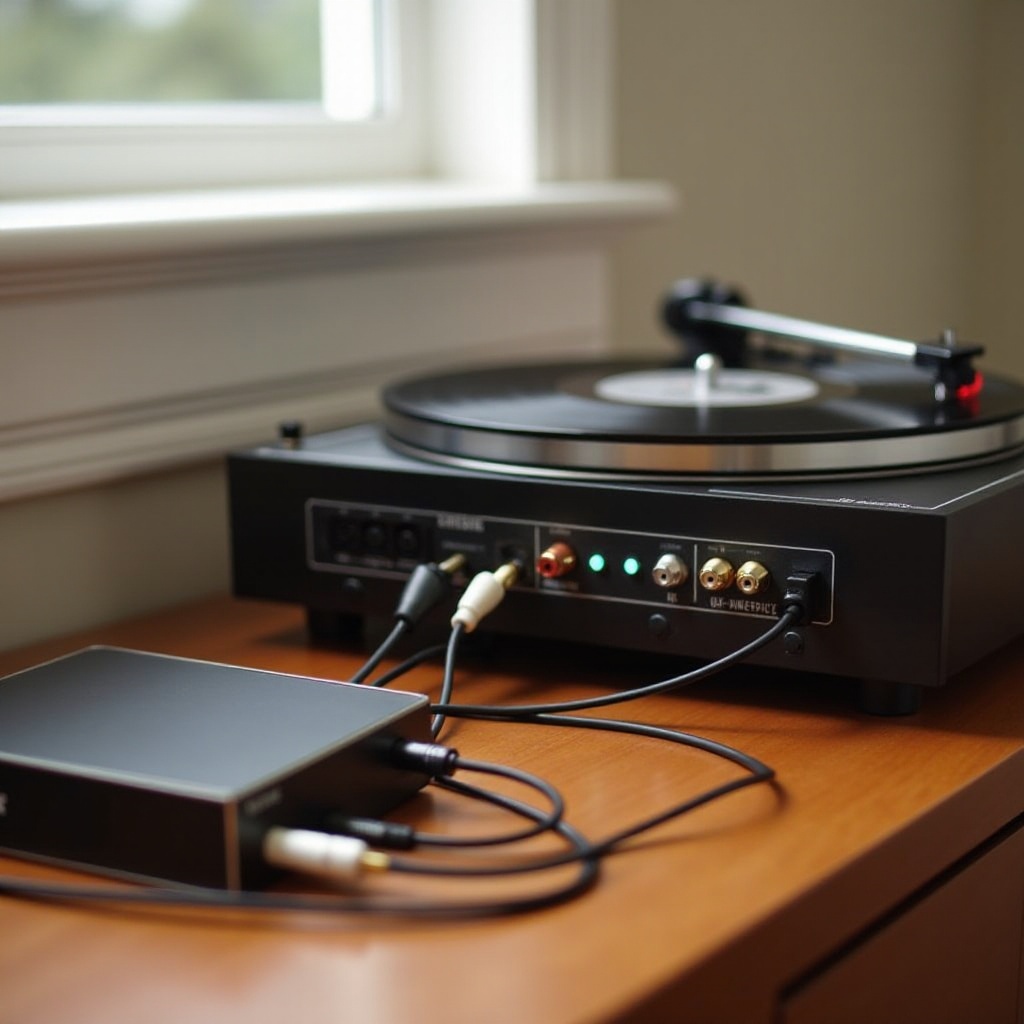
- RCA to powered speakers: If your Crosley has a built in preamp, flip the switch to Line and plug RCA directly into powered speakers. If your unit outputs phono level only, insert a small phono preamp between the turntable and the speakers.
- Add a transmitter if you only have Bluetooth In: Plug a compact Bluetooth transmitter into the RCA outputs. Choose one that supports a low latency mode if you watch video.
- Add a receiver for better phone streaming: If your turntable speakers sound better than your phone speaker but your unit uses a basic Bluetooth In codec, consider a separate Bluetooth receiver with higher quality codecs. Feed it into AUX if your model has one.
- Mix paths: Some models allow Bluetooth and RCA to work at the same time, but not all. Even when both output, levels can drop or one path can mute when the other activates. Check your manual and test both ways.
This hybrid approach gives you the best of both worlds. Use Bluetooth for quick background listening and switch to RCA for focused sessions. If issues show up, do not panic. Most problems resolve with a simple checklist.
Troubleshooting: Not Pairing, No Sound, or Dropouts
Most Bluetooth problems boil down to wrong mode, pairing order, or interference. Work through this fast path.
-
Not discoverable or cannot find the device
1) Confirm the mode. For phone streaming into the unit, use BT In. For sending vinyl to speakers, use BT Out.
2) Reset pairings on both ends. On many Crosley models, hold the BT button in the correct mode until you see a rapid flash. On speakers or headphones, clear memory per their manual.
3) Move the devices within three feet and try again. -
Connects but no sound
1) Verify the source. BT In only plays audio from your phone. Vinyl will not travel over BT In. For vinyl wireless, use BT Out or an external transmitter.
2) Raise volumes on both devices and confirm mutes are off.
3) Confirm the preamp or Line switch and any input selectors on your speakers or soundbar. -
Choppy audio or dropouts
1) Shorten the distance and remove obstacles. Avoid hiding the speaker in a cabinet or behind a TV.
2) Turn off or move away from crowded wireless zones. Keep the turntable a few feet from routers, hubs, and microwaves.
3) Stop other Bluetooth devices from auto connecting while you pair.
4) Charge portable speakers or headphones. Low battery can cause stutter.
Update firmware on your speaker or headphones if the brand offers an app. Test with a second phone or another speaker to isolate the faulty side. Write down LED colors and tones for each step; that detail helps support identify the issue quickly if you need help. When you know the common causes, you can fix most problems in minutes. To seal the process, keep a small checklist nearby so you can repeat success every time.
Quick Reference Checklists
-
Bluetooth In: phone to turntable
1) Turn on BT In and enter pairing mode.
2) Pair from your phone settings.
3) Select the BT input if needed.
4) Play audio and set volumes on both devices. -
Bluetooth Out: turntable to speakers or headphones
1) Clear old pairings.
2) Put the speaker or headphones in pairing mode.
3) Enter BT Out pairing on the turntable.
4) Confirm connection and set volumes. -
Fast fixes
- Move devices closer and remove obstacles.
- Reset pairings and power cycle both sides.
- Confirm the correct mode: In versus Out.
- Check preamp or Line switch and mutes.
These at a glance prompts cut through setup fatigue. Keep them on your phone or print a small card so you never guess your way through pairing again.
Conclusion
You now know how to use crosley record player bluetooth with confidence. Start by identifying Bluetooth In or Bluetooth Out on your model. Prepare the deck for stable, clean playback. Follow the pairing order, manage volume on both sides, and place gear for a clear signal. If something fails, run the troubleshooting path to correct mode, reset memory, and remove interference. When you want more fidelity or zero latency, add a simple RCA path to powered speakers and keep Bluetooth for convenience. With a clean setup and a short checklist, your Crosley can switch from quiet background listening to enjoyable sessions without a tangle of cables.
Frequently Asked Questions
Can I connect my Crosley to AirPods or other true wireless earbuds?
Yes, if your model supports Bluetooth Out. Put the AirPods in pairing mode by holding the case button until the white light flashes, then enter BT Out pairing on the turntable and connect within a few feet. If your unit only supports Bluetooth In, add a small Bluetooth transmitter to the RCA outputs to send vinyl audio to earbuds.
Why do I hear Bluetooth streaming but not my records over Bluetooth?
You likely paired Bluetooth In, which treats the turntable like a Bluetooth speaker for your phone. Bluetooth In plays phone audio only. To hear vinyl wirelessly, use Bluetooth Out. If your model does not offer it, plug a compact Bluetooth transmitter into the RCA outputs and pair that to your speaker or headphones.
Does Bluetooth sound worse than wired on a Crosley, and how can I improve it?
Bluetooth adds compression and latency, so RCA to powered speakers usually sounds cleaner. To improve wireless, keep devices close, reduce interference, and manage gain by setting the turntable volume around mid while raising the speaker volume to taste. For the best fidelity, use a simple wired path or step up your speakers and placement.