
Vizio Subwoofer Not Pairing? A Complete Troubleshooting Guide
Introduction
What this guide covers and who it’s for
If your Vizio subwoofer is not pairing with your soundbar, you want fast answers and steps that work the first time. This guide gives you a clear, practical path from quick checks to advanced fixes. You will learn how the wireless link works, how to spot the right LED patterns, and how to remove interference and settings conflicts. It is written for Vizio V Series, M Series, Elevate, and similar bundled kits.
Symptoms to clarify before you start
Define your symptom so you can pick the right fix:
– The sub never pairs: the LED keeps blinking and never turns solid.
– The sub pairs, then drops: bass cuts out after minutes or hours.
– The sub pairs, but no bass: the link exists, but settings mute low end.
The first two usually track to pairing sequence, resets, or interference. The last often points to audio settings or source format.
What you’ll need
Gather a few basics before you begin:
– Model numbers for your bar and sub, plus remote or on bar buttons.
– Access to power outlets, your router if needed, and a known good audio source.
– A few minutes to move the sub closer to the bar during pairing.
With these on hand, you can understand how the system links so each step makes sense.
How Vizio Subwoofer Pairing Works
How the subwoofer links to the soundbar
Vizio kits create a private 2.4 GHz wireless link between the soundbar and the sub. The bar hosts the connection and sends low frequency signals to the sub with low latency. Many 5.1 bundles also route rear speakers through the sub, so one unstable link can affect the whole system.
LED indicators and tones you should expect
LEDs tell you exactly what is happening:
– Fast blinking on the bar or sub means pairing mode.
– Slow blinking means the devices are trying to negotiate.
– Solid light confirms a successful link.
Some models play a short chime when the link locks. If you never see a solid LED, the link failed or timed out.
Common failure points and misunderstandings
Typical causes include power saving modes that shut radios off, heavy 2.4 GHz interference from routers and devices, or mixing parts from different kits. A frequent mistake is to start Bluetooth pairing for phones and assume it pairs the sub. The sub uses its own private link and ignores phone style Bluetooth pairing. With that clear, start with quick checks that fix many cases in minutes.
Quick Checks That Fix Most Pairing Issues
Power cycle both units the right way
A clean reboot often clears stuck links. Follow this order:
1) Turn off the soundbar and sub, then unplug both for 60 seconds.
2) Plug in the sub first and wait 30 seconds for its radio to initialize.
3) Plug in the soundbar and wait for startup lights to finish.
4) Play a known bass heavy track at moderate volume to confirm.
Verify outlets, surge protectors, and cables
- Plug each device directly into a wall outlet during testing.
- Avoid smart plugs or switched strips that cut power abruptly.
- Confirm the sub power cord fits snugly, and the bar power brick matches the model.
- If the bar uses an external supply, verify the voltage and amp ratings on its label.
Confirm input mode vs. Bluetooth pairing confusion
- Set the soundbar to a wired input such as HDMI ARC or Optical.
- Exit Bluetooth input on the bar before you try to pair the sub.
- Do not hold the Bluetooth button while pairing the sub link.
Ensure bar and sub are from the same kit family
- Match the sub to the original soundbar model; Vizio subs rarely cross pair.
- Check model stickers on the back or underside for exact codes.
If these checks do not lock the link, use a guided manual pairing sequence in close range.
Manual Pairing: Step by Step Process
Enter link mode on the soundbar
Most Vizio bars offer a Pair or Link command via a button or the remote menu. Do this:
1) Power on the soundbar and set a wired input.
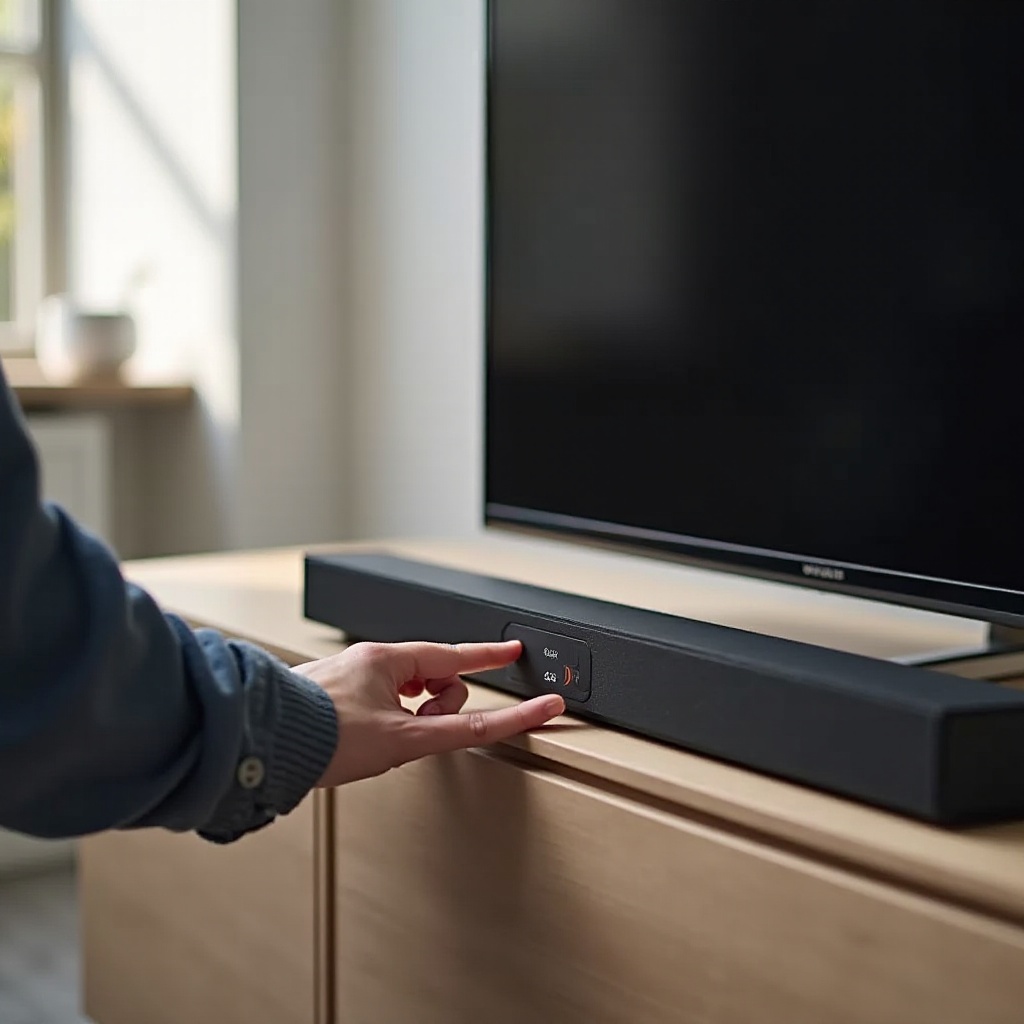
2) Press and hold the Pair or Link button on the bar for several seconds, or open the remote menu and select Subwoofer Pairing.
3) Confirm the bar shows pairing mode with fast blinking LEDs or a menu message.
Put the subwoofer into pairing mode
1) Power on the sub and locate the Pair or Link button on the rear or bottom panel.
2) Press and hold it for 5 to 10 seconds until the LED begins to blink.
3) Keep the sub within 6 to 10 feet of the bar during the first link.
Watch the LEDs and wait for confirmation
The LEDs should stabilize within 30 to 60 seconds. A solid light on the sub and a steady indicator on the bar confirm success. If the LED continues to blink, move the sub closer, remove obstructions, and retry.
Reboot and retest with a known good source
Once linked, play a bass focused track or a sub test tone. Raise sub level a few clicks in the audio menu. If you still cannot link, a clean reset can clear stale pairing data and resolve negotiation errors.
Reset the Wireless Link Safely
Soft reset vs. factory reset: differences
- A soft reset means a power cycle that clears temporary glitches but keeps settings.
- A factory reset restores defaults and erases saved links. Use it when manual pairing keeps failing or when the link drops repeatedly.
Factory reset sequences by typical Vizio series
Exact steps vary by model, but common options include:
– Press and hold Bluetooth plus Volume Down on the bar for several seconds until LEDs flash.
– On other models, hold Input plus Volume Down or press a recessed Reset pin.
– For subs, press and hold the Pair or Link button until the LED flashes rapidly, then release.
Always check your specific manual to confirm the sequence.
Clearing old links to prevent auto pair collisions
After a factory reset, follow a controlled order:
1) Unplug both devices for 60 seconds.
2) Plug in the sub first and let it idle for 30 seconds.
3) Plug in the bar and wait for startup to finish.
4) Initiate manual pairing on the bar, then the sub, with both units close together.
This order prevents the bar from reattaching to a broken profile.
Rebuilding the connection in the correct order
Pair the bar and sub first. Once that link is solid, add rear speakers if your kit includes them. Finally, connect the TV via HDMI ARC or eARC. This sequence isolates issues and speeds up troubleshooting.
Eliminate Interference and Range Problems
Placement, obstacles, and ideal distance
Reliable wireless bass needs a clear path. Follow these rules:
– Keep the sub within 10 to 30 feet of the bar.
– Avoid sealing the sub inside cabinets or behind dense furniture and metal racks.
– Aim for line of sight or a single wall between the bar and sub.
If you improve placement and still see drops, tune your Wi Fi environment next.
Wi Fi routers, 2.4 GHz congestion, and fixes
Your router likely runs on the same band as the sub link. Reduce noise:
– Move the router at least 6 to 10 feet from the bar and sub.
– Set the 2.4 GHz channel to 1, 6, or 11 and choose the least crowded.
– Prefer 5 GHz for phones and streamers when possible to free 2.4 GHz space.
Microwaves, baby monitors, and cordless phones
Some devices create bursts of interference that break links:
– Keep the sub away from microwave ovens and cordless phone bases.
– Temporarily power down baby monitors during tests.
– If dropouts stop, relocate or separate those devices for long term stability.
Channel and router settings that help
- Disable auto channel hopping on 2.4 GHz if it causes periodic drops and lock the channel.
- Reduce transmit power slightly if the router sits inches from the bar.
- Turn off legacy 802.11b rates and use 20 MHz width for a cleaner spectrum.
With the airwaves calmer, address power modes and firmware so the link stays stable.
Power, Firmware, and Settings That Impact Pairing
ECO or Standby settings that break links
Some power saving modes shut off the radio when audio stays quiet:
– Disable Eco or Auto Standby while you test.
– Set the sub level above zero so low volume content keeps the link alive.
– If the bar sleeps too aggressively, raise auto off timers or disable them.
Updating firmware via SmartCast or USB
Outdated firmware can cause inconsistent pairing behavior. Fix it:
– Open the Vizio SmartCast app or on screen menu and check for updates.
– If a USB update is required, follow the instructions precisely and keep power stable.
– Let both bar and sub sit powered for a few minutes after updates to complete sync.
Matching firmware between bar and sub
A bar that updates while the sub does not can lead to mismatched link keys. After any update, perform a factory reset on both devices, then pair from scratch. This refresh ensures clean negotiation and a stable link.
Remote and on screen menu options to check
- Increase Sub Level and confirm output rises.
- Turn off Night Mode or Dialogue enhancement that may suppress low frequencies.
- Verify input is ARC or eARC and the TV audio output is set to Dolby or Bitstream when available.
With core settings confirmed, you can handle model specific quirks and rare cases.
Model Specific Notes and Edge Cases
V Series and M Series pairing buttons and LEDs
These bars often place the Pair or Link button on the side or rear, and the sub carries a single LED that goes solid when paired. If you do not see a physical Pair button, use the remote audio menu. Watch the LED patterns closely to confirm each step.
Elevate and rear satellite considerations
If your rears connect through the sub, link the bar and sub first. Then press the rear link button or use the menu to add satellites. Place the rears closer during the first link to avoid timeouts, and move them back once the system stabilizes.
Refurbished or replacement subs mixed with bars
Replacement subs must match the original kit family to pair. Two products can look similar yet hold different radios or firmware. If you suspect a mismatch, check the exact part number with Vizio support before you spend more time troubleshooting.
Accessories that can help or hurt
Mesh Wi Fi nodes parked near the bar can flood the 2.4 GHz band. Move them a few feet away. Cheap power strips can introduce noise or drop power under load; test with direct wall outlets. Isolation pads under the sub can reduce cabinet rattles that hide whether bass is present during tests.
If the Sub Pairs but There’s No Bass
Bass level, EQ, and audio modes
Open the audio menu and raise Sub Level a few steps. Switch to Movie or Standard mode instead of Night or Dialogue. Reset EQ to defaults if you cut low frequencies earlier. Many kits store audio modes per input, so repeat checks on each input.
Source content and night mode checks
Test with a bass rich track or a known test tone. Disable Night Mode on both the bar and the TV if the TV also offers sound processing. If the TV outputs PCM stereo only, the sub may not receive a strong LFE channel. When possible, set the TV to Bitstream or Dolby Digital.
HDMI CEC, ARC or eARC, and volume controls
Use HDMI ARC or eARC for reliable bass routing. Reseat or replace the HDMI cable if audio drops when you move it. Disable CEC briefly if volume commands cause input switches that mute bass. Confirm that no app level volume control has the sub channel at zero.
If bass still fails, gather documentation and prepare a support request with clear evidence.
When to Escalate: Warranty and Support Paths
What to document before contacting support
Prepare these items to speed resolution:
– Model and serial numbers for the bar and sub.
– Proof of purchase, any case numbers, and a short video of LED behavior during pairing.
– Notes on steps you already tried and the exact environment setup.
Out of warranty options and parts
Ask about paid replacement subs or radio modules if the unit is out of warranty. Price out the parts and compare with current kits. If parts approach the cost of a new bundle, a full kit swap may deliver better long term reliability.
Alternatives if wireless pairing remains unstable
Try a different wall outlet on another circuit to rule out electrical noise. If your model supports it, test a wired sub output with a powered sub as a temporary solution. If repeated interference persists in your space, consider upgrading to a kit with a more robust wireless design or a system that allows wired bass.
You now have a full path from basics through advanced fixes and escalation. A brief wrap up helps you lock the process in memory.
Conclusion
Quick recap of the pairing flow
Start with clean power and correct input. Run manual pairing with the sub close to the bar. If it fails, perform a factory reset on both units and rebuild the link in order. Remove interference, adjust settings, and update firmware. Confirm success with a known bass track.
Preventive tips to avoid future issues
Keep the sub within line of sight or minimal obstacles. Separate routers, mesh nodes, and cordless bases from the bar by several feet. Disable aggressive power saving while watching and keep firmware current. Note your model numbers and reset steps for future use.
Next steps if problems persist
If your Vizio subwoofer is not pairing after these steps, record LED patterns, take a short clip, and contact Vizio support with model details. Ask about compatible replacements if you suspect a mismatched sub. With methodical steps and clean environment setup, you restore stable bass and keep it that way.
Frequently Asked Questions
Why does my Vizio subwoofer keep unlinking after it pairs?
Frequent drops usually point to 2.4 GHz interference or power saving. Space the router and mesh nodes 6 to 10 feet away, lock Wi Fi to channel 1, 6, or 11, disable Eco while testing, and update firmware.
Can I pair a Vizio subwoofer from a different model or year?
Usually no. Vizio subs are built to match their original kit family. Radios and keys differ across bundles. Confirm exact part compatibility with Vizio before buying a replacement sub.
Do I need internet for the subwoofer to pair with the soundbar?
No. The sub uses a private wireless link that works offline. Internet only helps with firmware updates and instructions. Keep the router a few feet away and use a clean 2.4 GHz channel to reduce interference.