
Why Does My PS5 Say ‘PlayStation Network Failed’? Troubleshooting and Fixes That Work
Introduction
A sudden PSN sign-in failure stops downloads, multiplayer, and cloud saves in their tracks. If you searched why does my ps5 say playstation network failed, you need fast, clear steps that isolate the true cause. This guide delivers that path. You will start with quick checks that take minutes. Then you will test your connection and switch to Ethernet to remove Wi‑Fi guesswork. You will tune DNS, MTU, and NAT settings that most often fix stubborn sign-in errors. You will review router security features that silently block PSN traffic. You will also verify your PSN account status and two-factor authentication. Finally, you will use console tools like Clear Cache and Rebuild Database to clean system glitches. Between each section, you get guidance on what to try next based on your results. Follow the order and you will uncover the root cause without wasting time.

What the ‘PlayStation Network Sign-In Failed’ message actually means
The message means your PS5 could not complete a secure handshake with Sony servers. That failure can happen at different layers. PSN may be down. Your router may block or mangle traffic. Your Wi‑Fi may drop packets or add latency. DNS lookups may fail. MTU settings may fragment logins. Your NAT may be too strict. Your account may need a password reset or two-factor approval. Distinguish the scope first. If a PSN outage affects the region, nothing you change at home will help until the service recovers. If the internet works but PSN sign-in fails, focus on DNS, MTU, NAT, and router filters. If web login fails on your phone or PC, the account needs attention. By mapping these branches, you avoid random tweaks and solve the right problem.
Quick triage: fixes to try in the first 5 minutes
Start with low-effort wins that resolve many cases:
1) Restart the PS5. Press the PS button, choose Power, then Restart PS5.
2) Power cycle the modem and router. Unplug both for 60 seconds. Plug in the modem, wait for stable lights, then the router, then boot the PS5.
3) Check PSN service status on a phone using mobile data. If PSN shows problems, wait for resolution and try later.
4) Sync the console clock. Go to Settings > System > Date and Time > Set Automatically.
5) Sign out and sign back in. Settings > Users and Accounts > Users > Sign Out, then sign in with your credentials.
6) Test a different network, such as a phone hotspot. If sign-in works on the hotspot, your home network needs changes.
If any step works, stop. If not, you need to separate service-side issues from your network.
Check PSN vs your network: how to tell quickly
Confirm whether the failure sits with PSN, your link to the internet, or your PSN account. First, verify PSN status using your phone on cellular to avoid cached results or local DNS issues. Next, run a PS5 connection test: Settings > Network > Connection Status > Test Internet Connection. Check the three gates: Obtained IP address, Internet, and PlayStation Network sign-in. If IP and Internet pass but PSN sign-in fails, the path from your home to PSN is broken by DNS, MTU, NAT, or a filter. If Internet fails, fix your router or ISP link before anything else. Also try signing in to your PSN account at playstation dot com on a phone or PC. If that fails, focus on account and two-factor fixes. With that clarity, choose the most reliable way to connect for deeper tests.
Wi‑Fi or Ethernet: choose and test the best connection
Ethernet removes wireless variables, so use a cable first if you can. Connect the PS5 directly to the main router, then retest PSN sign-in. If wired works but Wi‑Fi fails, you have a wireless stability issue. If both wired and wireless fail, the problem sits in network settings, router rules, or account status. If a cable is not practical, favor 5 GHz Wi‑Fi. Move the PS5 closer to the router and reduce obstacles like thick walls and metal. Run the connection test again. This step tells you where to spend effort next: Wi‑Fi optimization or network-layer tuning.
Optimize your home Wi‑Fi for PS5 stability
If Wi‑Fi appears to blame, reduce interference and noise. Follow these tips:
– Prefer 5 GHz. It offers less interference and faster throughput than 2.4 GHz.
– Place the router in a central, elevated spot. Keep it away from microwaves, cordless phones, and thick concrete.
– Use clean channels. Set 5 GHz channels in the 36–48 or 149–161 ranges. If your router keeps hopping channels, try a fixed channel to reduce roaming events.
– Disable client isolation or AP isolation that can limit device traffic.
– For mesh systems, keep nodes within two rooms and avoid daisy chains. Use wired backhaul if possible.
– Replace weak extenders. They often add delay and packet loss.
– Check signal on the PS5 under Settings > Network > Connection Status. Aim for strong signal and low noise.
If Wi‑Fi still drops or spikes latency, proceed to network-layer changes that improve sign-in reliability.
DNS, MTU, and IPv6 tweaks that stabilize PSN sign‑in
PSN sign-in relies on quick name resolution and clean packet sizes. Start with manual DNS. Go to Settings > Network > Set Up Internet Connection > your network > Advanced Settings. Switch DNS to Manual and try Cloudflare 1.1.1.1 as primary and Google 8.8.8.8 as secondary. This often removes slow or misconfigured ISP DNS from the path. Next, set MTU to a manual value. Start with 1473; if issues persist, try 1450. These values help if your ISP or path reduces maximum packet size. After each change, retest PSN sign-in and capture results. Finally, consider IPv6. Some routers and ISPs ship unstable IPv6 implementations. Temporarily disable IPv6 on the router, or leave it as provided on the PS5 and rely on IPv4. If sign-in stabilizes after disabling IPv6, keep it off until your ISP or router vendor updates firmware. If results do not improve, examine how your router translates and forwards traffic.
NAT types, UPnP, and port forwarding for PSN
Your PS5 prefers NAT Type 2, which balances security and reachability. NAT Type 3 can block PSN features, party chat, or sign-in. Test NAT by running the PS5 connection test. To improve NAT:
– Enable UPnP on your router. It allows the console to open required ports dynamically.
– Eliminate double NAT. If you have a modem/router combo plus your own router, put the modem in bridge mode. Alternatively, place your router in the modem gateway’s DMZ or exposed host.
– If UPnP does not help, forward ports manually to the PS5’s reserved IP:
• TCP: 80, 443, 3478–3480
• UDP: 3478–3479
– Reserve a DHCP lease for the PS5 so the forwarded rules always point to the correct device.
– Reboot both router and PS5 after changes.
When NAT moves to Type 2 and sign-in succeeds, lock those settings in. If sign-in still fails with a good NAT, look at filtering and security rules next.
Router firewalls, double NAT, VPNs, and blockers that break PSN
Security layers can disrupt PSN handshakes. Review the router and network stack for features that interfere:
– Firewall level set to High or Strict. Switch to Medium or the default profile.
– DNS filtering, family filters, or Safe Browsing that block required domains. Temporarily disable and test.
– Network-wide ad blockers or Pi-hole that resolve PSN domains to null routes. Whitelist PSN services or disable during tests.
– Router-level VPNs, Smart DNS, or proxy settings that change your apparent location. Turn them off for the PS5.
– Double NAT left in place from cascaded routers. Fix it using bridge mode or DMZ.
– MAC filtering or Wi‑Fi client isolation. Ensure the console is allowed and not isolated.
After each change, run the PS5 connection test and attempt sign-in. If any feature proves the culprit, leave it off for gaming or refine its rules. If security checks pass but you still cannot sign in, verify the PSN account.
Account and security checks that can trigger sign‑in failures
Account problems often look like network faults. Clear them one by one:
– Credentials: Sign into playstation dot com on your phone or PC. If you cannot log in, reset the password and test on the console.
– Two-factor authentication: Ensure the authenticator app time is accurate. If you see prompts you cannot complete, use backup codes. Update recovery email and phone.
– Suspensions, chargebacks, or policy flags: Check Account Management and email for notices. Resolve any billing issues before retrying.
– Family and child accounts: A family manager can limit online features or sign-ins. Review family restrictions and adjust as needed.
– Trusted devices: Remove old consoles and browsers from your account’s device list. Reauthorize the PS5.
– Region or VPN mismatches: If you use a different region, avoid VPNs or Smart DNS that can trigger trust checks.
Once the account is healthy, try signing in again. If the failure persists and you see an error code, match that code to a likely cause to steer next steps.
Error codes to know and what they usually mean
PS5 and PSN error codes can shorten the path to a fix:
– NW‑102650‑4: Network connection failed. Often DNS, MTU, or NAT related.
– CE‑109506‑1: PSN sign-in failed. Check PSN status, account credentials, and 2FA.
– CE‑112840‑6: Connection to server lost. Look for Wi‑Fi stability or ISP disruptions.
– WS‑116522‑7: PSN sign-in temporarily restricted. Likely service or account issue.
Write down the exact code and what you were doing. If DNS and NAT look good, return to Wi‑Fi quality or router filters. If codes point to account trust, redo the web login steps and check for notifications. When home environments are complex or heavily managed, you may face special obstacles that require different tactics.
Special network cases: hotels, dorms, and shared/CGNAT ISPs
Public and carrier networks impose rules that block consoles. Tackle them as follows:
– Hotels or dorms with captive portals: During Wi‑Fi setup on the PS5, press the options button to open the portal page if available. If the portal never appears, connect a laptop, complete the portal, then register the PS5 MAC address with the venue. As an advanced method, you can clone the MAC address from an authorized device to the PS5, but only do this where policy allows.
– Enterprise or campus networks: Device isolation, NAC, or firewall rules can block PSN. Request a gaming exception, an open VLAN, or a dedicated port from IT.
– CGNAT from 4G, 5G, or wireless ISPs: Multiple customers share one public IPv4, which forces strict NAT. Ask the ISP for a public IPv4 or static IP add-on. As a quick test, try a different ISP or a phone hotspot to confirm.
If the console works on a hotspot but not on the target network, you have proof that network policy or carrier design is the obstacle. Use that evidence to request changes.
Console-side fixes: updates, clear cache, and Rebuild Database
When the network and account look clean, refresh the console’s system state:
– Update system software: Settings > System > System Software > Update. Reboot after updates.
– Clear cache and rebuild database:
1) Power the PS5 off fully.
2) Hold the power button until you hear a second beep to enter Safe Mode.
3) Select Clear Cache and Rebuild Database. Let the process complete.
– Remove and re-add your account: Settings > Users and Accounts > Users.
– Reset and recreate the network connection. Forget the old Wi‑Fi profile, then add it again.
– Ensure adequate storage headroom. Keep several gigabytes free so the system can manage updates and logs.
These steps eliminate corrupt temporary data and restore system responsiveness. If sign-in still fails, escalate with the right evidence.

When to contact Sony or your ISP and what to provide
Escalate to Sony when you suspect account flags, 2FA issues you cannot complete, or persistent sign-in errors with a healthy network. Prepare the following:
– PSN ID, console serial number, and your region.
– Error codes, timestamps, and screenshots of PS5 connection tests.
– A summary of the steps you tried and their results.
Contact your ISP if your PS5 shows Internet failure, strict NAT after proper UPnP or port forwarding, or consistent packet loss and jitter. Provide:
– Router model, firmware version, and whether you use bridge mode or DMZ.
– Your WAN IP and whether it matches public IP checks, which can reveal CGNAT.
– Ping and traceroute results to public hosts showing loss or high latency.
Clear details shorten the time to a fix and help support avoid repeating steps you already performed.
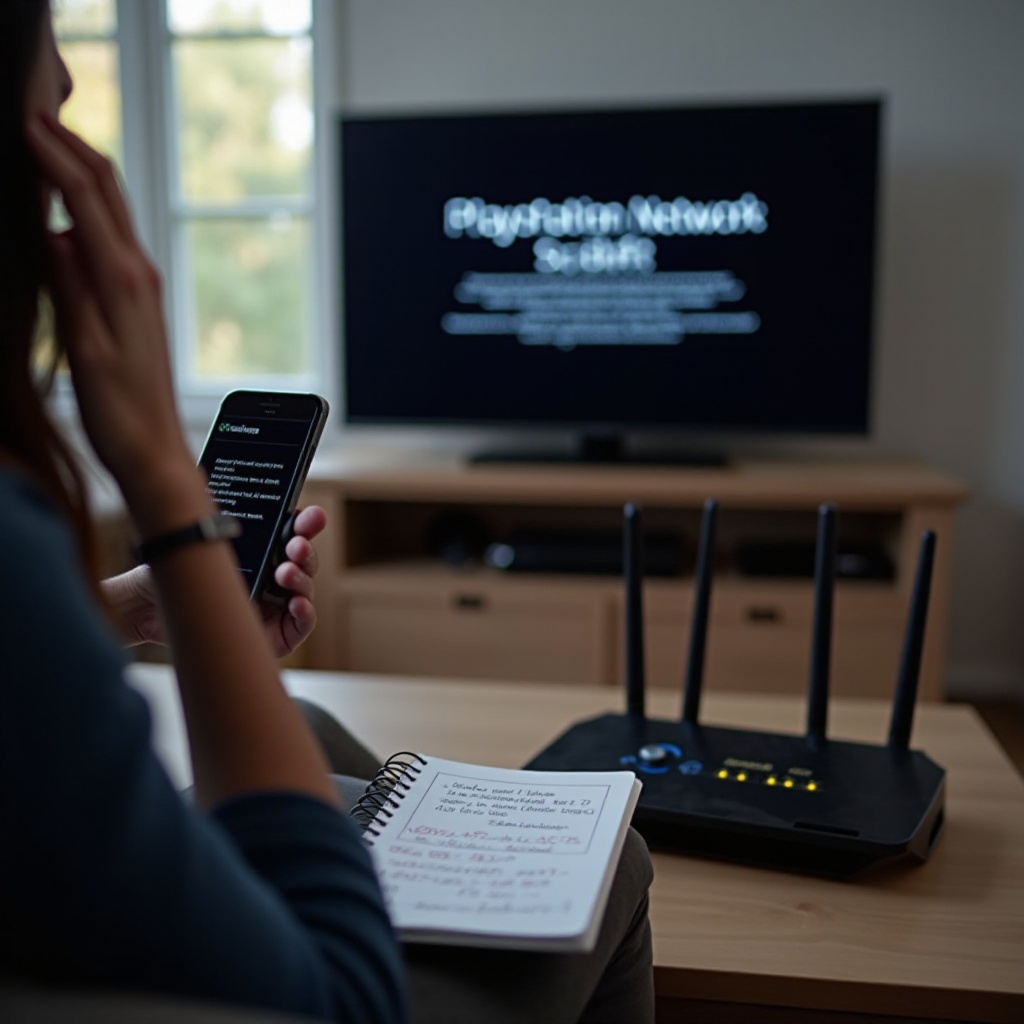
Prevention checklist for long‑term PSN reliability
Lock in a stable setup to reduce future disruption:
– Use Ethernet for the PS5 when possible. If not, ensure strong 5 GHz Wi‑Fi.
– Reserve a DHCP address for the PS5 and keep UPnP enabled.
– Use reliable DNS like 1.1.1.1 or 8.8.8.8 and a tested MTU.
– Remove double NAT by bridging gateways or using DMZ.
– Keep router and PS5 firmware current.
– Enable QoS and prioritize the PS5, especially when others upload or stream.
– Avoid router VPNs and aggressive ad blockers on the gaming network.
– Maintain account hygiene: strong password, 2FA, and updated recovery options.
These habits reduce random failures and make troubleshooting straightforward if issues return.
Conclusion
A methodical approach turns a vague PSN failure into a solvable task. You verified PSN status and your internet link, then used Ethernet or a hotspot to isolate wireless noise. You optimized Wi‑Fi and tuned DNS, MTU, IPv6, and NAT. You checked firewalls and filters, cleared account hurdles, and refreshed the console system. If needed, you prepared precise evidence for Sony or your ISP. The next time you see the message, repeat this path. It is quicker than guesswork and gets you back to matches, downloads, and friends faster. Keep the prevention steps in place and your PS5 should sign in reliably whenever you power on.
Frequently Asked Questions
Why does my PS5 say PSN failed even when the internet works on my phone?
Your phone proves basic internet access, but PSN sign-in needs clean DNS, proper MTU, and a reachable NAT. Try Ethernet or a phone hotspot to isolate Wi‑Fi issues. Then set DNS to 1.1.1.1 and 8.8.8.8, set MTU to 1473 or 1450, enable UPnP, and disable VPNs, ad blockers, and strict firewall modes. If web login fails on a phone or PC, fix account password or two-factor challenges first.
Will changing DNS or MTU affect online gaming performance on PS5?
Yes, it can help. Faster, reliable DNS speeds up service lookups and sign-ins. A correct MTU prevents fragmentation that can break logins and party chat. Test Cloudflare 1.1.1.1 or Google 8.8.8.8 and an MTU around 1473. Measure results with the PS5 connection test and in-game stability. If performance drops or nothing improves, revert the changes.
How do I know if my ISP’s CGNAT is causing PSN sign-in problems?
You will see strict NAT even with UPnP and proper port forwarding. Your router’s WAN IP will not match the public IP shown by IP check sites. Party chat or hosting may fail. Ask your ISP whether you are behind CGNAT and request a public IPv4 if available. As a quick test, try a phone hotspot or a different provider; if PSN works there, CGNAT or ISP routing is likely the cause.