
Wyze Cam Says Offline? The 2026 Troubleshooting Guide That Actually Works
Introduction
Seeing the wyze cam says offline message stops monitoring in its tracks. You open the app, tap live view, and nothing loads. In most homes, the cause is small and fixable: weak power, a Wi-Fi band mismatch, a mesh steering rule, or a router setting that isolates devices. You can clear many cases in a few minutes when you follow a proven order.
This guide starts with fast checks. Then it moves into power and LED states, Wi-Fi and encryption basics, signal and interference, and router features that often block IoT devices. You will also tune mesh networks, fix app and phone issues, update or roll back firmware, and rule out microSD card faults. Outdoor and battery models get their own steps, along with solutions for common error codes. We finish with advanced network tweaks, last resorts, and prevention. With that map in mind, the first step is to define what offline means inside the Wyze app so you can match symptoms to the right fix.
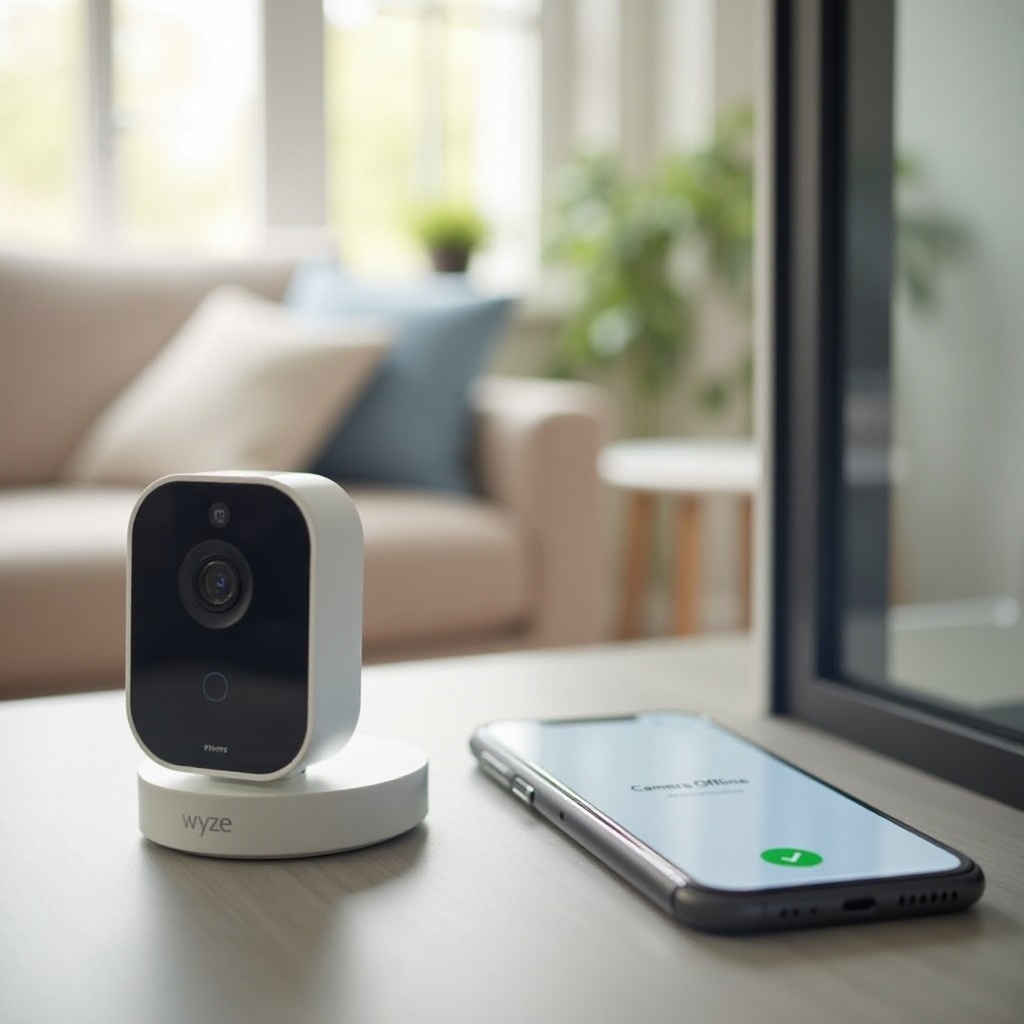
What Offline Means in the Wyze App
Offline usually means the app cannot establish a session with the camera or cloud. The camera might lack power, fail to join Wi-Fi, or get blocked by a router rule. Sometimes the phone or the service path is at fault, not the camera itself.
Status icons and color codes
The app shows cloud and slash icons, spinning loaders, or an offline tag. Compare these to the camera LED. The LED reveals boot and network stages, which narrows causes quickly.
Offline vs unavailable vs sleep
Offline means the app cannot reach the device. Unavailable often indicates a brief disconnect or a busy device. Sleep points to rules or battery conservation modes. If the LED shows connected while the app reports offline, suspect the phone, app tokens, or router path. With symptoms defined, jump to fast checks to rule out simple issues.
Quick Wins: 60-Second Checks
Quick checks resolve a large share of offline reports. Run these in order and retest after each step.
1) Power cycle
– Unplug the camera for 15 seconds, then plug it back in.
– If you use a base station, power cycle it as well.
– Reboot the router after the camera finishes booting.
2) Verify Wi-Fi on your phone
– Connect your phone to the same SSID used for camera setup when reconfiguring.
– Confirm you did not change the SSID name or password recently.
– Turn off airplane mode and VPNs on your phone.
3) Read the LED
– Solid connected color suggests the network path or app may be the issue.
– Blinking connecting color points to credentials, band, or signal problems.
– No light means a power fault.
If these checks do not restore the link, confirm whether a service or ISP outage is in play before diving deeper.
Check Wyze Service Status and Outages
Service interruptions can mimic local faults. Open the Wyze status page to verify camera and event services. Scan for maintenance notices or recent incidents. If the platform looks healthy, check your ISP portal or a neutral outage map for local problems. You can also test another internet connection by tethering your phone to see if the camera becomes reachable. If you rule out service disruptions, move to power and LED behavior to ensure the device boots cleanly every time.
Power and LEDs: Adapters, Cables, and Status Lights
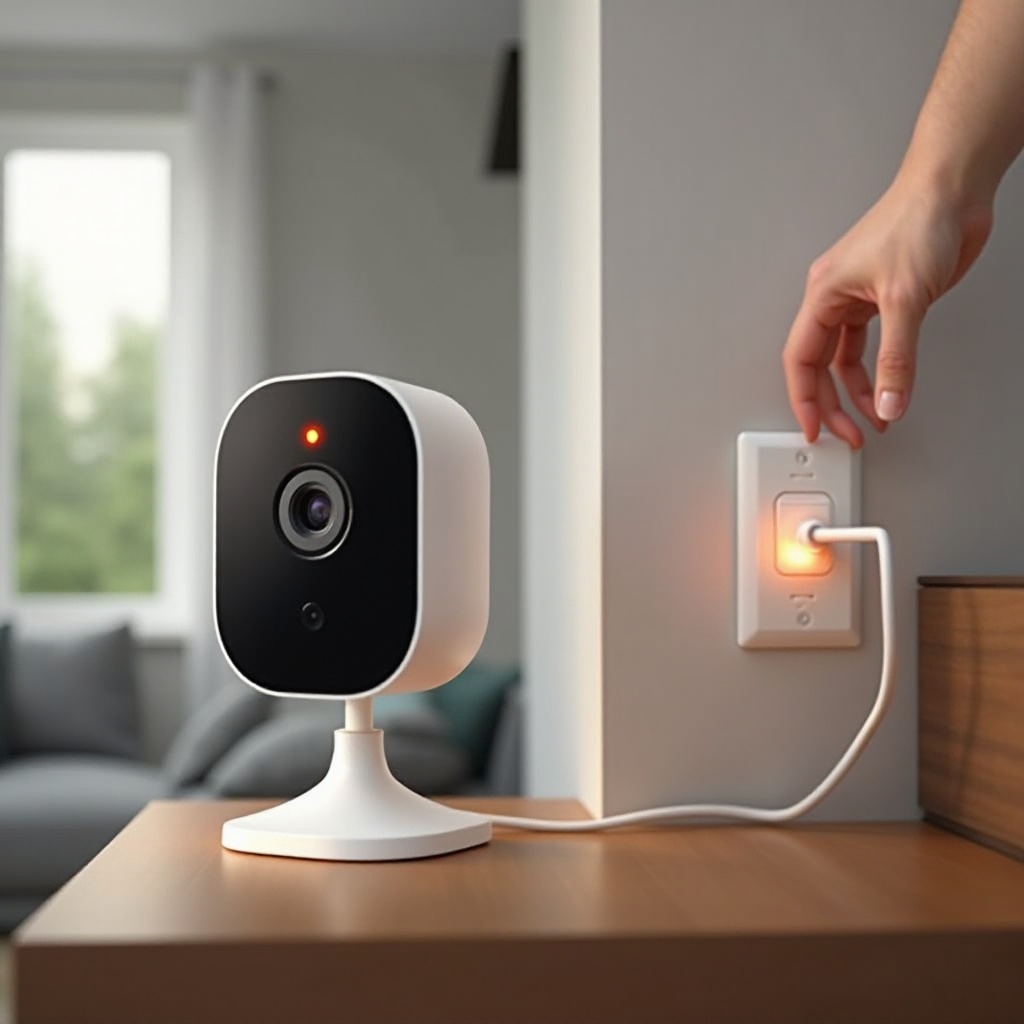
Unstable power causes boot loops and random drops that look like Wi-Fi failures. Verify power quality before you change network settings.
Adapter amperage and cable length quality
Use the included adapter or a reputable 5 V adapter rated for the camera. Underrated chargers can starve the device when IR lights engage. Avoid very long or thin USB cables that cause voltage drop. Test with a shorter, thicker cable to see if stability improves.
Yellow, blue, and red or blue LED meanings
Most models show a solid yellow or similar color during boot, a flashing blue while connecting, and a solid blue when online. Some flash red and blue in setup mode. If the LED stalls before solid blue, suspect Wi-Fi credentials, band mismatch, or DHCP problems. With power confirmed, dial in your Wi-Fi basics next.
Wi-Fi Basics: SSID, Password, and 2.4 GHz vs 5 GHz
Many Wyze cameras join only 2.4 GHz networks. Some newer models can use 5 GHz, but not all. If you changed your SSID or password, the camera will not reconnect until you re-add it with the new details.
Model support for 2.4 GHz and 5 GHz
- If your model is 2.4 GHz only, create or expose a dedicated 2.4 GHz SSID.
- Disable band steering during setup so the phone and camera see the correct band.
- On dual-band models, match the band used in onboarding for consistency.
Best practice encryption and password formats
Use WPA2 AES or WPA2 and WPA3 transition mode if pure WPA3 rejects IoT devices. Keep SSID names simple, without trailing spaces or uncommon characters. Use strong but compatible passwords that combine letters, numbers, and common symbols. Once credentials and bands check out, measure signal strength and clean up interference.
Signal and Interference: Placement, RSSI, and Channel Width
Poor signal or noisy air causes stutter, timeouts, and offline messages. You can often fix these with better placement and channel planning.
Target RSSI thresholds for stability
Check RSSI in your router app or use a Wi-Fi analyzer near the camera. Aim for around minus 67 dBm or better. If you see minus 75 dBm or worse, move the router or camera, add a nearby node, or install an access point.
Channels 1, 6, and 11 with 20 MHz width
On 2.4 GHz, stick to channels 1, 6, or 11. Set width to 20 MHz for stability. Auto and 40 MHz settings increase overlap and cause interference.
Common interference sources to avoid
Microwaves, baby monitors, cordless phones, thick masonry, metal siding, and low E glass can block or reflect signal. Small moves help. Raise the camera, rotate it slightly, or shift it a few feet to improve RSSI. If signal is solid, check router features that isolate clients or break older IoT stacks.
Router Settings That Break Wyze Cams
Modern routers add features that improve speed for laptops but can destabilize IoT devices. Tweak these to keep cameras online.
AP isolation and client isolation pitfalls
Turn off AP or client isolation on the SSID that the camera uses. Isolation blocks devices from talking to each other on the same network, which prevents the phone and camera from exchanging data locally.
WPA2 vs WPA3 transition mode
Pure WPA3 can block some IoT radios. Use WPA2 AES or transition mode. Avoid WEP and TKIP entirely, as they are insecure and unreliable.
MAC filtering and hidden SSIDs
If you use MAC filtering, add the camera MAC to the allow list. Hidden SSIDs can cause unstable reconnects; make the SSID visible for onboarding.
DHCP scope size and lease time
Ensure your DHCP pool has free addresses. Set leases to at least one day. Short leases increase churn on busy networks and can disconnect cameras. With router rules checked, address mesh and extender behavior next, since roaming logic often confuses low power devices.
Mesh Networks and Extenders: Band Steering, Node Hopping, Roaming
Mesh systems prioritize fast roaming for phones. Cameras benefit more from stable links than frequent handoffs.
Disable band steering or create an IoT SSID
Turn off band steering on the IoT SSID so 2.4 GHz devices join the correct band. You can also create an IoT only SSID without steering and connect cameras there.
Sticky steering and minimum RSSI thresholds
Reduce aggressive roaming settings. Lower minimum RSSI thresholds so the camera does not bounce between nodes. If the platform allows it, pin or bind the camera to the closest node.
Ethernet backhaul vs wireless backhaul
Use Ethernet backhaul for mesh nodes when possible. Wired backhaul frees 2.4 GHz airtime for cameras and reduces latency. If you use extenders, test stability by keeping the camera within one node coverage area. If mesh tuning does not fix the app status, address the phone and app next.
Phone and App Fixes: Permissions, Cache, and Versions
Sometimes the camera is online, but the phone app fails to authenticate or stream.
Background data and battery optimization settings
Allow background data for the Wyze app. Exempt the app from battery optimization so the phone does not suspend it when the screen locks.
Clear cache vs clear data
Clear the Wyze app cache first. If issues persist, clear app data, then sign back in. This refreshes tokens and removes corrupted local files.
App and OS version compatibility
Update the Wyze app and your phone OS to current stable versions. If a recent update triggered problems, reinstall the app to rebuild permissions and caches. When the app behaves, check firmware health on the camera itself.
Firmware Health: Update, Roll Back, or Beta
Firmware updates often include connection fixes, but timing matters.
When to update and when to wait
If you run an old build, update to the latest stable release via the app. Read the release notes for network fixes. If drops began right after a new firmware, consider rolling back to a prior stable version if your model supports it.
Rolling back safely if issues persist
Use the official method for your model to apply an earlier build. Do not interrupt power during update or rollback. After any firmware change, retest live view and event uploads. If reboots or stalls continue, inspect the microSD card next.
microSD Card Pitfalls: Corruption, Boot Loops, Formatting
A failing card can corrupt writes, stall boot, or trigger random restarts that look like network failures.
Endurance card grades and speed classes
Use high endurance microSD cards from reputable makers. These tolerate constant writes from continuous recording. Low grade cards fail early and cause unpredictable crashes.
FAT32 formatting and health checks
Format the card to FAT32 in the app or on a PC. If the camera stays online without the card inserted, replace the card. Once storage is known good, apply steps unique to outdoor and battery models.
Outdoor and Battery Models with Base Stations
Battery powered devices and their base stations add another link that can fail and show as offline.
Base station link quality and placement
Place the base station near your router and away from metal or dense walls. Use Ethernet to the router for best stability. Check that the base LED shows a solid connected state.
Sleep modes and wake triggers
Battery cameras enter sleep to conserve power. They may appear offline between events. Trigger motion or press sync to wake the camera. Low battery can also push the camera into deeper sleep.
Resyncing after low battery events
Charge the camera fully, then resync with the base. If the base disconnects often, reboot the modem and router first, then power cycle the base. With model specific behavior addressed, decode error codes to target the next fix.
Common Error Codes and What They Mean
Error codes highlight likely causes without guesswork.
Error minus 90 connection failure
This code often means the app cannot start a live stream. Causes include poor signal, blocked ports by a firewall, VPN interference, or a temporary relay issue. Reboot the camera and router, then test with your phone on cellular to bypass your home Wi-Fi path.
Timeout vs authentication failures
Timeouts suggest packet loss, DNS lookups that fail, or unstable routes. Authentication errors point to wrong Wi-Fi passwords or rejected encryption modes. If errors persist, apply advanced network fixes.
Advanced Network Fixes: IP Reservations, DNS, VPNs, Ad Blockers
When basics fail, refine the network path so the camera uses stable addresses and reliable name resolution.
DHCP reservations and static IP pitfalls
Set a DHCP reservation for the camera MAC address so it receives the same IP every time. Avoid hardcoding a static IP on the camera side when your router controls DHCP; mismatched gateways or masks break routing.
DNS providers, encrypted DNS, and whitelist entries
Use reliable DNS such as your ISP, Google, or Cloudflare. If you use encrypted DNS, Pi hole, or router level filters, whitelist required Wyze domains and endpoints. DNS blocks can prevent camera handshakes and event uploads.
VPN, CGNAT, firewall rules, and port considerations
Disable VPNs on your phone and router during tests. Corporate firewalls or carrier grade NAT can disrupt relay traffic. Ensure outbound HTTPS works from your LAN and that egress rules permit camera traffic to cloud services. If everything checks out and offline persists, perform a factory reset with a clean onboarding.
Last Resorts: Factory Reset, Re Add, Log Export to Support
A clean reset clears corrupted configs and tokens. Collect evidence as you go.
Proper reset sequences by model
Remove the camera from the app. Use the model specific reset button and hold time to enter setup mode. Re-add the device to a visible 2.4 GHz SSID with WPA2 AES and a simple SSID name. Test live view and event uploads before you change any advanced settings.
Capturing logs, timestamps, and evidence
Export app logs and note the exact times offline messages appear. Capture router logs and screenshots of LED states, firmware versions, and Wi-Fi settings. Provide this package to support to shorten resolution time. Once the camera is stable again, lock in maintenance steps to prevent repeat issues.
Preventive Maintenance: Schedules, UPS, and Network Hygiene
Preventive habits keep cameras reachable day and night.
Automated reboots with smart plugs
Use a smart plug to power cycle fixed position cameras on a weekly schedule during off hours. Do not reboot constantly; the goal is to clear rare memory leaks without creating churn.
Surge protection and UPS sizing
Protect the modem, router, base stations, and cameras with surge suppressors. Add a small UPS to the modem and router so brief brownouts do not corrupt boots or force reauthentications.
Quarterly audits and checklists
Every few months, confirm stable channels, verify firmware and app updates, test live view from on site and off site networks, and inspect cables for wear. Keep a document with SSIDs, passwords, and DHCP reservations so changes stay controlled. With maintenance covered, use targeted solutions for special scenarios that commonly trigger offline alerts.
Special Scenarios
Offline After Power Outage: Correct reboot order and DHCP reservations
Power cuts often scramble boot order. Modems and routers take longer to rejoin the internet than cameras take to boot. Fix this with a strict order:
1) Unplug the modem, router, switches or mesh nodes, base station, and cameras.
2) Plug in the modem and wait for full sync.
3) Power the router and wait until Wi-Fi and internet show stable.
4) Power switches and mesh nodes and wait for solid status lights.
5) Power the base station if you use one.
6) Power the cameras last.
Reserve IPs for cameras to avoid conflicts after outages. Add a UPS to the modem and router to ride through short cuts. Confirm the router clock via NTP so TLS sessions and app logins work.
Offline Only When Away: NAT traversal, relays, and carrier blocks
If live view works at home but fails on cellular or public Wi-Fi, the route out may be blocked. Test three paths: your home Wi-Fi, your phone data connection, and a friend or neighbor Wi-Fi. If only mobile data fails, disable VPN and data saver on the phone. If public Wi-Fi fails, captive portals often block relays until you accept terms. At home, allow outbound HTTPS and related traffic, and whitelist Wyze domains if you run DNS filters. Some carriers use strict NAT or content filters; try a different APN or a hotspot from another phone to confirm.
Offline at Night: IR power draw, schedules, and router eco modes
At dusk, IR LEDs draw more current. Weak adapters or long cables sag voltage and reboot the camera. Replace the adapter and shorten the cable as a test. Check rules and schedules that could silence notifications or power off devices. Disable router eco or Wi-Fi optimization modes that reduce transmit power overnight. Evening also brings peak Wi-Fi congestion, so lock 2.4 GHz to channel 1, 6, or 11 at 20 MHz. If only night recordings fail, remove the microSD card temporarily to rule out write spikes. With special cases addressed, you can apply a consistent maintenance plan to keep cameras online.
Conclusion
Wyze cam says offline feels vague, but the fix path is straightforward. Start with power and LED states. Confirm the correct SSID, band, and password. Improve signal, pick clean channels, and turn off router isolation that blocks IoT devices. Tune mesh behavior so cameras stop roaming, and keep the app, phone OS, and firmware in stable versions. Replace failing microSD cards. For battery and base station models, check placement and sleep states. When needed, reserve IPs, set reliable DNS, and test without VPNs or blockers. If problems persist, perform a clean reset and gather logs for support. With a few targeted changes and simple preventive routines, your cameras will reconnect quickly and stay online when you need them most.
Frequently Asked Questions
Why does my Wyze Cam say offline but Wi-Fi is working?
Your phone can have Wi-Fi while the camera loses its link. Common causes include weak 2.4 GHz signal at the camera, band steering, client isolation on the SSID, or DHCP churn. Check the LED state, lock 2.4 GHz to channel 1, 6, or 11 at 20 MHz, disable band steering during setup, and reserve the camera IP. If the LED shows connected but the app still says offline, clear the app cache, sign out and back in, and test without VPNs or DNS filters.
Do Wyze Cams work with 5 GHz Wi-Fi in 2026?
Many Wyze models still use 2.4 GHz only, while some newer models support 5 GHz. Check your model specifications. If your camera is 2.4 GHz only, create a separate 2.4 GHz SSID and connect your phone to that SSID during setup. Turn off band steering until onboarding completes, then move your phone back to your main SSID while the camera stays on 2.4 GHz.
How do I stop Wyze from going offline after a power outage?
Use the correct reboot order: modem, router, switches or mesh nodes, base station, then cameras. Assign DHCP reservations so cameras reclaim the same IPs. Add a small UPS to the modem and router to ride through brief cuts. Avoid very long or thin USB cables that drop voltage when IR turns on. After recovery, verify router time sync and DNS so authentication and streaming work reliably.