
My Kindle Won’t Connect to WiFi: A Complete Troubleshooting Guide
Introduction
My kindle won’t connect to wifi can mean stalled downloads, missing sync, and a reading routine stuck in place. The fix often takes a few clear steps. You do not need deep networking skills, only a method. This guide starts with quick checks, then moves to router settings and firmware. It shows how to pick the right band and security, handle mesh quirks, and pass public wifi sign in screens. It also covers safe workarounds so you can get books now and keep reading while you troubleshoot.
You will move from simple to advanced in small, fast steps. Each section links to the next so you always know why you are doing something. By the end, you will either have a stable wifi connection or a clean plan for support.

Start Here: Identify Your Kindle Model and the Exact WiFi Symptom
Before you change settings, define what is broken. Different Kindle generations handle bands and security in different ways. A clear symptom points to the right fix.
List your model and software version in Settings. Then note what you see when you try to join wifi:
– Your network does not appear in the list.
– The network appears, but you see Authentication failed.
– It connects, then drops, or the Store will not load.
– Public wifi asks you to sign in, but the page never appears.
With that pattern in mind, start with basic device checks. These quick moves fix many cases in minutes.
Check the Basics: Airplane Mode, WiFi Toggle, and the Correct Password
You just identified the symptom. Now confirm the Kindle is actually trying to connect. Use the Quick Actions menu.
Do this:
1) Turn Airplane Mode off.
2) Toggle wifi off, wait 10 seconds, then on.
3) Select your network and re enter the password slowly. Check case, spaces, and special characters.
4) Move closer to your router. Walls, metal, and microwaves cut signal strength.
5) Restart the Kindle. Hold the power button for about 40 seconds until it reboots.
If your Kindle still fails to join, verify that your network works for other devices. That isolates whether the issue lives on the Kindle or the router side.
Confirm Your Network Is Working: Router, ISP, and Other Devices
After device checks, test the network itself. Many my kindle won’t connect to wifi cases come from an ISP hiccup or router glitch.
- Connect a phone or laptop to the same SSID. If that device also fails, the router or ISP is likely the problem.
- If other devices work but the Kindle does not, look at band and security. Your router may be steering devices or using WPA3 only.
- If your router recently rebooted or updated, it may have switched channels or security modes.
Once you confirm the network is up, put the Kindle on the band it supports best. That choice matters more than most people expect.
2.4 GHz vs 5 GHz: Put Your Kindle on the Right Band
Now that you know the network works, make the band match the Kindle. Most Kindles prefer 2.4 GHz for range and stability, and some older units do not support 5 GHz at all. Mesh networks often push devices to 5 GHz to boost speed, but that can cause join or drop issues for a Kindle.
Try this:
– If your router uses one SSID for both bands, split them. Create separate names for 2.4 GHz and 5 GHz.
– If you cannot split, create a 2.4 GHz guest network with simple WPA2 security.
– Stand near the router during the first join so signal is strong.
If the band is correct and the join still fails, security mode is the next likely blocker. Update it to something Kindle friendly.
Security Modes That Break Kindles: WPA3, WEP, Hidden SSIDs, and Long SSID Names
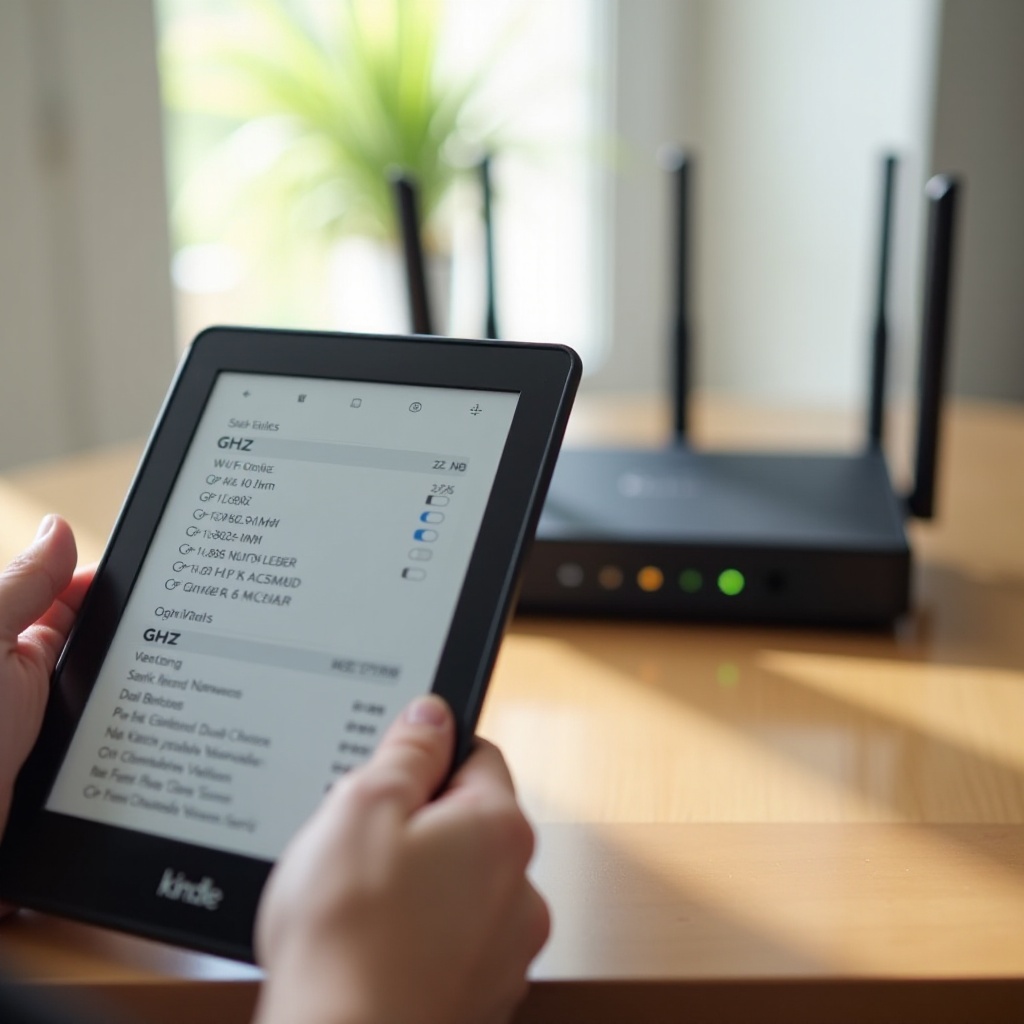
With the band set, check security. Kindles connect best to WPA2 PSK with AES. Several common router settings can stop a Kindle from joining.
Avoid these traps:
– WPA3 only. Many Kindles do not work with WPA3 only. Set WPA2 or WPA2 WPA3 mixed mode, or create a WPA2 only guest SSID.
– WEP. This is outdated and insecure. Some newer Kindles reject it outright. Switch to WPA2 AES.
– Hidden SSIDs. Kindles can find and store them but often drop or fail to roam. Make the SSID visible or use a visible guest network.
– Very long SSID names or passwords with unusual symbols. Keep names and passwords under 31 characters and use letters and numbers.
After you change security, reboot your gear in the right order. That clears stale sessions and lease issues.
The Power Cycle Sequence That Works: Modem -> Router -> Kindle
You updated security. Now reset connections cleanly. A proper reboot sequence fixes DHCP, auth, and ARP issues that linger after changes.
Follow this order:
1) Unplug the modem and router for 60 seconds.
2) Plug in the modem and wait until it is online.
3) Plug in the router and wait until wifi is broadcasting.
4) Restart the Kindle.
5) Connect the Kindle to the 2.4 GHz WPA2 AES SSID.
If the join still fails, clear the Kindle network cache and try again with a fresh entry.
Forget the Network, Reset Network Settings, and Re Add WiFi
A bad password entry or corrupted profile can stick. Clear it so the Kindle treats the network like new.
Do this on the Kindle:
– Settings -> Wifi -> your network -> Forget.
– Toggle Airplane Mode on, then off.
– Reconnect and type the password slowly and correctly.
– If it still fails, reset network settings in the Wifi advanced menu. This clears saved networks and wifi caches.
If you still cannot join, the firmware may be old, or the router may run a radio or DHCP setting that the Kindle dislikes. Update next.
Update Your Kindle Firmware: Over the Air and Manual USB Install
You cleared settings but the Kindle still fights the network. Firmware can be the gap. Newer routers and security modes may need updated Kindle software.
Two paths work:
– Over the air. In Settings, check for an update. If your home wifi does not work, connect to a known good hotspot, like your phone.
– Manual USB install. On a computer, download the correct update file from Amazon. Connect the Kindle via USB. Copy the file to the Kindle root folder. Eject, then run Update Your Kindle from Settings.
After the update, try joining again. If it still fails, tune radio and address settings on the router for maximum compatibility.
Router Fixes: Channel, Width, DHCP Scope, DNS, and MAC Filtering
Firmware is current, so refine router settings. The wrong channel or a tight DHCP pool can look like wifi failure even when the password is correct.
Check these items:
– Channel. Set 2.4 GHz to channel 1, 6, or 11. If neighbors crowd one channel, pick the quietest. Avoid Auto if it picks congested channels.
– Channel width. Use 20 MHz on 2.4 GHz. Wider widths can cause compatibility issues and more overlap.
– DHCP scope. Make sure the address pool has free leases. Expand the range if it is nearly full.
– DNS. Start with automatic ISP DNS. If you see Connected, no internet, test a known DNS like 1.1.1.1 or 8.8.8.8.
– MAC filtering. Turn it off or add the Kindle MAC from the network details screen.
Apply changes and try again. If you use mesh or band steering, give the Kindle a simpler target next.
Mesh and Band Steering: Split SSIDs or Create a Dedicated 2.4 GHz Guest
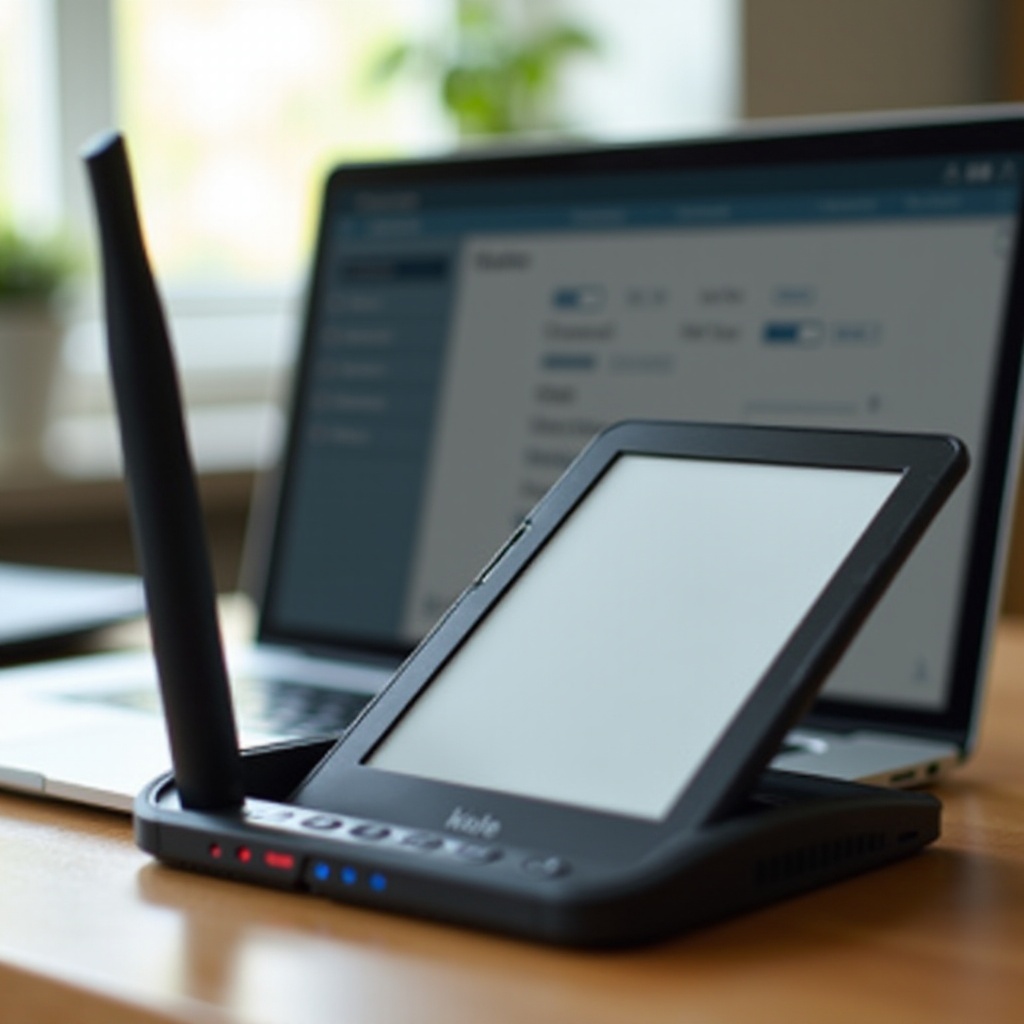
You tuned channels and DHCP. Mesh systems may still move the Kindle between bands, breaking sticky connections. Many readers fix this by giving the Kindle its own 2.4 GHz lane.
Use one of these setups:
– Split SSIDs for 2.4 and 5 GHz so you can pick the 2.4 GHz network.
– If the system will not split, create a 2.4 GHz guest network with WPA2 AES and a simple name.
– Place a mesh node near your reading spot for stronger signal.
With a stable SSID in place, the Kindle should connect and stay put. If you are on public wifi, the next step is different: you may need to sign in through a web page.
Public WiFi and Captive Portals: Use the Kindle Browser to Sign In
At this point you have handled your home network. Public wifi adds a gate called a captive portal. The Kindle must open a page and accept terms before traffic flows.
Try this:
1) Connect to the public SSID from the wifi list.
2) Open the Kindle web browser in the menu and visit any site. That should trigger the portal.
3) Enter the room number or code, or accept terms.
4) If the page refuses to load, forget the network and reconnect. Then try the browser again.
If the portal still will not appear, use your phone as a hotspot for downloads. When back on your own network, check for local blockers like VPNs and parental controls.
VPNs, Parental Controls, and Profiles That Block WiFi or Store Access
You passed the portal test or switched back home. Now check for filters. A VPN, DNS filter, or strict profile can block store access even when wifi is connected.
- Turn off VPNs or DNS filters on your router while testing. Some privacy tools block the Kindle store or authentication servers.
- Check Parental Controls on the Kindle. Make sure Store and Browser are allowed in your profile.
- In Amazon Household, switch to the primary profile to test. Some shared profiles hide the store or cloud items.
If store access still fails with wifi connected, check time and certificates next. Secure services reject devices that show the wrong clock.
Date Time and Certificate Errors: Why Store, Goodreads, or Cloud Sync Fail
You ruled out filters. Wrong date or time can still break login and sync. Secure sites require correct time to validate certificates.
Set the clock and try again:
– In Device Options, set the correct time zone and time. Enable automatic time if your model supports it.
– Reboot the Kindle after setting time.
– Open the Store or Sync again. If you still see security messages, move on to reading the exact wifi error from the join attempt.
Decode Common Kindle WiFi Error Messages and What to Do Next
Now that you have tested bands, security, and time, read the message and act. A clear error maps to a clear fix.
- Authentication failed. The password is wrong, security is not supported, or MAC filtering is on. Re enter the password. Switch the SSID to WPA2 AES. Turn off MAC filtering.
- Unable to connect. The channel or width is incompatible, or band steering is aggressive. Lock 2.4 GHz to 20 MHz and channel 1, 6, or 11. Use a dedicated 2.4 GHz SSID.
- Connected, no internet. The ISP is down or DNS fails. Test another device. Reboot modem and router. Try alternate DNS.
If you still cannot connect, do not stop reading. You can load books without wifi and keep your library fresh while you keep troubleshooting.
Get Books Without WiFi: USB Transfer, Send to Kindle, and Mobile Hotspot
A blocked wifi should not block your reading. Use one of these paths to load content right now.
- USB transfer. On a computer, download your book or document. Connect the Kindle over USB. Drag the file into the Documents folder. Eject safely.
- Send to Kindle. Use the web uploader or send by email from your phone or PC. The device will receive the item the next time it connects, or you can use a hotspot.
- Mobile hotspot. Share your phone connection. Set it to 2.4 GHz WPA2 AES with a simple password. Place the Kindle near the phone for the first join.
These options keep pages turning. If nothing else works on your home network, you may try a factory reset, but do it with care and a backup.
Backup and Factory Reset: When to Use It and How to Do It Safely
You tried band, security, firmware, and router tuning, but the Kindle still refuses to join. A reset can clear deep glitches. Back up and prepare first so you do not lose anything important.
- Tap Sync to upload reading progress, notes, and bookmarks.
- Make sure your purchases show in the cloud. Download critical books for offline use if needed.
- Write down wifi passwords and your Amazon account login.
- Run a factory reset from Device Options. After it restarts, join wifi, sign in, and let the library restore.
If the device stays blind to networks or drops instantly after a clean reset, it is time to contact Amazon with clear details. That speeds up a solution.
When to Contact Amazon Support and the Info to Have Ready
You have reached the end of local fixes. Support can check hardware, warranty, and account flags. Contact them when:
- Your Kindle cannot see any networks at all.
- It will not join a known good 2.4 GHz WPA2 AES network.
- It connects, then drops within seconds, even after a reset.
Have this information ready:
– Kindle model and current software version.
– Router brand, model, and security mode.
– Exact error messages and when they occur.
– Steps you have tried, in order.
While you wait, keep using a hotspot or USB to load new books. Then lock in prevention so this problem does not return.
Prevention Checklist for Reliable Kindle WiFi Going Forward
You fixed the issue or have support on it. Set stable defaults to prevent the my kindle won’t connect to wifi problem from coming back.
- Use 2.4 GHz with channels 1, 6, or 11 and 20 MHz width.
- Set WPA2 AES security with a simple SSID and password.
- Avoid band steering for the Kindle. Give it a dedicated 2.4 GHz SSID or guest network.
- Keep Kindle and router firmware up to date.
- Turn off MAC filtering, or whitelist the Kindle MAC.
- Keep device time on automatic.
Conclusion
Most Kindle wifi problems come down to three things: the wrong band, an unsupported security mode, or a router setting that pushes the device off the network. Start with quick toggles and a reboot. Put the Kindle on a clean 2.4 GHz WPA2 AES SSID. Update firmware on the Kindle and your router. Tune channel and width for stability, and split mesh SSIDs so the Kindle stays on 2.4 GHz. If you must read now, use USB transfer, Send to Kindle, or a phone hotspot. When nothing else helps, reset carefully and contact Amazon with a clear symptom list. With a steady method, you can go from my kindle won’t connect to wifi to downloading books in a few minutes, and keep it reliable for the long run.
Frequently Asked Questions
Does my Kindle support WPA3, and how can I connect if my router is set to WPA3 only?
Most Kindles work best with WPA2 AES. Many do not support WPA3 only networks and may show Authentication failed. Set your router to WPA2 or WPA2 WPA3 mixed mode, or create a separate 2.4 GHz guest SSID with WPA2 AES. Connect the Kindle to that guest network, update the Kindle software, and then test mixed mode if you want.
Why does my Kindle connect to my phone’s hotspot but not my home WiFi?
Phone hotspots often default to 2.4 GHz with WPA2 AES and simple settings, which Kindles prefer. Home routers may run WPA3 only, band steering, or crowded channels. Fix it by creating a dedicated 2.4 GHz SSID, setting WPA2 AES, locking channel to 1, 6, or 11 at 20 MHz, and turning off MAC filtering. Reboot the modem, router, and Kindle, then reconnect.
How do I connect a Kindle to a hidden or enterprise 802.1X network?
Hidden SSIDs can cause unstable joins. Unhide the SSID or create a visible 2.4 GHz guest network for the Kindle. Most consumer Kindles do not support enterprise 802.1X networks used in offices or campuses. If you must use that environment, bridge through a travel router or a phone hotspot, or load books via USB or Send to Kindle until you can join a standard WPA2 AES network.