
Subwoofer Cutting In and Out: The Complete Troubleshooting and Fix Guide
Introduction
A subwoofer that keeps dropping in and out ruins impact and flow. Hits vanish, dialogue goes thin, and music loses weight. You can fix it with a clear plan that isolates the cause and applies targeted steps. Most issues come from four areas: power and standby, signal and connections, device settings, or hardware limits. Once you know which area misbehaves, the fix becomes simple and fast.
This guide walks you through a proven order of operations. You will verify power and auto-standby behavior. You will confirm solid signal paths with tight, clean connections. You will check AVR, TV, and app settings that route bass to the sub. You will stabilize wireless links. You will avoid protection shutdowns by improving cooling, wiring, and power delivery. You will dial in gain, filters, and placement so the sub stays active at low levels and stable at high peaks. Then you will validate with tests and decide if repair or replacement is needed.
To speed things up, start by matching your symptom to a scenario. That way each later step targets the most likely cause.

Quick Symptoms Checklist: Identify Your Type of Dropout
Use this checklist to narrow the cause of a subwoofer cutting in and out:
- Silent at low volume, returns during loud scenes: Auto-standby too sensitive, low input level, or mis-set crossover.
- Random cuts during playback at any level: Loose RCA, failing cable, dirty connector, wireless interference, or device bug.
- Drops only at high volume: Amplifier clipping, thermal shutdown, or power sag on the circuit; possible wrong impedance wiring.
- Works with TV streaming apps but not external devices: AVR or TV format mismatch, eARC/ARC handshake, or CEC conflicts.
- Wireless sub cuts when you move around or open a microwave: RF congestion, weak signal, or blocked line of sight.
With a likely culprit in mind, confirm power and standby first. Many intermittent problems turn out to be simple power states.
Step 1 — Verify Power, Standby, and Auto-On Settings
Before you chase cables and settings, make sure the sub actually stays awake and powered. Auto-standby is a frequent reason for a subwoofer cutting in and out, especially at lower listening levels.
Power checks and operating states
- Look at the status LED. Solid often means active; blinking or color changes can indicate standby or pairing. Check your manual for the legend.
- Switch the sub from Auto to On for testing. Keeping it awake removes the standby variable while you diagnose.
- Plug the sub directly into a wall outlet. Bypass smart plugs, surge bars, and eco outlets for now.
- Try another outlet on a different circuit if the room uses switched or shared lines.
Auto-standby sensitivity and wake reliability
- If your sub offers sensitivity control, increase it so smaller signals wake the amp.
- No sensitivity control? Raise the rear gain on the sub a notch and lower the AVR sub trim by the same amount. This sends a hotter signal to the sub without changing your overall bass level.
- On soundbars, disable eco or power save features in the app while testing. Some bars mute the sub aggressively when idle.
If the sub now stays awake, you have eliminated a big source of dropouts. Next, confirm that the signal path is solid from source to sub input.
Step 2 — Inspect Connections and Cables (LFE/RCA, Speaker-Level, Wireless Pairing)
Signal interruptions feel like random cutouts. A single flaky plug can mimic firmware bugs or make a stable system seem broken. Give the signal path a clean bill of health.
RCA/LFE cables and connectors
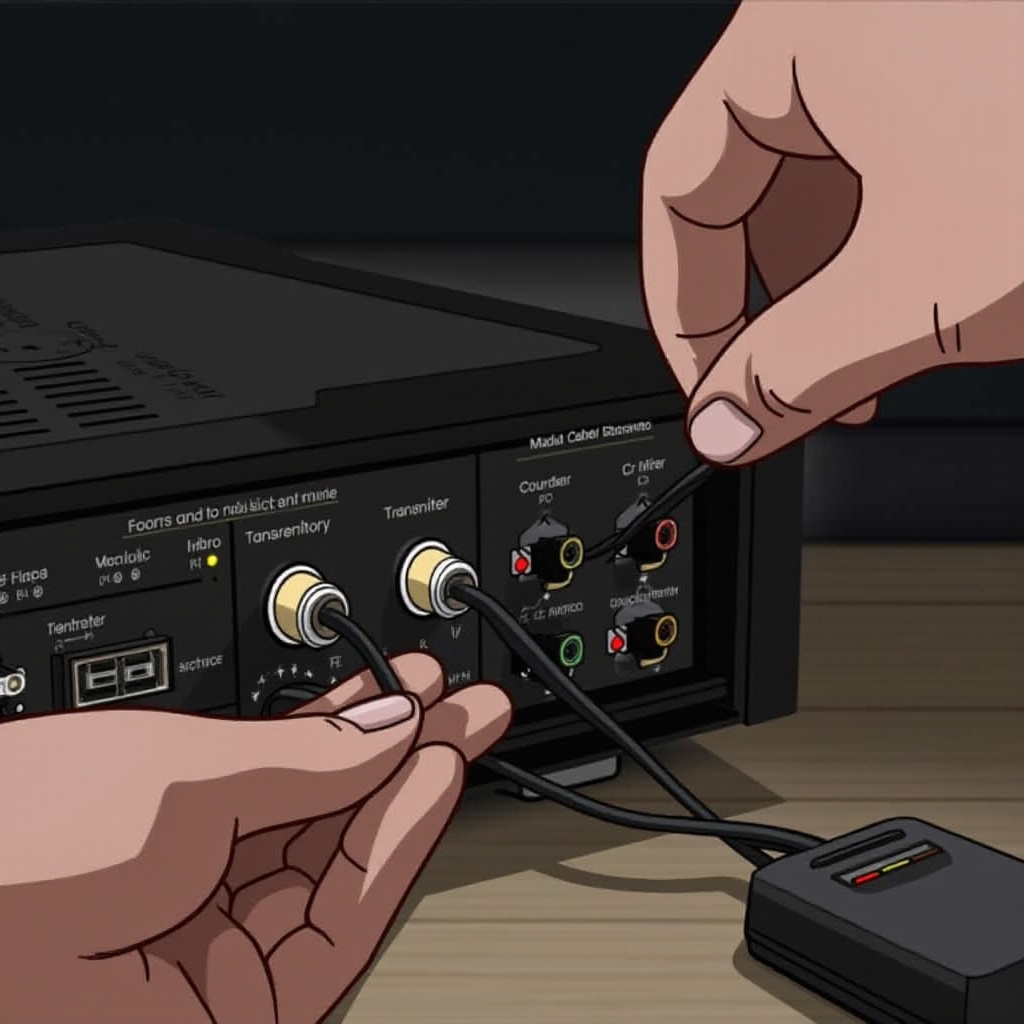
- Reseat both ends with firm pressure. The sub vibrates; a loose RCA can lose contact.
- Try a known-good coaxial RCA/LFE cable. Damaged cables can cut in and out when moved.
- Avoid unnecessary Y-splitters. If your sub has left/right inputs and an LFE jack, use the dedicated LFE input first.
- Keep signal cables away from power cords to minimize noise. Cross them at right angles if they must meet.
Speaker-level inputs (if used)
- Confirm polarity: plus to plus, minus to minus. Stray wire strands can short and force protection.
- Tighten binding posts. Tug each wire gently to confirm a solid mechanical bond.
Wireless subs and pairing hygiene
- Re-pair the transmitter and sub following the manufacturer steps.
- Move the transmitter away from power bricks and HDMI cable bundles to reduce RF noise.
- If your system allows choosing a channel or mode, test an alternate channel in case of interference.
With cables and links verified, focus on the settings that decide when and how the system sends bass to the sub.
Step 3 — Check Source, AVR, and TV Audio Settings (Bass Management, Crossovers, Formats)
Even perfect wiring will not help if your devices do not route bass to the sub. Misconfigured crossovers, speaker sizes, or audio formats can starve the sub and cause behavior that looks like intermittent audio.
Speaker configuration and crossover
- Set all speakers to Small in the AVR so bass below the crossover goes to the sub.
- Use 80 Hz as a starting crossover. Raise to 100–120 Hz for small satellites. Lower to 60–70 Hz for large towers.
- Confirm subwoofer: Yes in the speaker setup so the AVR knows to send LFE content.
Formats, output modes, and trims
- For movies, use bitstream output with Dolby Digital or Atmos when supported by your TV and AVR via eARC/ARC.
- If a device outputs PCM stereo, ensure the AVR still performs bass management and sends lows to the sub.
- Set sub trim near 0 dB and the sub gain around noon as a baseline, then fine-tune.
- Keep the LFE channel at its default level. Do not mute or attenuate LFE unintentionally.
Dynamic features and app-level settings
- Turn off Night Mode, Dialogue Enhance, and heavy dynamic range compression while testing; these can suppress bass during quiet scenes.
- In streaming apps, confirm 5.1 or Atmos output where available. Many apps default to stereo and switch formats between titles.
Once routing is right, it is time to address a common special case: wireless and soundbar subwoofers that fight interference.
Step 4 — Fix Wireless and Soundbar Sub Dropouts (Interference, Channels, Placement)
Wireless subs trade cable convenience for RF sensitivity. Interference, distance, and objects can make a subwoofer cutting in and out feel random. Tuning the link often restores stability.
Placement, distance, and line of sight
- Keep the sub within the recommended range from the bar or transmitter. Avoid thick walls, metal racks, and appliances between them.
- A slight move can change RF dramatically. Test with the sub a few feet closer or in a clearer line of sight.
Router, Wi‑Fi, and mesh adjustments
- If the system uses 2.4 GHz, set your router to channel 1, 6, or 11 and lock width to 20 MHz during testing.
- If it can use 5 GHz, avoid DFS channels that may drop links when radar events occur.
- Keep mesh nodes a few feet away from the bar and sub. Very strong near-field RF can overload receivers.
- Disable aggressive roaming and band steering temporarily to reduce churn.
Firmware updates and clean pairing
- Update firmware on the TV, AVR or bar, and sub through the brand app.
- Power-cycle everything: unplug for 60 seconds and reconnect.
- Do a fresh pairing after updates so the link negotiates cleanly.
If wireless stability improves but cutouts persist under heavy bass, the sub may be hitting its limits or losing power. That calls for a protection and power review.
Step 5 — Protection Mode, Overheating, and Power Delivery Problems (Home and Car Audio)
A sub that shuts down under stress can sound like it is dropping signal. In reality, the amplifier protects itself from heat, overcurrent, or low voltage. Fix the limits and the cutouts stop.
Recognize protection behavior
- The status light changes or the sub goes silent during loud peaks, then returns after a cooldown or volume drop.
- You may hear a brief click, relay, or limiter action before silence.
Heat management and ventilation
- Give the plate amp room to breathe. Leave several inches around vents and heat sinks.
- Do not place the sub in sealed cabinets. Avoid heaters, direct sun, or crowded AV racks.
- If the sub sits on thick carpet, ensure the bottom vents are not blocked.
Power delivery at home
- Avoid thin extension cords and daisy-chained power strips that sag voltage.
- Test another wall circuit. Heavy appliances on the same run can cause dips.
- If you have multiple subs or a large AVR, spread them across circuits where possible.
Power delivery in car audio
- Scrape paint at the ground point to bare metal. Keep the ground short, thick, and tight.
- Measure voltage at the amp during a bass hit. If it dips under spec, consider a healthier battery, higher-output alternator, the Big 3 wiring upgrade, or a capacitor as a short-term buffer.
- Verify coil configuration and impedance wiring match the amp rating. A too-low load can trigger protection.
Once the system no longer trips protection, set levels and filters that keep signals strong enough to wake the sub, yet clean enough to avoid clipping.
Step 6 — Gain Structure, Calibration, and Filters to Prevent Dropouts
Good gain staging solves two opposite problems at once: subs that sleep at low volumes and subs that clip at high peaks. Proper filters also prevent overload and keep output consistent across content.
Baseline levels and calibration
- Set the sub gain at noon. Run your AVR room correction. Note the resulting sub trim value.
- Keep trims in a comfortable range, often between -6 dB and +3 dB, to preserve headroom.
- If the sub still sleeps in quiet scenes, raise its rear gain a bit and lower AVR trim by the same amount. This boosts the detector input without inflating overall bass.
Filters and protection
- Use the AVR low-pass at your chosen crossover and disable the sub plate low-pass if it creates double filtering.
- Enable a subsonic high-pass (especially for ported boxes) to protect the driver from ultra-low content that offers little audible value but heavy excursion.
- Avoid excessive bass boost in the 20–40 Hz range unless you know the sub can handle it.
Verification with tones
- Play steady tones between 40 and 80 Hz at moderate level. Listen for dips, pops, or relay clicks.
- Sweep from 20 to 120 Hz and confirm smooth, continuous output. Any sudden silence points to protection or a bad connection.
With electrical and level stability in place, it is time to eliminate acoustic traps that make bass vanish at the seat, which many people describe as the sub cutting in and out.
Step 7 — Room, Placement, Phase, and Polarity: Stop Apparent Cutouts from Cancellations
Rooms create peaks and nulls. A seat in a deep null can make certain notes disappear, which feels like intermittent bass. Small placement and timing changes often fix the issue.
Placement and the sub crawl
- Start with the sub near the front stage, a foot or two off each wall.
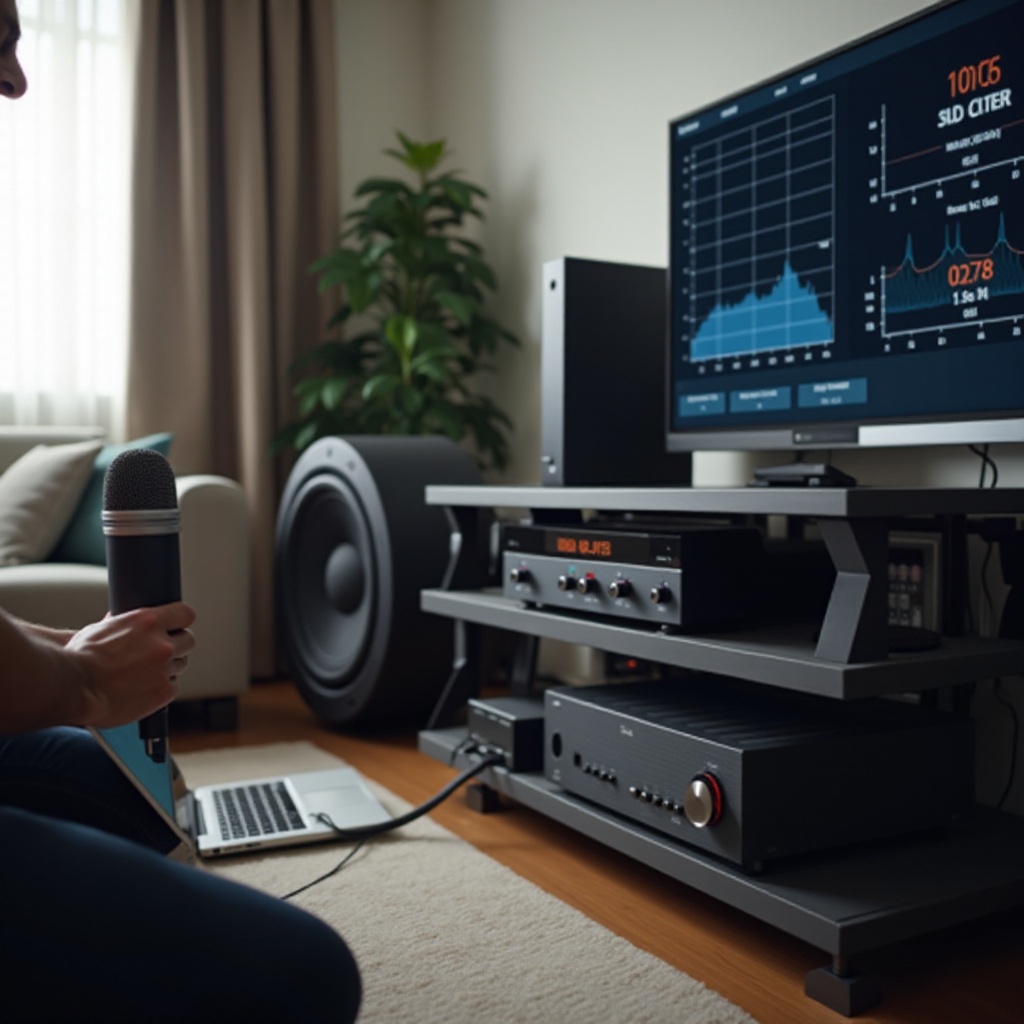
- Do the sub crawl: put the sub at your main seat, play a bass track, and crawl the room perimeter listening for smooth bass. Mark the best spots and place the sub there.
- Avoid perfect center points between parallel walls, which often align with nulls.
Phase, polarity, and distance alignment
- Flip the sub polarity switch (0/180) and keep the setting with stronger, tighter bass at the crossover region.
- If you have variable phase, adjust while playing a 60–80 Hz tone for maximum level and cohesion.
- In the AVR, fine-tune sub distance in small steps. This aligns time arrival and can fill a cancellation at the crossover.
If bass now sounds even and steady, confirm the fix with repeatable tests and address any lingering firmware or hardware faults.
Advanced Diagnostics: Tests, Firmware, and When to Repair or Replace
When symptoms persist, structured tests and isolation remove guesswork. You will quickly see whether you face configuration issues or failing hardware.
Controlled tests
- Play a continuous sine tone, such as 50 Hz, for one minute. If the sub shuts down, focus on heat, power sag, or amplifier health.
- Run a slow sweep from 20 to 120 Hz and listen for rattles, scraping, or sudden level drops.
A/B isolation and swaps
- Swap the LFE cable and input. Try another sub output on the AVR. Feed the sub directly from a phone via a 3.5 mm to RCA adapter. Each swap narrows the fault path.
- Move the sub to another room and circuit. If the issue disappears, the original power or RF environment is at fault.
Firmware, resets, and known bugs
- Update firmware on the TV, AVR, soundbar, and sub. Many dropout issues trace back to HDMI, CEC, or ARC/eARC bugs that updates fix.
- Perform a factory reset if symptoms persist, then re-enter settings carefully.
Repair vs replace
- Signs of failure include a burnt smell, scraping voice coil sounds, or plate amps that shut down even at modest levels.
- If the driver is healthy but the plate amp fails, a replacement amp often restores the sub at modest cost.
- When both driver and amp show faults, replacement may be more economical and can improve headroom, distortion, and wireless stability.
Conclusion
You can stop a subwoofer cutting in and out by following a methodical path. Keep the sub awake, verify solid power, and tighten every connection. Set correct speaker sizes, crossovers, and formats so bass reaches the sub at all times. Stabilize wireless links with better placement and cleaner channels. Prevent protection trips with improved cooling, proper impedance, and healthy power delivery. Lock in gain and filters so the sub stays alert at low volumes and clean at high peaks. Place and align the sub to avoid room nulls that masquerade as dropouts. Finally, validate with tones and sweeps, update firmware, and decide on repair or replacement if hardware fails.
Most systems recover with a few targeted changes. The reward is consistent, deep, and musical bass that supports every scene and song without a single dropout.
Frequently Asked Questions
Why does my subwoofer cut out at low volume but works during loud scenes?
This usually points to auto-standby sensitivity or a low input level. Set the sub to On for testing. Raise the rear gain slightly and lower AVR sub trim by the same amount to feed a hotter signal. Confirm speakers are set to Small with an 80 Hz crossover so bass routes to the sub even at low playback levels. Disable Night Mode or strong dynamic compression while testing.
How can I stop a wireless subwoofer from cutting in and out with my soundbar?
Reduce interference and improve the link. Keep a clear line of sight and stay within the recommended range. Move the sub away from metal racks and power bricks. Update firmware in the app, power-cycle, and re-pair. On your router, lock 2.4 GHz to channel 1, 6, or 11 at 20 MHz width. If the system uses 5 GHz, avoid DFS channels. Keep mesh nodes a few feet away and disable aggressive roaming during tests.
Is my subwoofer amp failing if it randomly shuts off after a few minutes?
Maybe, but rule out heat and power first. Ensure airflow around the plate amp and avoid enclosed cabinets. Plug into a dedicated wall outlet on a different circuit. Lower the sub gain and test again. Play a steady 50 Hz tone at low level; if it still shuts down, suspect a failing plate amp or driver. Listen for rubbing sounds or burnt odor and contact the manufacturer for service or consider replacement if repair costs are high.