
TV Volume Goes Up and Down? The Complete Troubleshooting Guide for TVs, Soundbars, and Streaming (2026)
Introduction
When the tv volume goes up and down on its own, every show turns into a struggle. Dialogue fades and booms. Action scenes blast your room while quiet moments vanish. You ride the remote and never settle in. The good news is that this problem usually traces back to predictable causes: stacked leveling features, unstable audio formats, shaky HDMI control, or a simple bug.
This guide gives you a clear plan to fix it. You will isolate where the fluctuation starts, stop competing audio features, set stable formats, and tame HDMI control. Each section flows into the next, so you can work through it without guesswork. Start with quick diagnosis, apply fast fixes, and then tune features on the TV, soundbar, and streaming devices. By the end, you will have steady volume, clear dialogue, and less remote stress.
Quick Diagnosis: Is It the TV, the Source, or the Content?
Before changing lots of settings, find the scope of the issue. If you know what triggers the swing, you can go straight to the right fix. The goal here is to separate hardware behavior from content differences.
Fast isolation tests: apps vs inputs vs external speakers
Use these short tests and note what changes:
1) Switch apps: Play the same clip in two apps. If only one app pumps, the problem is app loudness or the app device settings.
2) Change input: Compare a TV native app and an HDMI streamer or console. If only HDMI shows swings, focus on HDMI, ARC or eARC, and the device audio output.
3) Try TV speakers only: Disconnect the soundbar or receiver. If the TV speakers stay stable, adjust the bar or receiver processing and its connection.
4) Try another streamer: Swap in a second streamer. If the problem vanishes, set a fixed output on the first device.
5) Replay a tricky scene: Use a quiet dialogue line that jumps to a loud beat. If the level rises and falls within the same scene, you likely have a leveling feature causing pumping.
Recognize pumping vs normal loudness differences
Pumping is a slow swell or dip during a single scene. It often appears after dialogue ends or when music starts. That pattern points to auto leveling or dynamic processing running too aggressively. Normal differences show up between different types of content, like a quiet talk show and a loud action film. If your issue tracks with content type only, you may prefer gentle leveling on one device. With this pattern in mind, you can move to fast fixes that clear obvious conflicts.
Fast Fixes to Try First
Quick resets often remove glitches and bad handshakes. Do these first and retest the same scene each time.
Power cycle and audio mode reset
Unplug the TV and the soundbar or receiver for 60 seconds. Plug the TV in first and let it boot, then the bar or receiver. After power up, pick a simple sound mode on the TV like Standard or Stereo. If you use TV speakers, turn off virtual surround and AI audio enhancement to create a clean baseline.
Update TV, soundbar or AVR, and streamer firmware
Outdated firmware can break leveling, surround handling, and eARC stability. Update the TV, then the soundbar or receiver, then streamers and consoles. After each update, reboot the devices and retest. If volume is still unstable, move on to the features most likely to conflict: auto volume and leveling.
Auto Volume and Leveling Features That Cause Fluctuations
Leveling features try to make quiet parts louder and loud parts softer. They help with ads and late night viewing. Problems start when more than one device tries to level at the same time. That stack causes tug of war and pumping.
When to disable Auto Volume, Leveling, AI Sound Pro
Choose one device in the chain to manage loudness. Never stack leveling in more than one place.
– Using TV speakers: Enable the TV leveling at a low or medium setting, and turn off leveling on streamers and apps.
– Using a soundbar or receiver: Disable the TV leveling and let the bar or receiver handle it. Keep streamers at neutral output.
– Switching often between TV speakers and a bar: Save two profiles if your TV allows it, one with leveling on for TV speakers and one with it off for external audio.
Brand paths: Samsung, LG, Sony, Vizio, TCL and Hisense
Menu names vary, but follow these basics:
– Samsung: Settings > Sound > Expert Settings. Toggle Auto Volume and Adaptive Sound Plus. If a soundbar levels, set both to Off.
– LG: Settings > Sound. Try Auto Volume and AI Sound Pro. If you use a bar, turn them Off. If you use TV speakers, test AI Sound on low.
– Sony: Settings > Sound. Look for Auto Volume or Advanced Auto Volume. Disable when a bar or receiver manages leveling.
– Vizio: Audio > Advanced. TruVolume can help TV speakers. Turn it Off if your bar does the leveling.
– TCL or Hisense with Roku: Options > Sound Settings > Volume Modes. Use Leveling only for TV speakers. Turn it Off when a bar or receiver levels.
With leveling under control, address dynamic range, which affects how loud and quiet moments differ.
Dynamic Range, DRC, and Sound Modes
Dynamic range is the gap between soft dialogue and loud effects. Compressing it can calm peaks but also trigger unwanted gain changes in the rest of your chain.
Dolby or DTS settings that change perceived loudness
Check for dynamic options such as Dolby Dynamic Range, DRC, Loudness Management, or Night Mode. Night reduces peaks and can mask effects. It also can cause the system to breathe and sound like it is rising and falling. If your bar or receiver applies its own dynamic processing, turn the TV dynamic options Off or to Auto. Keep signal paths simple so only one device shapes dynamics.
Best modes for movies, sports, and talk shows
- Movies: Use a Standard or Movie sound mode with DRC Off or Auto. If your bar has dynamic control, keep the TV neutral.
- Sports: Keep clarity features mild. A low Dialogue or Clear Voice boost can help, but avoid heavy dynamic compression.
- Talk shows and news: Gentle leveling helps keep voices steady, but do not stack it with other leveling.
These choices set your baseline. Next, fix the connection logic that often causes renegotiation and jumps.
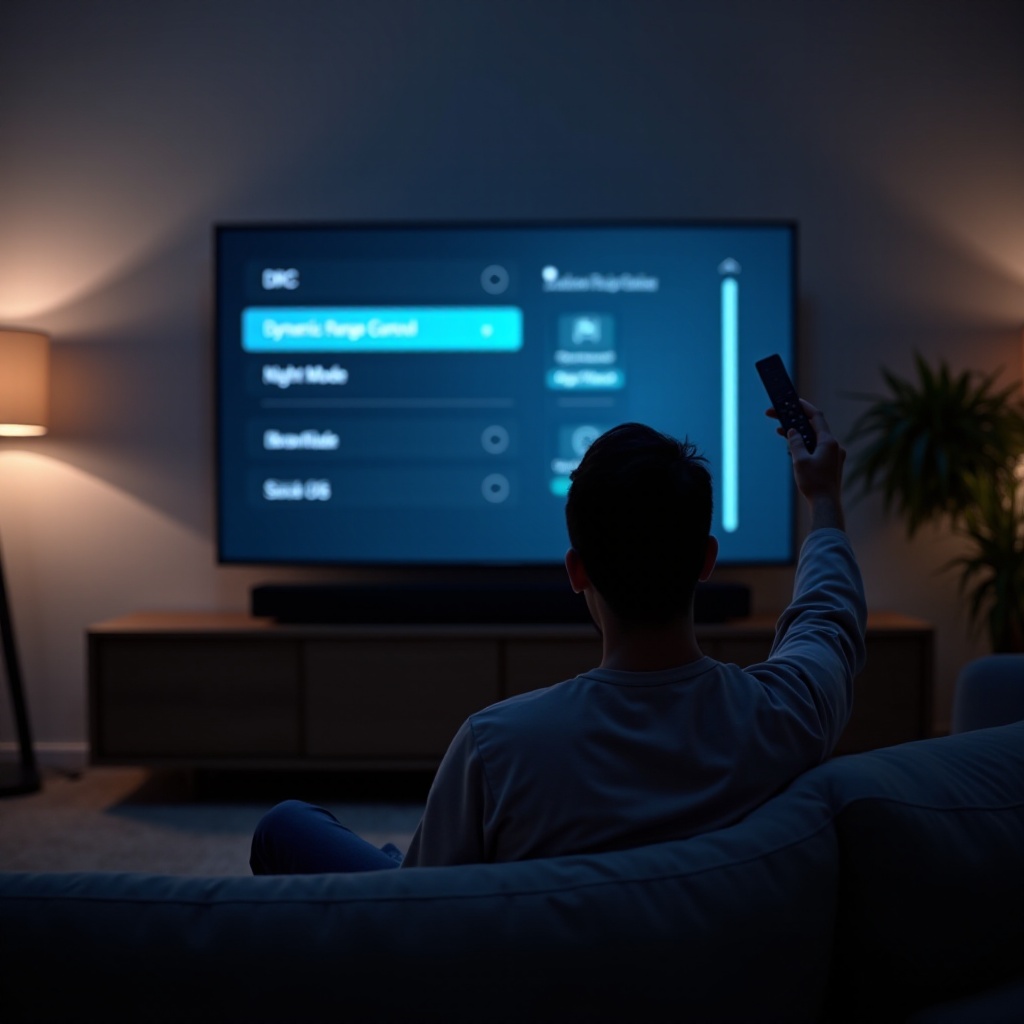
ARC, eARC, and HDMI CEC Conflicts
ARC and eARC carry audio from the TV to a soundbar or receiver. CEC lets devices control each other over HDMI. Both can create volume spikes when formats change or when devices wake up.
Handshake hiccups that trigger volume jumps
When content switches from PCM to Dolby Digital, to Dolby Digital Plus or Atmos, the TV renegotiates with the bar. That handshake can reset volume, switch off leveling, or move processing to a different device. Wake from standby and switching apps can trigger the same effect. You can reduce this by fixing the audio format or limiting when the system tries to switch modes.
How to tame CEC: Anynet Plus, Bravia Sync, SIMPLINK
Pick one device to own volume control. If the TV and bar both fight for control, disable CEC on one of them and use a single remote.
– Samsung: Anynet Plus in General settings.
– Sony: Bravia Sync in External inputs.
– LG: SIMPLINK in Connection settings.
If renegotiation persists, set a fixed output on the TV or streamer such as PCM or Dolby Digital rather than Auto or Pass Through. A fixed format reduces format switching during ads and app transitions.
External Speakers: Soundbar or AVR Settings to Check
When a soundbar or receiver is in the chain, its processing often dominates loudness. Make sure it is not fighting the TV.
Turn off Dynamic Volume, Loudness, Night Mode, Dynamic EQ
On the soundbar or receiver, disable dynamic processing first. Look for Dynamic Volume, Loudness Management, Night Mode, or Dynamic EQ. These features change level based on content and can cause pumping when the TV or streamer also shapes audio. Start with a neutral sound mode and a flat EQ. Add a small dialogue boost only if you still need it once the system is stable.
Match TV Digital Audio Out: PCM vs Bitstream vs Pass Through
Match formats to your gear:
– TV speakers: Set the TV to PCM or a simple stereo output. That removes format handshakes.
– Soundbar without Atmos: Use PCM or Dolby Digital. Avoid frequent switching between Auto and various surround formats.
– Atmos bar or receiver via eARC: Use Dolby Digital Plus or Atmos only if stable. If you hear jumps when switching apps or during ads, try turning Pass Through Off and picking a fixed Dolby Digital or PCM mode.
With the external chain stable, look at the app and device layer, where many format switches start.
Streaming Devices and App Behavior
Platforms and apps have different loudness targets and vary how they handle ads. Some streamers add leveling that may conflict with your TV or bar.
Roku, Fire TV, and Google TV leveling options
- Roku: Volume Modes include Off, Leveling, and Night. Use Leveling only with TV speakers. Turn it Off when the soundbar manages loudness.
- Fire TV: Look for Volume Leveler and Dialogue Enhancer in audio settings. Use one feature in the entire chain. Do not layer them with TV or bar leveling.
- Google TV or Android TV boxes: In sound settings, pick PCM or a fixed Dolby format. Avoid stacking any dialogue enhancers with bar processing.
Ads, app transitions, and format switches
Ad breaks and app transitions often use different audio codecs or bitrates. That triggers a new handshake and can reset levels. Reduce this by setting a stable output on the streamer, like PCM or Dolby Digital. If you still hear pops or jumps, choose one device to apply light leveling and keep every other device neutral.
Bluetooth and Wireless Audio Quirks
Wireless listening adds volume scaling rules that differ by brand. Some links use absolute volume, where the TV and headphones share one scale. Others use separate scales.
Absolute vs relative volume and headroom
If your Bluetooth headphones swell and dip, disable absolute volume on the TV or the headphones if the option exists. Set the headphone volume to about 70 to 80 percent and adjust the TV master volume slightly lower. That headroom prevents the link from riding levels. Keep dialogue boost and leveling light; pick one feature to control loudness and leave the rest off.
Remote Control and Interference Issues
Not all volume swings come from settings. Some TVs see ghost commands from a faulty remote or bright light hitting the sensor.
Stuck buttons, batteries, sunlight, nearby remotes
Replace the remote batteries and check for stuck volume buttons. Clean the remote and make sure nothing presses on it. Shield the TV infrared sensor from direct sunlight or strong LED lighting. Turn off gear that could blast infrared, like some smart lights or remotes for other devices. If the issue stops when you block the IR sensor, you have interference to solve.
Accessibility and Voice Clarity Features
Accessibility options help speech but can trigger compressors upstream. Use them with care when you also have a soundbar or streamer applying processing.
Dialogue Boost, Clear Voice, Balance, EQ
Enable a small Dialogue Boost or Clear Voice level first and test. Keep channel balance centered unless you have hearing differences. When fine tuning EQ, use small cuts rather than big boosts to avoid triggering automatic gain control in a bar or receiver. If you run a receiver with a center channel, level it with test tones rather than cranking dialogue boosters.
Firmware Bugs, Corrupted Profiles, and Resets
If none of the changes help, you may face an audio profile glitch or a known firmware issue. Clearing profiles often restores stability.
Reset audio without wiping apps; when to factory reset
Most TVs and bars offer a sound reset that clears audio settings without erasing your apps. Use the TV sound reset, then retest with a single leveling layer. On the bar or receiver, reset sound modes to default and power cycle the unit. If problems persist after updates and resets, perform a full factory reset on the TV and the bar or receiver, then rebuild settings with one device in charge of leveling and a fixed audio format.
Step by Step Diagnostic Flow
Use this sequence to reach a stable setup. Make one change at a time and retest the same clip.
1) Power cycle: Unplug TV and bar or receiver for 60 seconds. Plug in TV first, then the bar. Reseat HDMI or eARC cables and confirm you use a certified Ultra High Speed HDMI cable on the eARC port.
2) Update firmware: Update the TV, the bar or receiver, and any streamers or consoles. Reboot each device.
3) Baseline with TV speakers: Disconnect the bar or receiver. Play a tough scene in two apps. If the TV speakers are stable, the bar or receiver is the source of pumping.
4) Reconnect the bar or receiver: Turn off the TV auto leveling and AI audio effects. Set TV digital audio out to a fixed format such as PCM or Dolby Digital.
5) Neutralize the bar or receiver: Turn off Dynamic Volume, Night Mode, Loudness Management, and Dynamic EQ. Pick a neutral sound mode and flat EQ.
6) Choose one leveler: If you use TV speakers, enable TV leveling and keep streamers neutral. If you use a bar or receiver, disable TV leveling and let the bar or receiver level. Do not layer with streamer or app leveling.
7) Fix streamer output: On Roku, Fire TV, Google TV, or consoles, set a stable output like PCM or Dolby Digital. Avoid Auto or Pass Through if you hear switching during ads.
8) Tame CEC: Pick one device to control volume. If volume jumps remain, disable CEC on either the TV or the bar and control power and volume with one remote.
9) Test across content: Use a dialogue heavy clip, a live sports clip, and an ad supported stream. If only ads spike, apply mild leveling on your chosen device and keep all others neutral.
10) Save profiles: Save a Movie preset, a Sports preset, and a News preset if your TV or bar supports it. Keep processing light. Note the settings so you can restore them after future updates.
This flow brings you from quick resets to stable formats and minimal processing. Once your chain is calm, you can enable small enhancements without reintroducing pumping.
Conclusion
You can stop volume swings by deciding who controls loudness and by keeping audio formats stable. Start with quick diagnosis, then turn off competing features. Fix ARC or eARC handshakes and limit CEC control to one device. Use one leveler in the entire chain, set PCM or a fixed Dolby format, and keep dynamic processing light. Test the same clip after each change, then save presets for your favorite content. With a clean chain, dialogue stays clear, effects sound rich, and you can put the remote down and enjoy the show.
Frequently Asked Questions
Why does my TV volume go up and down during commercials?
Ads often arrive in different formats and loudness targets. Devices renegotiate audio, which can reset levels. Use one gentle leveler on TV or bar, and set a fixed PCM or Dolby Digital output.
Should I use volume leveling on the TV or the soundbar?
Pick one device only. Stacking TV leveling with bar or app leveling causes pumping and dull audio. If you use TV speakers, enable TV leveling. If you use a bar or receiver, let it handle leveling.
Why does volume change when switching between apps or inputs?
Format switching triggers new handshakes, which can alter processing and levels. Fix this by setting a stable output on the TV or streamer, updating firmware, and limiting CEC to one device.