
Toshiba TV Controller Not Working? 15 Fixes to Get Your Remote Responding Fast
Introduction
When you press a button and nothing happens, frustration spikes fast. If your Toshiba TV controller is not working, you can solve it with a structured plan. Start with quick checks that take seconds. Then move to pairing, interference, and settings. Finish with resets and hardware checks if needed.
Most Toshiba TVs respond to two types of remotes: simple infrared remotes and Bluetooth or Alexa voice remotes used on Toshiba Fire TV Edition sets. Each fails for different reasons. IR remotes need a clear line of sight and clean sensors. Bluetooth remotes rely on pairing, battery strength, and low wireless interference.
This guide gives you 15 practical fixes you can do at home. You will learn how to test the remote, re-pair it, update software without a working remote, and rule out HDMI-CEC conflicts from soundbars and consoles. Move step by step. Your goal is to restore control quickly and keep it stable. With the basics set, let us start with the fastest wins, then build toward deeper troubleshooting for stubborn cases.
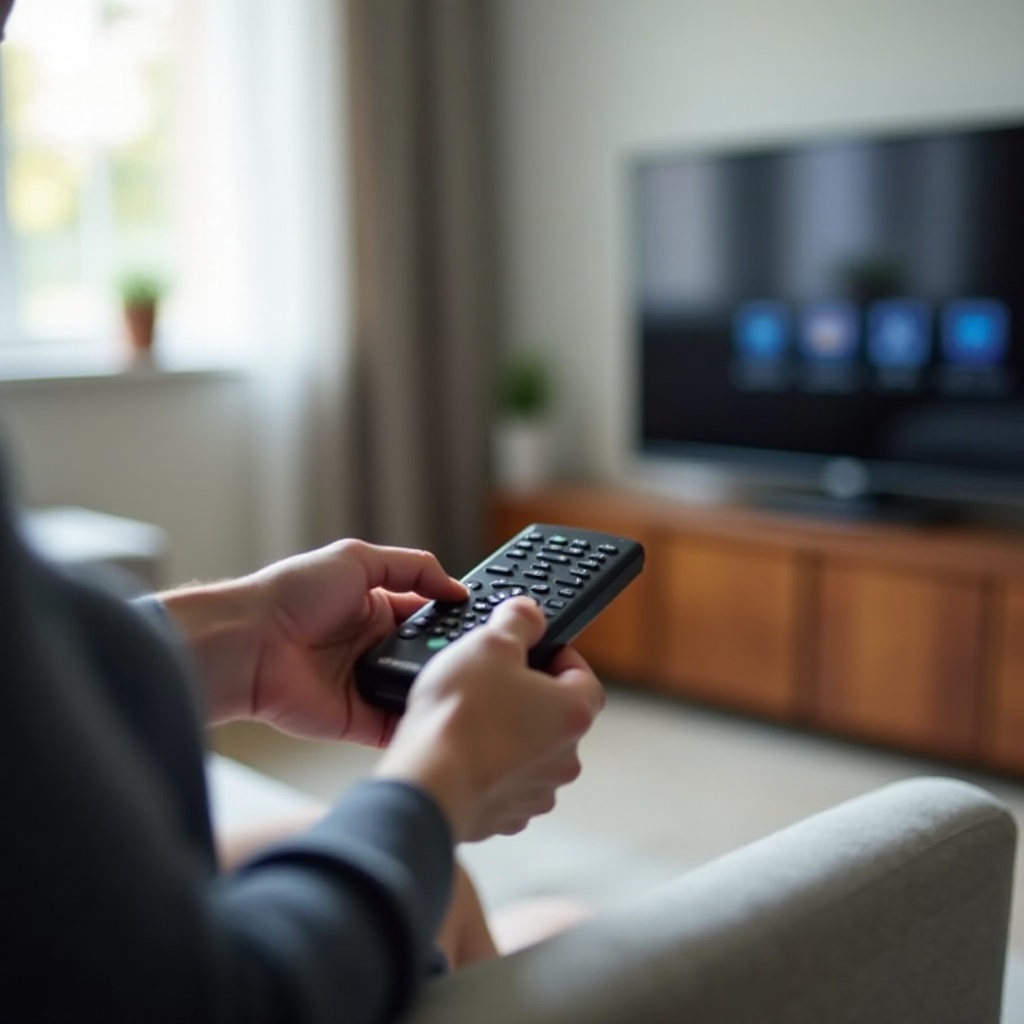
Quick Fixes First: Batteries, Power Cycle, Line of Sight
Replace or reseat batteries and confirm polarity
Low or misaligned batteries cause many remote failures. Do this first:
– Remove the battery cover.
– Replace both batteries with fresh, same-brand cells. Use alkaline for best performance.
– Match polarity signs with the diagram in the compartment.
– Do not mix old and new batteries. Do not mix brands or chemistries.
– Reseat batteries firmly and close the cover without bending spring contacts.
If the remote has a status LED, press any button. A bright, steady flash suggests the remote has power. A dim or flickering LED suggests weak batteries or poor contact. If nothing lights, recheck battery orientation and try a second set.
Power cycle the TV and discharge residual power
A locked TV can ignore valid remote commands. Power cycling clears temporary glitches:
1. Turn the TV off and unplug it from the wall.
2. Wait at least 60 seconds.
3. Press and hold the TV power button for 10 to 15 seconds to discharge.
4. Plug the TV back in and power it on.
Test the remote again. If the TV responds to the power button only, continue with the steps below. A clean reset often restores normal behavior after brief outages or misreads.
Clear obstructions and point the remote correctly
IR remotes require line of sight:
– Stand 6 to 12 feet from the TV.
– Aim at the TV IR sensor window, often near the front logo.
– Remove items blocking the sensor: soundbars, consoles, décor.
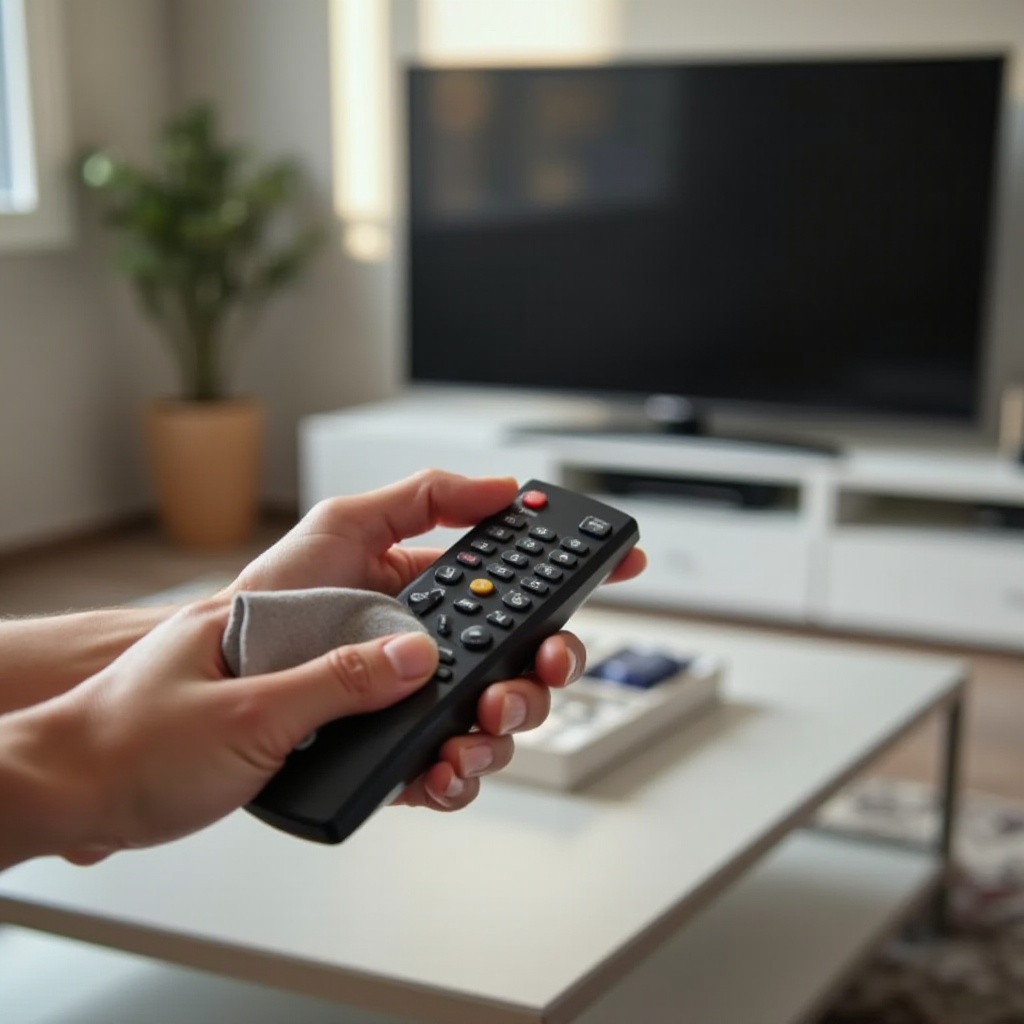
– Wipe the TV sensor window and the remote face with a soft, dry cloth.
If these simple steps do not fix a toshiba tv controller not working issue, identify your remote type next. That choice determines what you test and how you repair the connection.
Identify Your Remote: IR vs Bluetooth/Alexa Voice Remotes
How to tell if you have an IR-only Toshiba remote
IR-only remotes:
– Have no microphone button.
– Do not require pairing screens.
– Work only when pointed at the TV with a clear path.
– Often blink an LED when you press a button but never maintain a connection.
Features of Toshiba Fire TV or Alexa voice remotes
Bluetooth or Alexa voice remotes:
– Include a microphone or Alexa button.
– Do not need direct line of sight.
– Must pair with the TV, and may need re-pairing after updates or battery changes.
– Offer app navigation, voice search, and extra control keys.
Model labels, LED indicators, and menu clues
Check these clues:
– The remote back label for model numbers and any Alexa icon.
– The TV settings menu for Bluetooth or Controllers options.
– LED patterns when entering pairing mode or when batteries run low.
Now that you know the type, confirm the signal path. For IR, verify the LED output. For Bluetooth, prepare to re-pair. We will test IR first, then handle Bluetooth pairing.
Test and Restore an IR Remote
Use a smartphone camera to verify IR output
Confirm if the IR LED emits light:
1. Open your phone camera app.
2. Point the remote front at the camera lens.
3. Press and hold a button. Look for a pulsing purple or white light in the preview.
– If you see light, the remote is transmitting.
– If no light appears, replace batteries again, check contacts, or suspect a failed remote.
Clean remote buttons, battery contacts, and the TV IR window
Dust and oxidation block signals:
– Remove batteries.
– Tap the remote gently to free debris.
– Clean battery contacts with a cotton swab slightly dampened with isopropyl alcohol, then dry fully.
– Press each button several times to free stuck keys.
– Clean the TV IR window with a microfiber cloth. Avoid sprays directly on the TV.
Reduce ambient IR noise from sunlight and lighting
IR sensors can drown in bright light:
– Close blinds or move lamps that shine directly at the TV.
– Avoid placing the TV opposite a bright window.
– Test with fluorescent or some LED bulbs turned off.
If the IR test passes but control still fails, a settings conflict or HDMI-CEC loop may be involved. If you use a Bluetooth or Alexa voice remote instead, proceed to pairing and reset steps next.
Pair, Reset, or Replace a Toshiba Fire TV or Bluetooth Remote
Enter pairing mode and re-pair the remote
Re-pairing fixes many Bluetooth issues:
– Stand within 3 to 10 feet of the TV.
– Power-cycle the TV.
– Press and hold the Home button for 10 to 15 seconds.
– Watch for an on-screen prompt or LED pattern indicating pairing.
– If nothing appears, press Back plus Menu plus Left for 10 seconds, then hold Home again.
If you have the Fire TV app on your phone, connect to the same Wi-Fi, choose your TV, and go to Settings > Controllers and Bluetooth Devices > Amazon Fire TV Remotes > Add New Remote. Follow the prompts.
Perform a full remote reset and re-pair sequence
If pairing fails:
1. Remove the remote batteries for 60 seconds.
2. Press and hold Power for 10 seconds to discharge.
3. Insert fresh batteries.
4. Hold Home for 15 seconds to pair.
5. If still stuck, hold Back plus Menu plus Left for 10 seconds to reset, then hold Home again.
What to do if pairing fails or the LED blinks continuously
When the LED blinks without connecting:
– Move away from wireless routers, USB 3.0 drives, or microwave ovens.
– Restart the TV and your router.
– Use the Fire TV mobile app to update the TV software.
– Try pairing in a different room to reduce interference.
– If the remote still fails, test with a known-good remote or a universal remote. Consider replacement if pairing never completes.
If pairing does not hold or drops often, interference may be the real culprit. Clearing noise and congestion can stabilize both IR and Bluetooth control, which brings us to the next step.
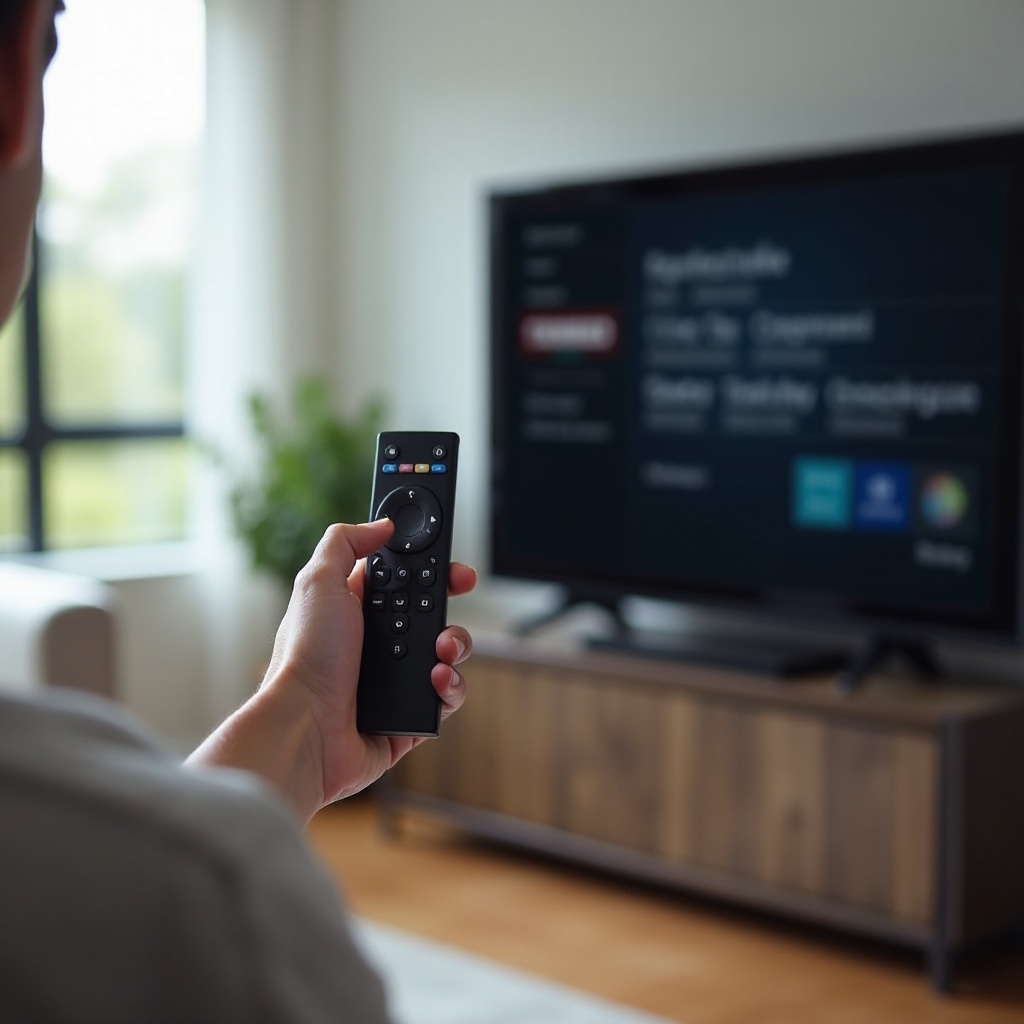
Stop Interference: Wi-Fi, Bluetooth, and Ambient Light Issues
Reduce 2.4 GHz congestion and change router channels
Heavy 2.4 GHz traffic hurts Bluetooth performance:
– Log in to your router and set the 2.4 GHz channel to 1, 6, or 11.
– Prefer the 5 GHz band for streaming devices when possible.
– Keep the router several feet from the TV and media gear.
Manage Bluetooth crowding from gamepads and headphones
Too many Bluetooth devices compete for airtime:
– Turn off unused controllers, keyboards, or headphones.
– Unplug USB dongles near the TV that emit RF noise.
– Avoid stacking devices directly on the TV, where antennas sit.
Minimize IR interference from bright light and reflections
- Turn off or reposition bright lamps facing the TV.
- Reduce reflections from glossy cabinets or mirrors opposite the screen.
- Use matte décor near the TV to cut glare and stray IR.
If signals still act odd, the TV might be following commands from other devices through HDMI-CEC. Disabling CEC briefly can reveal whether linked devices cause the confusion.
HDMI-CEC Conflicts: Soundbars, Receivers, and Consoles
Temporarily disable CEC to isolate control conflicts
CEC lets devices control each other but can hijack commands:
– Open TV Settings and find the HDMI-CEC option (names vary by model).
– Turn CEC off for a test.
– Unplug HDMI devices so the TV runs alone. Test the remote.
Fix ARC or eARC volume and power pass-through issues
If the TV controls a soundbar or receiver:
– Use the TV ARC or eARC port and a certified High Speed HDMI cable.
– Enable ARC or eARC first, then re-enable CEC.
– Set the TV as the primary controller. Disable device-specific volume control if loops or lag reappear.
Reconnect devices and set the TV as the primary controller
- Reconnect one device at a time.
- After each device connects, test the remote and volume control.
- If a device causes issues, leave CEC off for that port or use IR-only volume control.
With CEC behavior under control, check for software updates. Updated firmware often resolves bugs that impact Bluetooth remotes, CEC logic, and power management.
Update TV Software Without a Working Remote
Use the TV front-panel buttons to navigate settings
Many Toshiba TVs include basic buttons:
– Use Menu, Volume, and Channel buttons to navigate.
– Go to Settings > Device or System > About > Check for Updates.
– Install updates and restart the TV.
Control the TV via the Fire TV or Toshiba mobile app
- Install the Fire TV app on your phone.
- Connect the phone and TV to the same Wi-Fi.
- Select your TV and use the app directional pad to open Settings and update software.
Connect a USB keyboard to access menus and updates
- Plug a USB keyboard into the TV.
- Use arrow keys, Enter, and Esc to navigate.
- Update firmware, then re-test the remote.
If updates do not fix a toshiba tv controller not working problem, targeted resets can clear stubborn software states without full reinstallation.
Advanced Resets: Soft Reset, Network Reset, and Factory Reset
When to try a soft reset or network reset
- Soft reset: Unplug the TV for 60 seconds, hold the power button for 10 to 15 seconds, then plug in and restart.
- Network reset: In Settings > Network, forget and reconnect to Wi-Fi. This can stabilize Bluetooth on Fire TV Edition sets.
Safe steps to perform a factory reset without a remote
If nothing works:
– Use the Fire TV app or a USB keyboard to navigate to Settings > Device and Software (or My Fire TV) > Reset to Factory Defaults.
– Some models support holding the TV power and volume down buttons at startup to trigger a reset menu. Check your model manual.
Reconfigure language, Wi-Fi, and account settings post-reset
After a reset:
– Choose language and region.
– Reconnect to Wi-Fi.
– Sign in to streaming accounts.
– Re-pair the Bluetooth remote by holding Home for 10 to 15 seconds.
If the problem persists even after a reset, you still need control to keep watching. Backup control methods can bridge the gap while you diagnose hardware faults.
Use Backup Controls: Mobile Apps, USB Keyboards, and Universal Remotes
Fire TV and Toshiba remote apps as temporary controllers
- Use the Fire TV app to navigate, pair remotes, and install updates.
- Some Toshiba models support brand remote apps; check your app store.
USB keyboard and mouse navigation basics
- A basic USB keyboard often works for setup screens.
- Arrow keys and Enter navigate menus; Esc or Backspace goes back.
- A USB mouse can help click small UI items if supported.
Choosing a universal remote that supports Toshiba TVs
- Look for universal remotes with Toshiba code sets and learning features.
- Program the remote using the manual or automatic code search.
- For Fire TV Edition sets, pick a model that supports Bluetooth, or use an IR universal remote and manage CEC carefully.
If backup controls work but the original remote does not, you likely face a hardware fault on the remote or the TV receiver. The next step is to isolate which one failed.
When Hardware Fails: Diagnose the Remote vs the TV IR or Bluetooth Receiver
Signs your remote hardware is failing
- No IR light on the camera test despite new batteries.
- Buttons feel mushy or stick even after cleaning.
- The remote works only when twisted or squeezed, suggesting cracked solder joints.
Check the TV IR receiver or Bluetooth radio functionality
- If a known-good IR remote or a universal remote fails too, the TV IR receiver may be faulty.
- If multiple Bluetooth remotes cannot pair, the TV Bluetooth radio or software may be at fault.
- Verify control using the Fire TV app; if the app works but remotes do not, suspect the TV wireless radio or interference.
When to contact Toshiba or Amazon support or seek repair
- If the TV receiver fails, contact Toshiba support with your model and serial number.
- For Fire TV remotes and OS behavior, contact Amazon support.
- If the unit is under warranty, avoid opening the TV. If not, a technician can replace an IR receiver board at reasonable cost.
Once you restore control, a few good habits will keep the system responsive. Solid batteries, clean sensors, and periodic updates prevent most remote issues from returning.
Preventive Care and Best Practices
Battery best practices and avoiding mixed cells
- Use high-quality alkaline batteries.
- Replace both batteries together.
- Avoid mixing brands or old and new cells. Remove batteries if you store the remote for long periods.
Keep sensors clean and avoid harsh environments
- Wipe the remote face and TV sensor monthly.
- Keep liquids away and do not use harsh cleaners.
- Avoid direct sunlight on the TV sensor to reduce IR washout.
Reduce interference and keep firmware updated
- Place the router a few feet from the TV and use 5 GHz when possible.
- Turn off unused Bluetooth gear near the TV.
- Check for firmware updates every few months to maintain stability.
Conclusion
When you face a toshiba tv controller not working issue, start simple. Replace batteries, power-cycle the TV, and clear line of sight. Identify your remote type and test its core signal. Re-pair Bluetooth models and remove wireless interference. Disable CEC to rule out device conflicts. Update software and use resets when needed. If all else fails, switch to backup control methods and test for hardware faults. With these steps, most remotes return to normal in minutes, and your TV stays responsive long term. Keep the preventive habits, and you reduce the chance of repeat failures while making every button press count.
Frequently Asked Questions
Why does my Toshiba TV only respond to the power button but not volume or menu?
Power may use a different command path. Replace batteries and clean the remote. Disable HDMI-CEC and test again. If IR works only for power, clean the TV IR window and run the camera test. Update firmware next.
How do I pair a Toshiba Fire TV remote if the Home button will not trigger pairing?
Remove batteries for 60 seconds. Reinsert fresh cells. Hold Back + Menu + Left for 10 seconds to reset, then hold Home for 15 seconds. If that fails, use the Fire TV app to add a new remote in Settings > Controllers.
Will a universal remote work with my Toshiba TV, and which one should I choose?
Yes. Most universal remotes include Toshiba code sets. Pick a model with learning and backlighting. For Fire TV Edition sets, use a universal remote that supports Bluetooth, or pair an IR universal remote and manage CEC carefully.