
Toniebox Won’t Turn On Off Charger? 12 Fixes and Troubleshooting Guide
Introduction
A Toniebox that shuts down the moment you lift it from the dock can stop story time cold. The symptom often points to a battery that is not delivering power, but the true cause can be simpler: dirty contact pads, a wobbly dock, a weak power adapter, a firmware glitch, or even a damp fabric cover. You do not need to guess. This step by step guide moves from quick checks to deeper fixes so you can restore normal off charger use fast.
We will begin with basic safety and warranty notes to protect your device and coverage. Then we will work outward from the wall outlet and power adapter to the dock, contact pads, and seating alignment. If hardware looks fine, we will calibrate the battery, reset software states, and update firmware. Finally, we will consider environment factors like moisture and temperature, and plan the right time to contact support. Each section connects to the next, so you build a complete picture without repeating steps.
Quick Safety and Warranty Notes
Before any cleaning or resets, protect your warranty and your household. Do not open the Toniebox. The battery is not user serviceable, and prying at the fabric or base can cause damage. Keep liquids away during tests. Unplug the dock before touching its metal contacts. Use a dry microfiber cloth or electronics contact wipe if needed, and let all parts dry fully before plugging back in. Avoid abrasive pads, sharp tools, or excessive pressure on the contacts.
If your unit is within warranty, gather your order number, the serial number on the device or box, and clear photos of the dock, adapter, and contact pads. Note the LED color on the dock and what happens when you lift the box. You will use this documentation later if you need support. With those basics in place, you can start on the fast fixes.
Fast Fix Checklist to Get Your Toniebox Working Off the Charger
Speed matters when a child is waiting for a story. Try these quick wins first; many users resolve the issue here.
Quick wins that take under 5 minutes
- Move the dock to a different wall outlet and test again.
- Use the official Tonie charging dock and adapter, not a third party substitute.
- Remove cases, sleeves, or stickers that may overlap the bottom pads.
- Reseat the Toniebox on the dock, wait for the chime and a steady LED, then charge for 20 to 30 minutes.
- Hold both ears for about 10 seconds to perform a soft reset, then test off the dock.
- Clean the bottom pads and dock contacts with a dry microfiber cloth.
- Open the Tonie app to check connectivity and to prompt any pending updates.
- If the box turns on but dies quickly, charge it to full, then play until it powers off, and charge to full again.
If one of these restores normal off dock play, monitor run time over the next few sessions. If the box still dies immediately or within a minute, continue to the signal and hardware checks below.
Understand Toniebox LED and Sound Signals for Power Issues
You can learn a lot from the LED and tones. Solid green on the dock suggests an active charge. A brief chime when seating confirms good contact. Flashing orange or red can indicate low battery, a charge problem, or a pending update. If the LED goes dark as soon as you lift the box, the battery may not be holding charge or the device is stuck in a bad power state.
LED patterns to watch
- Solid charging color on dock: charging path likely good.
- Flashing low battery color off the dock: battery level is too low to sustain playback.
- No LED or instant blackout off the dock: battery may be depleted, miscalibrated, or a firmware state prevents normal boot.
Audio cues that help diagnose
- Startup jingle then silence: the device boots, then voltage dips under load.
- No sound at all off the dock: deeper power state issue, dead battery, or firmware hang.
Keep a brief log of LED and sound behavior. These patterns guide your next action and help support diagnose issues if you escalate.
Confirm the Symptom: Off Charger vs On Dock Behavior
Before swapping hardware, confirm the exact failure pattern. Does the Toniebox play normally while seated but shut off the moment you lift it? Does it play for 30 to 60 seconds before shutting down? Or does it not respond at all unless on the dock? Different patterns point to different causes.
Run a simple timed test
- Place the box on the dock until the LED shows active charging.
- Lift it, place a Tonie figure on top, and start a timer.
- Note how long playback continues off the dock.
- Repeat after a 30 minute charge, then after a full charge.
If off dock time improves with longer charging, the battery was likely depleted or miscalibrated. If time does not improve, proceed to inspect power sources and contact alignment.
Inspect the Charging Dock, Cable, and Wall Outlet
Power issues often begin outside the box. A weak outlet, a failing adapter, or a loose cable can starve the battery.
Wall outlet and power strip checks
- Test the outlet with a lamp or phone charger. If that device flickers, switch outlets.
- Plug the dock directly into the wall. Avoid power strips, surge protectors, or USB hubs during troubleshooting.
Adapter and cable checks
- Use the official adapter that came with your Toniebox.
- Inspect the adapter and cable for fraying, kinks, or heat. If the adapter smells burnt or feels overly hot, stop using it.
- Ensure the cable sits snugly in the dock. Gently press to confirm a firm connection.
- If possible, test with a known good dock and adapter to isolate the fault.
If power delivery proves solid, shift focus to the dock and box contact surfaces.
Clean and Align the Charging Contacts Safely
Even a thin film of dust or a smear of food can prevent a good charge and create the toniebox won’t turn on off charger symptom. Cleaning is quick and low risk if you follow the basics.
Tools and steps for safe cleaning
- Unplug the dock. Wipe its metal contacts with a dry microfiber cloth.
- If residue persists, use a small amount of isopropyl alcohol on the cloth, then let it dry completely.
- Turn the Toniebox over and gently wipe the bottom pads. Avoid soaking the fabric or pressing hard.
- Remove any accessories or labels that overlap the pads.
What to avoid while cleaning
- Do not use water sprays or household cleaners.
- Do not scrape with metal tools or abrasive pads.
- Do not plug the dock back in until all parts are dry.
After cleaning, reconnect power, seat the box carefully, listen for the chime, and wait for a steady LED.
Seat the Toniebox Correctly on the Dock to Ensure Reliable Charging
Alignment matters. The dock needs to sit flat, and the pads must meet squarely. A slight tilt or a soft surface can break contact.
- Place the dock on a hard, level table.
- Lower the box straight down rather than from an angle.
- Listen for the chime and look for a steady LED.
- Rotate the box a few degrees if needed to confirm solid contact.
- Avoid carpets, thick tablecloths, or wobbly shelves that can tilt the dock.
If alignment solves intermittent charging, designate a stable charging spot to keep the habit consistent. With contact and seating confirmed, tackle battery calibration next.
Calibrate the Battery: Full Charge and Controlled Discharge Cycle
A miscalibrated battery gauge can force early shutdowns even when the cell holds charge. Calibration helps the power controller learn the true full and empty points.
- Charge the box on the dock until it indicates full.
- Leave it on the dock for an extra 30 to 60 minutes.
- Remove it and play audio continuously until it powers down by itself.
- Let it rest powered off for 30 minutes.
- Charge to full again without interruptions.
- Test off the dock and note run time.
If performance improves but remains short, repeat the cycle once more. If calibration does not help, a reset can clear stuck software states.
Perform a Soft and Hard Reset (Button Combos Explained)
Resets clear temporary glitches and wake a device from a bad power state. Start with the least intrusive option.
Soft reset
- Press and hold both ears for about 10 seconds until you hear a chime or see the LED change.
- Release, wait a few seconds, and test off the dock with a known good figure.
Hard reset
- Place the box on the dock so it has stable power.
- Press and hold both ears for about 10 seconds, then follow the reset prompt for your model.
- Reconnect to Wi‑Fi in the app after the reset.
- Charge for 15 minutes before testing off the dock.
If a reset restores normal play but the issue returns later, a firmware update may deliver a lasting fix.
Update Toniebox Firmware via Wi‑Fi and the App
Older firmware can mishandle sleep states or power transitions. Updating ensures the latest power management improvements.
Update steps that prevent interruptions
- Place the Toniebox on the dock within strong Wi‑Fi range.
- Open the Tonie app and follow any update prompts.
- Keep the box on the dock until the process finishes.
- Perform a short soft reset after the update and retest off the dock.
If updates fail, move closer to the router or switch to a different network. With software current, check for environmental factors that can force shutdowns.
Check for Moisture, Dust, or Drop Sensor Triggers
Moisture inside the fabric or around the base can make the device shut down for safety. Dust and debris can also interfere with contacts and sensors. A recent drop may confuse internal sensors until a reset.
Drying and cleaning sequence
- If the fabric feels damp, power off and let the box dry in a cool, airy room for 24 hours. Do not use heat.
- Inspect and gently clean contact pads and the speaker grille.
- Remove third party cases that may press on sensors or block airflow.
- Perform a soft reset, then a hard reset if problems persist.
When the device is dry and clean, test again. If shutdowns only happen in hot or cold spots, temperature may be the trigger.
Temperature and Environment Considerations That Affect Power
Lithium batteries protect themselves in heat and cold by reducing output or shutting down. If your Toniebox is hot, cold, or in direct sun, it may not run off the dock.
- Avoid using or charging in cars, sunny windowsills, or near heaters.
- Allow a cold device to warm to room temperature before testing.
- Keep airflow around the box and dock clear of clutter.
- If it shut down due to heat, let it rest 30 minutes before retrying.
After the environment stabilizes, re test off the dock. If conditions are normal and the issue persists, review your charging accessories.
Avoid Problematic Third Party Chargers and Cables
Not all power adapters are equal. Some claim the right specs but sag under load. That can produce partial charges and fast shutdowns.
Compatibility rules that prevent surprises
- Prefer the official Tonie dock and adapter.
- If replacing the adapter, match voltage and current and buy from a reputable brand.
- Avoid USB hubs, laptop USB ports, and very long extension cords.
- Replace any cable that shows cuts, kinks, or loose connectors.
Swap in known good parts and retest. If nothing changes, the issue may lie within the device.
How Toniebox Power Differs from Other Portable Audio Players
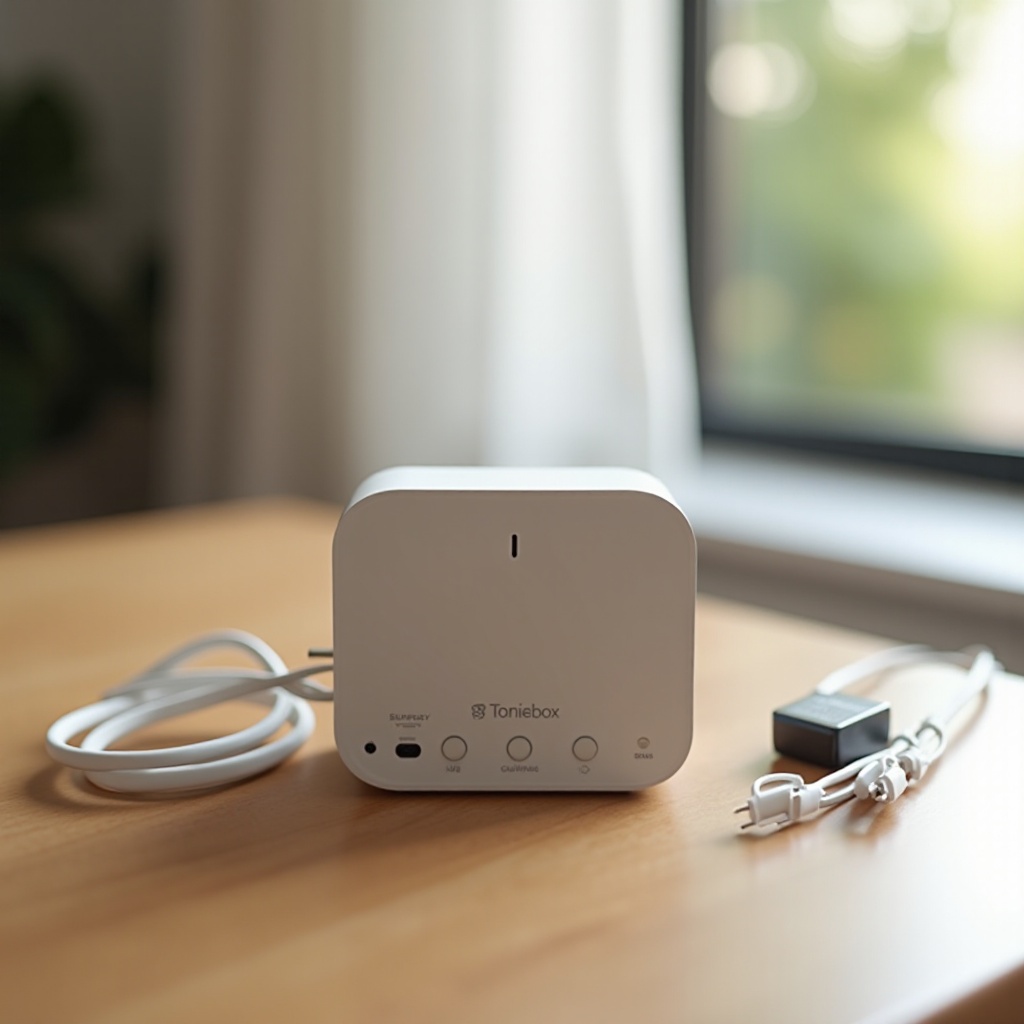
Many portable players charge over a standard USB port and can run directly from that power. The Toniebox uses contact charging and draws from its internal battery even during brief lifts from the dock. This safer, kid friendly design reduces exposed ports but introduces more variables: pad cleanliness, dock alignment, and adapter health.
Because the device authenticates figures and starts playback from the battery, a quick voltage dip can trigger a protective shutdown even right after a charge. That is why cleaning, aligning, calibrating, and updating often fix the toniebox won’t turn on off charger complaint without any repair. With design context in mind, you can better judge whether you have a maintenance issue or a failing battery.
When the Battery Is Failing: Signs, Tests, and Next Steps
Some patterns point strongly to a worn battery rather than a contact or firmware issue.
Clear signs of a failing battery
- Shutdown within seconds off the dock after a full charge, every time.
- Run time that declines week by week despite calibration.
- Erratic LED behavior when lifted from the dock.
- Extremely fast charge completion followed by quick shutdowns.
- Any swelling, clicking, or heat near the base during charge or playback.
What to do if the battery is suspect
- Perform a final calibration cycle and a hard reset, then time run time off the dock.
- If run time remains under a few minutes, collect your serial number, purchase date, LED notes, and photos.
- Contact Tonie support for repair or replacement options. If in warranty, request a prepaid return if offered.
- If out of warranty, compare service costs with replacement prices and consider trade in programs if available.
- Avoid DIY battery swaps. They risk damage and usually void any remaining support.
Back Up Content and Re Pair Tonies if Needed
If you reset the device or plan to send it for service, protect your library and pairings.
Sync and pairing steps
- Open the Tonie app and confirm your library has synced.
- After a hard reset, reconnect the box to Wi‑Fi and sign in.
- Place each figure once to trigger downloads and refresh content.
- Keep the box on the dock during large downloads to prevent interruptions.
This makes it easy to continue where you left off after a reset or a replacement device.
Travel Mode: On the Go Power Strategies and Best Practices
Portable use puts more stress on contacts and the battery. A few habits can keep playback steady away from home.
- Fully charge on the dock before a trip.
- Pack the dock and official adapter for overnight stays.
- Avoid very hot or cold car interiors.
- Keep protective cases thin and clear of the bottom pads.
- After a bumpy ride or drop, perform a quick soft reset before the next session.
These habits minimize surprises and help avoid off charger shutdowns on the road.

When to Escalate: Support, Warranty, and Replacement Options
If you have cleaned contacts, aligned seating, verified power, calibrated the battery, reset, updated firmware, and checked environment factors without success, it is time to escalate.
What support needs to help fast
- A timeline of steps you tried and the results.
- Photos of the dock, contact pads, and LED status on and off the dock.
- The serial number and proof of purchase.
- Notes on outlets, adapters, and cables you used during tests.
Contact support through the app or website and provide this information. If your unit is in warranty, ask about repair or replacement. If out of warranty, request a repair quote and compare it to a new unit. Keep your original dock and adapter unless support asks you to return them. Clear documentation speeds resolutions and increases the chance of a no cost or low cost fix.
Conclusion
Most cases of a Toniebox that only runs on the dock trace back to simple causes. Clean and align the charging contacts, seat the box on a stable dock, and use a known good outlet, adapter, and cable. Calibrate the battery, reset stuck states, and keep firmware current. Watch out for moisture and extreme temperatures, and avoid bulky cases that block pads or press on sensors.
If the toniebox won’t turn on off charger problem remains after thorough checks, the battery may be at end of life. At that point, your best move is to document your findings and contact support for repair or replacement. With the steps in this guide, you have a clear path from quick wins to escalation, so story time can return to normal with confidence.
Frequently Asked Questions
Why does my Toniebox only work while it is on the charger?
This usually points to a battery or charging path problem. Clean the contact pads on the box and dock, then use the original adapter and a known good outlet. Calibrate the battery with a full charge, full discharge, and full charge. Perform a soft reset and check for firmware updates. If it still shuts down off the dock after multiple cycles, the battery may be worn and need service.
How do I reset a Toniebox that will not turn on off the charger?
Start with a soft reset by holding both ears for about 10 seconds until you hear a chime. If that does not help, perform a hard reset on the dock, then reconnect Wi‑Fi in the app. After any reset, charge for 15 minutes and test off the dock with a known good figure. Updating firmware after a reset often stabilizes power behavior.
Can I replace a Toniebox battery without voiding the warranty?
The Toniebox battery is not user replaceable. Opening the device risks damage and typically voids the warranty. If the battery appears to be failing after you have cleaned contacts, calibrated, and updated firmware, contact Tonie support with your serial number, proof of purchase, and test notes. They will advise on repair or replacement options.