
How to Fix Headset One Side Not Working: Complete Troubleshooting Guide
Introduction
Silence in one ear ruins music, movies, and calls. The good news: most one-sided audio issues have simple causes and clear fixes. You can solve many problems in minutes if you test in the right order. This guide shows how to fix headset one side not working with practical steps that start simple and escalate only when needed.
You will learn how to spot software settings that mute a channel, clean and seat connectors, and restore stereo on Windows, macOS, iPhone, and Android. You will also get specific fixes for wired headsets, Bluetooth headsets, and true wireless earbuds. For gamers and remote workers, we cover app and console settings that often misroute sound. If software fails, we move into hardware tests and repair options. Work through each section in sequence. Each step narrows the cause and points you to the next move.
Before you change cables or reinstall drivers, confirm the problem with fast checks. Quick wins often live here.
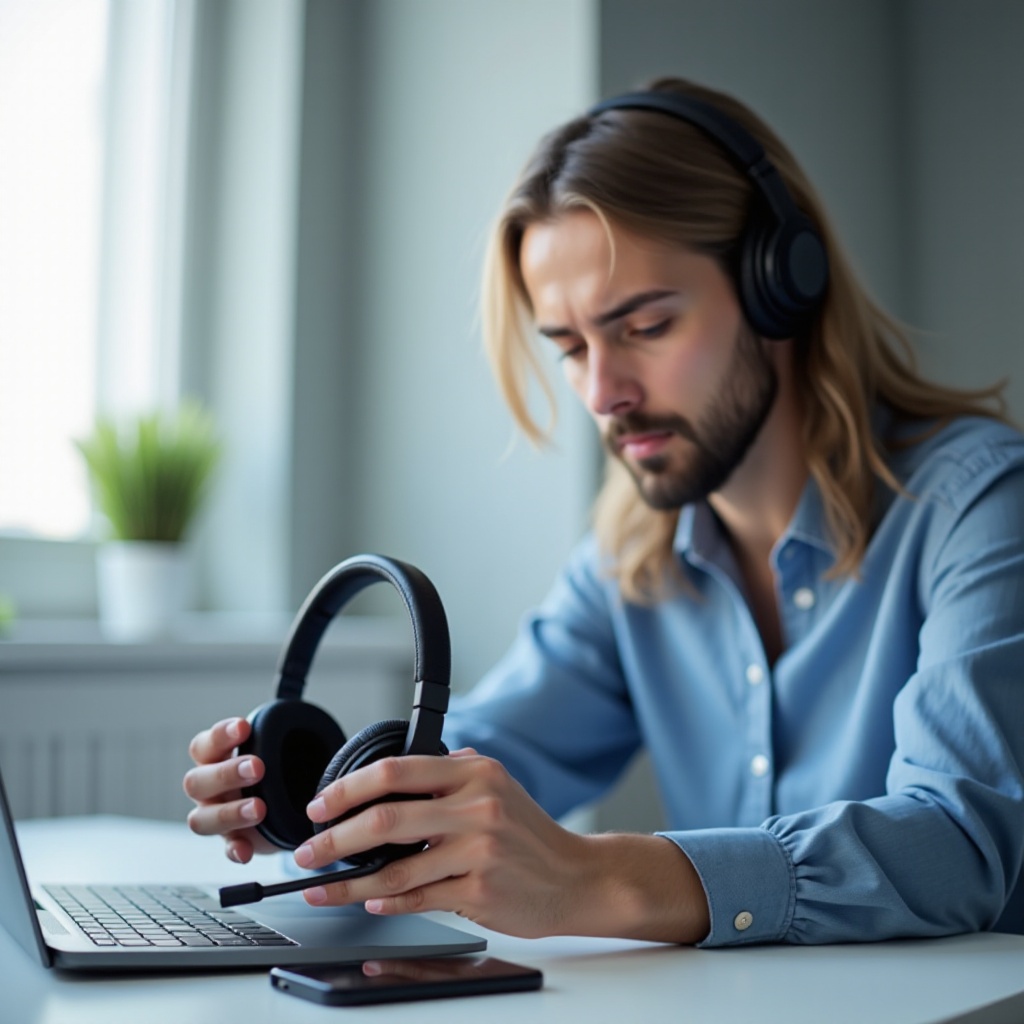
Quick Diagnosis: Symptoms and Fast Checks
Start with simple, reversible tests. These isolate the problem to the headset, the device, or the app. They save time and prevent unnecessary fixes.
Confirm with multiple songs, videos, and apps
Play a few tracks you know are stereo. Choose content with wide panning so left and right are obvious. Try a video and a podcast as well. Switch to another app to rule out app bugs. If one side stays silent across apps, the headset or system is the likely cause.
Test the headset on a second device
Plug the headset into a different phone, tablet, laptop, or game controller. If both sides work on the second device, the original device or its adapter needs attention. If the fault follows the headset, you can focus on the headset and its cable or pairing.
Inspect for physical damage and loose connections
Look for frayed cable sections near the plug, the Y split, and the earcups. Check for kinks, bent connectors, or a loose earcup. While playing audio, gently press along the cable and around the plug. If sound returns when you press or bend a spot, you likely found a cable break.
Toggle mono audio off and reset any custom EQ
Mono audio forces both channels into one. It can mask or cause channel issues. Turn mono off and center the balance. Disable EQ and spatial or surround effects while you test. This ensures a clean stereo path.
These checks separate software glitches from hardware faults. If the problem persists, understanding common causes will guide you to the right section next.
What Causes One Side of a Headset to Stop Working?
One-sided audio usually comes from a few predictable sources. Knowing them helps you pick the fastest fix and avoid extra work.
Software balance or mono settings
A shifted balance slider can mute one channel. Mono and spatial modes may reroute sound. Some apps override system settings and switch to mono without warning.
Dirty or poorly seated connectors
Lint in a 3.5 mm jack or a half-seated plug interrupts the ring that carries the right channel. Oxidized contacts add resistance until you clean them.
Damaged cable, driver, or solder joint
Cables fail where they bend the most. A loose solder joint or a broken driver lead can open one channel. Inline remotes and volume sliders also fail and cut a side.
Bluetooth pairing, battery, or codec issues
True wireless earbuds can desync or run one side low on charge. Pairing bugs, unstable LE Audio, or codec mismatches may mute a channel.
App or platform specific audio routing
VoIP and audio workstation apps can select the wrong device or a mono profile. Consoles and chat software can prioritize chat to one ear when misconfigured.
With causes in mind, start by fixing software settings that often mute one channel without any hardware fault.
Check Audio Balance and Mono Settings on Every Device
You should confirm that your device sends balanced stereo before touching cables. These steps correct the most common software mistakes.
Windows: Left-right balance, mono audio, enhancements
Open Settings > System > Sound and select your output device. Center the left and right balance sliders. In Accessibility > Audio, turn Mono audio off. In Device properties > Additional device properties, disable Enhancements and Spatial sound for testing. This removes processing that can skew channels.
macOS: Sound balance and Audio MIDI settings
Open System Settings > Sound and set the Balance slider to center. Launch Audio MIDI Setup and choose your output device. Set the format to a 2 channel stereo mode. Avoid aggregate or multi output devices while testing. They can route channels oddly.
iPhone/iPad: Accessibility audio balance and Mono Audio
Go to Settings > Accessibility > Audio/Visual. Center the Balance slider. Turn Mono Audio off. In Settings > Bluetooth, forget and re pair the headset to refresh the route if needed.
Android: Sound balance and Accessibility Mono audio
Open Settings > Accessibility > Hearing. Center the left right Balance and turn off Mono audio. In Bluetooth settings for your headset, ensure Media audio is enabled. If your phone offers a developer choice for codecs, keep it simple while testing.
If channels still fail after balance and mono checks, address physical connections next. Start with wired headsets, then tackle wireless.
Fixes for Wired Headsets and Earbuds
Wired issues usually involve connection quality or cable wear. Work from the plug outward. Test after each change so you know what helped.
Clean the 3.5 mm jack and device port safely
Power down the device. Use a wooden or plastic pick to lift lint from the port. Blow short bursts of air to clear dust. Wipe the plug with a little isopropyl alcohol on a lint free cloth. Dirt in the port often breaks the right channel first.
Reseat the plug; remove cases and adapters
Push the plug in firmly until it clicks. Phone cases or thick skins can block a full insert. Remove any case or extension adapter and test again. If your device uses a dongle, note that some are TRS only and do not pass mic or full stereo properly.
Perform a gentle bend or wiggle test along the cable
Play audio and gently bend the cable near the plug, the Y split, and the earcups. If the silent side returns or crackles at a spot, that section likely has a break and needs repair or replacement.
Check inline remote or mic switches and volume sliders
Toggle mute and volume controls several times. Oxidation can leave a channel dead. Cycling the switch may restore contact briefly. If it does, replace the cable or the inline remote unit if possible.
Replace detachable cable or 3.5 mm adapter if available
If your headset uses a detachable cable, swap it with a known good one. For phones without a headphone jack, try another USB C or Lightning audio adapter or an external USB DAC. Cheap dongles often fail on one channel.
Try a different DAC or USB C or Lightning adapter
Connect through a different adapter or a small USB audio interface. Confirm stereo output there. If stereo returns, your original adapter is faulty.
Inspect and reseat ear pads or nozzles on IEMs
On over ears, remove pads and check for debris blocking the driver. Clean the grille gently with a soft brush. On in ear monitors, ensure tips and nozzles are clean and not clogged with wax. Replace meshes or filters if they look blocked.
If wired steps do not restore stereo, move to wireless troubleshooting. Power, pairing, and firmware often cause one sided playback on Bluetooth gear.
Fixes for Bluetooth and True Wireless Headsets
Wireless problems often involve sync, power, and firmware. Work through these steps carefully. Test after each change to confirm progress.
Fully charge both sides; clean charging pins and contacts
Place earbuds in the case until the LEDs confirm a full charge. Clean case pins and bud contacts with a little isopropyl alcohol on a cotton swab. Poor contacts keep one bud from charging or turning on.
Reset the headset or earbuds and delete old pairings
Follow the maker reset sequence. On your phone or laptop, forget the headset and toggle Bluetooth off and on. Clear stale pairings that can confuse multipoint devices. A fresh pairing often restores stereo.
Re pair and disable multipoint temporarily
Pair to one device only. In the companion app, turn multipoint off for testing. Multipoint can split or drop channels when devices fight for control.
Update firmware via the companion app
Open the brand app and install updates. Firmware patches fix desync, codec bugs, and channel routing issues. After updating, reset and re pair once more.
Switch Bluetooth codec or turn off LE Audio if unstable
On Android developer options or within some brand apps, switch to a basic codec like SBC or AAC. If LE Audio or LC3 causes dropouts, disable it while testing. Use stability over quality during diagnosis.
Turn off spatial audio, transparency, or mono features
Spatial and transparency modes alter channel routing and levels. Disable these features while testing raw stereo. Re enable them later if they are important to you.
Ensure both earbuds are recognized and synced as a pair
Some true wireless models require removing both buds from the case together. If one bud connects as a separate device or remains offline, perform a master reset that re links the pair. Seat both buds firmly in the case before pairing.
If wireless checks do not fix the issue, focus on the operating system. Driver and routing settings can still force one sided sound.
Platform-Specific Step-by-Step Fixes
Your OS manages drivers, formats, and enhancements. Misconfigurations here can mute a channel even when hardware is fine.
Windows: Set correct output, stereo format, disable enhancements or spatial, update or roll back drivers
Open Sound settings and pick your headset under Output. Click Device properties and then Additional device properties. Under Advanced, select a 2 channel 16 bit or 24 bit format. Disable Enhancements and any Spatial sound mode. In Device Manager, update or roll back audio and Bluetooth drivers if the problem started after an update. Run the Audio troubleshooter for automated checks. Restart the Windows Audio service if sound routing looks stuck.
macOS: Balance slider, Audio MIDI Setup, reset CoreAudio, check aggregate or multi output devices
Confirm the balance slider is centered. In Audio MIDI Setup, select your headset and choose a 2 channel format. Remove or disable aggregate devices for now. If audio still routes to one side, restart CoreAudio by killing coreaudiod in Activity Monitor; it will auto relaunch. Reconnect your headset and test again.
iPhone/iPad: Accessibility balance, Mono Audio, reset network settings, forget or re pair devices
Verify balance and Mono Audio in Accessibility. If Bluetooth routing seems wrong, go to Settings > General > Transfer or Reset > Reset > Reset Network Settings. After the reset, forget and re pair the headset. Test with and without any spatial or head tracked audio options.
Android: Accessibility balance, Mono audio, developer options codecs, safe mode test, clear Bluetooth cache
Center balance and turn off Mono in Accessibility. In Developer options, switch to a basic codec and disable HD audio for testing. Boot into Safe Mode to rule out third party audio apps that may force mono. Clear the Bluetooth app cache in App info > Bluetooth > Storage. Reboot and re pair the headset.
If OS checks look good and the problem persists, review the apps and consoles you use. Many apps override system audio and create the illusion of a hardware fault.
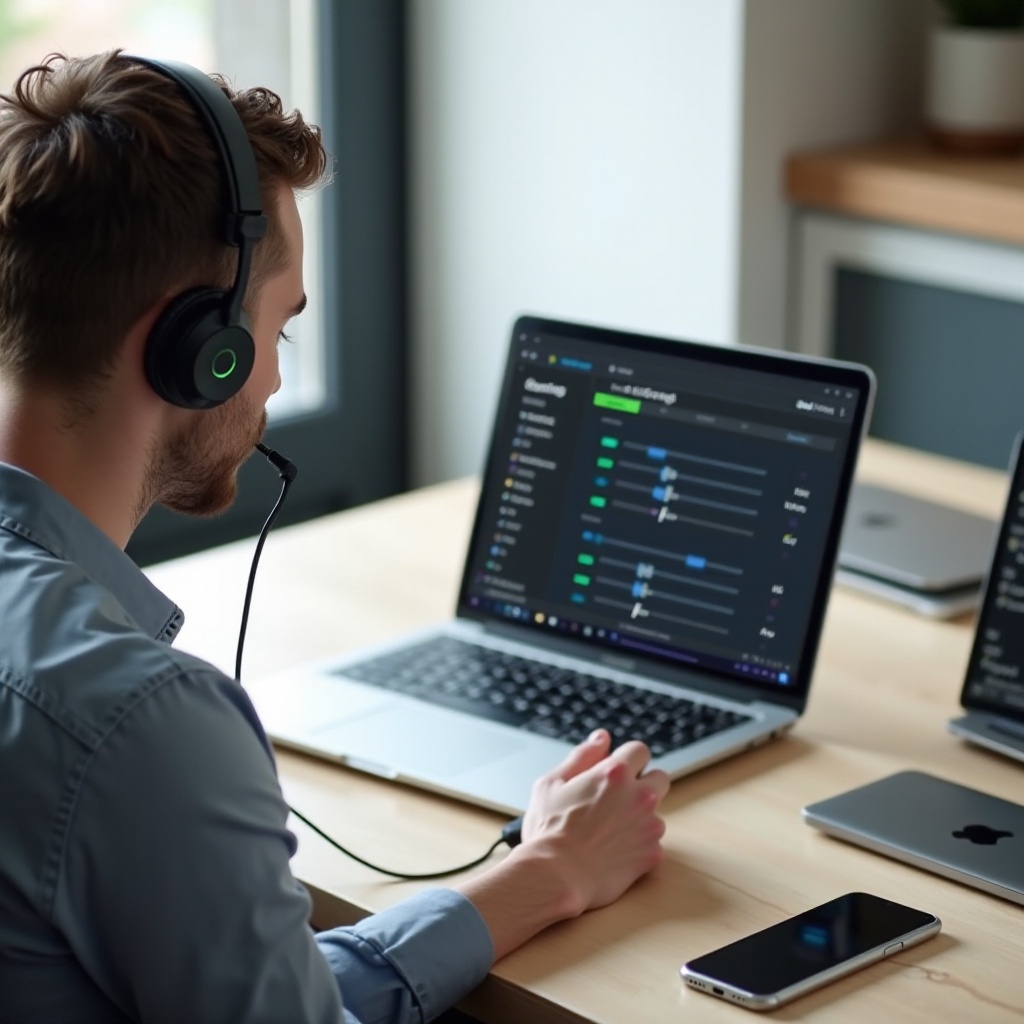
App, Console, and Gaming-Specific Settings to Check
Communication and game apps often apply their own audio logic. Console chat mixes and spatial formats can also skew channels.
Discord, Zoom, and Teams device selection and stereo settings
Open each app and pick the correct output device explicitly. Disable any mono or simplify audio toggle while testing. Run a test call or audio check to confirm both channels work. If the app supports stereo toggles, ensure they are enabled.
Game vs chat mix controls on headsets and software
Many gaming headsets include a chat or game balance dial. Center it. In companion software, set the mix to 50 50 and turn off per app routing. This restores equal left and right feed until you finish diagnosing.
Console audio balance for PS and Xbox, plus controller or dongle firmware
Reset audio balance and chat mix on your console. Update controller firmware and any USB dongle firmware. Re pair wireless adapters if channels seem split. A fresh connection often clears routing issues.
Spatial audio formats versus stereo
Disable Windows Sonic, Dolby Atmos, or DTS while testing. Upmixers can send most content to one channel on misconfigured profiles. Confirm clean stereo first. Re enable spatial audio only after stereo plays correctly.
Music apps: normalizer, EQ, or mono toggles
In music and streaming apps, turn off mono or accessibility audio toggles. Reset EQ and levelers to default while diagnosing. Some apps cache device profiles; log out and back in if changes do not take effect.
If apps and platforms check out, the fault likely sits in the hardware. Proceed with careful tests and repairs, or consider professional help.
Advanced Hardware Checks and DIY Repairs
Hardware work requires patience and the right tools. If your headset is under warranty, contact support first. If not, follow these steps carefully.
Continuity testing with a multimeter on wired cables
Unplug the headset. Use a multimeter to test continuity from the plug tip and ring to each driver. An open line indicates a break in the cable or connector. Wiggle the cable while testing to catch intermittent breaks.
Re solder loose driver leads or replace the plug
If you find a break near the plug, cut back and solder a new TRS or TRRS connector. Inside the earcup, re solder loose leads to the driver. Add heat shrink for strain relief. If you lack soldering skills, a repair shop can do this quickly.
Replace ear pads, filters, or mesh blocking the driver
Clogged mesh or filters reduce or mute sound on one side. Replace pads and clean or swap filters on IEMs. Use a soft brush and avoid poking the driver diaphragm.
True wireless desync reset and case contact alignment
Perform a master reset that re links both buds. Inspect the case so both buds sit flush and charge evenly. If contacts are worn or the latch is loose, the case may need replacement.
When to seek a professional repair service
If the headset is expensive or you lack tools, use a professional. Many shops replace cables and jacks at modest cost. Always check warranty terms before opening any housing.
Once you confirm a hardware fault, decide whether repair, warranty service, or a replacement offers the best value. A clear decision saves time and money.
Repair, Warranty Claims, or Replacement: Make the Right Call
Weigh time, cost, and reliability. Your goal is to restore stereo sound with minimal hassle and expense.
Warranty checklist and RMA preparation
Check coverage and purchase date. Gather proof of purchase, serial numbers, and short videos that show the one sided audio on two devices. Contact support and follow RMA instructions to avoid delays.
Typical repair costs versus replacement value
Cable and plug fixes are cheap. Driver or headband wiring repairs cost more. If repair approaches the price of a new model, replacement makes better sense. Factor in shipping and downtime.
Data to gather: proof of issue, serials, purchase info
When you contact support, provide model, serial, and purchase date. Include the steps you already tried. This reduces back and forth and speeds approval.
When upgrading is the more cost effective option
If the headset is old or parts are scarce, consider an upgrade. Choose models with detachable cables, replaceable pads, and good support. These features reduce future downtime.
Once you get stereo back or choose your path, build habits that prevent the issue from returning. Simple care extends the life of any headset.
Prevent Future One-Sided Audio Issues
Good habits keep both channels healthy and extend gear life. A few minutes of care each week pays off.
Proper cable winding and strain relief habits
Use loose loops and avoid tight bends. Add a right angle adapter if the plug sees stress. Never yank the cable to unplug; grip the plug body.
Keep ports and connectors clean and dry
Brush lint from jacks and wipe plugs monthly. Avoid pocket debris and moisture. Use dust plugs if your device stays in a dirty environment.
Avoid moisture and sweat buildup; use covers
Use sweat resistant tips or covers for workouts. Dry the headset before storing it to prevent corrosion. Keep silica gel packs in your case if humidity is high.
Regularly update device OS and headset firmware
Updates fix routing bugs and codec issues. Check the companion app and OS updates monthly. After updates, quickly test left and right channels.
Store in a case; remove by the plug, not the cable
A case prevents crushing and cable stress. On the desk, hang the headset by the headband to avoid pressure on pads and cables.
With prevention covered, wrap up with a quick recap. Methodical steps and steady testing are the fastest route back to clean stereo sound.
Conclusion
You can fix one sided audio by moving from quick checks to targeted fixes. Start with balance and mono settings. Clean and reseat connectors. Then apply wired or Bluetooth steps and confirm stereo playback. If needed, tune OS and app settings to remove routing conflicts. When software fails, perform careful hardware tests and consider repair or warranty support. These steps show how to fix headset one side not working without guesswork. Work methodically, test after each change, and you will either restore stereo sound or make a smart repair or replace decision.
Frequently Asked Questions
Why is only one side of my headphones working and how do I tell if it is hardware or software?
Check balance and mono settings first, then test on a second device. If the problem follows the headset, suspect a cable, driver, or connector fault. If it only happens on one device or app, it is likely a settings or software issue. Cleaning jacks and reseating plugs helps reveal true hardware faults.
How do I fix one Bluetooth earbud not working or not charging?
Charge both buds fully and clean the case contacts. Reset the earbuds and forget them in Bluetooth settings. Pair again with multipoint off. Update firmware in the companion app. If a bud still will not charge, check the case latch and contacts. A worn case or bad battery may need service.
Is using Mono Audio a good long term fix if one side of my headset is dead?
Mono Audio works as a temporary workaround. It mixes both channels into one so you do not miss content. It reduces stereo imaging and is not a true fix. Use mono while you plan a repair, warranty claim, or replacement. For long term use, restore true stereo through repair or a new headset.