
How to Reboot Vivint Doorbell Camera: The Complete Guide
Introduction
A quick reboot often restores a Vivint doorbell camera that goes offline, lags, or loses audio. This guide walks through every safe method: rebooting from the app, power cycling at the device, and restarting the Smart Hub or panel. You also get network tips to reconnect faster, LED and chime indicators to read status at a glance, and a careful path to factory reset when nothing else works. The process is simple when you follow a clean order of operations. Start with the least disruptive step. Move to hardware only when the app cannot reach the camera. After each fix, test video, audio, chime, and motion. That approach saves time and protects your settings and recordings. Let’s begin by clarifying what a reboot actually does and how it differs from a reset.
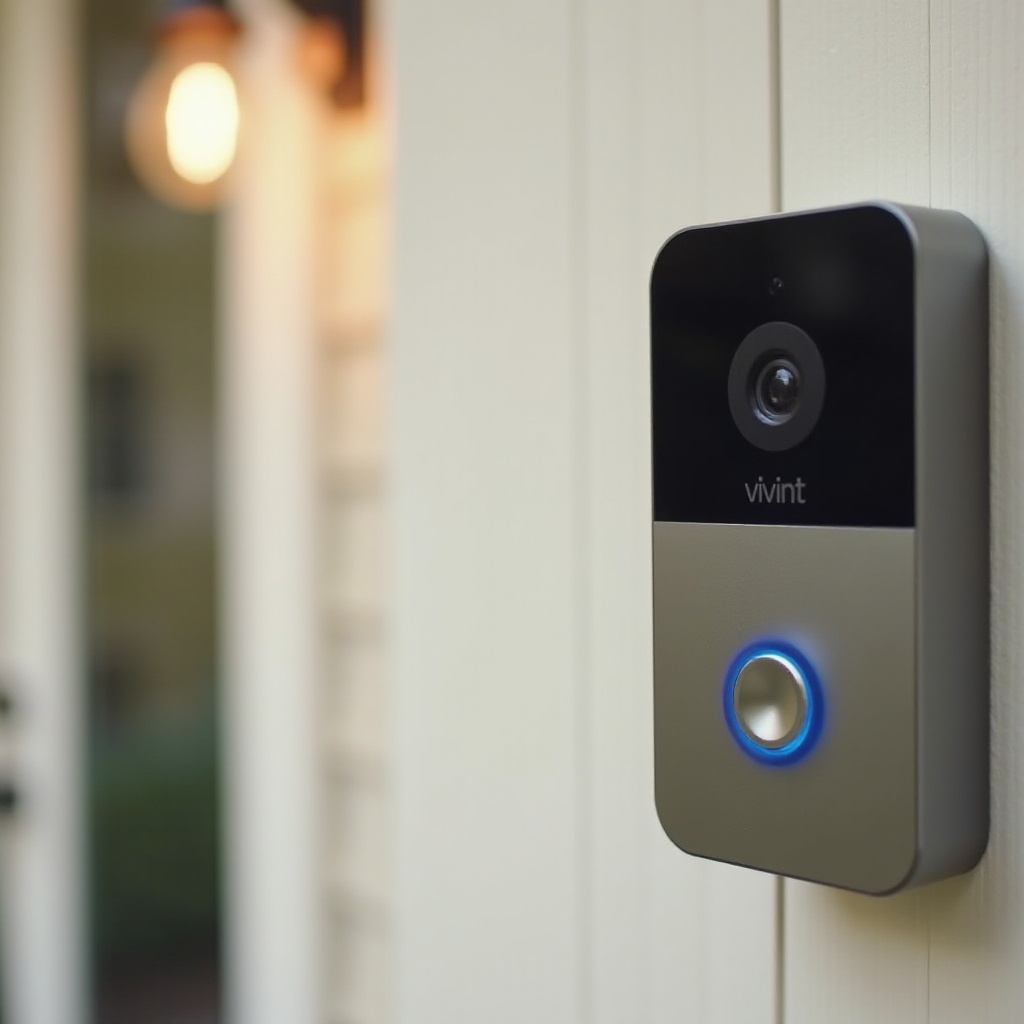
Reboot vs Restart vs Factory Reset: What’s the Difference?
Choose the right action for the problem. Use the lightest touch first, then escalate only if needed.
- Reboot or restart: Restarts services and clears temporary glitches. It does not delete device names, zones, or notifications. Use it for offline status, live view failures, or lag.
- Power cycle: Physically removes and restores power. It is a stronger reboot that helps when the app cannot talk to the doorbell. Use it when the device freezes or ignores commands.
- Factory reset: Wipes the doorbell to defaults. You must re-enroll it in the Vivint app and set up Wi‑Fi, motion zones, and notifications again. Use it only after reboots fail, the device refuses to enroll, or firmware appears corrupt.
This order matters. A simple reboot gets you back online fast with minimal risk. If that fails, a power cycle forces a clean start. Only when both fail should you consider wiping the device. Before you touch any settings, prepare your tools and access so you can complete each step without interruptions.
Before You Begin: Safety, Tools, and Account Access
A short checklist prevents false starts and keeps your home secure while you work.
- Disarm the security system to avoid alarms during power changes.
- Confirm Vivint app credentials and verify you can log in.
- Keep your Wi‑Fi network name and password ready.
- Identify your chime type and location. Know whether you use a mechanical or digital chime.
- Gather a small flat screwdriver or the release tool if your mounting plate uses a latch.
- Ensure you can reach the breaker panel safely and that lighting is good.
- Plan the timing. Avoid reboots during deliveries or when guests may arrive.
This prep sets up a smooth flow. Next, confirm your doorbell model so you use the correct steps and recognize the right LED patterns.
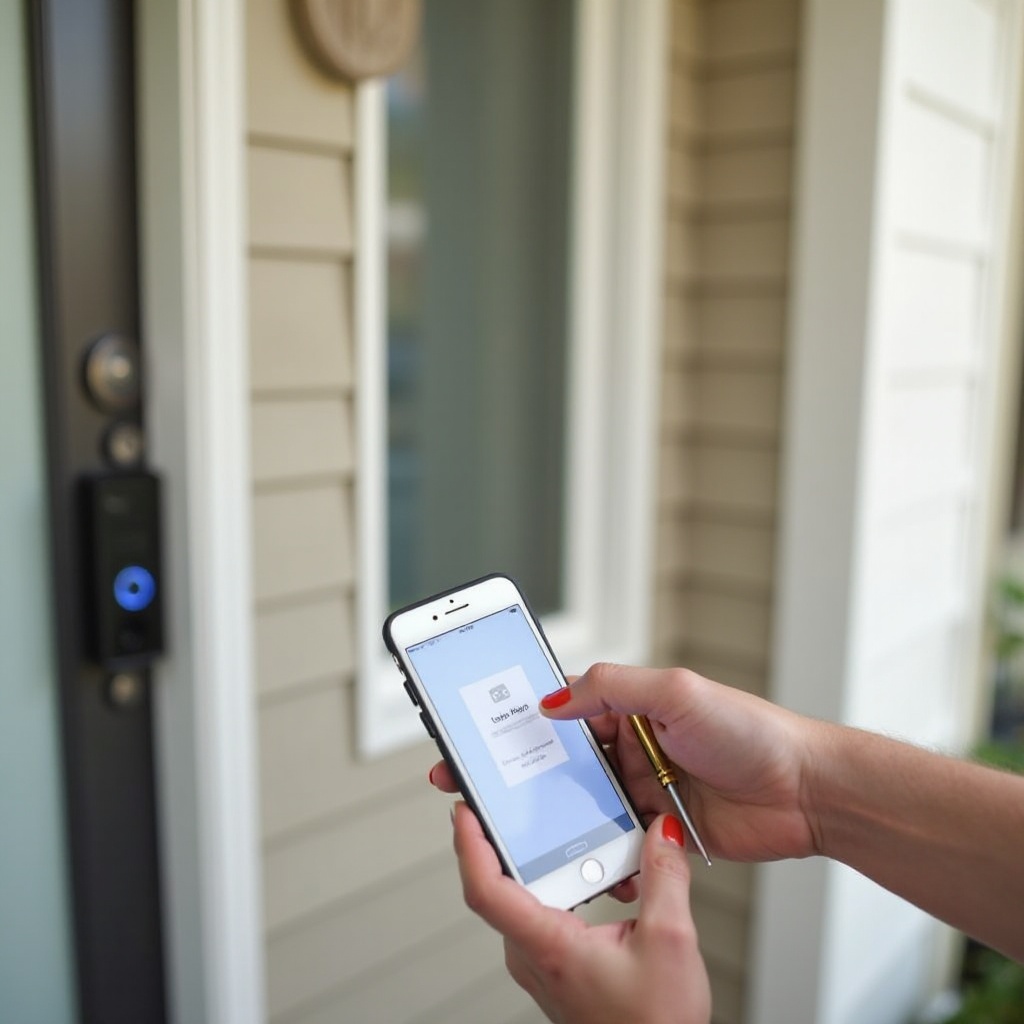
Identify Your Vivint Doorbell Model (Doorbell Camera Pro Gen 1 vs Gen 2)
Model details help you find the right buttons and read the correct status lights.
- In the Vivint app, open Devices, select the doorbell, then check About or Device Info for the model and firmware.
- If needed, remove the doorbell from the mounting plate to read the rear label. Use the release tool or a small flat screwdriver on the latch.
- Visual cues:
- Doorbell Camera Pro Gen 2 usually shows refined faceplate styling and smoother LED feedback.
- Earlier Pro models have similar layouts but may show different LED patterns during startup or setup.
- Power and mounting: Most Vivint doorbells are hardwired to the home transformer. Some plates include spring pins that must seat firmly to deliver power.
- Integration: The doorbell talks to the Smart Hub or panel and the Vivint app. Knowing the model helps if you later need a specific reset sequence.
With the model confirmed, begin with the fastest fix: a software reboot from the app.
Quick Reboot from the Vivint App (Step-by-Step)
If the app can see your camera, a software reboot is the quickest and least disruptive option.
- Open the Vivint app and sign in.
- Go to Devices or Cameras and select the doorbell camera.
- Tap the settings gear or three-dot menu to open device options.
- Look for a Reboot, Restart, or Refresh option. Confirm the action.
- Wait 1 to 2 minutes while the device restarts and reconnects.
- Test live view, two-way audio, and notifications.
If you do not see a reboot toggle, try these:
– Toggle the camera off and on within the app, if available.
– Run the app’s connection or reconnect wizard, which can refresh the link.
If the app fails or the camera ignores commands, a manual power cycle at the device or breaker forces a clean start. Move to the next section when software actions cannot reach the camera.
Manual Power Cycle at the Doorbell (Wired and Battery-Backed Setups)
A power cycle clears frozen processes when the app cannot control the doorbell.
For hardwired setups:
1. Disarm your system.
2. Locate the breaker that powers the doorbell circuit and switch it off.
3. Wait 30 to 60 seconds to discharge the device.
4. Switch the breaker back on.
5. Wait up to 2 minutes for the doorbell to boot and reconnect.
6. Open the app and confirm live view and alerts.
If your model uses a quick-release plate:
– Remove the doorbell, then reseat it to refresh contact with the power pins. This fixes intermittent power caused by a loose mount.
For battery-assisted models if present:
– Remove the battery module to cut power. Wait 30 to 60 seconds, then reinstall.
If the doorbell restarts but remains unstable, reboot the Smart Hub or panel to refresh the local connection path.
Reboot the Vivint Smart Hub/Panel to Clear Camera Glitches
The panel manages local communication for cameras and sensors. A panel reboot often clears stale sessions and improves discovery.
- Disarm your system.
- On the Smart Hub or panel, open Menu and then Settings.
- Enter your PIN.
- Find the Reboot or Restart option under Panel Settings or Device Settings.
- Confirm the reboot. The panel will power cycle and return to the home screen.
- After it boots, open the app and test the doorbell’s live view.
Schedule this step during a calm moment. A panel reboot temporarily pauses monitoring and notifications. If the panel shows available updates after the restart, apply them. Updated services often improve stability for cameras, automations, and notifications. With devices and panel refreshed, confirm that the doorbell’s Wi‑Fi link is strong and stable.
Reconnect to Wi‑Fi After a Reboot (2.4 GHz vs 5 GHz, SSID, Channels)
A strong 2.4 GHz connection gives the best range and wall penetration for a doorbell camera.
- Use 2.4 GHz for the doorbell. If your router combines bands under one SSID and the camera drops, split the bands so you can choose 2.4 GHz by name.
- Aim for an RSSI of about -65 dBm or better at the door. Move the router closer or add a mesh node to improve signal.
- Reduce interference by choosing channels 1, 6, or 11 on 2.4 GHz. Avoid crowded channels and limit overlapping networks.
- Turn off AP isolation on guest networks. It can block the doorbell from talking to the panel or your phone.
- In the Vivint app, open the doorbell’s network settings, pick the right SSID, and enter the password carefully.
- If you recently changed SSID or password, reboot the router so all devices refresh their sessions. Then run a network test in the Vivint app.
A clean Wi‑Fi link prevents repeat reboots and helps motion clips upload quickly. While the network stabilizes, watch the LEDs and chime behavior for live status feedback without opening the app.
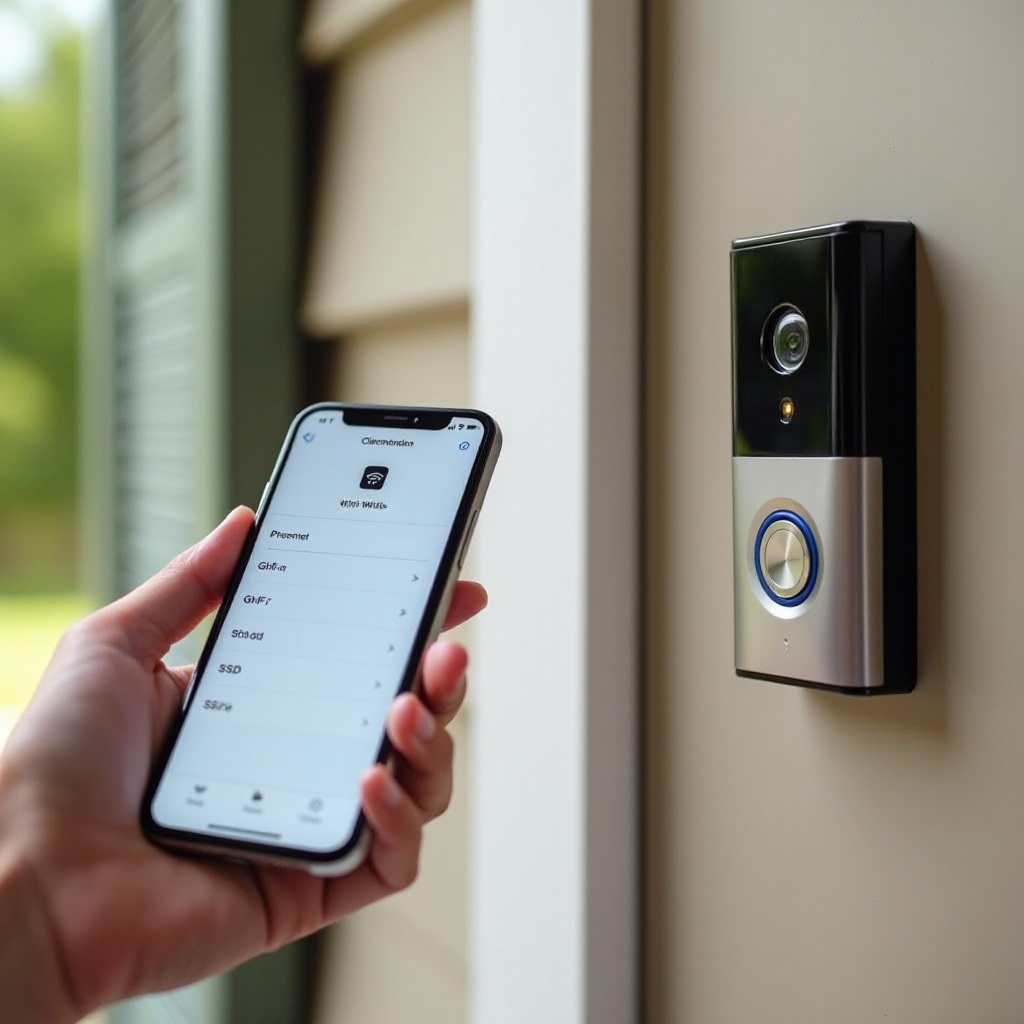
LED and Chime Indicators After a Reboot: What Each Status Means
LEDs and chime sounds tell you what is happening during boot and reconnection.
- Solid or slowly pulsing white or blue: normal operation. The camera is online.
- Flashing blue or white: the doorbell is booting or connecting to Wi‑Fi and the panel. Wait 1 to 2 minutes.
- Flashing red or alternating colors: network or enrollment error. Recheck Wi‑Fi credentials and run the connection wizard.
- No LED: power problem. Check the breaker, transformer, or the mounting plate contacts.
- Chime behavior: a normal press should ring your home chime. If it does not ring, verify chime settings in the app and confirm chime wiring.
If the indicators point to a deeper configuration problem, a factory reset may be the fastest path to a clean setup. Use it with care since it wipes local settings.
When and How to Perform a Factory Reset (What You’ll Lose and How to Re‑Enroll)
Factory reset is the final step when reboots and power cycles fail or enrollment gets stuck.
What you lose:
– Local settings: Wi‑Fi credentials, motion zones, notifications, and any on-device caches.
– Cloud recordings: These remain in your Vivint account based on your plan and retention. The reset does not delete stored clips in the cloud.
Factory Reset Steps
- Remove the doorbell from the Vivint app: go to Devices, select the doorbell, open Settings, then tap Remove or Delete.
- With the doorbell powered, press and hold the main button for about 15 to 20 seconds until the LED changes. Release to enter setup mode.
- In the app, tap Add Device, pick Doorbell Camera, and follow the enrollment prompts.
- Select your 2.4 GHz SSID and enter the password.
- Name the device, then set motion zones, notification rules, and Smart Deter preferences.
- Test live view, two-way audio, and the door chime.
If enrollment fails, move closer to a mesh node or router, verify RSSI, and try again. After a successful reset, confirm each core function before you wrap up.
Post-Reboot Troubleshooting Checklist (Video, Audio, Motion, Chime)
Validate the basics to be sure the fix holds.
- Live view: open the app and check that video appears quickly. If it lags, lower resolution for a test and verify Wi‑Fi strength.
- Two-way audio: press the talk control and speak. If audio stutters, clear network congestion or move a mesh node closer.
- Motion detection: walk through the field of view. Adjust motion zones and sensitivity to reduce false alerts from roads or trees.
- Smart Deter: confirm tone and light behavior if enabled. Tweak schedules to avoid late-night disturbances.
- Chime: press the doorbell and listen for your mechanical or digital chime. If silent, confirm the correct chime type is selected in settings.
- Firmware and panel updates: install available updates for stability and security.
- Power: verify the transformer meets the doorbell’s requirements, commonly 16 to 24 VAC. Call an electrician if voltage is unknown or unstable.
If any item fails, perform one more quick reboot. Many minor issues resolve after the first successful reconnection.
Preventive Maintenance to Reduce Frequent Reboots
A little care keeps the doorbell stable and responsive.
- Reserve a DHCP address for the doorbell in your router to prevent IP conflicts.
- Keep router firmware current and consider a monthly scheduled router reboot.
- Separate SSIDs for 2.4 and 5 GHz when band steering causes roaming or drops.
- Place a mesh node within a room or two of the door for a stronger RSSI.
- Clean the lens and sensors with a microfiber cloth to improve detection accuracy.
- Review notification rules and Smart Deter schedules after seasonal light changes.
- Reseat the doorbell on the mounting plate if you notice it reboots after bumps or temperature swings.
If you still see frequent dropouts after these steps, gather diagnostics so support can help quickly.
When to Contact Vivint Support or Schedule a Technician
Some problems point to wiring or hardware that needs expert attention.
- The doorbell overheats, reboots by itself, or stays offline for hours.
- LEDs show error patterns after multiple reboots and a clean factory reset.
- The chime fails even after you verify wiring and select the correct chime type.
- The transformer seems undersized or wiring looks damaged.
- The app shows persistent enrollment errors or the panel will not discover the device.
Have these details ready: doorbell model, firmware number from the app, RSSI at the door, router brand and model, and the steps you have tried. This data shortens troubleshooting and helps the technician arrive prepared.
Conclusion
A careful reboot strategy restores most Vivint doorbell cameras in minutes. Start with a software reboot in the app. If the camera does not respond, power cycle the device and then restart the Smart Hub or panel. Reconnect to a strong 2.4 GHz network and watch LED and chime indicators for quick status checks. Save factory resets for stubborn cases, then re-enroll and test every function. Apply simple maintenance to limit future dropouts. If symptoms point to power, wiring, or hardware failure, contact Vivint support with clear diagnostics for fast, effective help.
Frequently Asked Questions
How long does a Vivint doorbell camera reboot take, and will I lose recorded clips?
Most reboots take 1 to 2 minutes. An app reboot or power cycle does not erase settings or cloud recordings. A factory reset wipes local settings and requires re-enrollment, but your cloud clips stay in your Vivint account based on your plan and retention.
Why does my Vivint doorbell keep going offline even after I reboot it?
Frequent drops usually point to Wi‑Fi range, interference, or power stability. Improve signal to around -65 dBm, split 2.4 and 5 GHz SSIDs, use channels 1, 6, or 11, reserve the device IP, and reseat the doorbell on the plate. If issues persist, check transformer voltage or call Vivint.
Should I reboot the router or panel first when my doorbell camera is unresponsive?
Use the least disruptive order. Reboot the doorbell from the app first. If it still fails, power cycle the doorbell at the breaker. Then reboot the panel. Restart the router last, since that interrupts all devices. Afterward, confirm the 2.4 GHz connection and run the app’s connection tool.