
Mastering Equalizer Settings on Android for the Ultimate Audio Experience
Introduction
Transforming your Android device into a personalized sound system is easier than you think, thanks to the equalizer settings. Customizing these settings can significantly enhance your audio experience, allowing you to enjoy music, movies, and podcasts tailored to your sound preferences. This guide will walk you through understanding, accessing, and optimizing equalizer settings on Android, ensuring you get the best sound quality from your device.
Understanding Android Equalizers
The journey to mastering your audio begins with understanding what an equalizer is and its components.
What is an Equalizer?
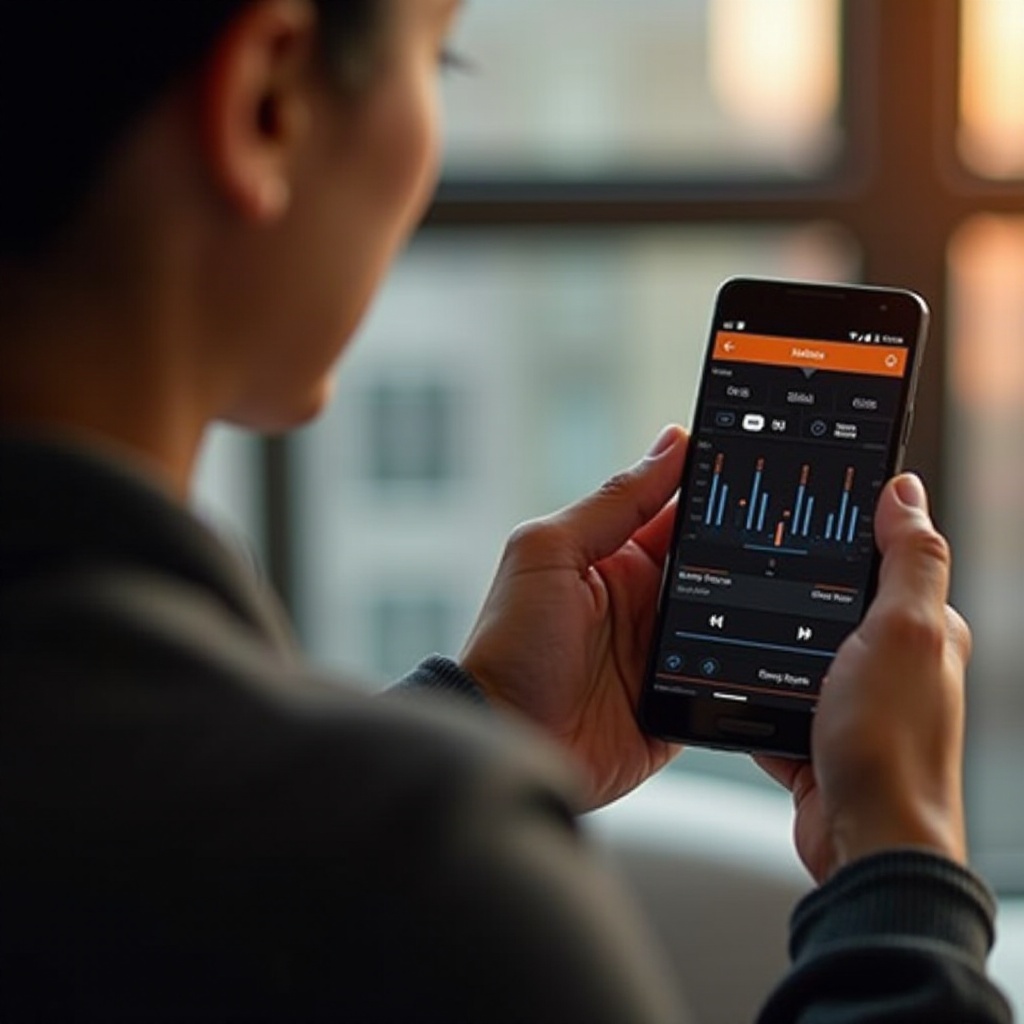
An equalizer is a tool that allows you to adjust the balance between frequency components within an audio signal. Essentially, it lets you tweak different audio frequencies such as bass, midrange, and treble to align with your listening preferences.
Basic Components and Controls
Equalizers typically consist of various frequency bands. Common controls include sliders that allow you to increase or decrease these bands, thus modifying the audio output. A deeper grasp of these components will facilitate a more effective use of equalizer settings.
Accessing Equalizer Settings on Android
Before customizing your audio, you first need to locate the equalizer settings on your device.
Locating Built-in Equalizer
Most Android phones come with a built-in equalizer. To find it:
1. Open the ‘Settings’ app.
2. Tap ‘Sound & vibration’ or ‘Audio settings.
3. Look for ‘Equalizer’ or ‘Sound settings.
4. Adjust settings as desired.
Using Third-Party Apps
If your device lacks a built-in equalizer, or if you wish for more advanced options, third-party apps like Equalizer FX or Poweramp offer enhanced functionality and greater control over your audio settings.
Once you have accessed the correct settings, navigating through preset options becomes the next step to refine your audio experience.
Exploring Preset Equalizer Options
Equalizer presets are pre-configured settings aimed at enhancing audio for different types of media.
Common Presets Explained
Presets such as Bass Booster, Classical, Dance, and Pop adjust frequencies to suit particular music styles. For instance, a Bass Booster emphasizes low frequencies for a more substantial bass sound.
Benefits of Using Presets
Using presets simplifies the audio enhancement process, providing an instant improvement in sound quality without needing to manually adjust each frequency band. This is especially useful if you’re unsure of how to configure settings yourself.
Building on these presets, you can delve into customizing your settings for a truly personalized listening experience.
Customizing Your Own Equalizer Settings
Creating a unique audio signature involves more than just presets. Personal adjustments can refine your listening experience even further.
Adjusting Bass, Midrange, and Treble
- Bass: Accentuate bass for music genres like EDM or hip-hop by increasing low frequencies.
- Midrange: Enhance vocals and instruments by focusing on mid frequencies, ideal for rock and classical music.
- Treble: Sharpen high frequencies to add clarity, particularly useful for podcasts and classical tracks.
Creating Personalized Sound Profiles
Consider setting up profiles specific to activities or environments, like commuting or studio listening. Make minor tweaks to accommodate different headphones or speakers you may use.
With customized settings, refer to best practices tailored to different listening scenarios.
Best Practices for Different Scenarios
Knowing how to optimize audio for various contexts can significantly enhance your overall experience.
Settings for Music Genres: Pop, Rock, Jazz, Classical
- Pop: Boost mid and high frequencies.
- Rock: Emphasize midrange for vocals and treble for guitar riffs.
- Jazz: Balance all frequencies to highlight instruments.
- Classical: Enhance midrange for orchestral clarity.
Optimizing for Movies and Podcasts
For movies, increase both bass and treble to amplify effects and dialogue clarity. For podcasts, focus on mid frequencies to ensure voices are sharp and clear.
For even greater audio precision, explore recommended equalizer apps that offer advanced options.
Recommended Equalizer Apps for Android
When in-built equalizers don’t meet your needs, third-party apps might offer the additional features you seek.
Top-Rated Equalizer Apps
- Equalizer FX: Known for its intuitive interface and preset options.
- Poweramp: Offers a detailed equalizer with advanced options.
- Wavelet: Features a parametric equalizer for deeper customization.
Features of Popular Apps
These apps provide features like surround sound, reverb effects, and custom presets, all of which go beyond standard Android settings, providing an elevated audio experience.
Despite these enhancements, challenges can arise. It’s essential to troubleshoot common issues that might occur.
Troubleshooting Common Equalizer Issues
While improving audio quality, equalizer settings can sometimes introduce problems.
Resolving Distorted Sound
If your sound is distorted, try reducing the gain on certain frequencies. Achieving a balance without extreme adjustments is key to clear sound.
Fixing App Conflicts
Sometimes third-party apps can conflict with built-in settings. Ensure no multiple audio processing apps are open simultaneously to avoid such glitches.
After setting up your equalizer, take time to test and refine your audio settings for daily use.

Conclusion
Understanding and customizing your Android equalizer settings can transform your audio experience significantly. With the right adjustments, you’ll enjoy nuanced and dynamic sound tailored just for you. Keep experimenting to discover what works best for your unique preferences.
Frequently Asked Questions
How do I access the equalizer settings on my Android phone?
Access your equalizer through the ‘Sound & vibration’ settings in your phone menu.
Can equalizer settings drain my battery faster?
While adjustments can slightly impact battery life, the difference is typically minimal.
What’s the best equalizer setting for bass boost?
To increase bass, enhance lower frequencies while keeping high frequencies balanced to avoid distortion.