
Ring Chime Solid Green Light: Meaning, Fixes, and Pro Tips
Introduction
The ring chime solid green light looks reassuring at a glance. In most homes it means the device has power and a Wi‑Fi connection. Yet many owners still report silence when someone presses the doorbell or delayed tones that make the light feel misleading. The LED says all good, but your ears disagree.
This revised guide explains what a solid green light really means across Ring Chime and Chime Pro models. You will learn quick checks that solve most cases in minutes, the app settings that commonly mute the speaker, and the Wi‑Fi basics that keep alerts fast. We also walk through a clean power cycle and reset path, cover advanced router tweaks for stubborn networks, and detail Chime Pro extender placement for reliable backhaul. We end with maintenance and support guidance to keep your setup stable.
We will start with a fast definition of the solid green state so you know when the LED matches reality and when it does not.
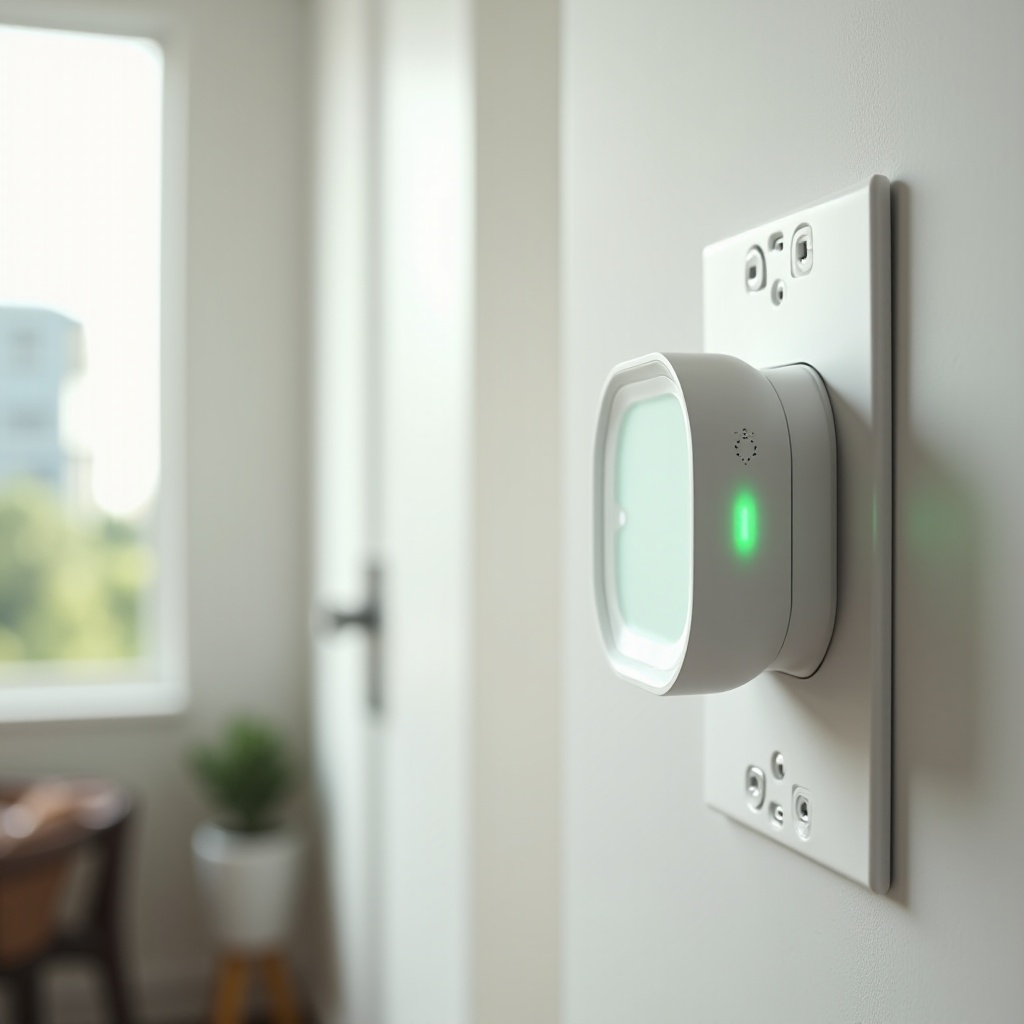
Quick Answer: What the Ring Chime Solid Green Light Means
A solid green LED indicates that your Ring Chime or Chime Pro has power and is connected to your Wi‑Fi network. In normal operation, this means the device completed setup, checked in with the Ring cloud, and is ready to play sounds when your doorbell or camera sends an event. If someone presses your doorbell, you should hear a tone within a second or two.
However, the ring chime solid green light alone does not confirm that audio will play. Several common scenarios keep the light green while the chime stays quiet. Volume may be set to zero. Do Not Disturb or snooze may be active. The doorbell may not be linked to the chime at all. Or the network may be barely usable despite a nominal connection.
Treat the solid green LED as a power and Wi‑Fi link indicator only. If you do not hear tones, the next steps are to verify app settings, confirm the path from doorbell to chime, and test the network. With that context, let us look at the warning signs that tell you the LED is hiding a problem.
When a Solid Green Light Signals a Problem
The LED can remain solid green while your system fails in subtle ways. Watch for these patterns that flag trouble:
- No sound when you press the doorbell. The chime light is green but the speaker remains silent.
- The Ring app shows the chime online yet the doorbell reports offline or vice versa. The link may be inconsistent.
- Setup appears to finish, the LED turns green, but the app never completes onboarding. You cannot move past the final step.
- Motion alerts do not play on the chime though ring alerts do. Per device toggles may be misconfigured.
- Alerts arrive late or only some presses work. The LED stays green, but the network drops packets under load.
These symptoms point you to a layered approach. Clear the simple items first. Then adjust app settings that control sound. After that, tune Wi‑Fi for stronger signal and less interference. The next section gives you fast checks that find and fix many issues without deep changes.
Fast Checks to Try First
Start with quick, low‑risk steps. Many fixes take less than five minutes.
1) Confirm power at the outlet. Plug in a lamp to verify the outlet is live. Avoid switched outlets and avoid overloaded or aging surge strips.
2) Set volume and choose a tone. Open the Ring app, go to Devices, select your Chime, then Audio Settings. Pick a loud, bright tone and raise the volume.
3) Run an in‑app test sound. In the chime settings, tap Test Sound. If the test works but doorbell presses do not, the link from doorbell to chime needs attention.
4) Verify Linked Chimes on your doorbell. Open your doorbell in the app, go to Linked Chimes, and toggle your chime for ring and motion if desired.
5) Press the doorbell and watch the app. If the app shows a ring event and push notifications arrive, the doorbell is working. Focus on the chime and its link.
6) Power cycle the chime. Unplug it for 30 seconds, plug it back in, and wait for the green light to return. Test again.
7) Check the doorbell signal. If your doorbell has weak Wi‑Fi, the chime may never receive timely events. Improve the doorbell signal first.
8) Move the chime closer to the router. Test in an outlet one room closer. A quick relocation often reveals a range problem.
If sound still fails, app configuration likely silences your chime. We will fix the top settings next and then connect those changes to network tuning so you know what to try if settings are correct but the light remains green.
App Settings That Silence Your Chime Without You Realizing
Several Ring app settings can keep the ring chime solid green light on while blocking sound.
- Linked Chimes: Linking is per device. In your doorbell settings, open Linked Chimes and enable your chime for ring events and for motion if you want motion tones.
- Do Not Disturb and Snooze: Check the chime device settings for DND or snooze and disable them. These modes temporarily mute tones even though the LED stays green.
- Volume and Tone Choice: Some tones sound softer. Pick a loud tone and set volume high enough for your room. Retest after your change.
- Multiple Chimes in One Home: If you own several chimes, ensure your doorbell links to the correct unit. It is common to push alerts to the wrong chime.
- Notification Schedules: Review any schedules that silence the chime at certain times. Remove or adjust them if they conflict with your needs.
Once you confirm these settings, test again. If the LED is solid green, tests fail, and linked settings look correct, your network may be the bottleneck. Next, we explain the Wi‑Fi basics that decide whether a solid green LED results in a reliable sound every time.
Network Basics Behind the Solid Green State
A chime can show a solid green LED with a weak or noisy connection. That link may pass a basic check‑in yet still drop events in real use.
- RSSI Strength: Aim for better than about minus 60 dBm for both the chime and the doorbell. The closer to zero, the stronger. Poor RSSI leads to lag and missed tones.
- 2.4 GHz vs 5 GHz: Most chimes and doorbells prefer 2.4 GHz for range and wall penetration. 5 GHz can be faster but often struggles through walls and floors.
- Band Steering: Routers often auto steer clients to 5 GHz. If your chime flaps between bands or disconnects, split your SSIDs so the chime stays on 2.4 GHz.
- Mesh and Extenders: Mesh systems add hops. Place your chime near a strong node, not a weak satellite. Avoid chaining extenders.
- Interference and Congestion: Microwaves, baby monitors, and crowded apartment Wi‑Fi can disrupt 2.4 GHz. Change the router channel to 1, 6, or 11 and pick the quietest option.
These basics inform the next steps. If the LED is green and settings look good, adjust your network for stronger 2.4 GHz coverage and less interference. After that, a structured reboot clears stale sessions and refreshes DHCP leases.
Update, Reboot, and Power Cycle Sequence
A clean restart sequence fixes many transient issues. Follow this order for best results.
1) Update the Ring app on your phone. New versions fix bugs and improve device controls.
2) Apply firmware updates. In the Ring app, check for updates on your chime and doorbell. Let them finish before testing.
3) Power cycle your router and modem. Unplug power for 60 seconds. Plug in the modem, wait two minutes, then plug in the router and wait three to five minutes.
4) Reboot the chime. Unplug it for 30 seconds and plug it in again. Wait for the solid green light.
5) Reboot the doorbell or camera. Use the in‑app restart or power cycle it if your model allows.
6) Test a doorbell press and an in‑app chime test.
This sequence refreshes IP addressing and resets wireless sessions. If problems persist after a clean reboot, a controlled re‑setup often helps. Next we will review soft and factory resets and how to re‑link everything properly.
Reset and Re-setup: Soft vs Factory Reset
Resetting can resolve corrupt settings or failed onboarding states. Start with the least disruptive path and escalate only if needed.
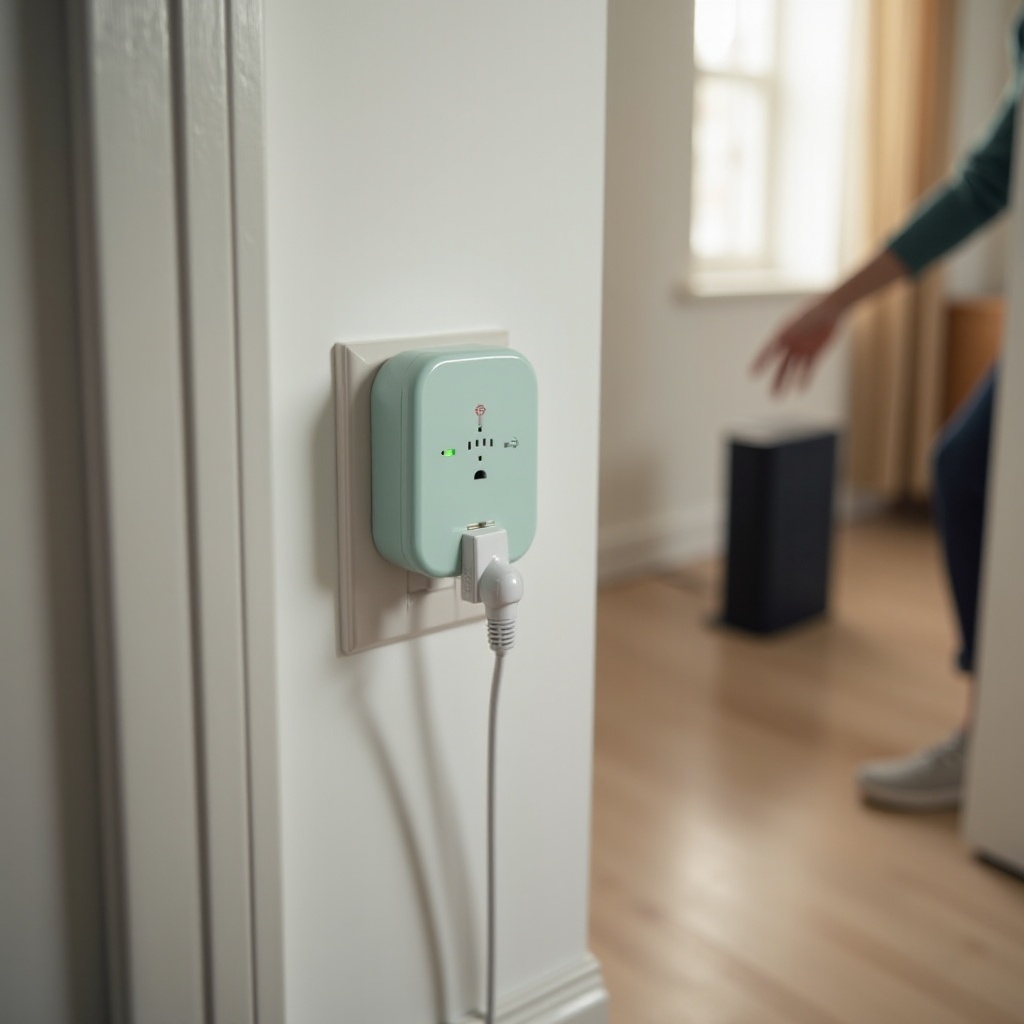
- Soft Reset: Unplug the chime for 30 seconds and plug it back in. This keeps Wi‑Fi and links intact.
- Remove and Re‑add in App: In the Ring app, remove the chime from your locations list. Add it again using Setup Device and follow the prompts. Use the setup button to enter setup mode when prompted.
- Full Factory Reset: Press and hold the chime setup or reset button for the duration recommended for your model, often 10 to 15 seconds, until LEDs indicate a reset. This clears Wi‑Fi and all settings.
After any reset or re‑add, follow these steps:
1) Reconnect the chime to your primary 2.4 GHz SSID.
2) Select a loud tone and set the volume.
3) Open your doorbell device and re‑enable Linked Chimes for ring and motion if desired.
4) Test ring and motion alerts from the doorbell, not just the in‑app test.
If the LED returns to a solid green state but audio still fails, the router may block the traffic the chime needs. The next section lists targeted tweaks that improve reliability on many consumer routers.
Advanced Router and Wi‑Fi Settings for Stubborn Cases
Some router features isolate devices or add latency that breaks chime audio. Adjust these settings and test after each change.
- Client or AP Isolation: Disable client isolation on your SSID. The chime and doorbell must exchange traffic on the LAN.
- Guest Networks: Do not connect the chime to guest SSIDs that restrict local device communication.
- Multicast and Broadcast: Allow multicast and broadcast on your Wi‑Fi. Toggle IGMP snooping if needed and test both on and off.
- Channel Width: Lock 2.4 GHz to 20 MHz. Wider 40 MHz channels suffer more interference in dense neighborhoods.
- Channel Selection: Use 1, 6, or 11 on 2.4 GHz. Choose the quietest channel with a simple Wi‑Fi analyzer.
- DFS Channels on 5 GHz: Avoid DFS channels for devices that struggle with radar detection. If you must use 5 GHz for backhaul, pick a common non‑DFS channel.
- Security Mode: Use WPA2 AES or a mixed WPA2 and WPA3 mode. Pure WPA3 can break onboarding for older IoT chipsets.
- DHCP and Reservations: Ensure your DHCP pool has free addresses. Consider reserving an IP for your chime to avoid lease churn.
- QoS and WMM: Keep WMM enabled. Remove custom QoS rules that throttle IoT traffic or give your chime a higher priority.
- Separate SSIDs: If band steering causes flapping, split 2.4 GHz and 5 GHz into unique SSIDs and connect the chime to 2.4 GHz.
Make one change at a time and press the doorbell after each adjustment. This method helps you identify the single setting that resolves your issue. If you use a Chime Pro, the next section focuses on extender specifics that matter even when the light shows solid green.
Chime Pro Specifics: Extender Mode, Placement, and Backhaul
Chime Pro works as both a speaker and a Wi‑Fi extender for Ring devices. The solid green LED confirms a connection to your router, but performance depends on the backhaul link and how devices attach to it.
- Place at the Midpoint: Position the Chime Pro roughly halfway between the router and doorbell. Aim for line of sight through a single interior wall if you can.
- Check Backhaul Signal: In the Ring app, view signal strength for the Chime Pro and the connected doorbell. Keep both stronger than about minus 60 dBm for consistent tones.
- Avoid Extender Chains: Connect Chime Pro directly to your main router or to the nearest strong mesh node. Do not connect it to another extender.
- Extended SSID Naming: If the Pro broadcasts an SSID for Ring devices, give it a clear name. Keep it on 2.4 GHz for range unless your system needs 5 GHz.
- Confirm Device Linking: Ensure the doorbell actually uses the Pro path. The app should show the doorbell attached through the Pro when you intend to extend.
- Reduce Interference: Keep the Pro a few feet from microwaves, cordless phones, metal appliances, and thick electrical panels.
- Test Both Paths: Use the in‑app test for the chime and press the doorbell to verify end‑to‑end performance.
With Chime Pro aligned properly, backhaul and device links stay strong. This improves the odds that a solid green LED reflects a healthy, audible system. Even if you do not use a Pro, smart placement still plays a big role. The next section provides best practices for any Ring chime.
Placement Best Practices to Keep the Light Green and Alerts Reliable
Where you plug in the chime changes both Wi‑Fi stability and audibility.
- One Wall Rule: Try to place the chime so only one interior wall separates it from the router. Each wall and floor weakens signal.
- Height and Orientation: Keep the device off the floor and out of corners. Waist to chest height often provides better propagation.
- Avoid Metal and Mirrors: Large metal objects and mirror walls reflect and absorb RF energy. Give the chime some space.
- Central Coverage: If you want tones audible across the home, pick a central hallway outlet. Test a few outlets and choose the clearest sound.
- Stable Power: Use a solid, tight outlet. Loose receptacles cause intermittent power and random reboots.
Good placement reduces the chance that a solid green LED masks weak connectivity. Once placement looks good, add safeguards and know when to escalate to support. That is next.
Safety, Warranty, and When to Contact Support
You can protect your devices and shorten support calls with a few habits.
- Surge Protection: Use a quality surge protector to reduce damage from spikes. For critical uptime, consider a small UPS for your router.
- Update Discipline: Keep your Ring app, chime firmware, doorbell firmware, and router firmware up to date. Updates often improve stability.
- Strong Wi‑Fi Security: Use a strong passphrase and avoid connecting the chime to guest networks with device isolation.
Contact Ring Support when these conditions occur:
- The LED never lights or flickers even on a known good outlet.
- In‑app tests play but real doorbell presses never trigger audio after you verify links and network health.
- Factory reset fails or setup cannot complete next to the router with strong signal.
- The device overheats, emits unusual noise, or shows burn odor.
Before you call, capture screenshots of RSSI values, Linked Chimes settings, and any error messages. Note the router model and the steps you already tried. This evidence speeds diagnosis and helps Ring decide on warranty replacement.
Conclusion
A ring chime solid green light usually signals power and Wi‑Fi, but it does not guarantee sound. If alerts go silent, handle the basics first. Confirm linking, volume, and DND settings. Then improve Wi‑Fi by moving the chime closer, locking it to 2.4 GHz, and choosing a cleaner channel. Run the structured reboot and update sequence to clear transient faults. If needed, remove and re‑add the device or perform a factory reset, then re‑link the doorbell. Chime Pro owners should optimize placement and backhaul to avoid extender bottlenecks. When you follow these steps and test after each change, you can turn that green LED into reliable, audible alerts every time someone presses your doorbell.
Frequently Asked Questions
Why is my Ring Chime solid green but not making any sound?
The LED shows power and Wi‑Fi, but something likely mutes or blocks events. Check Linked Chimes on your doorbell and enable ring and motion as needed. Raise the chime volume and pick a louder tone. Make sure Do Not Disturb and snooze are off. If tests play but doorbell presses stay silent, move the chime closer to the router, improve Wi‑Fi, and reboot the router and chime. If problems remain, split 2.4 GHz and 5 GHz SSIDs, disable client isolation, and re‑add the chime.
Should Ring Chime use 2.4 GHz or 5 GHz for the most reliable connection?
Use 2.4 GHz in most homes. It delivers better range and more reliable penetration through walls. Many doorbells also prefer 2.4 GHz. If your router steers devices to 5 GHz, split your SSIDs so the chime stays on 2.4 GHz. Keep 2.4 GHz channel width at 20 MHz and use a clear channel such as 1, 6, or 11.
What is the difference between Ring Chime and Chime Pro when the light is solid green?
On both devices, a solid green LED means power and a Wi‑Fi link. Chime plays sounds only. Chime Pro also extends Wi‑Fi for supported Ring devices. With a Pro, placement and backhaul quality matter. Put it halfway between the router and doorbell, avoid extender chains, and confirm the doorbell uses the Pro path in the app. If both show green but alerts remain silent, treat it as a settings or network issue and follow the steps in this guide.