
Ring Doorbell Sound Not Working? Complete Troubleshooting Guide for Chime, Alerts, and Two‑Way Audio
Introduction
Silence from your Ring can feel like a missed knock at the worst time. If your Ring doorbell sound is not working, you might miss a visitor, a package, or an important alert. The good news: most sound issues come from simple settings, weak power, or Wi‑Fi hiccups. You can fix these problems at home with a few checks and small changes.
This guide explains every sound path: the doorbell speaker, your in‑home chime, Ring Chime or Chime Pro, your phone, and two‑way talk. You will test each path in a smart order so you do not waste time. Start with quick checks, then dig into app settings, phone rules, and model‑specific fixes. After that, confirm network and firmware health, check for Alexa or Google conflicts, and inspect hardware and power. If needed, reset cleanly and gather the right data for support. By the end, you will hear every press and motion again.
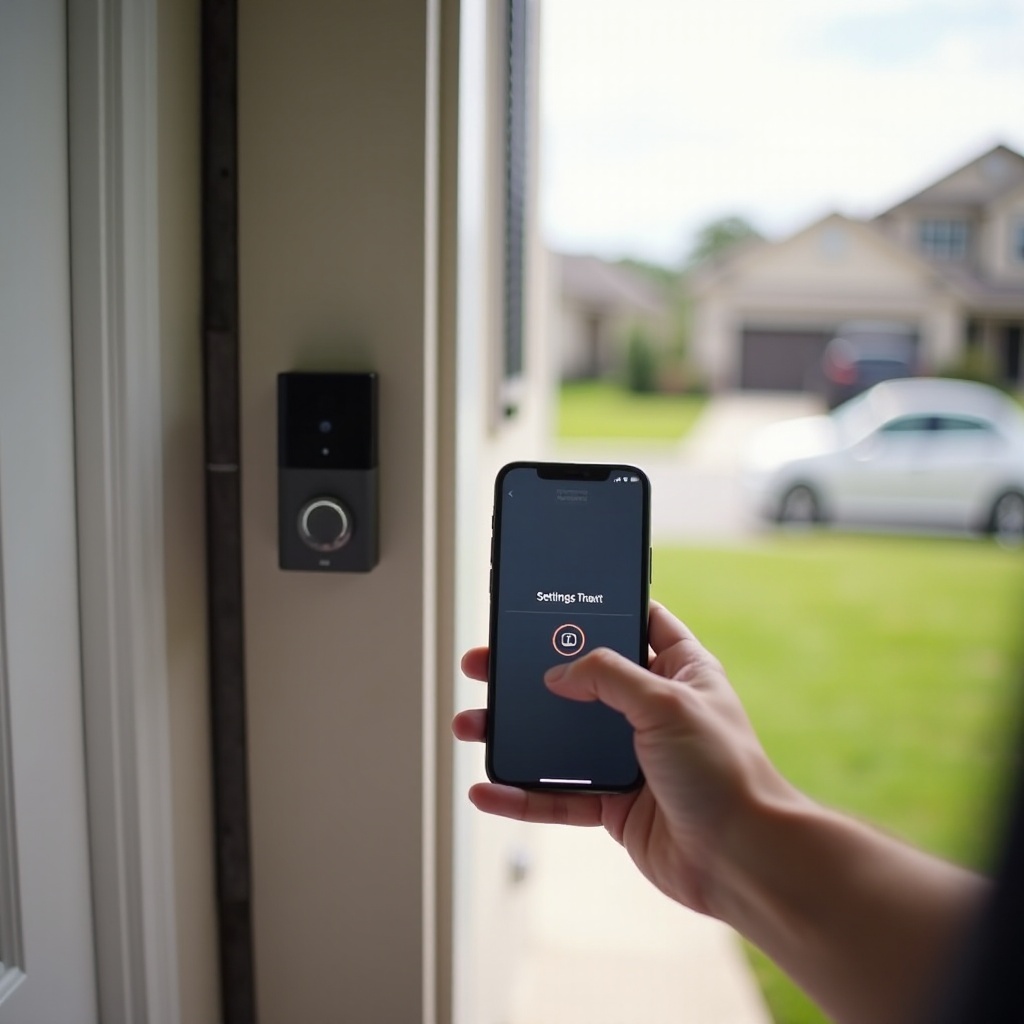
Understand How Ring Doorbell Sound Works (Paths, Devices, and Where Audio Should Play)
Before you fix anything, map the sound path. A doorbell press can trigger three things: a tone from the doorbell speaker, a ring on your in‑home chime or Ring Chime/Chime Pro, and a phone notification. Live View and two‑way talk add voice in both directions. Knowing which path failed tells you where to focus.
Doorbell speaker vs in‑home mechanical or digital chime
Some models play tones or voice through the device speaker. Wired models can trigger your existing in‑home chime if the transformer and wiring meet specs and the app chime type matches. If the in‑home chime is silent or buzzes, suspect power, wiring, or a wrong chime selection.
Ring Chime or Chime Pro vs phone notifications
Ring Chime devices are Wi‑Fi speakers. They must be linked to your doorbell, assigned tones, and given volume in the app. Your phone notifications depend on both the Ring app and your phone OS settings. If your phone rings but Chime does not, it is a link, tone, or Wi‑Fi issue. If both are silent, check app and phone rules.
Two‑way talk and Live View audio path
Two‑way talk uses your phone mic and speaker, the doorbell mic and speaker, and your Wi‑Fi. If you see video but hear no audio, suspect permissions, Bluetooth conflicts, or a weak signal. Echo or clipping usually points to network quality.
Now that you know the paths, you can run quick checks to restore sound fast and avoid deep changes unless you need them.
Quick Fixes First: 60‑Second Checks to Restore Sound
Start with fast wins. These steps solve many cases and give you clues if the issue continues.
1) Check volume and mute:
– In the Ring app, open your doorbell, then Device Settings, then Audio or General. Raise Ringer Volume and Speaker Volume.
– For Ring Chime or Chime Pro, open the device settings, set volume above 50 percent, and pick a tone.
– On your phone, raise system volume and turn off Silent, Focus, or Do Not Disturb.
2) Power‑cycle key devices:
– Reboot your phone.
– Power‑cycle the doorbell: remove the battery for 10 seconds or cut power at the breaker for 30 seconds, then restore.
– Reboot the router and any mesh nodes to clear stuck sessions.
3) Test event types:
– Press the doorbell button and note which destinations ring: phone, in‑home chime, and Chime.
– Trigger motion to test motion alerts, which can have separate tones and rules.
– Start Live View and test two‑way talk. Toggle the mic icon and listen for return audio.
4) Verify connectivity:
– Open Device Health in the Ring app and check RSSI. Values closer to zero are better. If RSSI is very negative, improve Wi‑Fi placement.
If sound improves, great. If not, your next best move is to check app and phone settings that often mute alerts without you noticing.
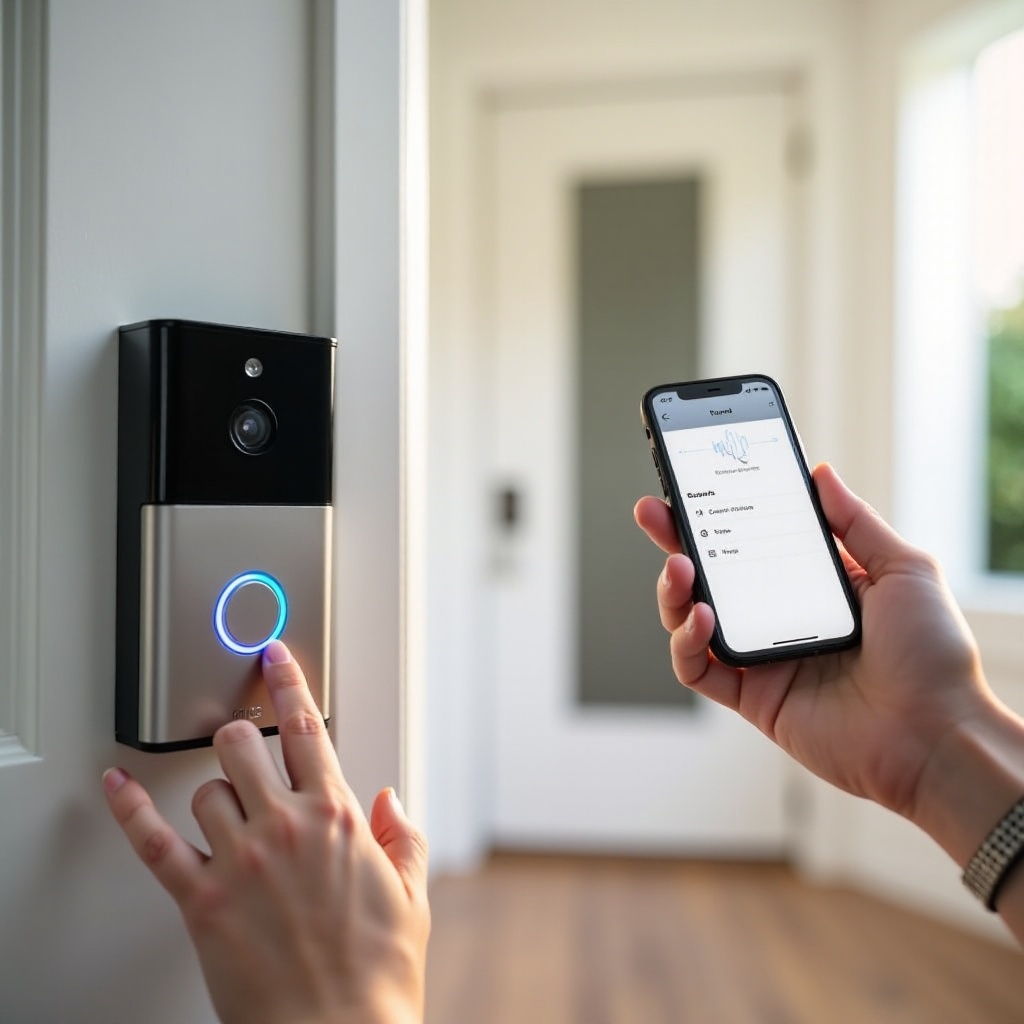
App and Phone Settings That Commonly Mute Your Ring
Software switches often explain a silent doorbell. Fix these before you touch wires or buy hardware.
Ring app: Ringer Volume, Motion Alerts, Snooze, and Modes
- Enable Doorbell Press Alerts and Motion Alerts under your doorbell device.
- Turn off Motion Snooze. Check Home and Away Modes and confirm they do not mute the events you expect.
- For Ring Chime or Chime Pro, open Linked Devices, link your doorbell, choose tones for doorbell and motion, and raise volume.
- In Audio settings, ensure two‑way talk is active and speaker volume is up.
iPhone settings: Notifications, Focus, and Critical Alerts
- Go to Settings, then Notifications, then Ring. Allow Notifications. Choose Banners or Alerts, enable Sounds and Badges.
- In Settings, then Focus, turn off active Focus or add Ring as an allowed app and person.
- Enable Background App Refresh for Ring. Allow Cellular Data so alerts arrive away from Wi‑Fi.
- If available, turn on Critical Alerts to bypass Focus in urgent cases.
Android settings: Notification channels, Do Not Disturb, and battery optimization
- Go to Settings, then Apps, then Ring, then Notifications. Enable channels for Doorbell, Motion, and Device Health.
- Turn off Do Not Disturb or add Ring to exceptions.
- Set Ring to Unrestricted battery use or exclude it from optimization. Allow background data and activity.
- On some phones, lock Ring in Recents so the system does not kill it.
If app and OS rules look good, tailor the fix to your exact model. Power needs and sound behavior differ by model line.
Model‑Specific Fixes: Battery, Wired, Pro, and Peephole
Each model family behaves differently. Match your steps to your device for faster results.
Battery Doorbells 2, 3, 4, and Plus
Battery models rely on Wi‑Fi and the app for most audible alerts.
– Raise Speaker Volume in the app. Test two‑way talk to confirm both mic and speaker.
– Remove the faceplate and clear dust, paint, or spider webs from the grille. Let moisture dry before testing.
– In cold weather, low battery voltage can weaken audio. Warm the battery indoors and recharge fully.
– If Chime or Chime Pro stays silent, re‑link it under Linked Devices. Confirm the same Ring account and location.
Wired, Pro, and Pro 2
Wired models can ring your existing in‑home chime if the system meets power and wiring rules.
– Check the transformer label or test with a multimeter. You want 16 to 24V AC and at least 30VA.
– Install the Pro Power Kit v2 correctly at the chime if your model requires it.
– In the Ring app, set Chime Type to match your physical chime: Mechanical or Digital. Follow any diode steps for digital chimes.
– If the chime buzzes, double rings, or stays silent, suspect low voltage or loose terminals. Upgrade the transformer or fix connections.
Peephole Cam
Peephole Cam senses knocks and presses through the door. If sound seems inconsistent:
– Adjust knock sensitivity in the app.
– Confirm separate tones for doorbell presses and motion alerts.
– Make sure the assembly sits flush and the speaker grille is clear of debris.
If your model checks out but you still do not hear the chime, move on to the chime devices themselves. That narrows the problem to the next link in the chain.
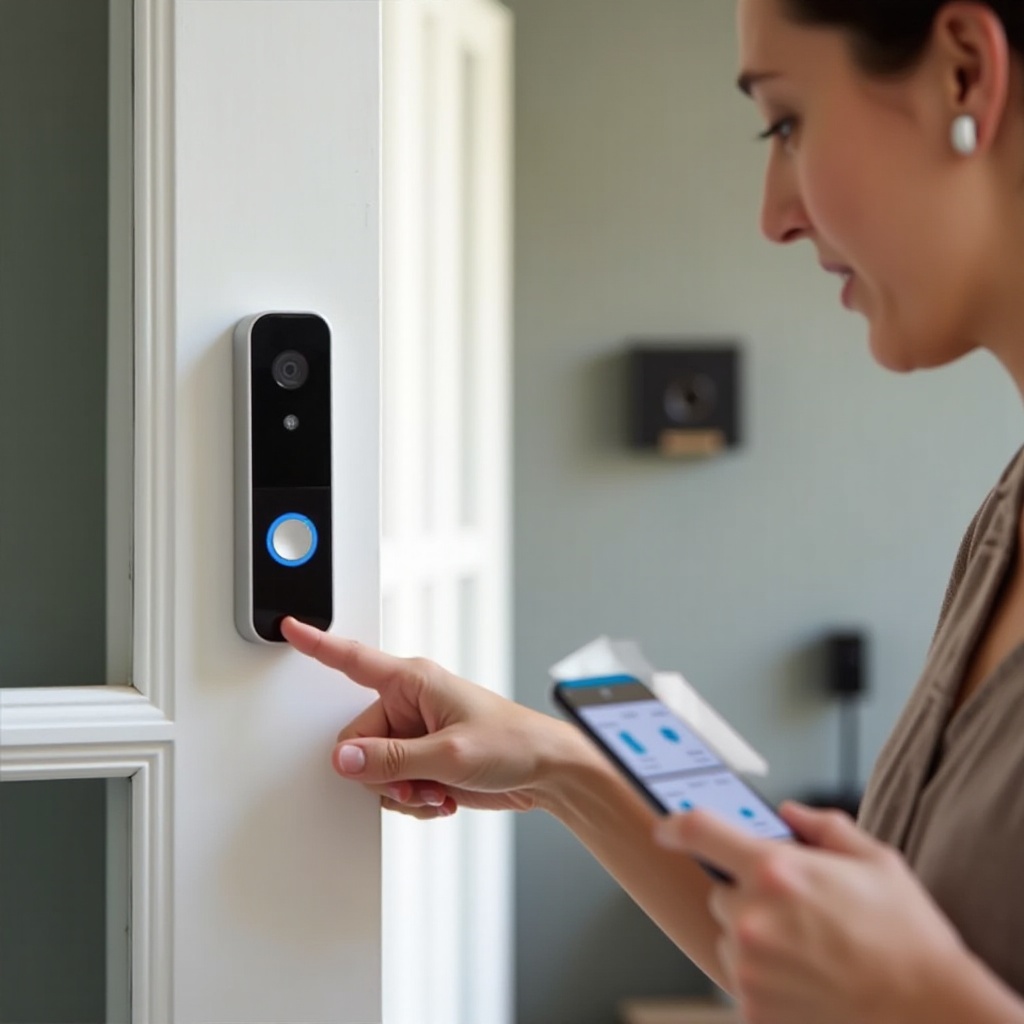
In‑Home Chime and Ring Chime or Chime Pro Not Ringing
When your phone rings but the house stays quiet, focus on the chime path. Separate wired in‑home chimes from Ring Chime devices so you apply the right fix.
Assigning the doorbell to a Chime and selecting tones
For Ring Chime or Chime Pro:
– In the Ring app, open the Chime device, then Linked Devices, and link your doorbell.
– Pick tones for doorbell and motion. Raise volume.
– If silence remains, unplug the Chime for 30 seconds, plug it back in, and wait for it to reconnect. Check Device Health for signal strength.
Mechanical vs digital chime wiring and diode use
For wired in‑home chimes:
– In the app, set Chime Type to Mechanical or Digital to match your hardware.
– For many digital chimes, install the recommended diode across the doorbell button or follow the Ring wiring diagram.
– Tighten screw terminals at the transformer, chime, and doorbell. Replace frayed wires. Loose connections cause intermittent ringing.
Chime Pro placement, RSSI, and network extends
Chime Pro improves coverage but needs a good upstream link.
– Place it halfway between the router and the doorbell, away from metal and thick walls.
– Aim for RSSI better than minus 60. If worse, move the router or add a mesh node.
– Avoid aggressive band steering or DFS channels that cause drops. A dedicated 2.4 GHz SSID often stabilizes smart devices.
If chime devices look healthy, check network quality and firmware. Audio depends on stable, low‑latency links.
Network and Firmware Causes of No Sound or Dropouts
Even perfect settings cannot fix a weak link. Audio packets need steady bandwidth and low latency. Firmware keeps devices compatible and reliable.
RSSI targets, 2.4 vs 5 GHz, and channel congestion
- Target RSSI better than minus 60 for the doorbell and Chime. Move the router, shift a mesh node, or add one if needed.
- Use 2.4 GHz for range. Reserve 5 GHz for nearby devices. Separate SSIDs if devices roam and drop.
- Set 2.4 GHz on channels 1, 6, or 11. Use 20 MHz channel width in crowded areas to reduce interference.
Firmware and app updates and how to force them
- In the Ring app, open Device Health and check firmware status. Leave the device powered and online to update.
- Update the Ring app from your phone store. After updates, reboot the doorbell and Chime to clear stale sessions.
Router settings: band steering, QoS, and multicast
- If devices hop between bands, reduce band steering or create separate SSIDs.
- Enable QoS to prioritize real‑time traffic. Many routers have a simple setting for video calls or streaming that also helps Ring.
- Allow multicast or UPnP if your router blocks device discovery. Avoid firewall rules that block needed outbound ports.
If network and updates check out, look at your smart speakers. Assistants can silence alerts even when Ring is set correctly.
Smart Assistant Conflicts That Silence Announcements
Smart speakers often act as the last mile of sound. If they stay quiet, fix announcement and routine settings there.
Alexa announcements, DND, and routine overrides
- In the Alexa app, enable Doorbell Press Announcements for each Echo. Set per‑device volume.
- Turn off Do Not Disturb or adjust schedules so they do not mute alerts during the day.
- Review Routines that change volume or set devices to silent. Remove any that conflict with your needs.
Google Home or Nest Hub volume and routines
- In Google Home, confirm the Ring skill or supported integration is linked. Set Nest Hub volume above 50 percent.
- Check Routines that lower volume or pause media during key hours.
Wearables and notification mirroring
- Ensure the watch mirrors Ring notifications and uses sound or haptics.
- Disable Theater or Sleep modes that suppress alerts.
- If the phone mutes when the watch connects, adjust its notification behavior to allow sound on both.
If assistants and wearables do not explain the silence, inspect the physical side. Power and hardware faults often hide in plain sight.
Hardware and Power Issues That Kill Sound
When software looks fine, turn to the doorbell, wiring, and transformer. Power stability and clean hardware make audio reliable.
Transformer voltage and testing with a multimeter
- For wired and Pro models, verify 16 to 24V AC and at least 30VA. Test at the transformer and at the doorbell terminals.
- Aging or undersized transformers drop voltage under load, which mutes chimes or causes clicks. Upgrade to a 16V 30 to 40VA unit if voltage sags.
Moisture, debris, and speaker grille obstruction
- Inspect mic and speaker openings. Clear dust, paint, or webs with a soft brush.
- After rain or freezing, let the device dry indoors in a warm, low‑humidity room. Do not use heat guns.
- Add a weather shield or angled mount if wind‑driven rain hits the doorbell directly.
Wiring polarity, terminal seating, and bypass mistakes
- Seat wires under the terminal plate, not on plastic. Tug gently to confirm a snug fit.
- If you bypassed an old chime, follow the Ring diagram exactly. Incorrect bypass can block the press signal and silence tones.
When hardware checks pass but the issue lingers, a clean reset and reinstall can clear corrupted settings and stale links.
Reset and Reinstall Without Losing Your Setup
Resetting helps when configuration is stuck. Do it carefully so you keep the data you need.
Soft reset vs factory reset per model
- Soft reset: remove power for 30 seconds, then restore. This keeps settings intact.
- Factory reset: press and hold the setup button for the model‑specific time until LEDs flash. This wipes settings.
Re‑add in the Ring app and re‑link Chime and Alexa
- After a factory reset, open the Ring app, tap Set Up a Device, and follow prompts.
- Re‑link Ring Chime or Chime Pro under Linked Devices.
- Reconnect Alexa or Google skills and re‑enable announcements.
Save video history and settings before reset
- Download important clips before a factory reset.
- Take screenshots of Device Health, chime settings, and Linked Devices to rebuild fast.
If sound still fails after a clean setup, contact support with data in hand. That shortens the path to repair or replacement.
When to Contact Ring Support
Support can run diagnostics, confirm compatibility, and arrange a replacement if hardware failed. Prepare details so you get help quickly.
Device Health screenshots, RSSI, and firmware version
- Capture Device Health, RSSI, firmware status, and Event History with timestamps of failures.
Photos of wiring and transformer label
- Take clear photos of transformer specs, chime wiring, and doorbell terminals so an agent can verify the setup.
Proof of purchase and a short timeline
- Have your receipt, serial number, and a bullet list of steps you tried and their results.
Even after support resolves the issue, add light maintenance to keep sound stable through seasons and network changes.
Prevention Tips for Reliable Ring Doorbell Sound
A few habits keep your system loud and consistent. You will avoid repeat failures and last‑minute scrambles.
Quarterly power and Wi‑Fi checks
- Inspect transformer and wiring for heat, corrosion, or looseness. Re‑tighten terminals.
- Check RSSI in Device Health. Move or add a mesh node if levels worsen.
Seasonal weatherproofing and drying steps
- Add a weather shield or angled mount to shed water.
- After storms, inspect the speaker grille and let moisture evaporate before testing audio.
Surge protection and router upkeep
- Use surge protection for your transformer and network gear.
- Reboot your router monthly and install firmware updates. Keep SSIDs stable to prevent re‑authentication hiccups.
Conclusion
When you hear nothing from your Ring, trace the sound path first. That step reveals whether the problem lives in the app, the network, power, or your chime. Start with volume, reboots, and alert toggles. Then check phone notification rules, model‑specific power needs, and Wi‑Fi quality. Fix smart assistant mutes and return your chime to full voice. If all else fails, reset cleanly or contact support with the right data. With these steps, you can turn the phrase ring doorbell sound not working into a solved problem and keep every knock and motion audible.
Frequently Asked Questions
Why does my Ring doorbell ring on my phone but not my in-home chime?
Your phone uses app notifications, while the in-home chime depends on wiring, transformer power, and app chime type. Set Chime Type correctly, tighten all terminals, verify 16–24V AC and at least 30VA, and install any required diode for digital chimes. If you use Ring Chime or Chime Pro, re-link it and set tone and volume.
How do I fix two-way talk when I can see video but hear no audio?
Allow microphone access for the Ring app, enable the mic in Live View, and raise phone volume. Disable Bluetooth to avoid headset routing. Improve RSSI if worse than -60. Reboot the doorbell and router, update firmware and the Ring app, and stand a few feet away to reduce echo.
Can cold or heat make my Ring doorbell sound stop working?
Yes. Cold lowers battery voltage and weakens audio. Warm and recharge the battery. Heat can trigger thermal protection and reduce performance. Moisture can also mute the speaker until it dries. Add a weather shield, keep the grille clear, and ensure stable power.