
Vizio TV Channel List: The Complete 2026 Guide to WatchFree+, Local Channels, and Finding What’s On
Introduction
Vizio does not mirror a cable box with fixed channel numbers, so a vizio tv channel list looks different than what many viewers expect. Your channels live in a few places: WatchFree+ for free internet channels, the TV tuner for over‑the‑air stations via an antenna, and live feeds inside third‑party apps. When you combine these sources, you can build a flexible lineup that fits how you watch without a contract.
This guide explains how to open and browse WatchFree+, add local channels with an antenna, and use simple tricks to favorite, sort, and hide channels. You will also learn troubleshooting moves when channels vanish or pixelate. If you want more, you will see the top free apps to expand your choices and when a paid live TV service makes sense for sports or specific networks. By the end, you will have a clear way to manage your own vizio tv channel list with minimal scrolling and zero guesswork.
To start, let us clarify where your channels actually come from and how each source fits into your daily routine.
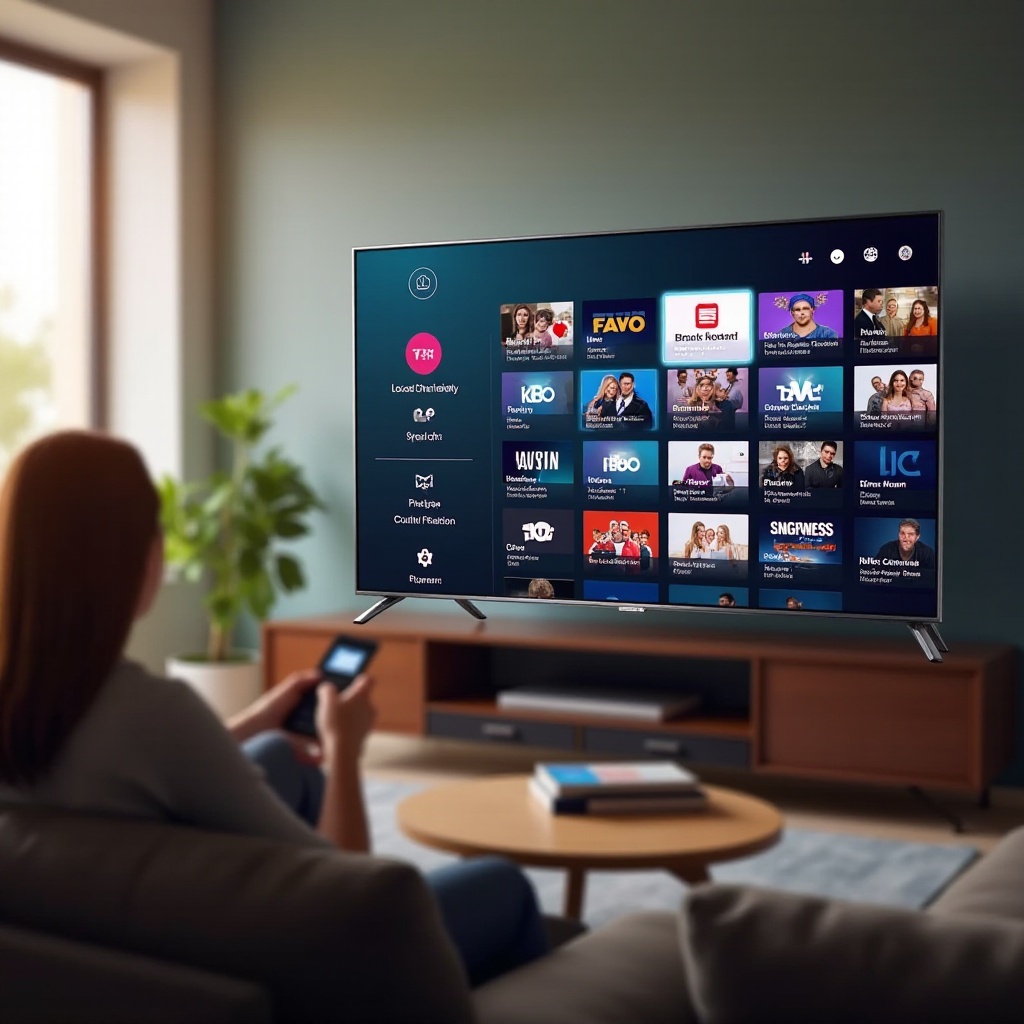
Understand the three sources of channels on a Vizio TV
WatchFree+ (free, ad‑supported live channels)
WatchFree+ is Vizio’s built‑in free service that streams hundreds of live channels and on‑demand shows without a login. Launch it, open the grid, and scroll. The lineup covers news, sports highlights, movies, crime, lifestyle, and kids programming. Availability varies by region and can change, so expect new channels to appear and others to rotate out. Think of it as your always‑on base layer of free TV.
Over‑the‑air antenna channels (locals)
Local stations like ABC, CBS, FOX, NBC, PBS, and independents are free over the air in HD. Connect an antenna to the coax jack, switch to the TV or Tuner input, and run a scan. Reception depends on distance to towers, terrain, and antenna quality. These channels live in your tuner guide, separate from internet streams, and deliver local news, sports, and weather without monthly fees.
Streaming live TV and FAST apps (Pluto, Tubi, Xumo, and more)
Vizio also supports third‑party apps that offer live channels and large on‑demand libraries. Free standouts include Pluto TV, Tubi, Xumo Play, Plex Live TV, and Freevee. Each app has its own channel guide and niche strengths. If you need full cable‑style lineups, locals in every room, or regional sports, consider paid services such as YouTube TV, Sling TV, Hulu + Live TV, Fubo, or DirecTV Stream.
With the sources defined, your next step is learning how to navigate WatchFree+ quickly so you can see what is playing right now.
WatchFree+ basics: open the guide, search, and browse
Launch WatchFree+ from the remote and home screen
You can open WatchFree+ in two quick ways:
– Press the WatchFree+ button if your remote includes it.
– From the Vizio Home screen, select the WatchFree+ app tile.
Once inside, you will see a live grid and rows of featured content. Use the arrow keys to move the focus, OK to tune, and Back to return. If the grid looks empty or stutters, confirm your internet connection, then close and reopen the app.
Use categories, Spotlight rows, and Search to find networks
WatchFree+ organizes channels by genres and themes. Browse rows for news, sports, movies, crime, and kids to discover new networks fast. Spotlight rows promote trending and seasonal channels, which change often. Use the Search function to type a network name or show title; results will surface live channels and related on‑demand options so you can jump directly to what you want.
Add Favorites and jump between recently watched channels
You can mark channels as favorites from the grid. After you favorite a network, filter to show your favorites first to cut down on scrolling. The recent list lets you flip among the last channels you tuned, which is handy for bouncing between news and sports. Build a small set of favorites to create your own mini lineup inside WatchFree+.
Once you feel comfortable with navigation, you will want to confirm which channels are available to you right now and how to see the latest additions.
Find the current WatchFree+ channel lineup on your Vizio TV
On‑TV guide filters: ‘All Channels’ vs. genres and Recently Watched
Open the WatchFree+ guide and look at filter options. Choose ‘All Channels’ to view the entire lineup. If you want a tighter view, switch to genre filters. For a super lean grid, show only favorites or recently watched channels to keep your most used networks at the top.
Channel search by network name, show title, or category
Use Search as a quick availability check. Type a network name or a show title and review the results. If you see a matching channel tile, tune in directly from the search screen. If you do not find a channel, try a broader term like news or sports, or check related categories to see alternatives.
Where to see official lineup updates inside WatchFree+
The service refreshes its featured rows as new channels arrive. Check New or Featured rows for recent additions and pop‑up event channels. If your grid appears stale, restart the TV or close and reopen WatchFree+. A quick reboot often prompts a guide refresh.
Now that you can find the lineup, it helps to know which channels stand out by genre so you can populate your favorites with high‑value picks.
Popular channels by category on Vizio WatchFree+
News: ABC News Live, CBS News, NBC News Now, and more
News channels run 24 hours with live coverage, headlines, and special reports. They excel for breaking stories and daily summaries. If you rely on morning and evening check‑ins, favorite two or three so you can jump in fast. Switching between networks gives you perspective and avoids bias.
Sports and highlights: Stadium, beIN SPORTS XTRA, and league channels
Free sports channels focus on analysis, magazine shows, highlights, classic games, and niche leagues. They are excellent for catching up when you lack a premium sports bundle. Search for your team or sport to find shows that match your interests. If you need regional live games, pair your setup with an antenna or a paid service during the season.
Movies and TV: FilmRise, Crackle, and studio‑branded channels
These channels stream continuous loops of movies and TV classics. You will find action, comedy, drama, horror, and family blocks. Add a few to favorites for dependable background viewing. When a title hooks you, check for an on‑demand tile so you can restart from the beginning.
Crime and reality: Court TV, crime‑focused networks, and docu‑series
True‑crime and reality channels deliver investigations, courtroom coverage when available, and binge‑friendly series. They are easy to drop into at any point. If a particular series stands out, search by show name to find related channels and episodes.
Kids and family: children’s channels and rating‑aware browsing
Kids channels feature cartoons, educational shows, and family films. Turn on parental controls so younger viewers only see age‑appropriate options. Save two or three channels as favorites and teach children to navigate to those tiles for a smoother routine.
Once you have a core set of internet channels, you can strengthen your lineup with local stations. An antenna gives you reliable news and sports without recurring costs.
Add local over‑the‑air channels (antenna setup and scan)
Pick the right indoor or outdoor antenna for your location
Check your distance to nearby broadcast towers with a station locator site. In dense areas, a simple indoor antenna often works. If you live farther out or on a lower floor, consider an amplified indoor antenna or a compact outdoor model. Use quality coax cable and avoid unnecessary splitters that can sap signal strength.
Connect, select the Tuner input, and run the channel scan
Follow these steps to add local stations:
1. Connect the antenna to the TV’s RF or coax input.
2. Press Input and select the TV or Tuner source.
3. Open Settings, locate Channels or Tuner, and start a channel scan.
4. Choose Antenna or Air, then let the scan complete.
When the scan finishes, test several channels for signal and picture quality. If reception looks weak, reposition the antenna and scan again.
Rescan tips after moving the antenna or during seasonal changes
Reception shifts with weather, foliage, and construction. If a station drops out or pixelates:
– Move the antenna higher or toward a window.
– Aim it at your tower cluster.
– Keep it away from large metal objects and electronics.
– Shorten cable runs when possible.
– Rescan after each change to refresh your tuner guide.
If channels still fail to load correctly or vanish without warning, a quick troubleshooting routine usually resolves the issue.
Troubleshoot missing channels and guide issues
Verify source or input and run a fresh scan
Make sure you are on the correct source. If you expect an antenna channel, switch to the TV or Tuner input. If you expect WatchFree+, open the app. For OTA stations, rescanning is the fastest fix. For WatchFree+, close and relaunch the app or restart the TV to refresh the guide.
Update Vizio firmware and power‑cycle the TV
Software updates often resolve guide and playback bugs. In Settings, check for updates and install them. Then power‑cycle the TV: turn it off, unplug for 60 seconds, plug in, and restart. Open the guide again and confirm the channel list.
Improve signal strength: placement, amplifiers, and splitters
If antenna channels pixelate or disappear, weak signal is likely. Try these steps:
– Move the antenna away from interference sources.
– Replace old or damaged coax cables.
– Remove passive splitters. If you must split, use a powered splitter.
– Test an amplified antenna if you are far from towers.
– Rescan after each adjustment.
Regional availability, program rights, and why a channel disappears
Streaming channels can change or rotate due to licensing and regional rights. If a favorite channel disappears, search for similar networks or check free apps like Pluto or Xumo for replacements. For OTA outages, wait and rescan later; stations sometimes reduce power or perform maintenance.
Once your channels load consistently, you can make the guide feel faster and more personal with a few quick customizations.
Manage and customize your Vizio TV channel list
Sort and filter the guide for faster browsing
Use guide filters to match your mood or time of day. For example, show news rows in the morning, movies at night, and kids on weekends. Focused filters reduce choice overload and speed up decision‑making.
Build and edit your favorites for quick access
Select your top 10 to 15 channels across categories and mark them as favorites. Keep this list lean. If a channel falls out of rotation, remove it. A tight favorites row lets everyone in the home reach their picks in seconds.
Hide channels you never watch to declutter the guide
Some models allow hiding channels. If yours supports it, suppress networks you never use. Less clutter means faster browsing and fewer complaints from family members who value simplicity.
With a clean core lineup, you may want more variety. Free apps can fill gaps and add niche content without cost.
Expand your channel list with free apps on Vizio
Pluto TV, Tubi, Xumo Play, Plex Live TV, and Freevee
Install a couple of free apps to add hundreds of additional channels and deep on‑demand libraries. Each app has unique strengths and exclusive channels. Pluto excels at niche streams, Tubi blends live channels with a huge on‑demand library, and Xumo Play spotlights news and themed events.
When to use these instead of or alongside WatchFree+
Use WatchFree+ as your home base. Then add one or two apps that carry channels you cannot find in WatchFree+. Switching apps is quick and free. Keep just a few installed so the Home screen stays uncluttered and your household does not get overwhelmed.
Finding niche, local, and event‑based streams
Search within each app for your city, favorite sport, or a festival. Many services launch pop‑up or seasonal channels around big events. When you discover a great feed, add it to favorites or pin the app to the Home screen for one‑tap access.
If free selections still leave gaps, a targeted paid service may be the most efficient next step, especially for local sports and cable‑only networks.
Premium live TV apps and when they make sense
YouTube TV, Sling TV, Hulu + Live TV, Fubo, DirecTV Stream
Paid bundles deliver cable‑style lineups, full local coverage in most markets, and sports channels that free options lack. Compare prices, channel lists, and interface style. Use free trials to see how each app performs on your Vizio before you commit.
Locals, sports blackouts, and DVR requirements
Confirm which local stations you get at your ZIP code and understand blackout rules for your teams. Review DVR features, recording limits, and simultaneous streams. If your only gap is local news and network shows, test an antenna first; it may cover your needs at no cost.
Bundling strategies to control monthly costs
- Subscribe to one premium service during sports seasons and cancel in the off‑season.
- Combine a smaller paid plan with WatchFree+ and two free apps.
- Reevaluate every quarter to remove add‑ons and keep the bill lean.
Even with more channels, make sure everyone can watch comfortably and safely by tuning accessibility and parental controls.
Accessibility and parental controls for live channels
Closed captions, subtitles, and audio descriptions
Turn on captions for clarity and use secondary audio for descriptive narration when available. These features help in loud rooms, late‑night viewing, or for anyone with hearing or vision needs.
Set a parental PIN and manage content ratings
Create a parental PIN to lock apps and restrict content by rating. Check settings every few months so controls match your family’s needs. Share the PIN only with adults.
Improve readability: text size, contrast, and remote shortcuts
Increase text clarity by adjusting picture settings and interface options if available. Learn remote shortcuts for guide, search, and favorites. A few tweaks reduce friction for everyone who uses the TV.
Personalization can boost discovery, but it also affects what you see in the guide. Review privacy and data settings so the recommendations you get align with your preferences.
Privacy and data settings that affect recommendations
ACR or viewing data and ad personalization explained
Your TV may use viewing data to personalize rows, suggest channels, and tailor ads. This can surface relevant networks faster, but it also narrows variety over time if you repeat the same choices.
How to opt out and what changes in your guide
You can turn off viewing data in Settings. After you opt out, WatchFree+ and the Home screen may show fewer personalized rows and more generic picks. If suggestions feel off or repetitive, toggle the setting and test which experience you prefer.
Pros and cons of personalized rows and suggestions
Personalization speeds discovery and reduces scrolling. The trade‑off is that it can hide new genres you might enjoy. Strike a balance: keep recommendations on for busy weeks, then turn them off when you want to explore new channels.
With privacy choices set, it is helpful to know what changed recently in WatchFree+ so you can take advantage of new features and pop‑up channels.
What’s new on Vizio WatchFree+ (2024–2026)
Interface refinements for faster guide navigation
Recent updates emphasize snappier scrolling, quicker grid loading, and smoother transitions between categories. Search results group by relevance more cleanly, helping you reach content with fewer clicks.
Newly added genres, themed channels, and pop‑ups
You will see expanded genre rows, seasonal themes, and temporary pop‑up channels for major events and holidays. These flex slots keep the lineup fresh and reduce the feeling of repetition.
On‑demand tie‑ins and WatchFree+ Collections
Collections group movies or shows by theme for instant marathons. Live channels often link to on‑demand tiles so you can catch up from the start or continue later. This blend makes WatchFree+ feel more like a modern cable box with better search.
If you want a quick win, use a rapid setup sequence to get your guide tuned and ready in minutes.
Quick 10‑minute checklist to optimize your Vizio TV channel list
Update software, rescan channels, and favorite essentials
- Check for system updates and install them.
- Reboot the TV.
- If you use an antenna, run a fresh channel scan.
- Favorite your top news, sports, kids, and movie channels.
Add two free apps to fill lineup gaps
- Install Pluto TV and Tubi or Xumo Play.
- Browse news, sports, and movies rows.
- Favorite one or two channels per app.
Save parental, caption, and privacy settings
- Turn on captions if needed.
- Set a parental PIN and ratings limits.
- Review and adjust viewing data and ad settings.
Conclusion
A clear vizio tv channel list starts with two moves: learn the WatchFree+ guide and add an antenna for locals. Build a short favorites row that covers daily habits: a trusted news network, a movie channel, a sports highlights feed, and a kids or family option. That list becomes your fast lane for everyday viewing.
If you still miss channels, install one or two free apps to fill gaps. When you need full cable‑style coverage or specific sports, try a paid live TV service during the season that matters to you, then cancel when it ends. Keep the setup lean, rescan your antenna after moving hardware, and review your favorites every few months. With a few simple habits, your Vizio will always show what you want, when you want it, without wasted scrolling or confusion.
Frequently Asked Questions
How do I see the full Vizio WatchFree+ channel list right now?
Open WatchFree+ from your remote or the Home screen. In the guide, choose ‘All Channels’ to see the full lineup. Use Search to find a network or show. If the grid looks out of date, restart the TV and reopen WatchFree+. Confirm your internet connection before trying again.
Why are some local antenna channels missing or pixelated on my Vizio TV?
Weak signal is the usual cause. Move the antenna higher or near a window and aim it at your towers. Use shorter, quality coax. Remove passive splitters or use a powered one. Try an amplified antenna if you are far from towers. Rescan after each change. Weather and foliage also affect reception, so occasional rescans help.
Can I add, delete, or renumber channels on a Vizio TV?
You can add channels by installing apps or scanning for antenna stations. You can favorite or hide channels to tidy the guide. You generally cannot renumber channels like a cable box. Rely on favorites and filters to put your must‑watch networks at the top for quick access.