
Why Is My Ring Camera Not Recording Motion? 17 Proven Fixes and Expert Tips
Introduction
When a person walks by and your Ring stays silent, the first question is simple: why is my Ring camera not recording motion. Most misses come from a few settings, weak Wi‑Fi, or power issues. You can fix all three quickly with the right checks. This guide shows you exactly what to do, step by step. You will start with quick wins, then verify your Ring Protect plan, Modes, and motion tuning. After that, you will harden Wi‑Fi and power, improve night detection, and dial in placement. Finally, you will validate your results and know when to contact support. Let us begin with fast checks that solve the majority of cases and connect smoothly into deeper settings.
Start Here: Quick Checks That Fix Most Misses
Confirm the basics before changing advanced settings. Open the Ring app, select your device, and review Event History to see if any motion clips exist today. Start a Live View; if it fails, address power or network first. In Device Settings, open Modes and make sure Motion Recording is enabled for your active mode. Turn off Motion Snooze and clear any Motion Schedule blocks. Check your phone for Do Not Disturb or Focus modes that silence alerts while you test. If recordings still do not appear, restart the device. For battery models, remove and reseat the battery. For wired models, power cycle at the breaker for 10 seconds. Now take a test walk. If events still do not save, it is time to confirm your subscription and event types, which directly impact recording.
Confirm Your Video History: Ring Protect Plan and Event Types
Ring saves motion recordings to the cloud only with an active Ring Protect plan assigned to the device. Without a plan, you can get alerts and view Live View, but the app will not store motion videos. In the app, open the menu, go to Control Center, then Ring Protect Plan, and confirm your device appears on the plan. Review event categories as well: Motion, Ring, and Live View clips surface separately. Enable Snapshot Capture if you want periodic stills that fill the gaps between events. Also note your retention window; older videos delete automatically at the end of the plan period. If your plan is active and you still do not see motion clips, the next step is to review Modes, since these toggles can disable recording.
Modes and Motion Recording: Home, Away, and Disarmed Settings
Modes determine when motion detection and recording are active. Open Settings, choose Modes, and check your device in Disarmed, Home, and Away. Disarmed commonly disables motion alerts and recording for privacy. Home often enables outdoor recording while muting indoor cameras. Away typically enables motion recording everywhere. Confirm both Motion Detection and Motion Recording are on for the Mode you currently use. If you use geofencing, ensure your phone presence does not switch the system to a Mode that blocks motion. Save any changes, then run a test walk. If Modes look correct, your next focus is motion tuning: zones, sensitivity, and frequency. That is where detection quality either shines or stumbles.
Motion Zones, Sensitivity, and Frequency: Tune Detection Correctly
Accurate detection starts with good zone design. Draw zones that cover the path people actually take. Exclude busy streets, moving trees, and sky. Start sensitivity at a medium‑high level, then reduce one notch at a time if you see too many non‑human triggers. On battery devices, set Motion Frequency to Frequent during troubleshooting. It allows faster retriggers so you do not miss back‑to‑back events. If your device supports 3D Motion or radar, set the distance fence just beyond your walkway and confirm the orientation arrow points correctly relative to your street and door. After tuning, take slow and normal‑pace walks through the zone. If you still miss events, check the filtering features next, as Smart Alerts can be overly strict.
Smart Alerts, People Only, and Motion Verification
Smart Alerts can suppress noise, but they can also hide valid events. Temporarily turn off People Only to confirm it is not filtering out people at the edge of your zone. If Motion Verification is available and delays your alerts, disable it during testing. Rich Notifications add thumbnails to alerts and do not affect recording, so you can keep them on. Once you test with minimal filtering and confirm detection, you can re‑enable filters gradually. If clips still do not appear, scan for silent blockers such as schedules or snooze timers. These often get set and forgotten.
Motion Schedules, Snooze, and Do Not Disturb: Hidden Blockers
Motion Schedules and Snooze can suppress alerts and create confusion about what the camera records. Clear any schedule that pauses detection during the times you expect motion. Remove active snoozes from the bell icon in the app. Your phone may use Do Not Disturb to silence alerts; turn it off while you test so you can match notifications to event history. If your household uses Shared Users, ask them to review schedules or check Activity History for clues. With blockers cleared, you can now determine whether you are missing notifications, recordings, or both. That distinction shapes your next steps.
Notifications vs Recordings: Know the Difference
Alerts and stored clips are different. You can receive a notification but have no saved video if you lack a plan, if Motion Recording is off, or if the connection drops during upload. Conversely, you can have recordings saved but never see an alert if phone notifications are blocked. Neither alerts nor recordings will appear if Modes disable detection or the device loses power or network entirely. Identify which case you face. If alerts arrive but recordings are missing, check subscription status, Motion Recording toggles, and connectivity. If recordings exist but alerts do not, fix phone or app settings. Now, verify the device health to catch network or firmware problems.
Device Health and Firmware: RSSI, Last Online, and Updates
Open Device Health and review key indicators. RSSI reflects Wi‑Fi strength; values closer to zero are better, while very negative numbers suggest weak signal that can cause late starts and failed uploads. Check Last Online; frequent drops hint at unstable Wi‑Fi or power. If a firmware update is available, install it to fix known bugs and improve stability. Review battery percentage or transformer voltage as well. If Device Health shows poor signal or frequent offline periods, improve your Wi‑Fi before you change more detection settings. Stable connectivity is the foundation for consistent motion recordings.
Wi‑Fi Quality and Router Setup: Fix Upload and Coverage
Cameras need stable upload and low latency more than raw speed. Improve reliability with targeted steps. Move your router closer to the camera or add a mesh node near the porch or garage. Use 2.4 GHz for longer range through walls and 5 GHz only where signal is strong. Set a clean 2.4 GHz channel such as 1, 6, or 11 to reduce interference. Stick with WPA2 or WPA3 security. Ensure your internet upload bandwidth covers all cameras during busy hours; aim for at least a few megabits per camera. Tame bufferbloat by enabling smart queue management or quality of service on your router. Keep access points away from large metal objects, mirrors, and microwaves. After changes, verify Live View launches quickly and run another walk test. If network now looks solid, check power and environmental factors that slow wake‑up or blind the sensor.
Power and Environment: Battery Levels, Transformers, and Weather
Low power can delay wake‑up and shorten recordings. Keep battery cameras above 30 to 40 percent charge, and consider a solar trickle charger if the camera faces frequent motion. In cold weather, warm spare batteries indoors and rotate them more often. For wired doorbells, confirm your transformer meets the model spec; weak transformers cause reboots and missed clips. On floodlight cams, inspect switch and junction wiring for loose connections. Weather matters too. Heavy wind or rain can both trigger and obscure motion. Reduce sensitivity slightly during storms and adjust the angle to focus on walkways. With power stable, move on to nighttime tuning, where IR reflections can spoil detection.
Night Vision and IR Reflections: Improve After‑Dark Detection
Infrared light can bounce off glass, glossy paint, house numbers, and white pillars, washing out the scene and confusing detection. Tilt the camera so it frames torsos about 10 to 15 feet out, not the horizon. Avoid aiming directly at windows or shiny surfaces. Use a corner or wedge kit to reduce car headlight glare. If you have some ambient light, try Color Night Vision for clearer detail, or add a warm, low‑glare porch light that does not point at the lens. Clean the lens and remove spider webs, which reflect IR and create false triggers. With night performance improved, refine physical placement to favor human motion.
Placement Best Practices: Height, Angle, and Cross‑Traffic
Proper mounting helps sensors see what matters. For doorbells, aim for about 48 inches high to match the PIR sensor pattern with typical human movement. For floodlight cams, 7 to 9 feet high with a downward tilt works well. Rotate cameras to capture lateral movement across the frame rather than straight‑on approaches because PIR detection is strongest with side‑to‑side motion. Crop out roads and sidewalks from your zones when possible, and focus on chokepoints such as gates, paths, and stairs. Use wedge or corner kits to aim toward your walkway and away from busy streets. After placement adjustments, the next step is to apply tips specific to your Ring model.
Model‑Specific Tips: Doorbells, Stick Up Cams, and Floodlight Cams
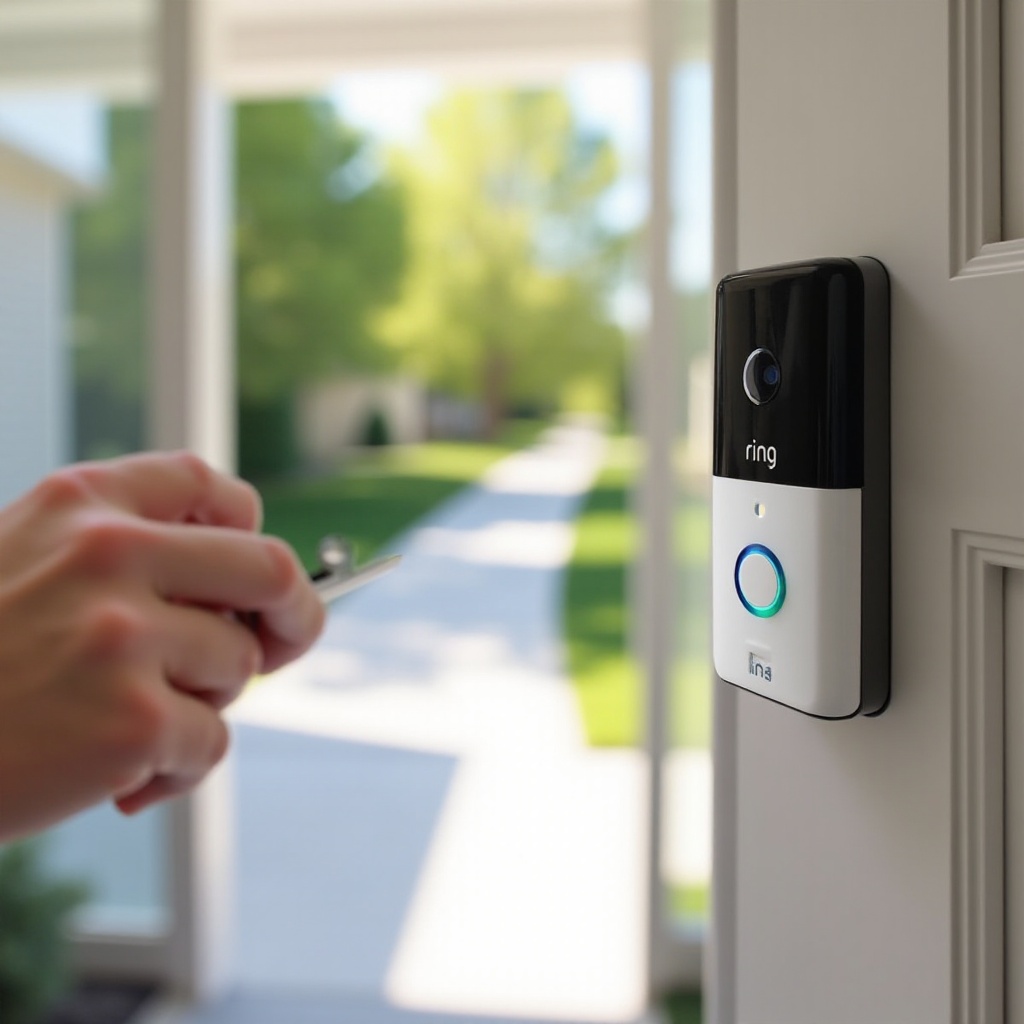
Each Ring model behaves a bit differently. Battery doorbells benefit from Motion Frequency set to Frequent while testing, and wedges that shift the view toward your approach path. Keep batteries warm in cold climates. Doorbell Pro and Pro 2 owners should leverage 3D Motion and Bird’s Eye View, set the motion fence just beyond the walkway, and verify transformer output and required adapters where applicable. Wired and Wired Plus doorbells should confirm chime compatibility and consider a bypass if the chime causes voltage dips. Stick Up Cam Battery and Wired mount best at about 6 to 8 feet with a downward tilt; a solar panel helps battery models in high‑traffic areas. Floodlight Cam and Pro users should tune light zones separately from motion zones, and radar versions can ignore distant cars when the fence is dialed in. If alerts arrive but recordings are inconsistent, check your phone and app next.
App and Phone Settings: Permissions, Battery Optimization, and VPNs
Phone settings can silence alerts or slow live connections. On iOS, allow notifications, enable background app refresh, and grant precise location if you use geofencing. On Android, remove battery optimization for Ring, allow background data, and exempt Ring from adaptive battery and app sleep lists. Disable VPNs, DNS filters, or ad blockers while testing, as they can proxy or delay traffic. If multiple phones share access, confirm that all users run the latest app and have notifications enabled. Once app settings are clean, consider resets to clear glitches that persist beyond configuration.
Reboot, Power Cycle, and Factory Reset: When and How
Reset in stages to limit disruption. First, perform a soft reboot from Device Health if available, or reseat the battery on battery models. Second, power cycle wired devices at the breaker or unplug power for 10 to 15 seconds, then restore. Third, only if issues persist, perform a factory reset by holding the setup button for the model‑specific duration and re‑add the device in the app. Save your Wi‑Fi and Mode preferences before a factory reset so you can restore quickly. After any reset, run a daylight and night test walk to confirm behavior. With a stable setup, you should validate improvements methodically.
Validate Your Fixes: Test Walks and Event History Review
Confirm success with a simple routine. Walk through each motion zone from several angles and distances. Check Event History for timestamps, durations, and pre‑roll where supported. Compare notifications on your phone to the recordings in the app; they should align closely. Repeat the test after sunset with porch lighting on and off. If results look good, your configuration is solid. If you still see gaps, collect precise details for support to speed resolution.
When to Contact Ring Support: What to Gather First
Reaching support with the right data reduces back‑and‑forth. Note your device model, firmware, and app version. Capture RSSI values, internet provider, and router or mesh model. Record power details, such as battery percentage or transformer rating. Describe the symptom clearly: alerts without recordings, missing notifications, or neither. Include two or three timestamps when the camera missed motion. Share any recent changes such as a new router, moved access point, or added Motion Schedule. With these details, support can pinpoint the cause quickly or authorize a replacement if hardware is at fault. If support is needed, you have already completed the diagnostic groundwork.
Conclusion
Reliable motion recording depends on three pillars: correct settings, stable Wi‑Fi, and adequate power. You reviewed Modes, zones, and filters, then strengthened network quality and power delivery. You tuned night vision, adjusted placement, and validated results with walk tests. If a stubborn issue persists, you now know exactly what to collect and share with support. With these steps, your Ring should consistently capture people approaching your door and send timely alerts that match saved video clips.
Frequently Asked Questions
Why does my Ring say motion detected but no recording is saved
Two common reasons are no active Ring Protect plan or Motion Recording disabled in the current Mode. Connectivity drops during upload can also prevent a clip from saving. Improve Wi‑Fi signal, switch the camera to 2.4 GHz for range, and place a mesh node nearer. Verify that Smart Alerts are not filtering valid events.
Will my Ring camera record motion without a subscription
Without a Ring Protect plan, the camera can alert you and show Live View, but it will not save motion videos to the cloud. Enable Snapshot Capture for periodic stills if you want some history, but it does not replace full clips. After subscribing, wait a few minutes and run a test walk.
Why does Ring miss people at night or during rain
Infrared reflections from glass, glossy trim, or wet surfaces can wash out the scene. Tilt the camera down, avoid pointing at reflective areas, and clean the lens. Add soft porch lighting or use Color Night Vision where possible. Tighten zones and reduce sensitivity during storms to ignore weather noise.