
Why Is My Wyze Camera Offline? A Complete Troubleshooting Guide for Smart Home Users
Introduction
Your Wyze camera shows offline and live view will not load. The status light may blink or stay dark, and you might even keep getting motion alerts, which makes the situation more confusing. The good news is that most offline issues trace back to a short list of causes you can fix quickly. Power glitches, Wi‑Fi band settings, or a router option that isolates devices account for many cases. Others come from model quirks on Outdoor or battery devices that sleep to save power.
This guide starts with fast wins, then moves into the network details that affect Wyze streams. You will see how to read status lights, how to set up a clean 2.4 GHz Wi‑Fi, and which router or mesh settings to change. You will also find steps for Outdoor and battery models that rely on a base station or power‑saving modes. If you just replaced your router or had a power outage, a short recovery order brings everything back. Finish with a stability checklist so the offline message stays gone.
What Offline Means in the Wyze App vs. Real Connectivity
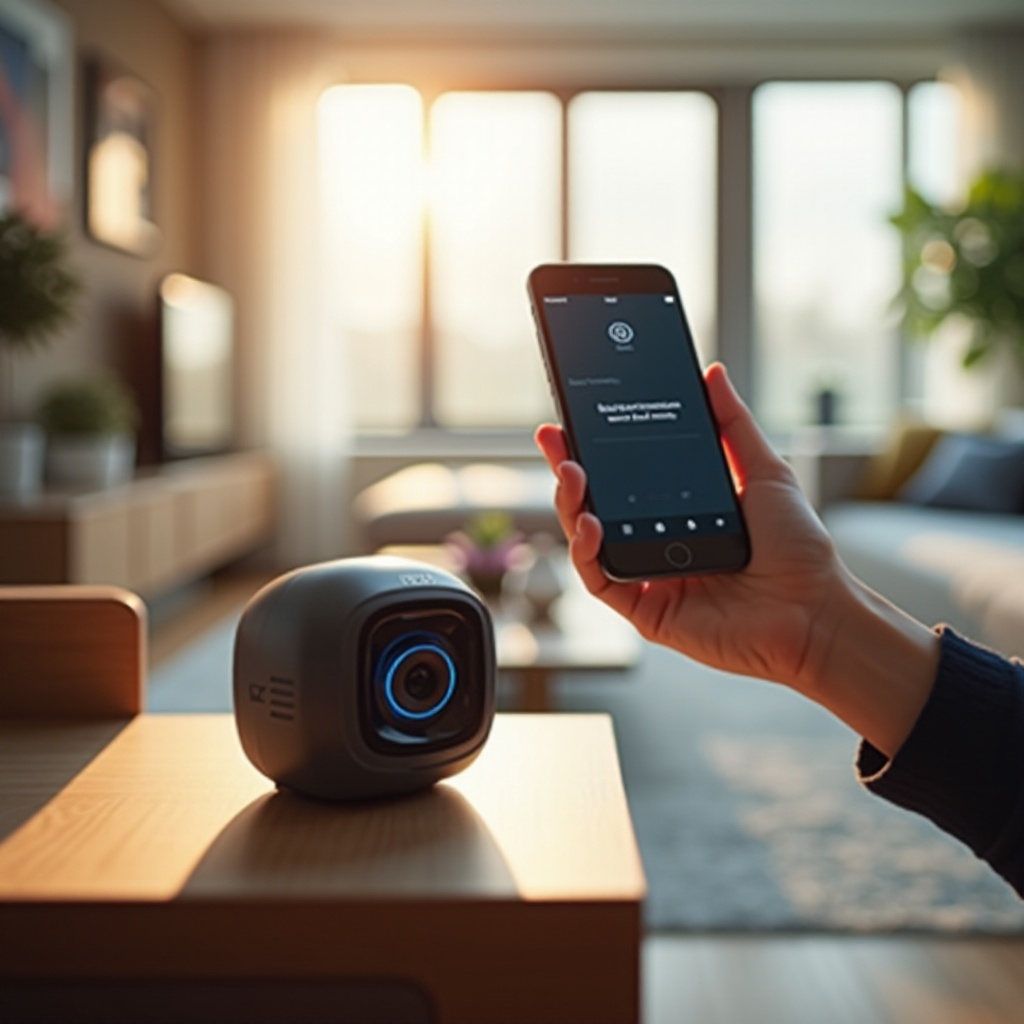
Offline in the Wyze app means the app cannot reach the camera through your local network or through the cloud at that moment. It does not always mean the camera lost power or failed. Sometimes the camera can still record to a microSD card or upload event clips. In other cases, the phone cannot reach the camera because you are on a different network segment, a guest network, or behind a VPN or ad blocker that filters Wyze traffic.
Use these clues to narrow it down fast:
– You still receive motion notifications or see event clips: the camera has some connectivity even if live view fails.
– Live view fails on home Wi‑Fi but works on cellular: the router or Wi‑Fi segment is blocking local streaming.
– The status light shows a connection, but the app says offline: account session, app cache, DNS filtering, or client isolation may be the culprit.
– Multiple cameras go offline together: suspect your router, ISP, or a service status issue.
Understanding these patterns helps you pick the right path. If the camera powers on but the app cannot connect, start with quick checks that clear simple obstacles before you dive into network tuning.
Quick Checks to Try First (Power, App, and Account)
Knock out the basics first. These steps fix a large share of offline cases in minutes and reveal whether you face a real network problem.
- Power cycle in order:
1) Unplug the camera for 20 seconds, then plug it back in.
2) If you use a base station, power cycle it as well.
3) If multiple devices act up, reboot your router and modem. - Verify power integrity:
- Use the original or a known‑good 5V power adapter with adequate current.
- Try a shorter, high‑quality USB cable. Long or thin cables cause voltage drop.
- Avoid loose outlets, surge strips with weak ports, or GFCI trips.
- Refresh the Wyze app and account session:
- Update the Wyze app to the latest version.
- Log out and log back in to refresh tokens.
- Clear app cache in settings, then force close and reopen the app.
- Check service status and ISP health:
- If several Wyze devices show offline, check Wyze service status and your ISP status page.
- Test with a different network on your phone:
- Turn off VPNs or ad blockers on your phone.
- Try the Wyze app on cellular data and on home Wi‑Fi to isolate the issue.
If these quick checks do not restore live view, the next step is to confirm what your camera model and LED patterns are telling you so you can target the right fix.
Understand Your Wyze Model and Status Lights
Status lights communicate what the camera is doing. Matching LED patterns to states helps you decide whether to focus on setup, Wi‑Fi, or power.
- Plug‑in Wyze cams such as v3, v4, and Pan models:
- Solid red: booting or recording locally.
- Flashing red and blue or alternating patterns: entering pairing or setup mode.
- Solid blue: connected to the network and cloud.
- Flashing blue: attempting to connect to Wi‑Fi.
- Doorbells and floodlight cams:
- A steady status light usually means a cloud connection.
- Rapid blinking or a distinct pattern typically indicates setup mode or missing Wi‑Fi credentials.
- Outdoor Cam with base station:
- Base station LED solid: online and linked.
- Base station LED flashing: no internet or not registered in the app.
- Outdoor camera status light often stays off to save battery; press the sync button to wake and check.
If your LED shows the camera is stuck connecting, do not factory reset yet. First, make sure your Wi‑Fi environment gives Wyze a clean 2.4 GHz path. That is the most common point of failure.
Wi‑Fi Requirements That Commonly Break Wyze Connections (2.4 GHz, Channels, Band Steering)
Wyze cams depend on a stable 2.4 GHz Wi‑Fi network. Many offline errors start with band mixing, crowded channels, or aggressive roaming settings.
- Use 2.4 GHz only for Wyze:
- Most Wyze cams cannot join 5 GHz. If your router combines both bands under one SSID, the camera may try the wrong band and fail.
- Create unique SSIDs for 2.4 GHz and 5 GHz, for example Home‑2G and Home‑5G. Connect Wyze to the 2.4 GHz SSID.
- Lock channel width to 20 MHz on 2.4 GHz:
- Wider widths increase interference and reduce stability for low‑power devices.
- Choose cleaner channels:
- Prefer channels 1, 6, or 11 on 2.4 GHz. Pick the least congested one after a quick scan.
- Tame band steering and smart connect during setup:
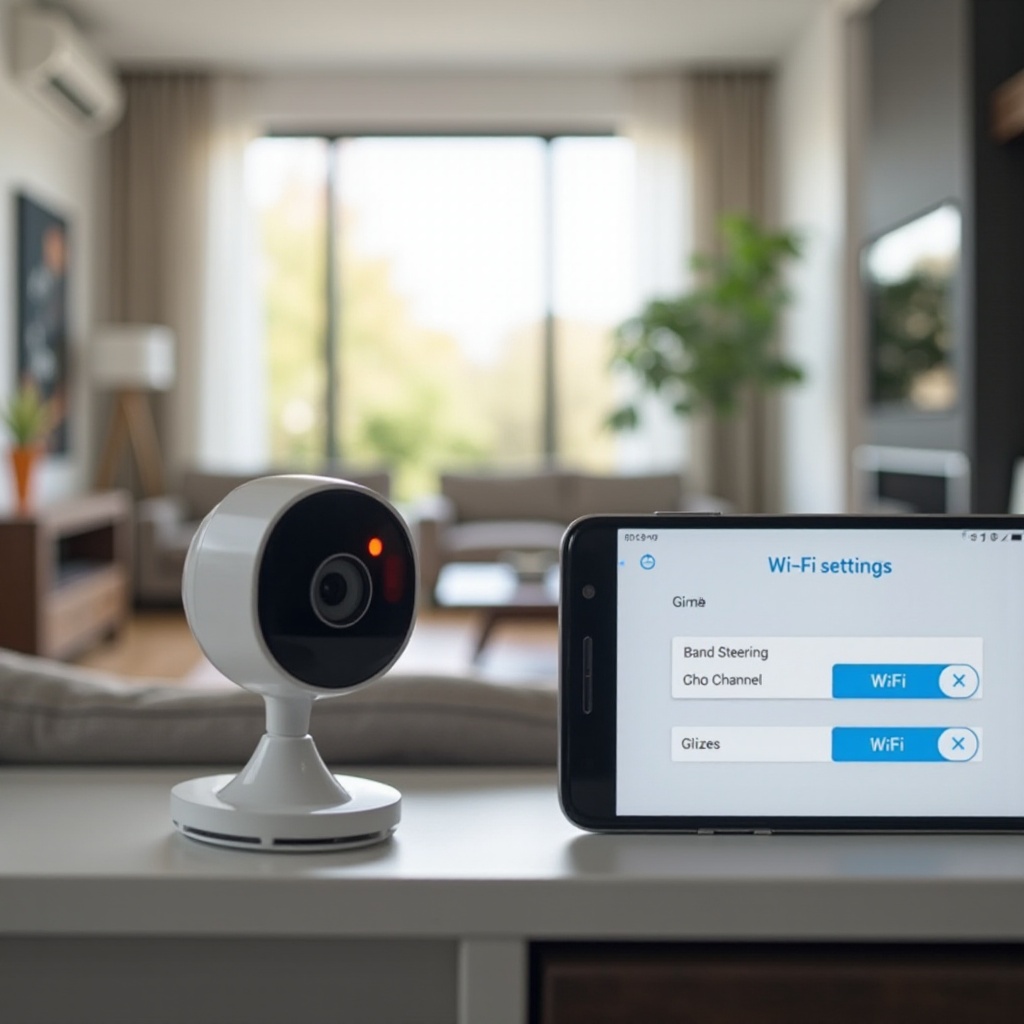
- Turn off band steering temporarily so the camera locks to 2.4 GHz. Re‑enable it later if stability remains.
- Improve signal strength and placement:
- Keep the camera within a few rooms of a router or mesh node.
- Avoid thick masonry, metal surfaces, and noisy neighbors such as microwaves and baby monitors.
- Check SSID and password details:
- Keep names and passwords simple. Some special characters and very long strings cause pairing issues.
Once you lock in a stable 2.4 GHz connection, confirm that router and mesh settings are not silently isolating or blocking your camera and app from talking to each other.
Router and Mesh Settings to Review (WPA, Isolation, DHCP, VPN/Filters)
Routers and mesh systems often enable security and performance features that hinder smart devices. Review and adjust these options so Wyze traffic can pass reliably.
- Security mode and encryption:
- Use WPA2‑PSK with AES. WPA3‑only networks can block older IoT clients.
- Set Protected Management Frames to optional if devices fail to connect when it is required.
- Client or AP isolation:
- Disable wireless isolation on the SSID used by your camera and phone. Isolation prevents local streaming from the app to the camera.
- DHCP scope and reservations:
- Confirm the DHCP range has free addresses. Exhausted pools cause random offline events.
- Reserve an IP for each camera and for any base station. Reservations help devices reconnect after power cycles.
- Multicast and broadcast settings:
- Allow multicast and broadcast on the IoT SSID. Suppressing them can break device discovery and streaming.
- DNS and content filters:
- If you use Pi‑hole, AdGuard, parental controls, or router‑level safe browsing, whitelist Wyze domains and disable filters during testing.
- VPNs and outbound firewalls:
- Turn off router VPNs or strict egress rules for the IoT VLAN during setup and testing.
- Mesh specifics that trip cameras:
- Place a mesh node near the camera to avoid edge‑of‑cell roaming.
- Use wired backhaul if possible, and avoid DFS channels on backhaul that may interrupt service.
With the network open and stable, consider the special behavior of Outdoor and battery models. Power‑saving features and base station links can look like offline even when the system works as designed.
Special Cases: Outdoor/Base Station and Battery Models
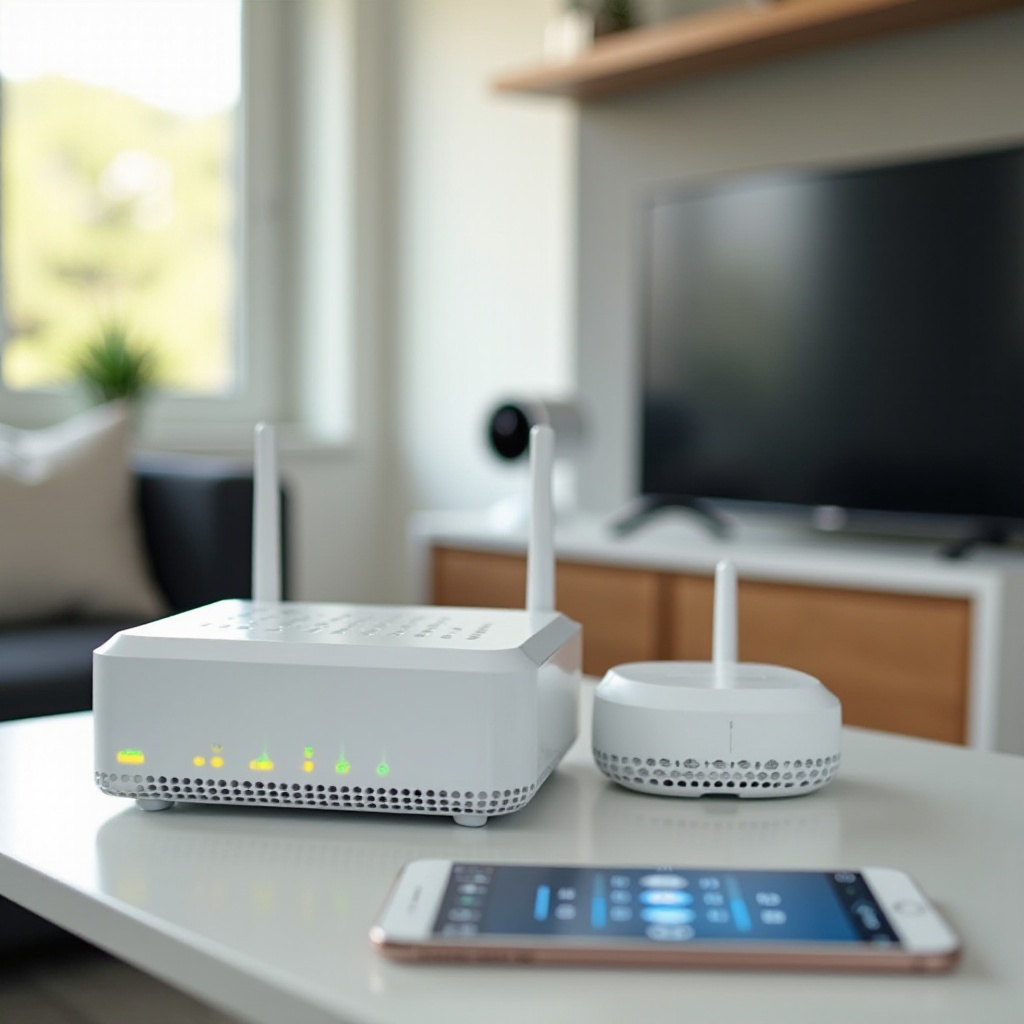
Battery‑powered Wyze devices and Outdoor cams with a base station manage power differently. They may sleep aggressively, so the app may briefly report offline until the device wakes.
- Outdoor Cam with base station:
- Confirm the base station Ethernet cable is seated and the LED is solid. A flashing LED indicates an upstream or registration issue.
- Keep the base a few feet away from the router to reduce interference, and place it centrally relative to outdoor cameras.
- Re‑sync by pressing the base sync button, then the camera sync button at close range.
- Update base and camera firmware together to maintain compatibility.
- Battery cams and battery doorbells:
- Low battery can disable quick live view while motion still records. Fully charge before testing.
- Cold weather reduces battery output. Warm the device indoors, then test again.
- For wired doorbells, verify transformer voltage and a stable chime adapter connection. Voltage sag can cause reboots that look like random offline events.
- Travel Mode and other power‑save features:
- Travel Mode disconnects from the cloud by design. Turn it off to restore online access.
- Motion‑only wake introduces a small delay before live view starts; that is normal and not a fault.
If your offline issue followed a brownout, blackout, or router upgrade, a clean startup order and a few SSID tricks can restore all devices without a factory reset.
After a Power Outage or Router Change
Power events and new networking gear change IP addresses and Wi‑Fi behavior. A simple bring‑up sequence and a few best practices will bring cameras back online faster.
- Use a clean boot order after outages:
1) Modem first. Wait for internet and signal lights to stabilize.
2) Router or mesh next. Wait until Wi‑Fi SSIDs broadcast and internet returns.
3) Base stations and powered accessories such as floodlights.
4) Cameras last. - If SSID name or password changed:
- If possible, create a 2.4 GHz SSID that temporarily matches the old name and password. Devices will reconnect without re‑pairing.
- If you must change credentials, use the QR setup in the app to update Wi‑Fi without deleting the device when your model supports it.
- Mesh migration tips:
- Disable band steering and smart connect for 24 hours so devices settle on 2.4 GHz.
- Place mesh nodes to recreate coverage where cameras previously worked well.
- Validate recovery:
- Test live view and event uploads on both home Wi‑Fi and cellular.
If devices remain flaky after a clean startup, rule out firmware mismatches and storage errors. A corrupt microSD card or a partial firmware update can mimic a network fault.
Firmware, SD Cards, and App Alignment
Keeping software aligned reduces ghost offline states. Out‑of‑date apps, failed firmware, or bad SD cards can interrupt streams and confuse status reports.
- Update in a safe order:
- Update the Wyze app first.
- Update camera firmware from within the app when your Wi‑Fi is stable.
- Avoid updating during storms or while your router is rebooting on a schedule.
- Recover from failed updates:
- Power cycle the device and attempt the update again.
- If failure persists, use the model‑specific manual firmware loader when available.
- Check microSD card health:
- Remove the microSD card, then test live view. If the camera comes online without the card, suspect corruption.
- Reformat the card in FAT32 within the camera or replace it with a high‑endurance card.
- Align shared users:
- Make sure every shared user updates their Wyze app. Old app versions sometimes show offline even when the camera is healthy.
If you still cannot restore a reliable connection, a factory reset may help. Treat it as a last resort and only use it when other steps fail.
When and How to Factory Reset—and When Not To
A factory reset wipes settings and can remove automations. It is powerful, but use it at the right moment to avoid extra work.
- When to reset:
- The camera will not enter setup mode or stays stuck at boot regardless of power cycles.
- Firmware recovery fails and LED patterns never change from boot states.
- How to reset safely:
- Follow your model guide for the reset or setup button hold time until you hear the voice prompt or see the correct LED pattern.
- Re‑add the camera to the same account and room so routines and shares remain consistent.
- When not to reset:
- The LED shows a solid link but the app says offline. Focus on router isolation, DNS filters, or app cache first.
- You have not yet tested a different power adapter, cable, or a clean 2.4 GHz SSID.
Once you restore service, spend a few minutes hardening your network and power. Preventive steps make the next outage a non‑event and keep streams smooth.
Prevent Future Drop‑Offs: Stability Checklist
Simple habits keep Wyze cameras online and reduce emergency troubleshooting. Use this checklist to lock in stability.
- Reserve IPs:
- Assign DHCP reservations for each camera and any base station to prevent address changes after reboots.
- Ensure power quality:
- Use short, high‑quality USB cables and the correct power adapters.
- Put your modem and router on a small UPS so short outages do not disrupt the network.
- Plan Wi‑Fi properly:
- Separate 2.4 GHz and 5 GHz SSIDs and keep 2.4 GHz at 20 MHz channel width on channel 1, 6, or 11.
- Place mesh nodes within two rooms of cameras, away from dense metal or mirrors.
- Maintain software on your schedule:
- Update the Wyze app and firmware during stable hours.
- If your router leaks memory, schedule a monthly reboot at night.
- Keep security with allowances:
- Retain DNS filtering or parental controls, but whitelist Wyze services.
- Avoid client isolation on the SSID that cameras and phones share.
- Respect the environment:
- For outdoor and battery models, check weather seals, provide shade from direct sun, and plan for cold‑weather battery care.
These steps reduce offline messages, protect streams against minor outages, and give you a predictable experience.
Conclusion
Most answers to the question why is my Wyze camera offline come down to a few root causes: a 2.4 GHz Wi‑Fi mismatch, router isolation, base station placement, or simple power problems. Start with fast checks to rule out power and app glitches. Then confirm the model status lights and tune your 2.4 GHz Wi‑Fi for stability. Review router and mesh options that block discovery or local streaming. Handle special cases for Outdoor and battery devices by checking base links, charge levels, and cold weather behavior.
After a power event or router swap, bring your network up in a clean order and validate from both Wi‑Fi and cellular. Keep firmware and apps in sync, and replace or reformat any suspect microSD cards. Only perform a factory reset when other paths fail. With reserved IPs, clean power, and a well‑planned 2.4 GHz network, your Wyze camera should stay connected and responsive day after day.
Frequently Asked Questions
Why does my Wyze camera show offline but still records or sends alerts?
The app can show offline if it cannot start a live stream even though motion events still upload or the camera records to microSD. Fixes include disabling phone VPNs, whitelisting Wyze domains in DNS filters, turning off client isolation on your Wi‑Fi, and separating 2.4 and 5 GHz SSIDs. If the LED shows a connection, focus on router and app settings before trying a factory reset.
Can Wyze cameras connect to 5 GHz Wi‑Fi?
Most Wyze cameras only support 2.4 GHz. If your router combines both bands under one name, the camera may try 5 GHz and fail. Create a separate 2.4 GHz SSID, set channel width to 20 MHz, and use channel 1, 6, or 11. Keep band steering off during setup, then re‑enable it only if the camera stays stable.
How do I stop my Wyze Outdoor Cam from going offline in cold weather?
Cold lowers battery output and can force sleep. Charge the camera indoors to 100 percent, update firmware, and warm the device before testing. Lower sensitivity and shorten clip length to reduce wake time. Keep the base station central and away from interference, and re‑sync at close range. In extreme cold, add insulation or switch to a plug‑in model for continuous power.